

- Customer Name
- Phone Number
- Email Address
- Address
- Lead Source
- Customer Type/Status
- Pipeline Status
- Custom Tags
Learn More about Marketing 360®
Marketing 360® is a technology company that provides business marketing and marketing software and services for SMBs and franchises. The Marketing 360 platform gives SMBs everything they need to manage and grow their business from a singular platform, including the ability to — build a professional website, manage content marketing, run multi-channel digital advertising campaigns, accept and manage payments, manage leads and customers, monitor reviews, manage SMS, syndicate business listings, and more. To learn more about setting up the integration, the Marketing 360 setup guide. If you’re interested in learning more about Marketing 360®‘s services and prices, Marketing 360 services and pricing.Integration Set Up
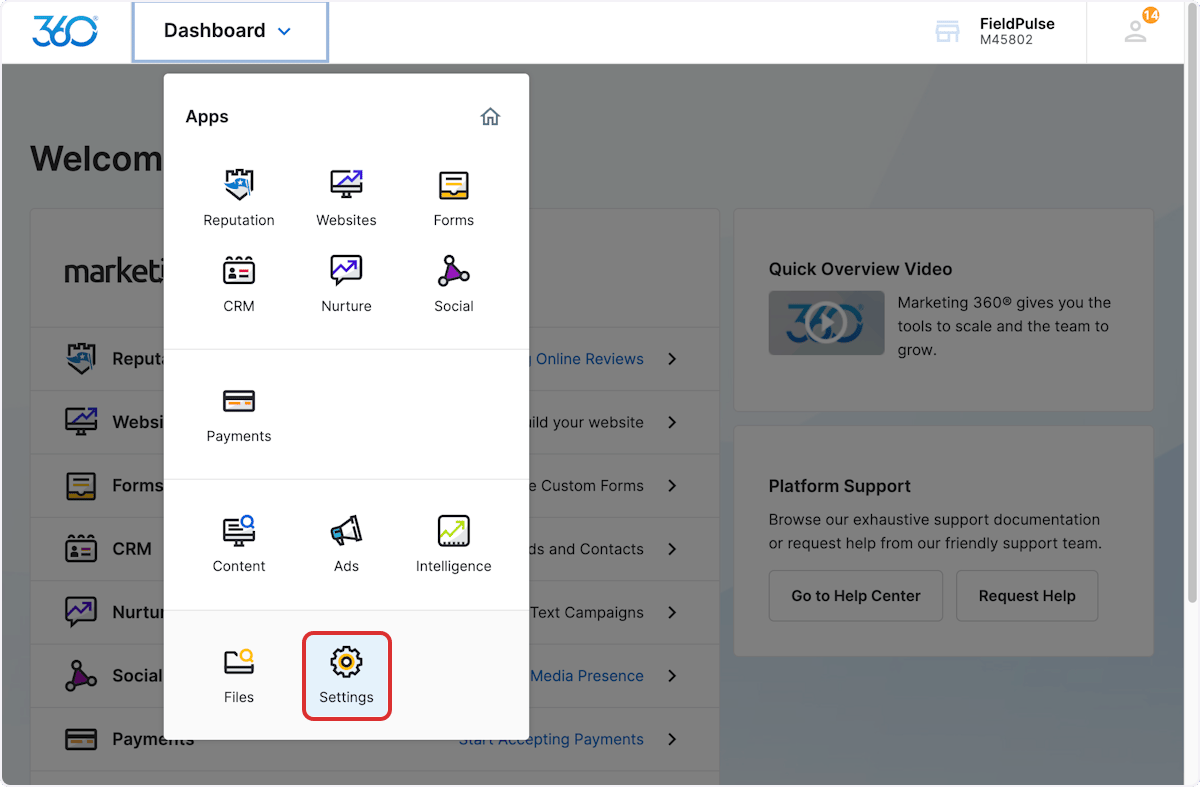
- In Marketing 360, navigate to Dashboard, then select Settings.
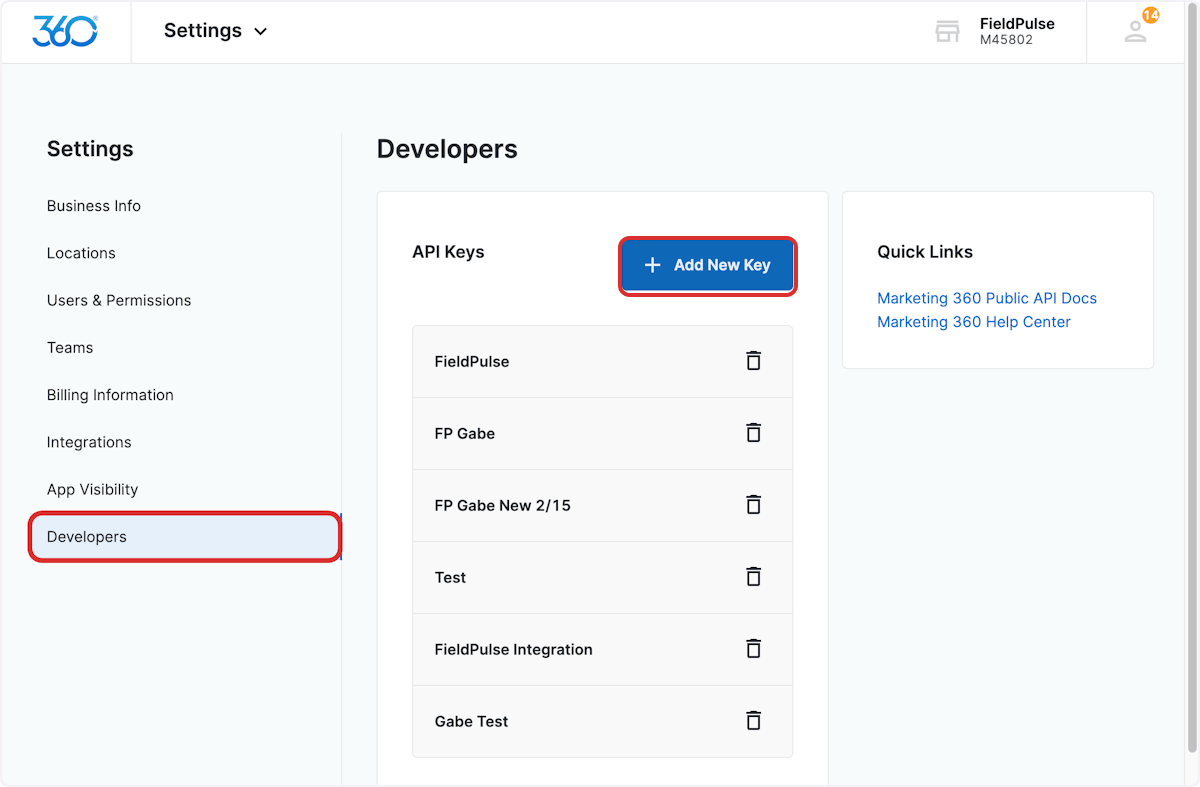
- Select Developers, then click Add New Key.
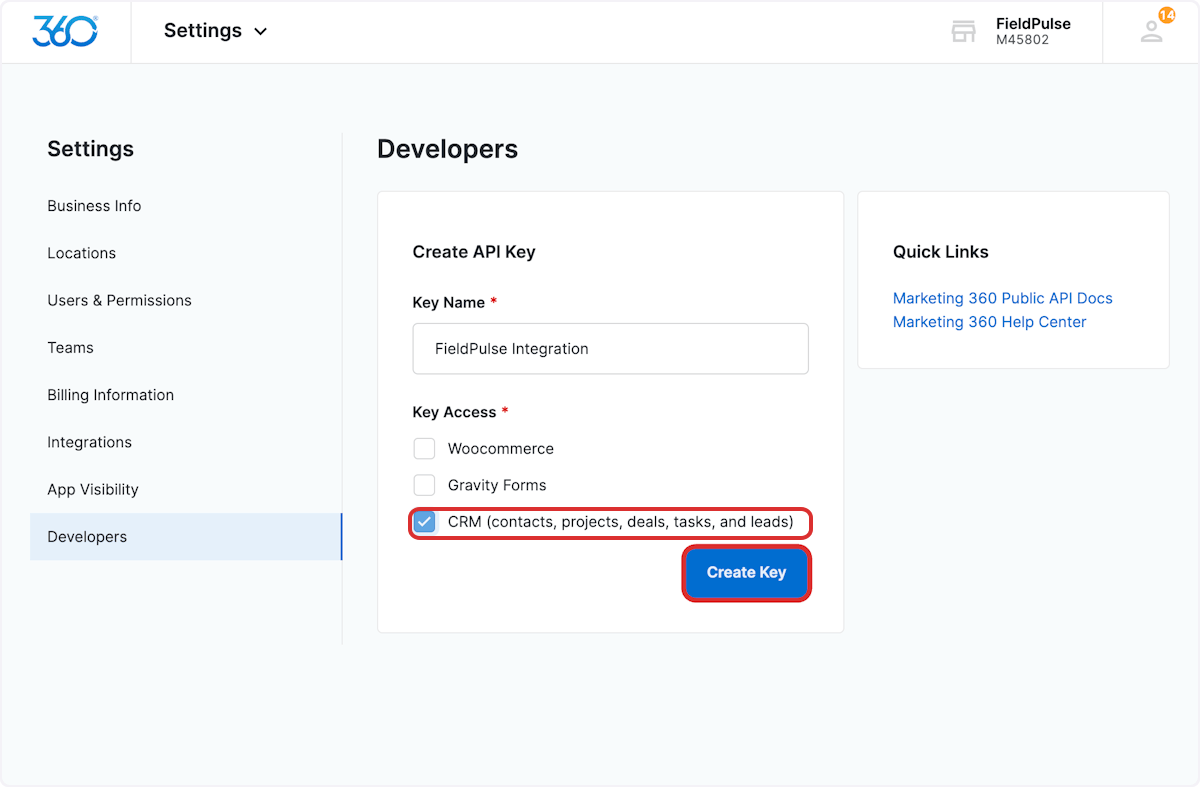
- Enter FieldPulse as the Key Name. Select the CRM checkbox, then click Create Key.
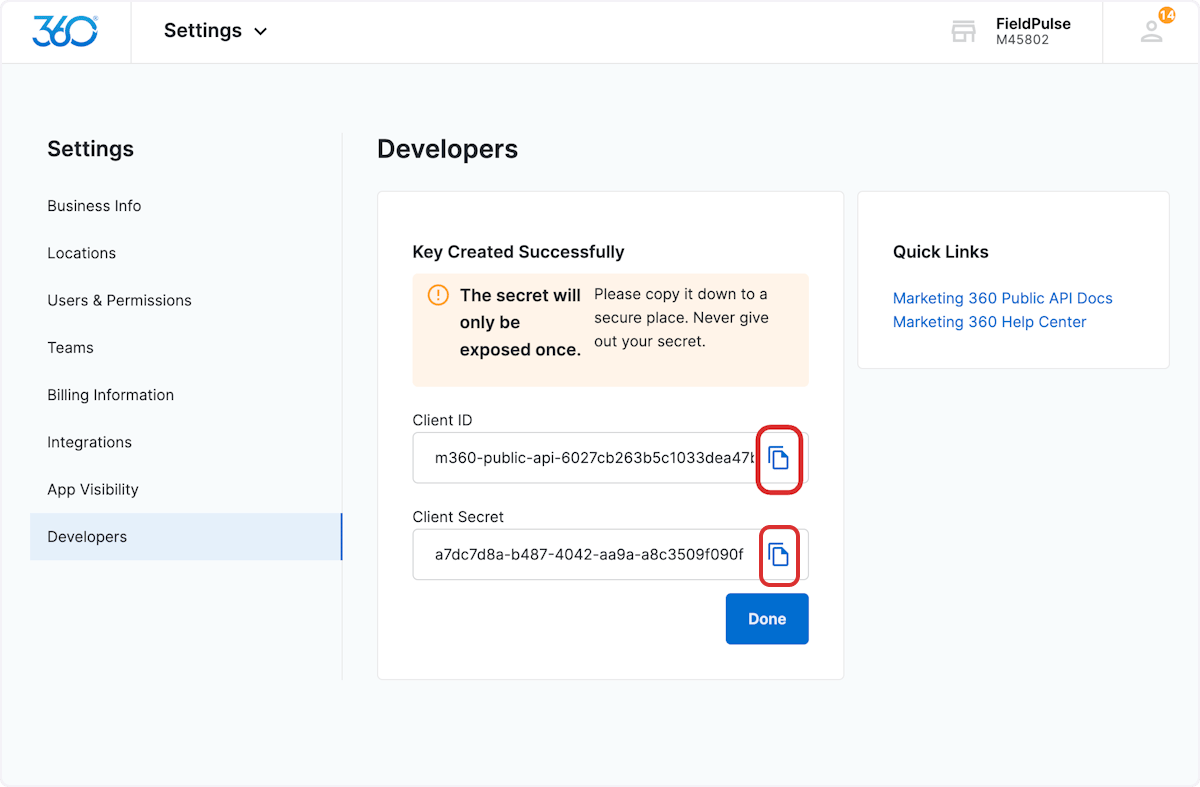
- A new API Key will be created, providing you with the Client ID and Client Secret. Copy the Client ID and the Client Secret. (Note: If you navigate away from this page or press Done, you will not be able to access the Client ID and Client Secret again without repeating the steps outlined above.)
- Use the chat in the bottom right corner to provide your Client ID and Client Secret to the FieldPulse Support Team. Our team will complete the remaining steps to set up your integration!
Sync Instructions
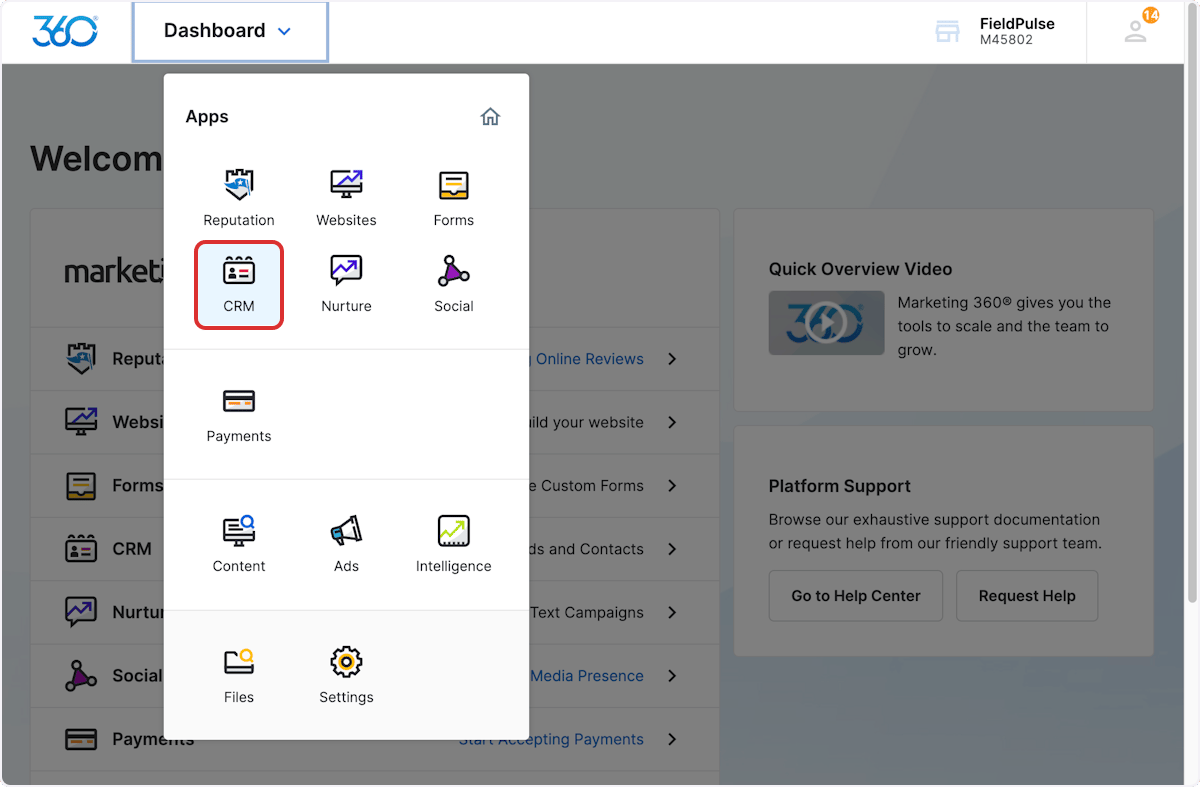
In order to sync lead sources, custom tags, customer types, and statuses, the list of options must exist in both Marketing 360® and FieldPulse. If the matching values are not available in Marketing 360®, then the value will not sync.- In Marketing 360, navigate to Dashboard, then select CRM.
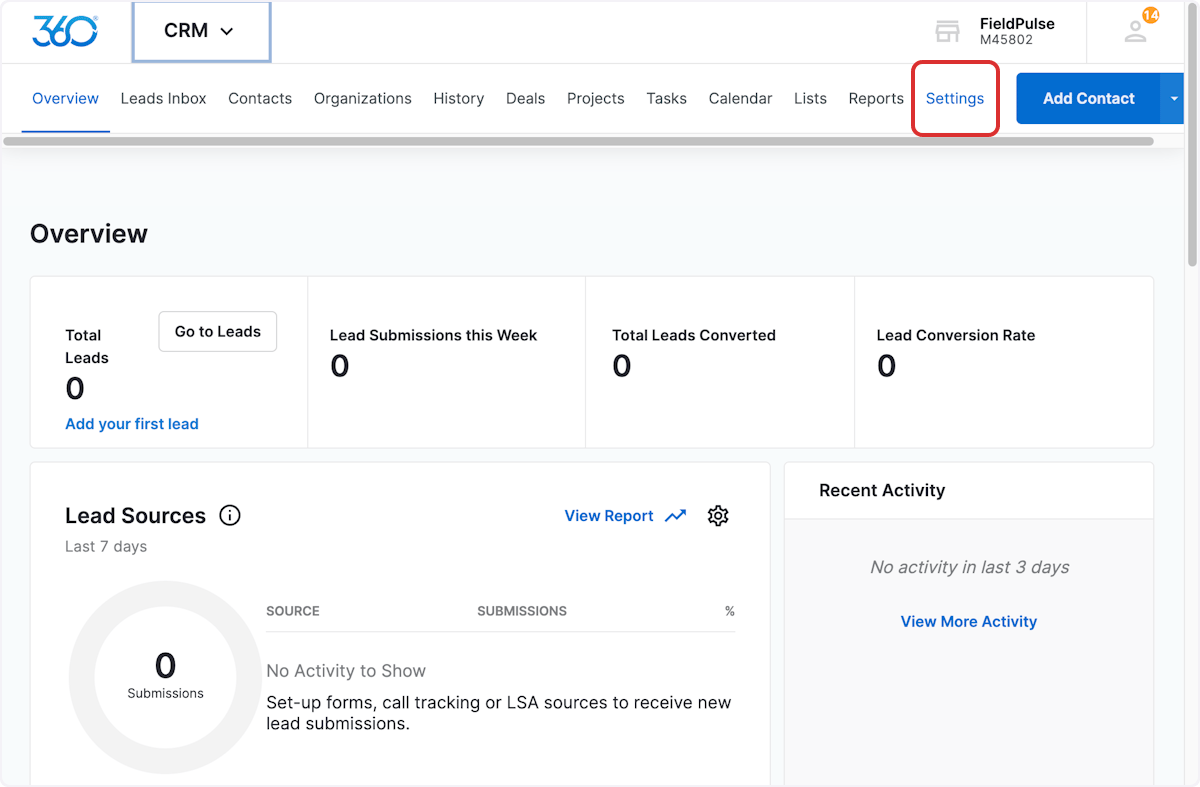
- Once on the CRM page, select Settings.
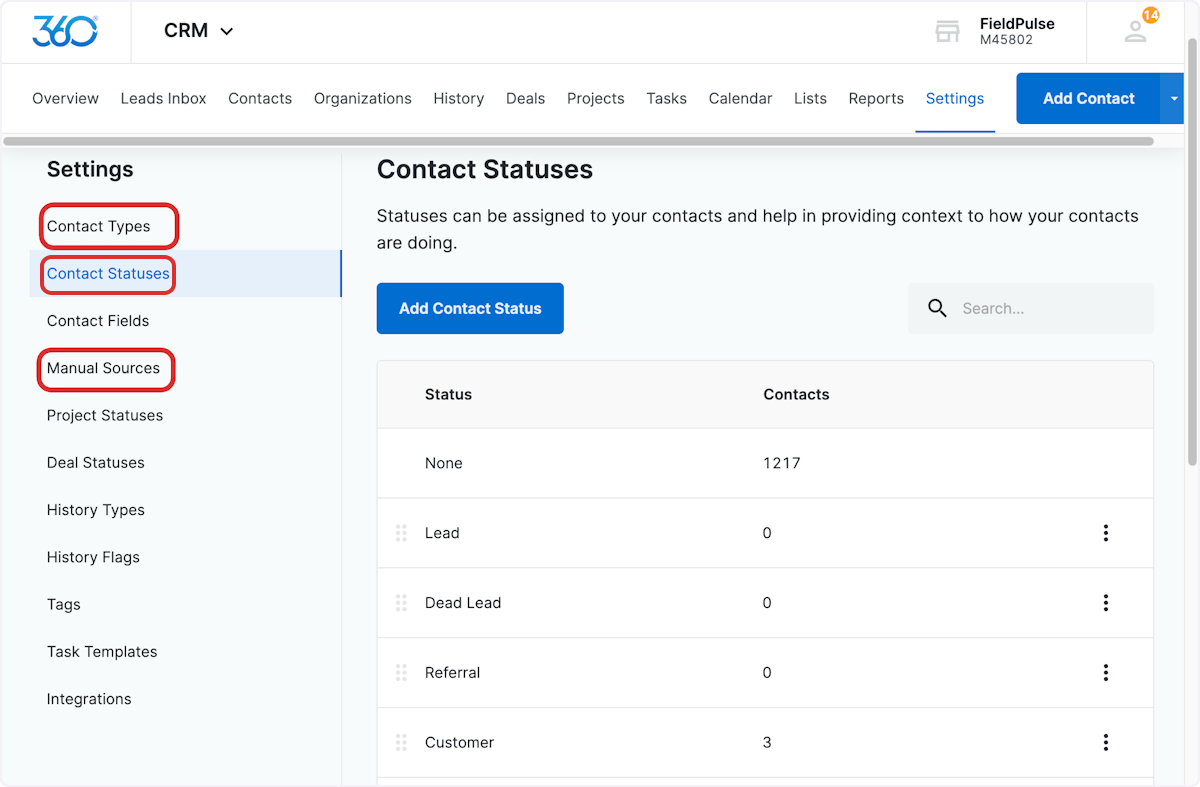
- You can now add/adjust the various Marketing360 fields to ensure they match your entries in FieldPulse.
Syncing Existing Customers
Only customers created once the Marketing 360® integration has been set up will sync from FieldPulse to Marketing 360®. If you have been using FieldPulse before integrating with Marketing 360®, you’ll want to sync all existing customers from FieldPulse to Marketing 360®. To do so, contact us at support@fieldpulse.com or via the chat in the bottom right corner. (Note: the customers may sync to Marketing 360® slowly depending on the quantity.)Have additional questions? Contact us at support@fieldpulse.com or use the chat feature in the bottom right corner of your screen.