
Overview
If you use Thumbtack to win new business, you already know the drill: a lead comes in, and then you manually key it into FieldPulse. It’s time-consuming and easy to miss. The Thumbtack integration changes that. Once connected, every new lead from Thumbtack automatically creates a Customer record in FieldPulse. You can also configure FieldPulse to create a Job for each lead mapped to your specific Thumbtack business profiles and job templates so your team can get to work right away. Think of a roofing company running multiple Thumbtack profiles for different services. With this integration, leads from their “Roof Repair” profile can automatically generate a Job using their Roof Repair template, while leads from “Gutter Cleaning” use a different one. Everything lands in FieldPulse categorized and ready to assign.Prerequisites
- You have Admin permissions in FieldPulse to enable and set this integration up in your account.
- An active Thumbtack account with at least one business profile.
This integration is configured via the web app only. But rest assured that leads created via this integration will appear in your mobile app once they’re in your account.
On Web: Admin Experience
Here’s how to connect Thumbtack to FieldPulse and configure how you want leads to flow in.Step 1: Enable the Integration
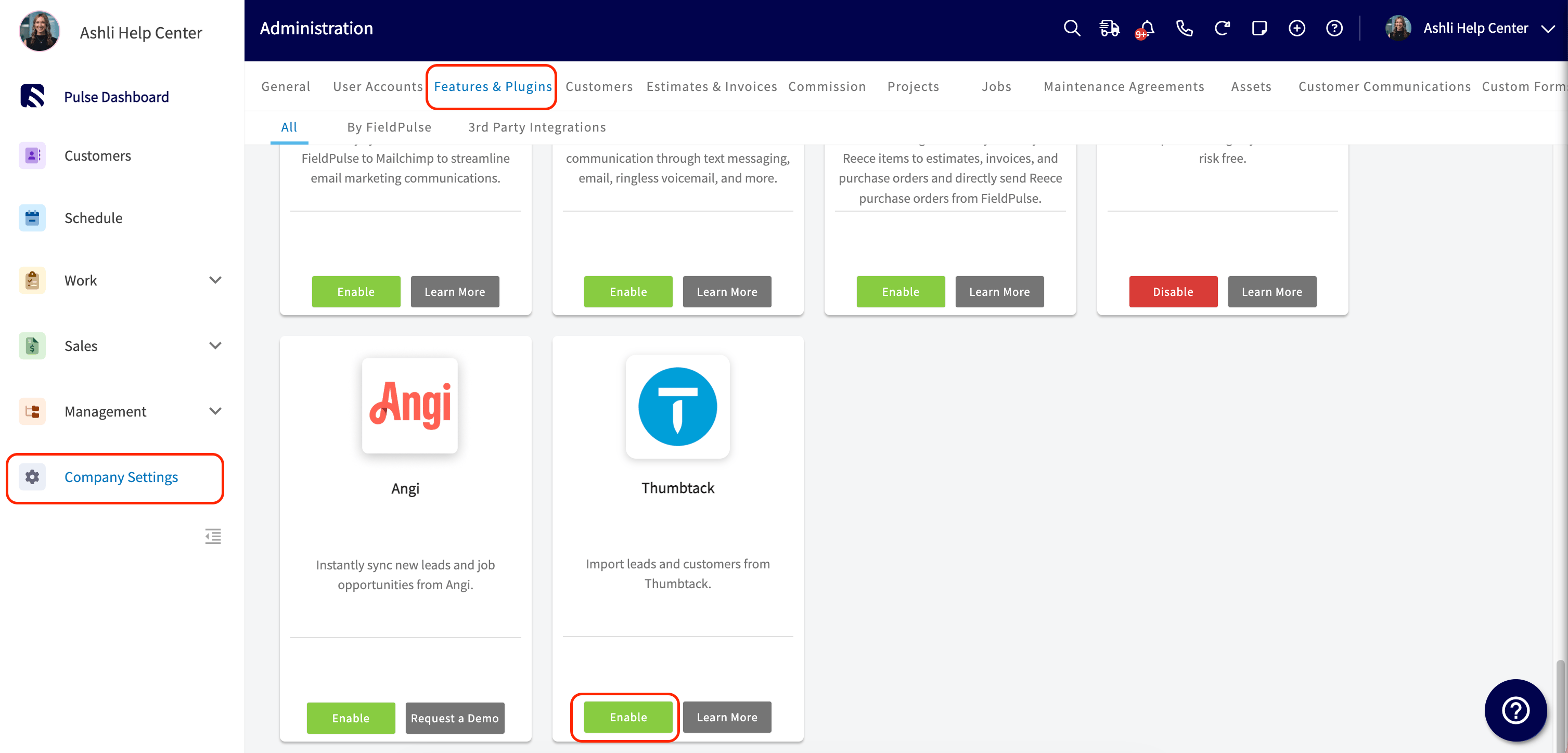
- Go to Company Settings > Features & Plugins.
- Locate the Thumbtack tile and click Enable.
- You’ll be redirected to Thumbtack’s sign-in page. Log in with your Thumbtack credentials.
- Once authenticated, you’ll be redirected back to FieldPulse, where a configuration pop-up will appear.
Step 2: Configure Your Settings
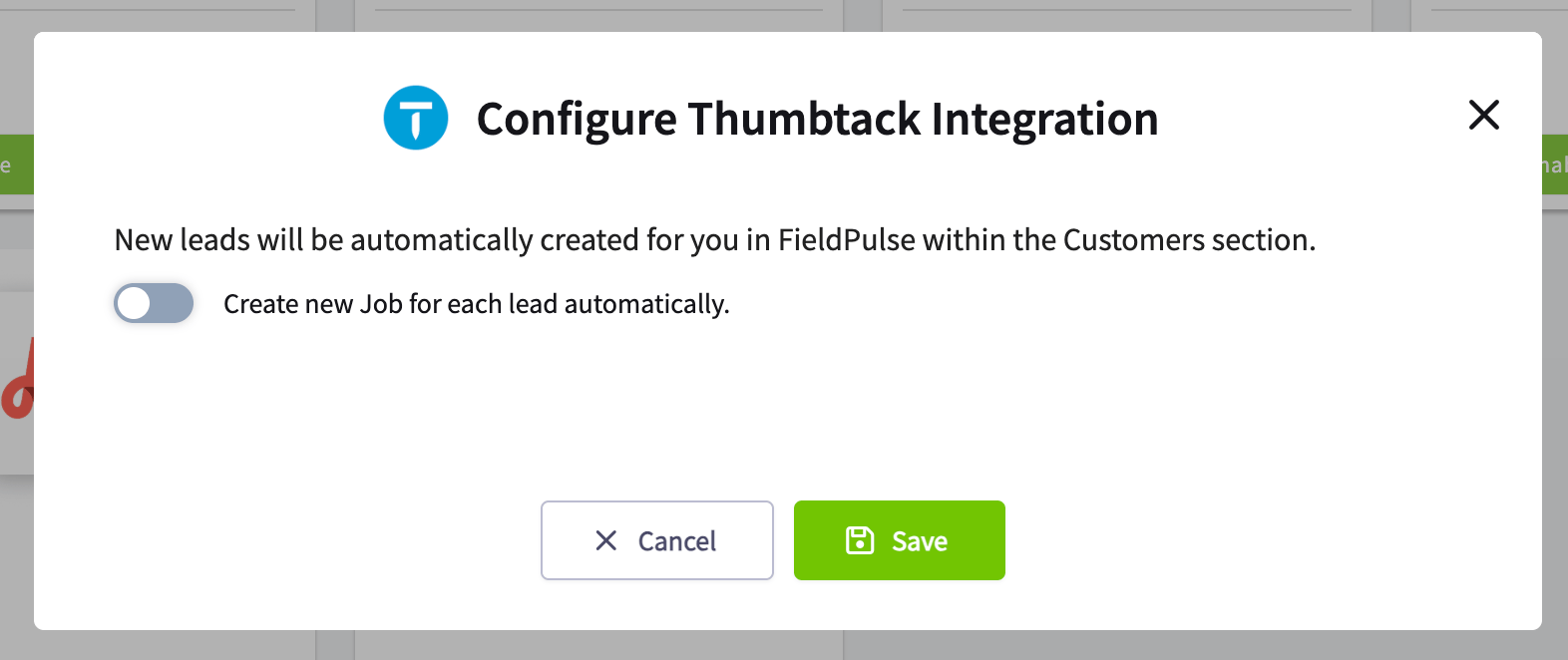
Inside the configuration pop-up, you’ll see the following:- A confirmation that new leads will automatically be created as Customer records in your Customers section.
- A toggle labeled Create new Job for each lead automatically.
- If you select a template, Jobs created from that profile’s leads will use that template (including any assigned technician, workflow, or other settings defined in the template).
- If you don’t select a template, FieldPulse will create a generic, unscheduled, and unassigned Job.
Step 3: Save Your Configuration
Once you’ve made your selections, save your configuration. The Thumbtack tile in Features & Plugins will now display a Configure button.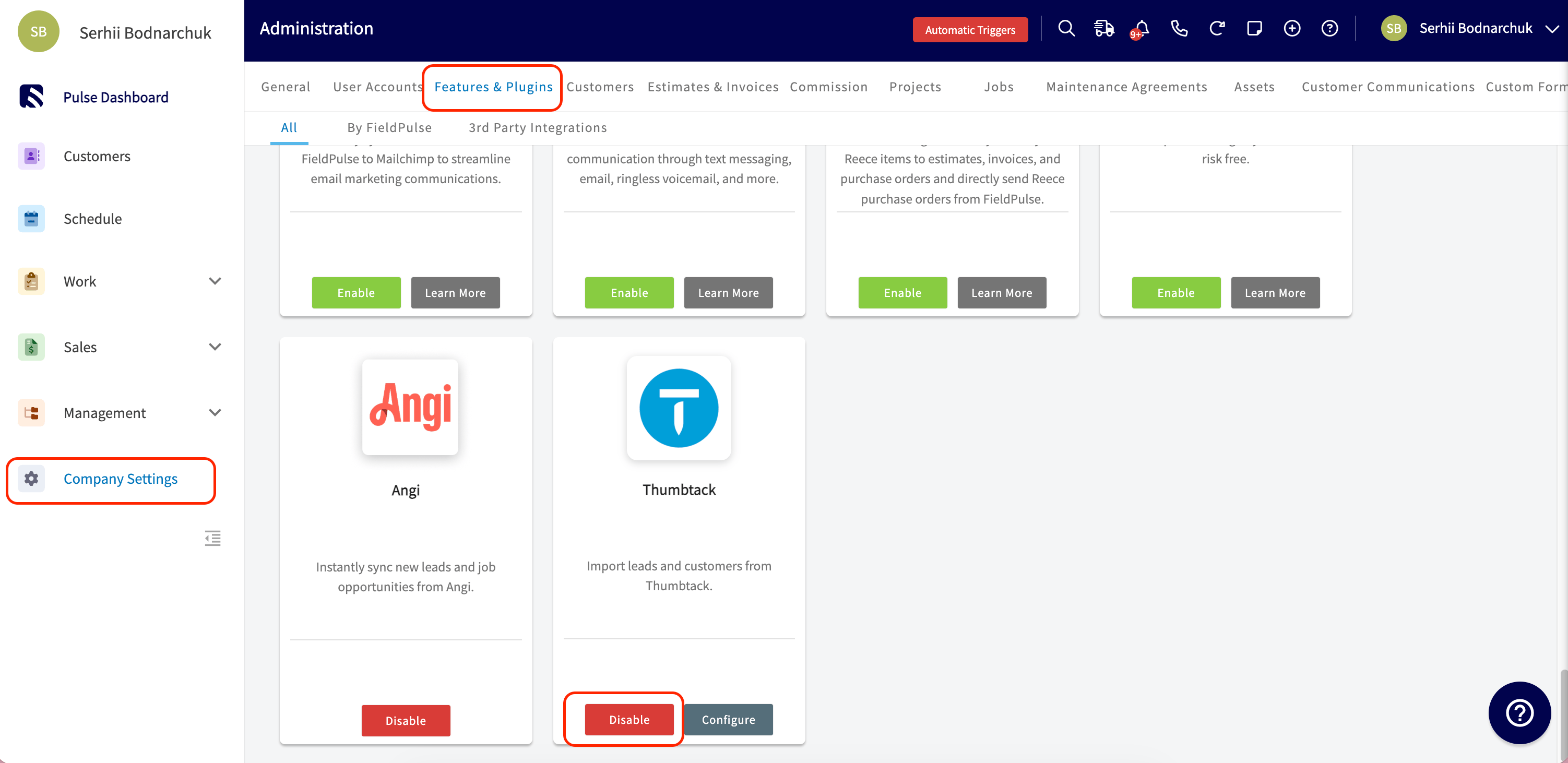
- Go to Company Settings > Features & Plugins.
- Click Configure on the Thumbtack tile.
- Adjust your preferences and save.
Disabling the Integration
To stop leads from flowing into FieldPulse from Thumbtack:- Go to Company Settings > Features & Plugins.
- Click Disable on the Thumbtack tile.
- Confirm the action in the pop-up that appears.
On Mobile: Admin Experience
The Thumbtack integration cannot be enabled or configured from the FieldPulse mobile app. All setup must be completed on the web. Once the integration is active, any Customers or Jobs created from Thumbtack leads will appear in the mobile app and behave like any other record.How the Integration Works
Once enabled, here’s what happens behind the scenes each time a new lead comes in from Thumbtack.A New Customer Record Is Created
FieldPulse checks whether the lead already exists as a customer using their name and address. If no match is found, a new Customer record is automatically created and assigned to the founding Admin. A few things to know:- The Lead Source field is automatically set to Thumbtack on the new Customer record.
- A Thumbtack tag is automatically added to the record.
- Because Thumbtack does not provide customer email addresses, and currently uses intermediary phone numbers, FieldPulse matches existing customers by name and address — not email or phone.
- If a match is found and the phone number from Thumbtack differs from what’s on file, FieldPulse adds the Thumbtack number as a secondary phone number. The existing number on the record is not overwritten. The phone number provided by Thumbtack will never change for the customer attached. You can use either the Thumbtack provided phone number or the number you have on record to communicate with this customer. However we do recommend that you initially contact the customer via the Thumbtack number as the speed and quality of your response is a consideration used to rank your profile on Thumbtack. Alternatively, you can enable an auto-response to leads in your Thumbtack Account and then follow up with the customer through another channel. This will ensure your Thumbtack Account stays in good standing as a responsive Pro.
A New Job Record Is Created (If Enabled)
If you turned on Create new Job for each lead automatically, FieldPulse creates a Job for each new lead. Here’s how the Job is configured:- Job title/description: Pulled from the lead’s request description in Thumbtack.
- Customer: Linked to the newly created or matched Customer record.
- Status: Unscheduled, following the Default Workflow — unless a Job template with a different workflow is selected.
- Assigned user: Unassigned by default unless the selected Job template specifies an assigned user.
- Job notes: Populated with the full request details from Thumbtack, including: request description and category, questions and answers from the lead, proposed appointment times, estimate details, and any attachments.
- Lead Source and Tag: Set to Thumbtack automatically.
Our system does not automatically notify your customers when a Job is created for them. These notifications require you to create an Automatic Trigger. If you create an Automatic Trigger to send a customer email or text immediately when a Job is created, it will not fire for Jobs created through the Thumbtack integration. Customer Communications set to trigger at other steps in the Job workflow will still send as configured; only “When job is newly created” triggers are disabled for Thumbtack-created Jobs.
On Mobile: Field Experience
As a technician, you don’t need to do anything to receive Thumbtack leads — your admin handles the setup. Once a lead comes in, it shows up as a Customer record and, if configured, a Job record in FieldPulse — just like any job your dispatcher assigns to you. Here’s how to find and act on a job that came from Thumbtack:- Open the FieldPulse mobile app and tap Jobs.
- Locate the job assigned to you. Jobs from Thumbtack are tagged with Thumbtack for easy identification.
- Tap the job to view details. The Notes section will contain the full lead information from Thumbtack, including the customer’s request, any questions they answered, proposed appointment times, and any attachments they provided.
- Use this context to prepare for the job before you arrive on-site.
Troubleshooting & FAQs
FAQs
Can I map different Job templates to different Thumbtack business profiles? Yes. When you enable the Create new Job for each lead automatically toggle, FieldPulse will display a table of your Thumbtack business profiles. You can assign a different Job template to each one. What happens to my existing Thumbtack leads if I disable the integration? Disabling the integration stops new leads from flowing in. Any Customer or Job records already created in FieldPulse are not affected. What if the phone number Thumbtack sends doesn’t match what’s already on a Customer record? FieldPulse will add the Thumbtack phone number as a secondary phone number on the existing Customer record. The original phone number will not be replaced.Have additional questions? Contact us at support@fieldpulse.com or use the chat feature in the bottom right corner of your screen.