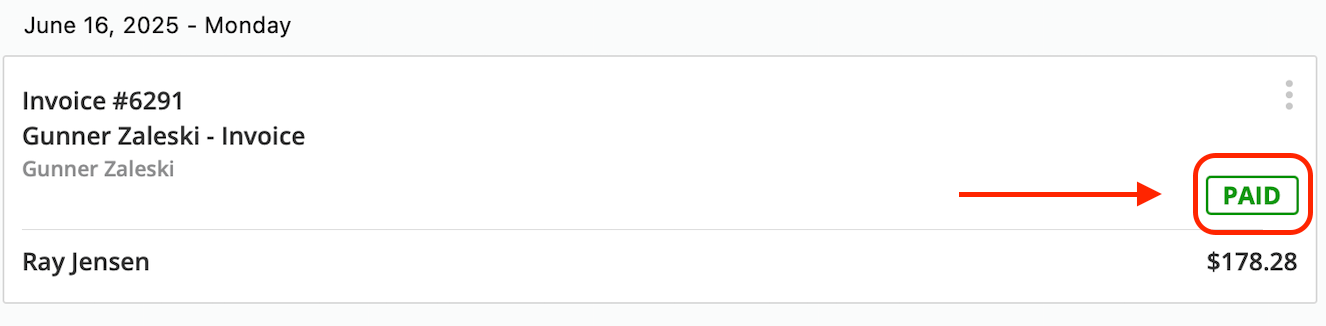
Who uses this: Users with FieldPulse Payments access — set per user under Company Settings > User Accounts. Availability: FieldPulse Payments is available to businesses located in the United States.FieldPulse Payments collects and tracks a customer’s card or ACH payment on the invoice record itself, so the money and the paperwork stay together. You can collect a payment three ways: email the customer an online payment request, process the payment on the mobile app in the field, or process the payment on the web app.
Overview
You can collect a payment three ways:- Email an online payment request from the web app or the mobile app, so the customer pays online by credit/debit card or bank transfer.
- Process the payment on the mobile app in the field, by typing or scanning the customer’s card.
- Process the payment on the web app, by entering the card on the invoice record.
Video walkthrough: FieldPulse Payments
Before you begin
- Collecting card payments, collecting ACH payments, and sending payment requests require FieldPulse Payments on your account. See Setting Up FieldPulse Payments, or email support@fieldpulse.com or use the chat feature in the bottom-right corner of your screen.
- To record a payment your customer already made another way, see How to Mark a Payment instead.
On web
Process a card payment on the web app
Charge a customer’s card from the invoice record you want to collect on.- Open the invoice record you want to collect on.
-
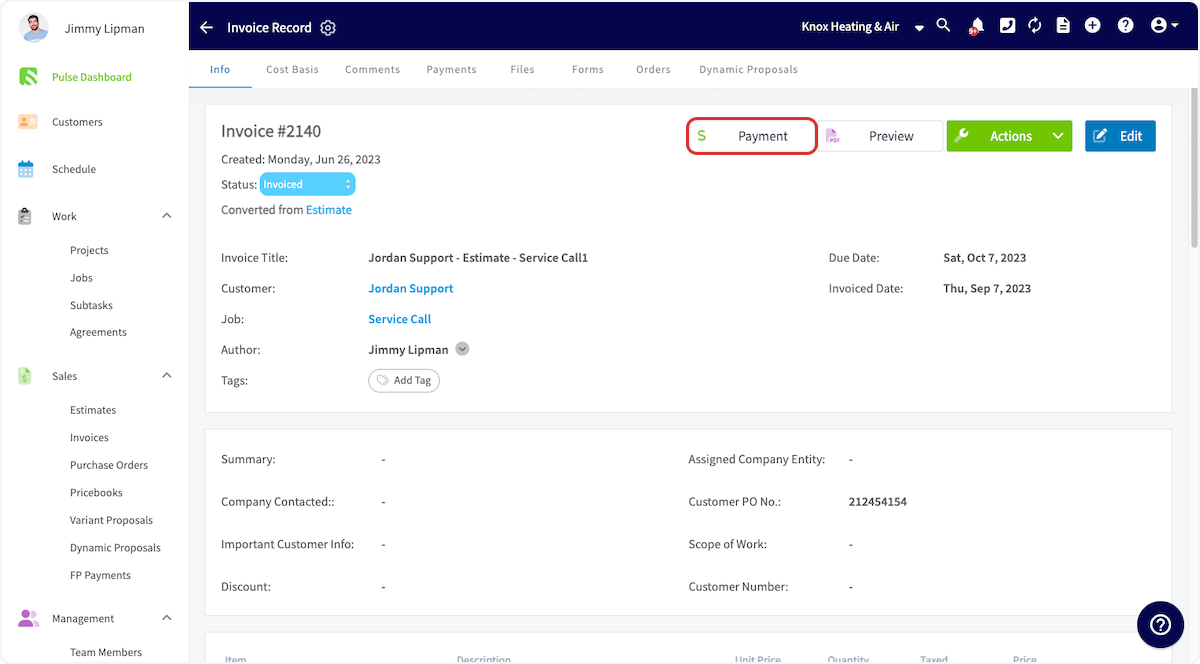
Select Payment.
-
In the window that opens, select Take Payment.
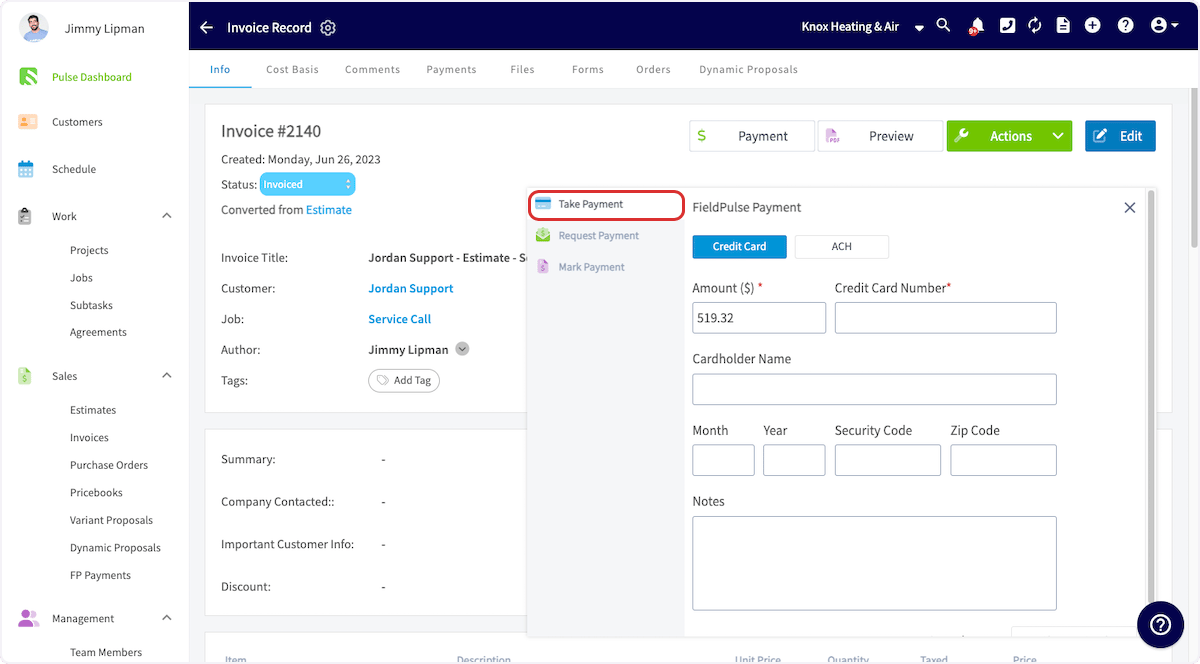
- Enter the card details. The Charge Card button in the lower-right corner becomes available once the details are complete.
- Select Charge Card.
Email a payment request from a preview
Attach an online payment request to the estimate or invoice you email the customer, so they can pay by credit/debit card or ACH.-
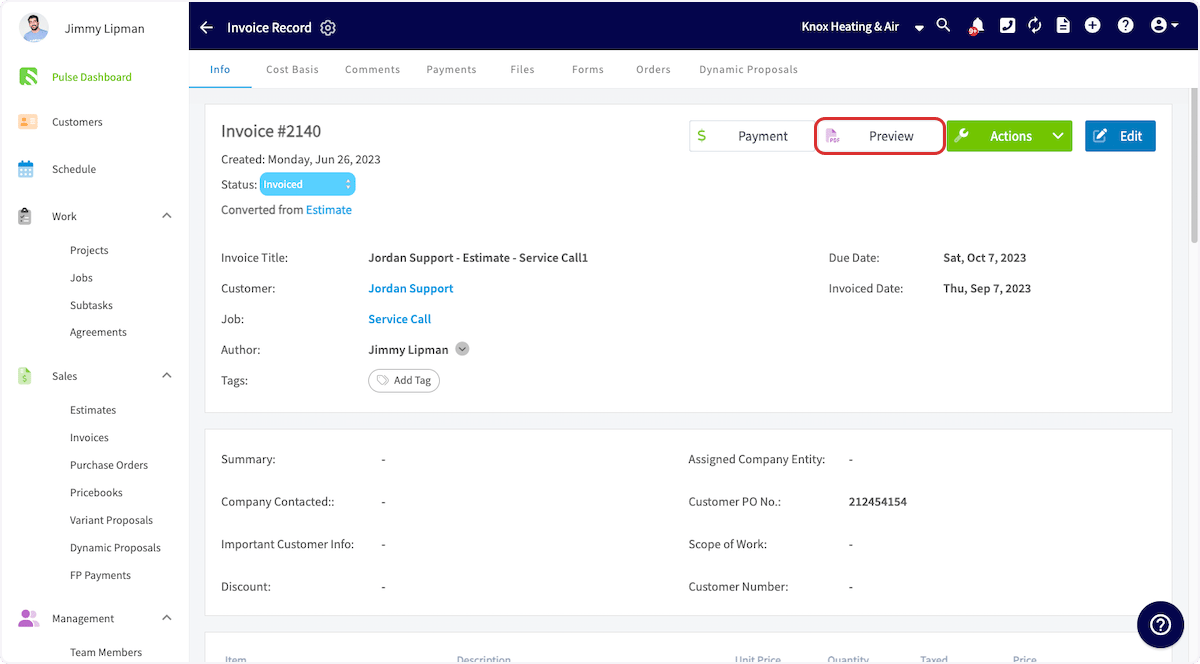
Open or create the estimate or invoice you want to collect on, then select Preview to generate it.
-
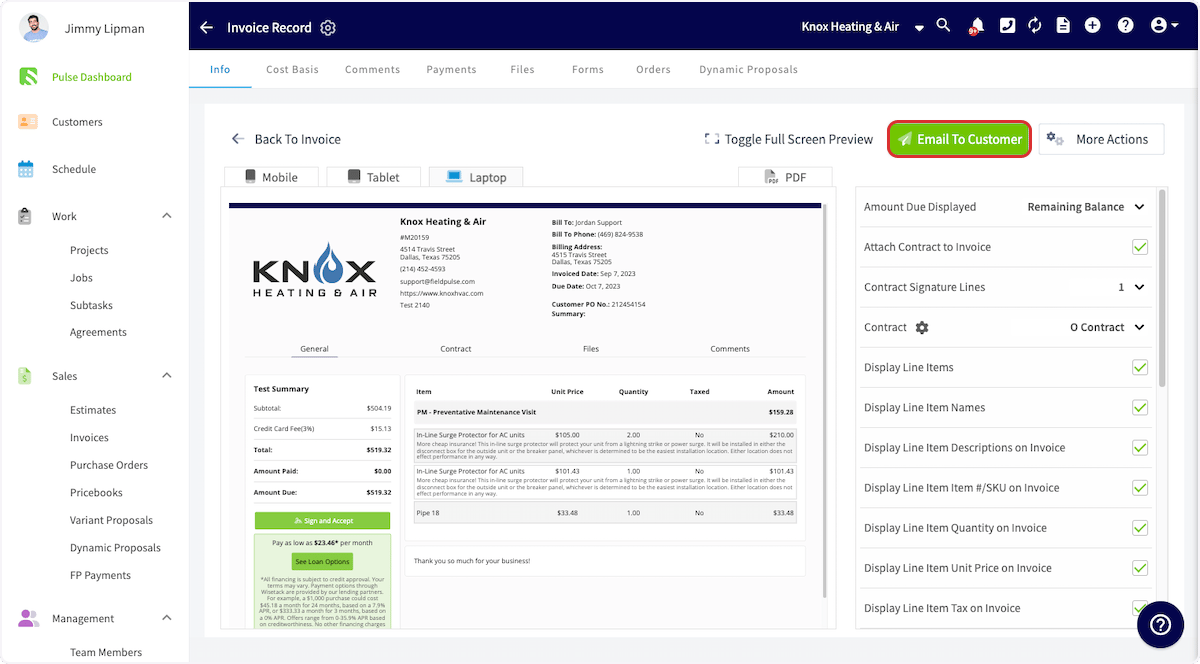
Select Email To Customer.
-
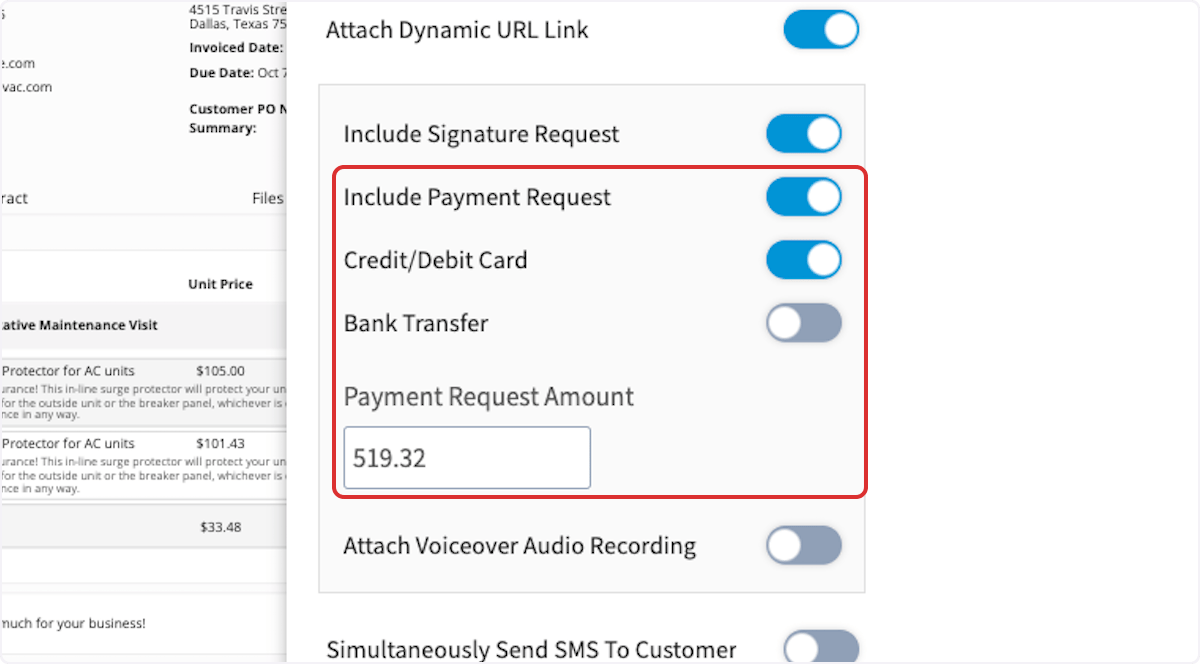
Adjust the email message, then toggle on Include Payment Request and enter the payment request amount.
-
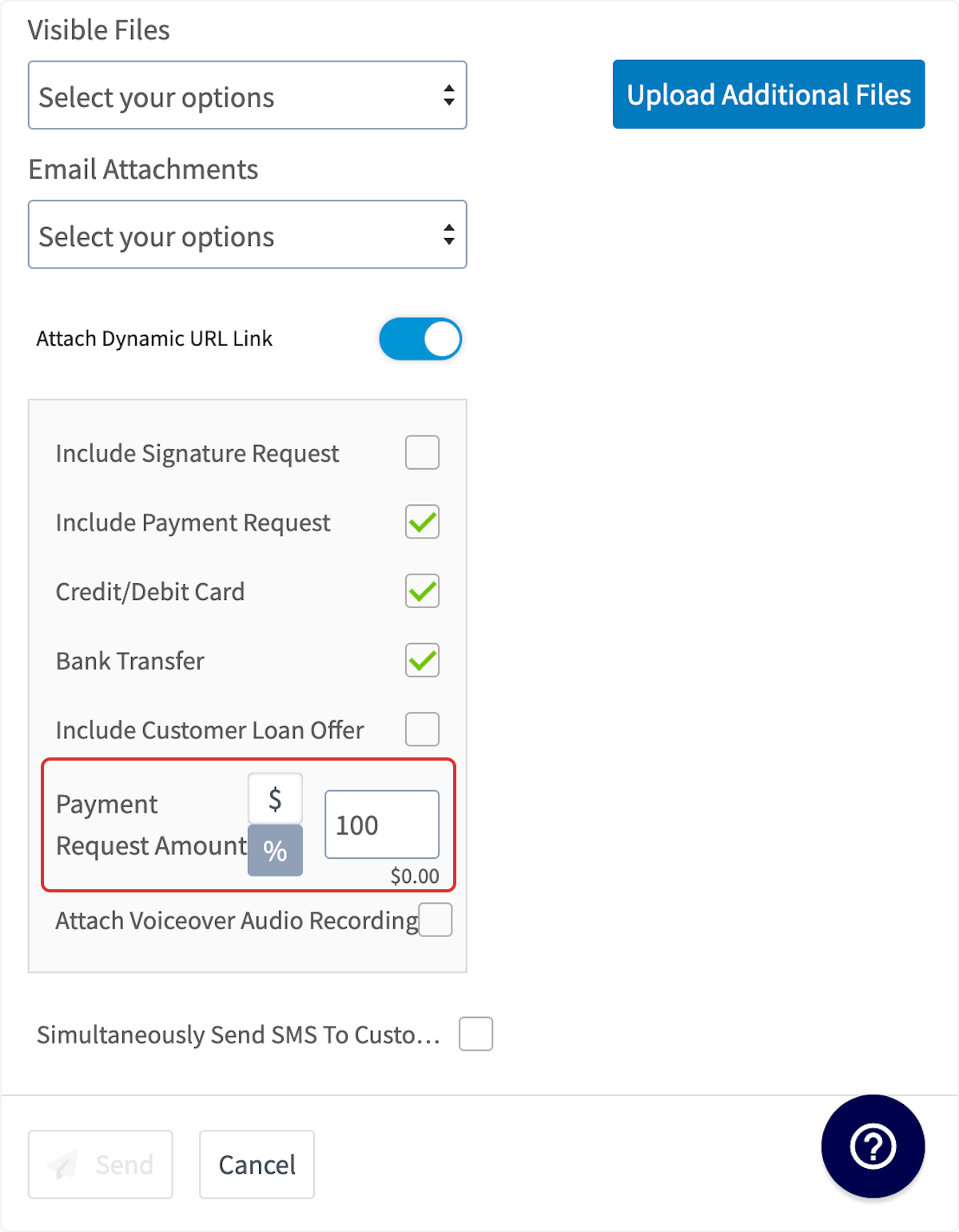
On an estimate, request a specific dollar amount or a percentage of the total.
- Send the estimate or invoice with the payment request to the customer.
Video walkthrough: taking payment on estimates
Email a payment request from the invoice record
Insert a payment link into an email straight from the invoice record.- Open the invoice record and select Payment.
-
Choose Request Payment to insert a payment link.
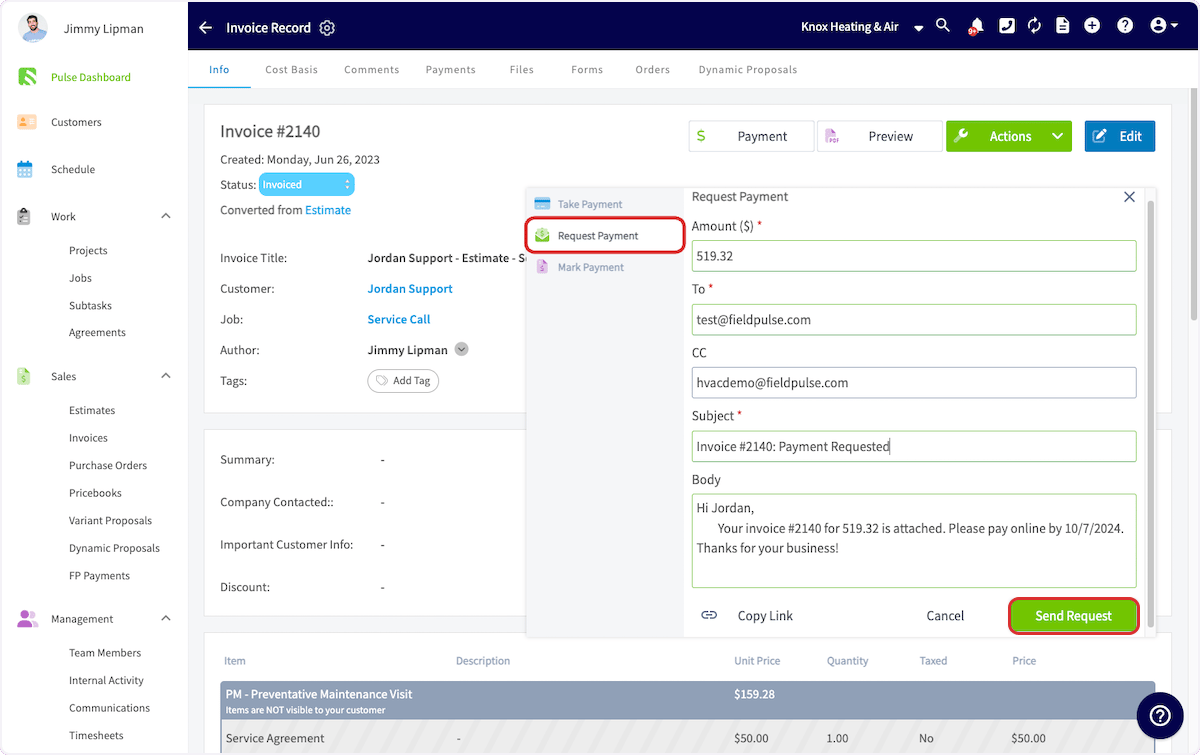
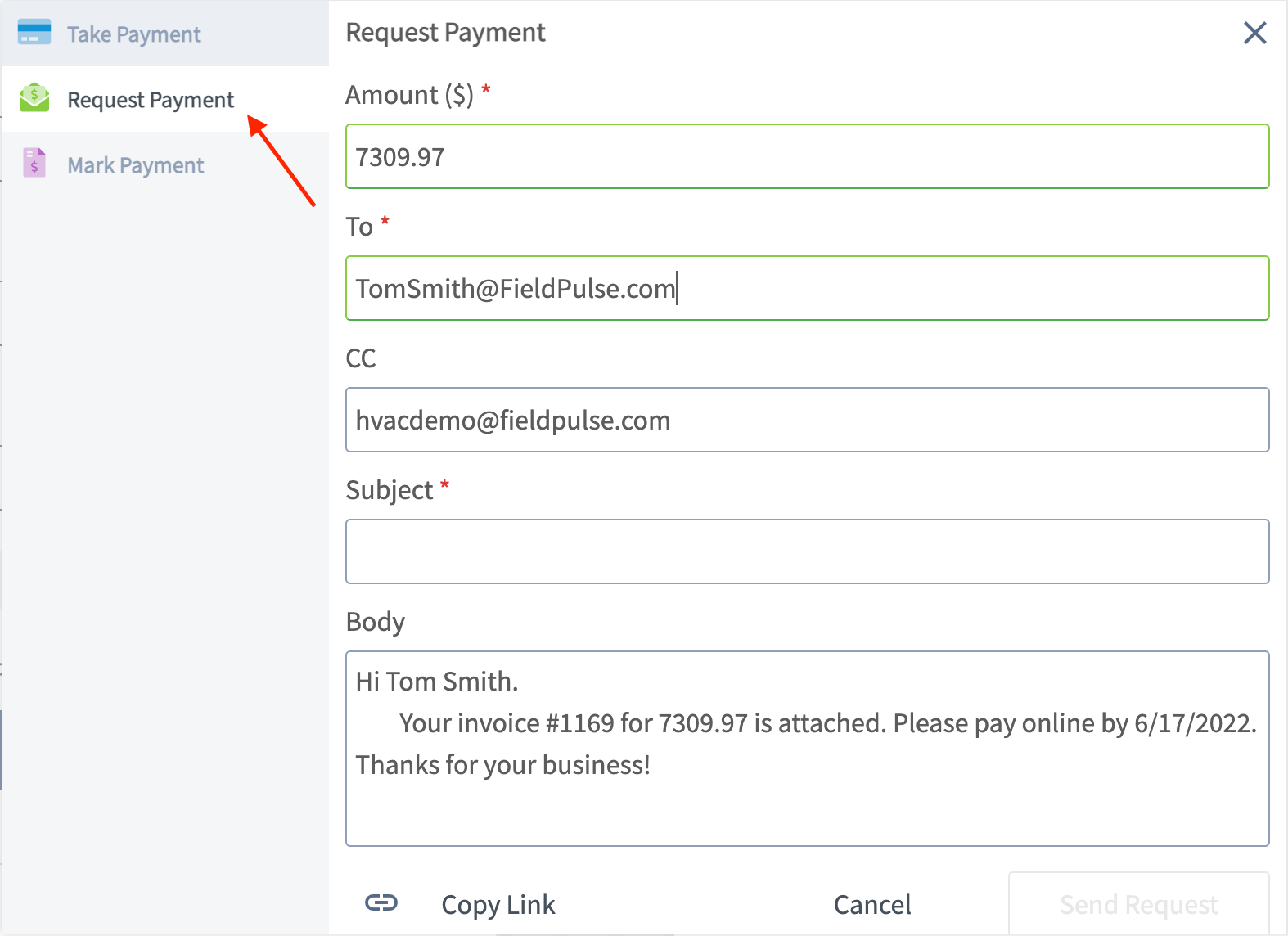
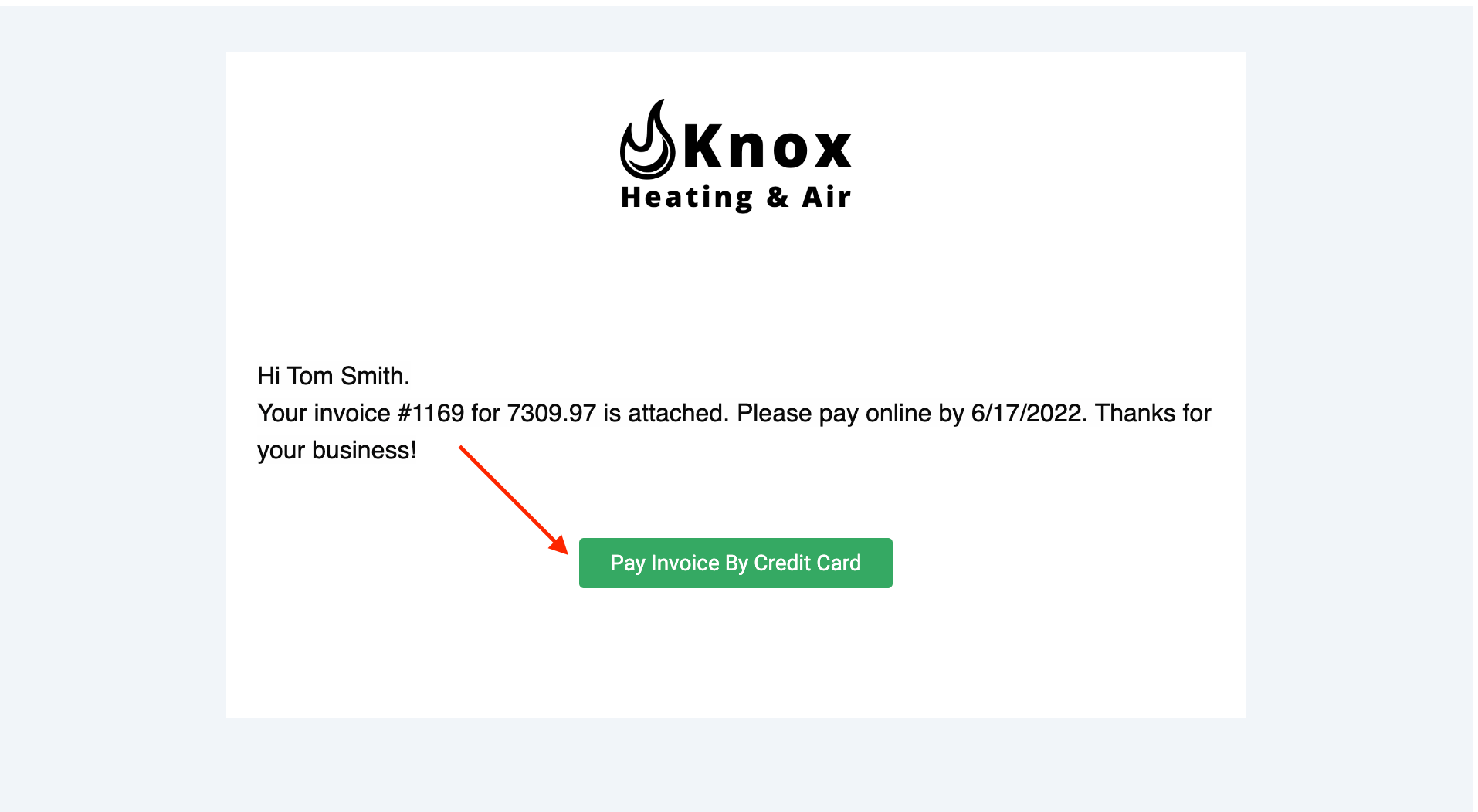
- Check the amount, recipient, subject, and message, then select Send Request to email the invoice and payment request to the customer.
Video walkthrough: collecting payments in the web app
On mobile
Open the invoice
Every mobile payment method starts from the invoice record.-
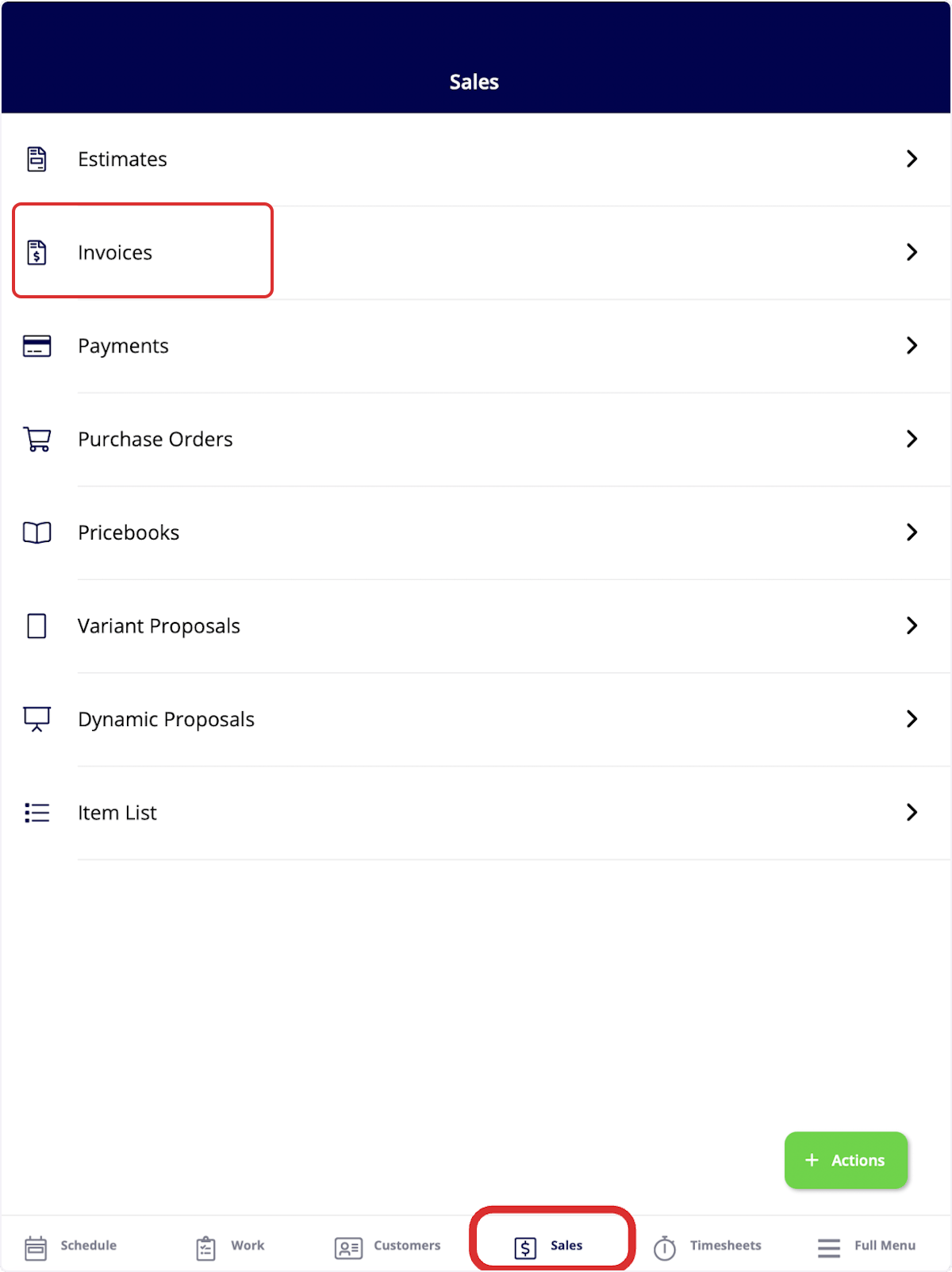
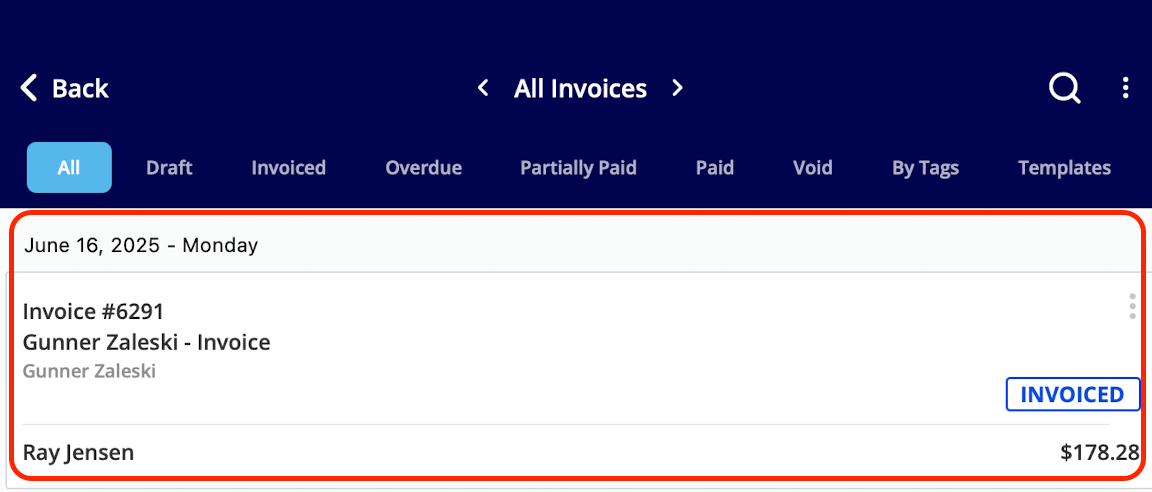
Select the Sales tab at the bottom of your screen, then select Invoices.
-
Select the invoice record you want to apply payment to.
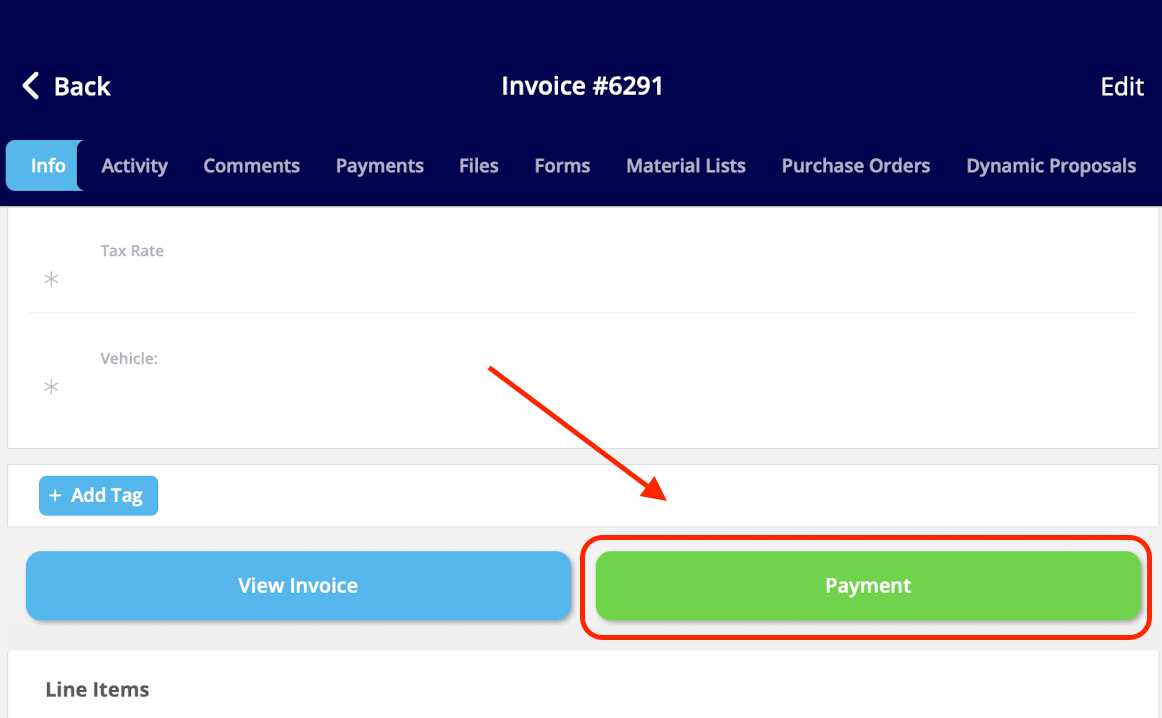
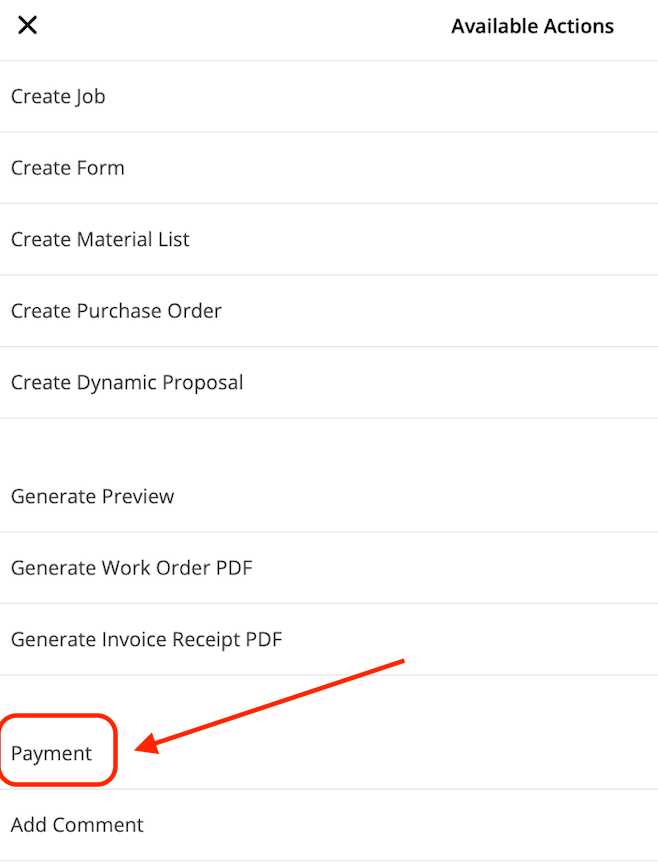
- Select Payment.
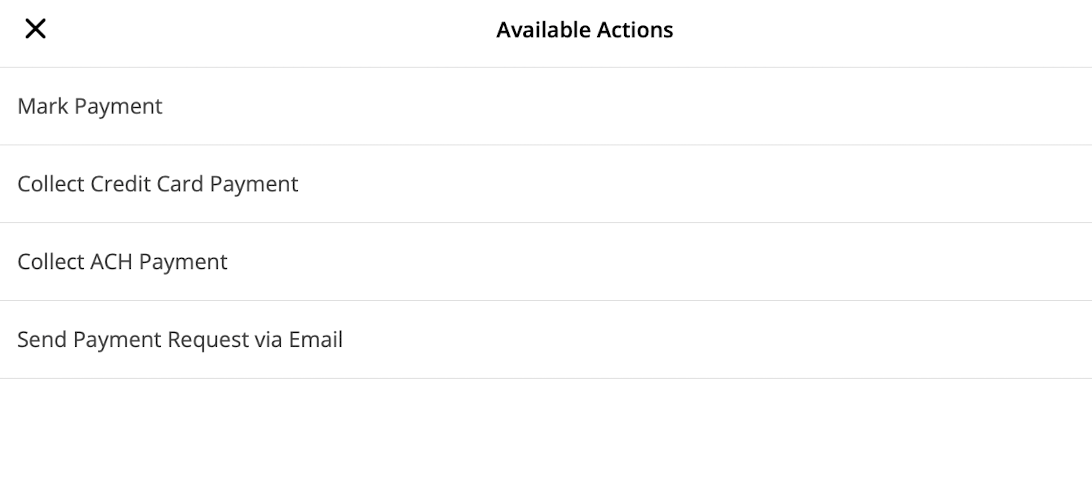
Collect a credit card payment in the field
Take the card in person and charge it from the invoice record.- Select Collect Credit Card Payment.
- Adjust the payment amount and add any notes.
- Type the card details, or select the credit card icon to scan the card with your device’s camera.
- Select Collect Payment.
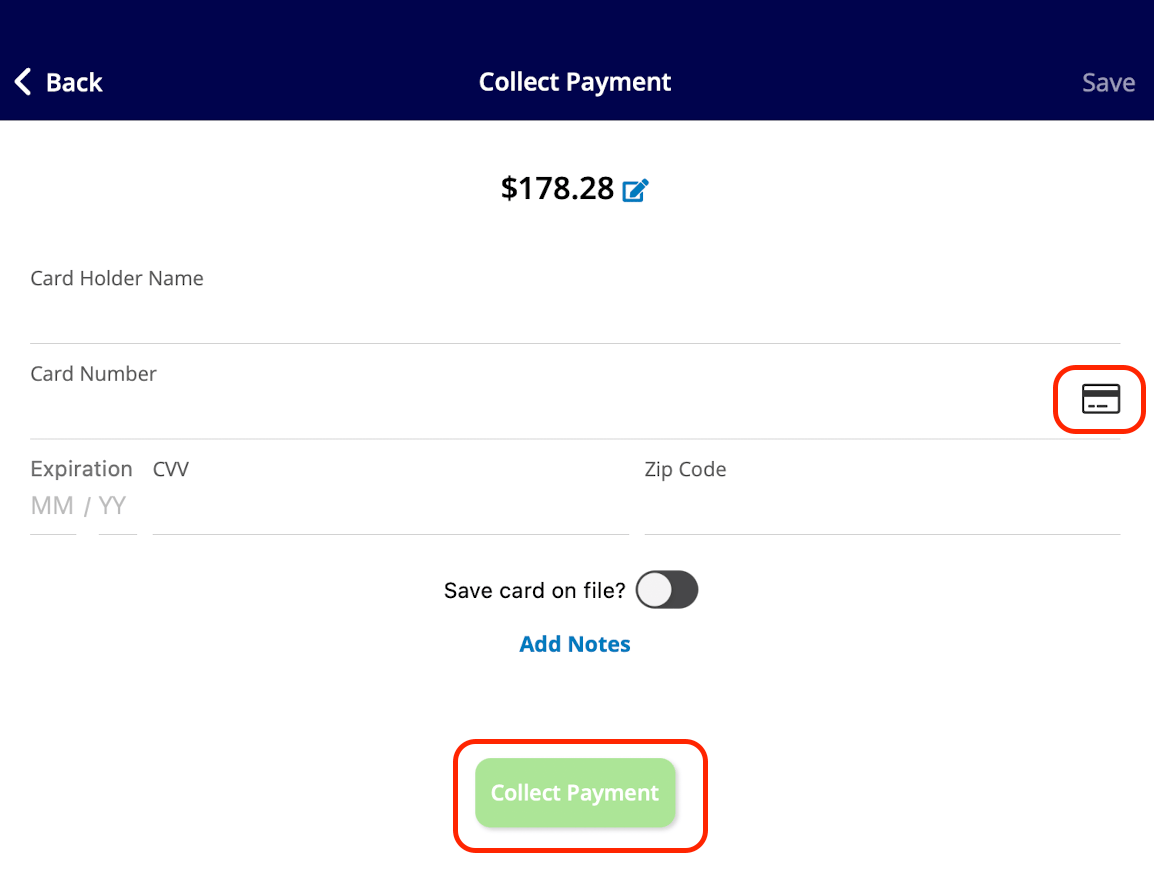
Collect an ACH payment
Take payment straight from the customer’s bank account on the mobile app.- Select Collect ACH Payment.
- Select the account type — personal or business checking or savings.
- Enter the account holder’s first and last name, routing number, and account number.
- Select Collect Payment.
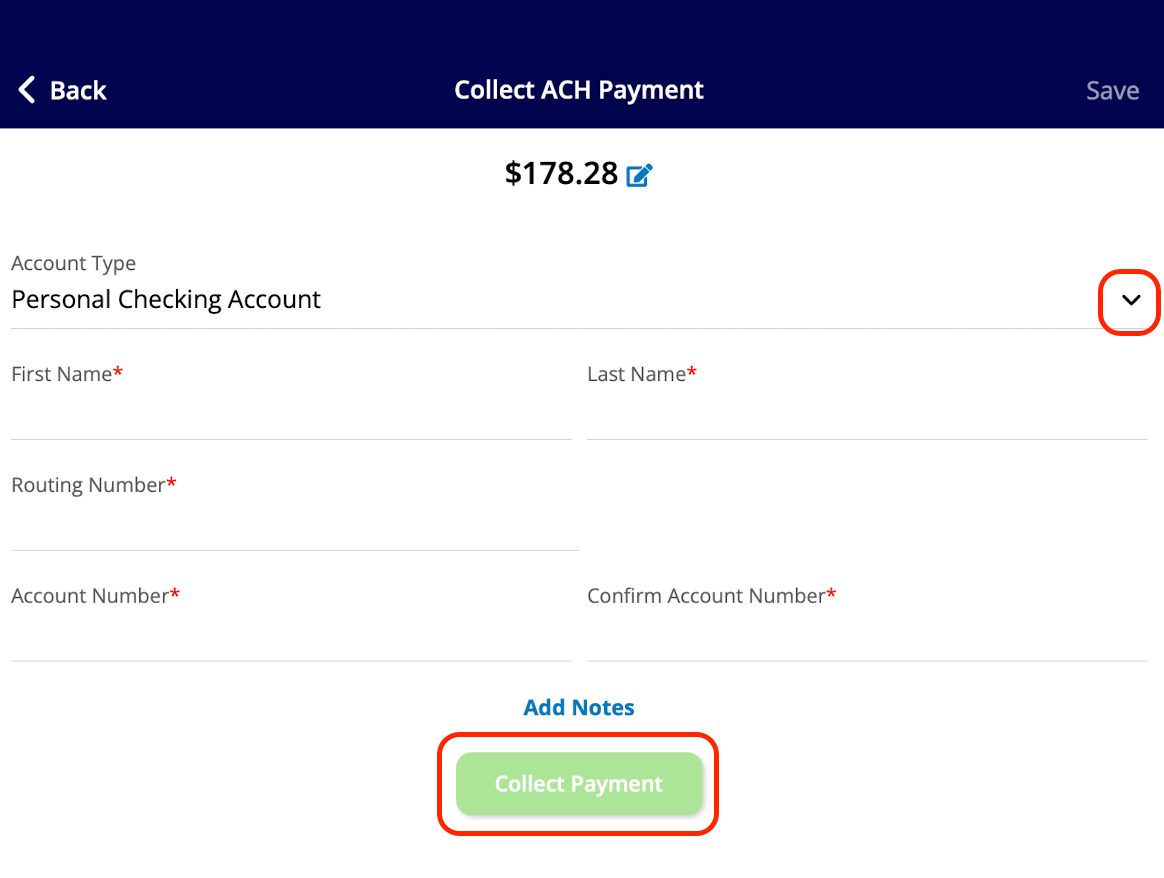
Send a payment request by email
Email the customer a payment link from the invoice record on your phone.- Select Send Payment Request via Email.
-
Adjust the requested payment amount, then select Copy Payment Link or Insert Payment Link into Email.
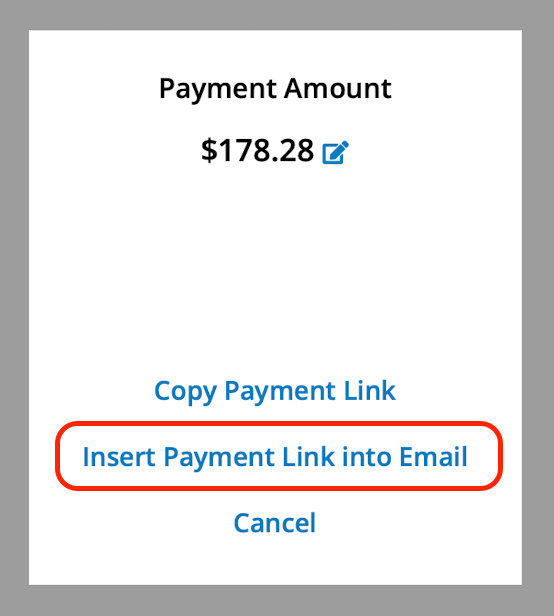
-
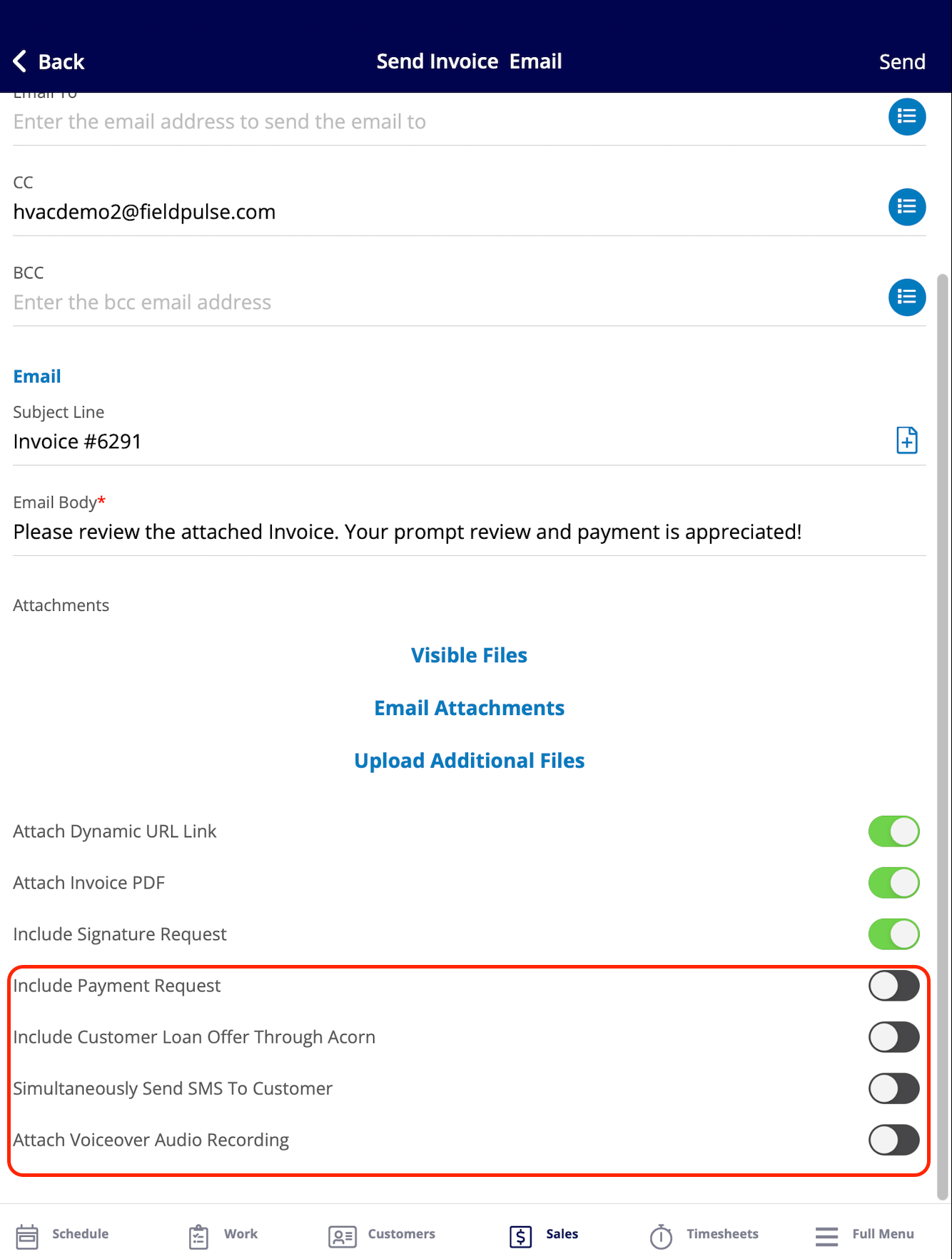
Adjust the email with the toggles at the bottom before sending:
- Include Payment Request — accept credit/debit card and bank transfer payments, and set the amount due as a dollar figure or a percentage.
- Include Customer Loan Offer Through Acorn — give the customer access to financing options, pending approval of their application. See Setting Up Acorn Finance.
- Simultaneously Send SMS To Customer — send a text message at the same time as the email. You can personalize the message and attach an audio recording to it.
- Attach Voiceover Audio Recording — include a personalized audio message, which is useful for walking the customer through the invoice and answering questions in advance.
- Select Send.
Video walkthrough: collecting payments on the mobile app
Invoice statuses
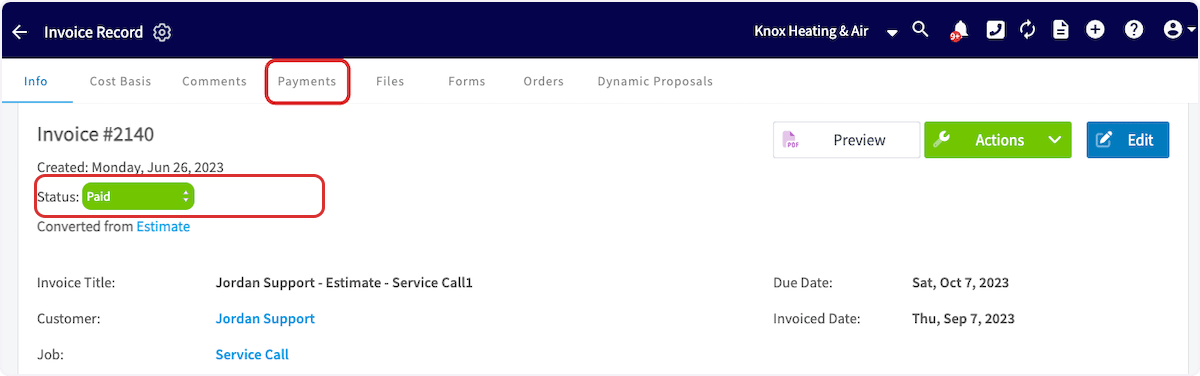
After you mark a payment, collect a payment, or receive payment from a request email, the invoice status reads Paid. If you accepted only part of the balance, the status reads Partially Paid instead. See FieldPulse Deposit and Payment Status Details for how each status behaves.