
Who uses this: An Admin builds the payment receipt template and the payment trigger in Company Settings > Customer Communications. Availability: All regions.A payment receipt is the confirmation message your customer receives after a payment is recorded in FieldPulse. The receipt is a Customer Communications template you design, sent by a trigger that fires when a payment record is created. This page shows the payment receipt from the customer’s side — what lands in their inbox, what is on the receipt itself, and which parts of it you control.
Overview
Once your payment receipt template is attached to the payment trigger, FieldPulse sends the receipt when a payment record is created — immediately, after a confirmation prompt, or on a schedule, depending on the trigger action you choose. A payment record is created in three ways:- Automatically — a payment taken or submitted through FieldPulse Payments.
- Via sync — a payment received from QuickBooks or another connected accounting system.
- Manually — a payment logged by hand in FieldPulse through the web app or the mobile app.
Before you begin
A payment receipt is built from two pieces, both in Company Settings > Customer Communications:- The template — the email or SMS message your customer reads. You name the template for your own reference (for example, “Payment Template”); the name is internal and your customer never sees it. See Setting Up Email & SMS Templates.
- The trigger — the rule that sends the template. Create an automatic trigger, choose When a payment record is created, and pick your payment template. See Setting Up Automatic Communication Triggers.
How it works
What the customer receives
The customer receives the message you wrote in the template. In the email version, FieldPulse attaches a copy of the receipt as a PDF. You design what the message says — the greeting, the thank-you, and any instructions are the text you saved in the template.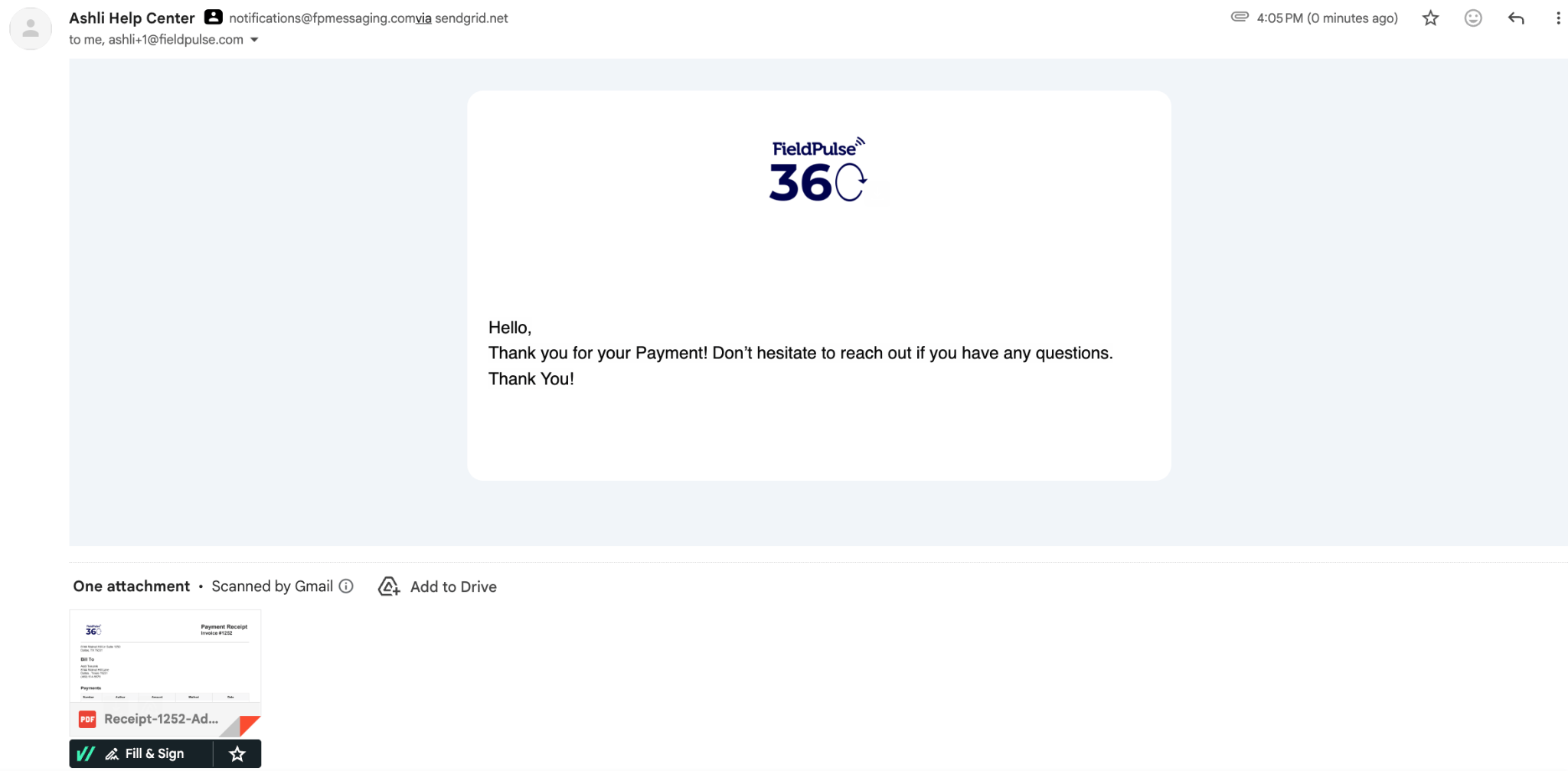
What is on the receipt
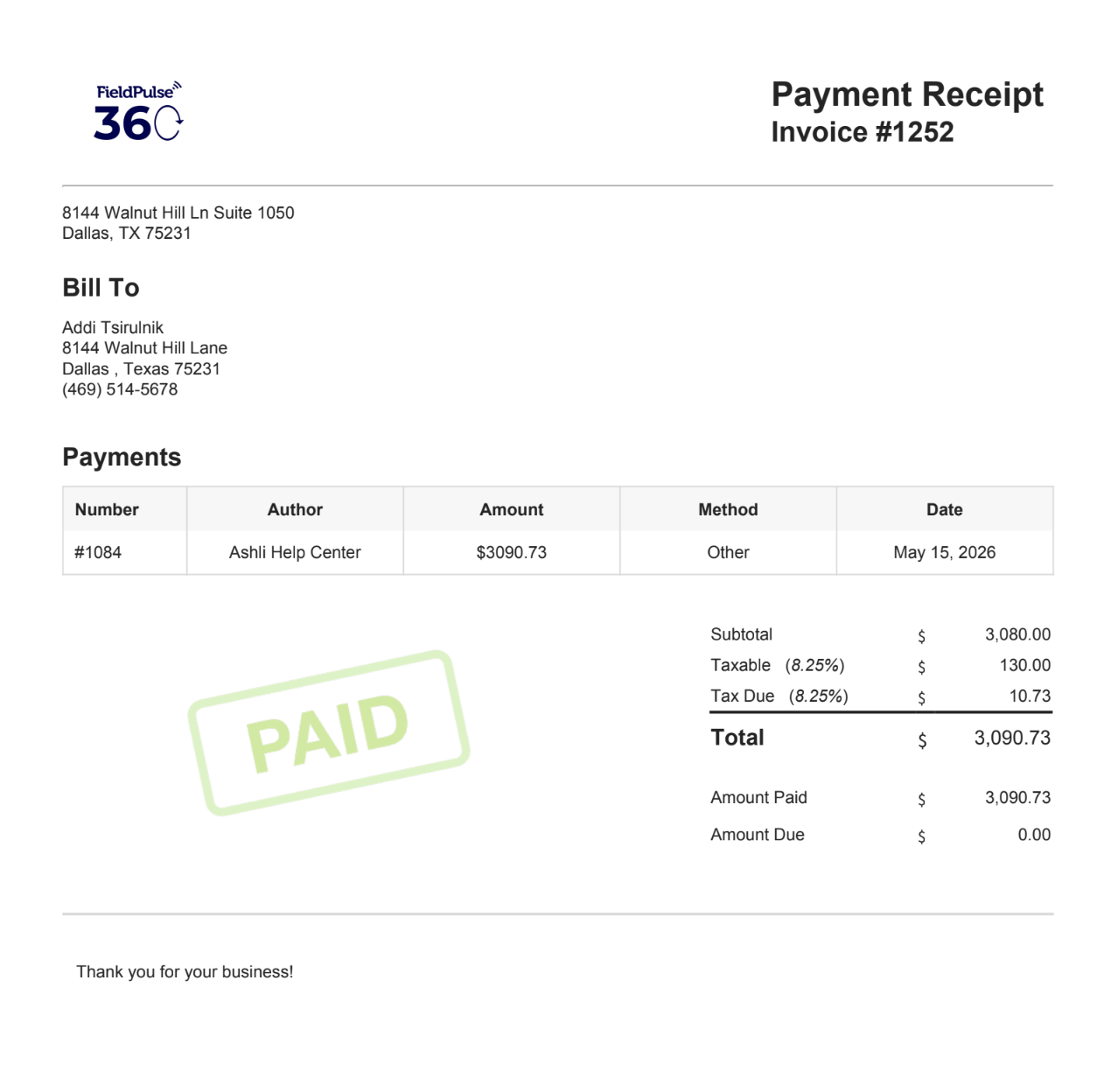
The attached PDF is headed Payment Receipt and carries the number of the invoice the payment applies to. It holds:- Your business details — your company logo and address across the top of the page.
- Bill To — the customer’s name, billing address, and phone number.
- Payments — a table listing the payment number, the author, the amount, the payment method, and the date.
- Totals — subtotal, taxable amount, tax due, total, amount paid, and amount due.
- A closing line — “Thank you for your business!” at the foot of the page.
What you can configure
To learn more about sending Customer Communications, see Customer Communications Overview.