Who uses this: Admins and Team Managers, and Service Agents whose Create & send estimates/invoices permission is turned on (Service Agents work only the estimates and invoices on their assigned jobs); Limited Agents cannot. Having the customer pay the requested amount online by card or bank transfer also needs FieldPulse Payments access, set per user under Company Settings > User Accounts. Availability: All regions. FieldPulse Payments is available to businesses located in the United States.You do not have to bill a job all at once. On an estimate or invoice, you can ask for a deposit up front, a draw partway through the work, or any other partial amount — as a set dollar figure or a percentage of the total. FieldPulse gives you three ways to do it, and each one ends with an amount due the customer can pay or you can collect on site.
Overview
A partial or progress payment asks the customer for part of an estimate or invoice total instead of the full balance. FieldPulse offers three methods, all worked from the estimate or invoice record itself:- Request an amount from the estimate or invoice preview — set a payment request amount on the email you send with the PDF.
- Set the amount due on an invoice — change what the invoice preview and the emailed invoice show as due.
- Generate a progress invoice — produce a separate progress invoice PDF for the amount you want now.
Video walkthrough
Video walkthrough: requesting partial, deposit, and progress payments
Before you begin
- Open the estimate or invoice you want to take payment on, or create it first.
- Every method below can request an amount on an estimate or invoice. For the customer to pay that amount online by credit/debit card or bank transfer, your account needs FieldPulse Payments — see How to Collect Payments: 3 Methods.
Request payment from the estimate or invoice preview
Attach a payment request for part of the total to the estimate or invoice you email the customer.-
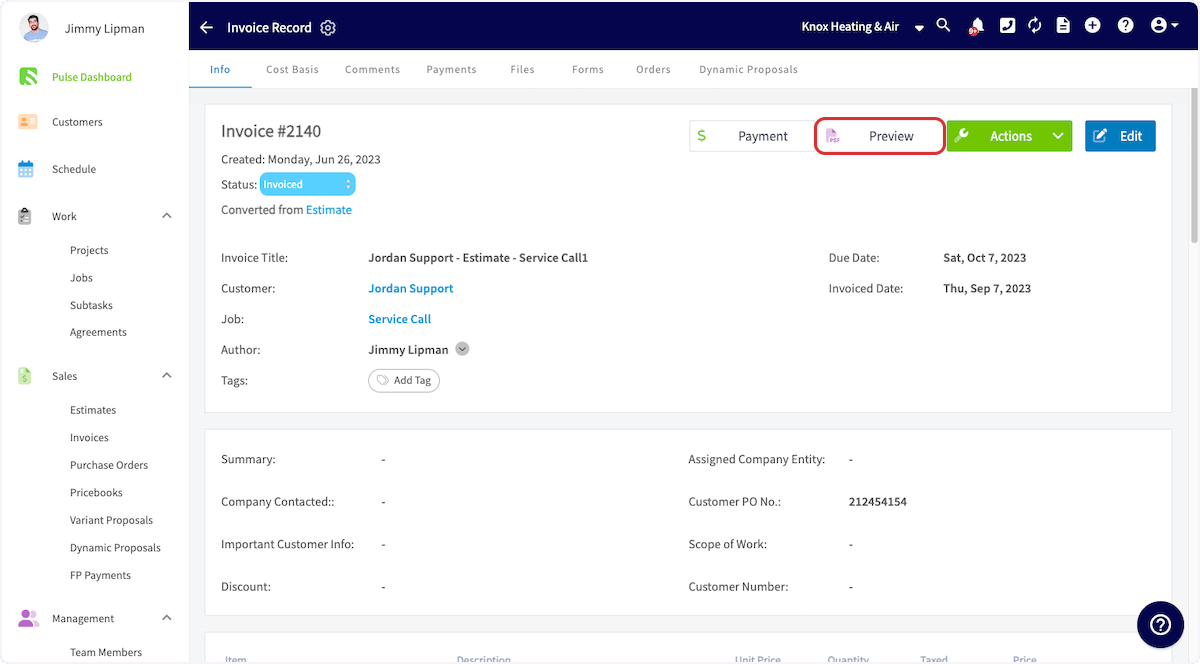
Open or create the estimate or invoice you want to take payment on, then select Preview to generate it.
-
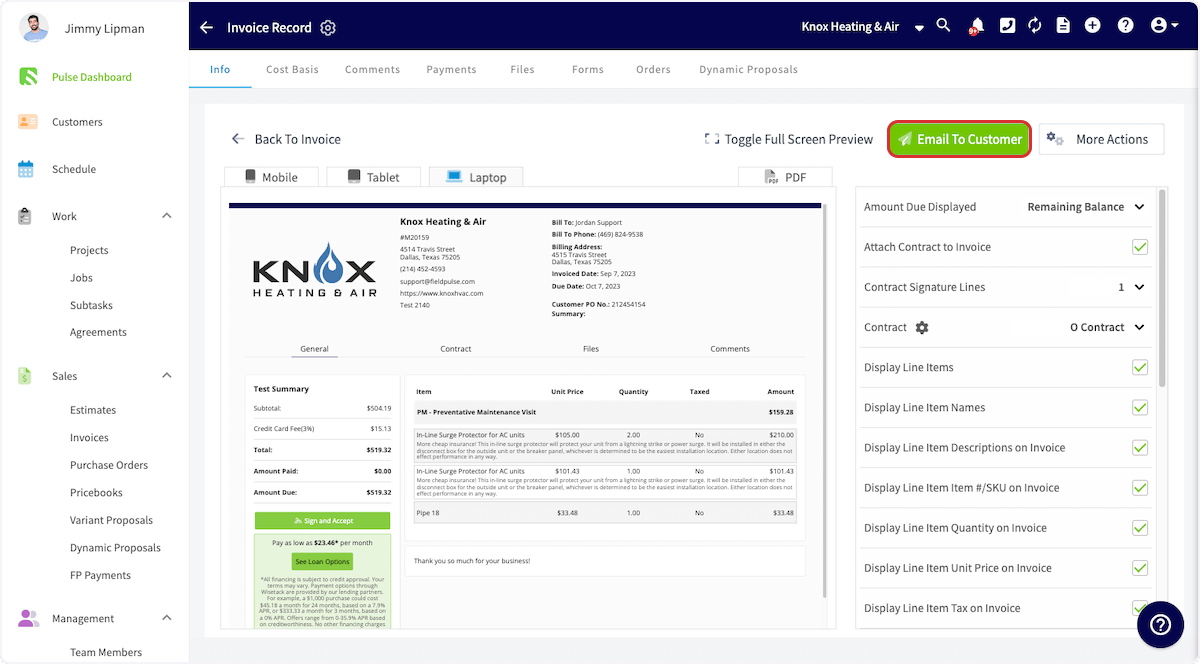
Once the PDF is generated, select Email To Customer.
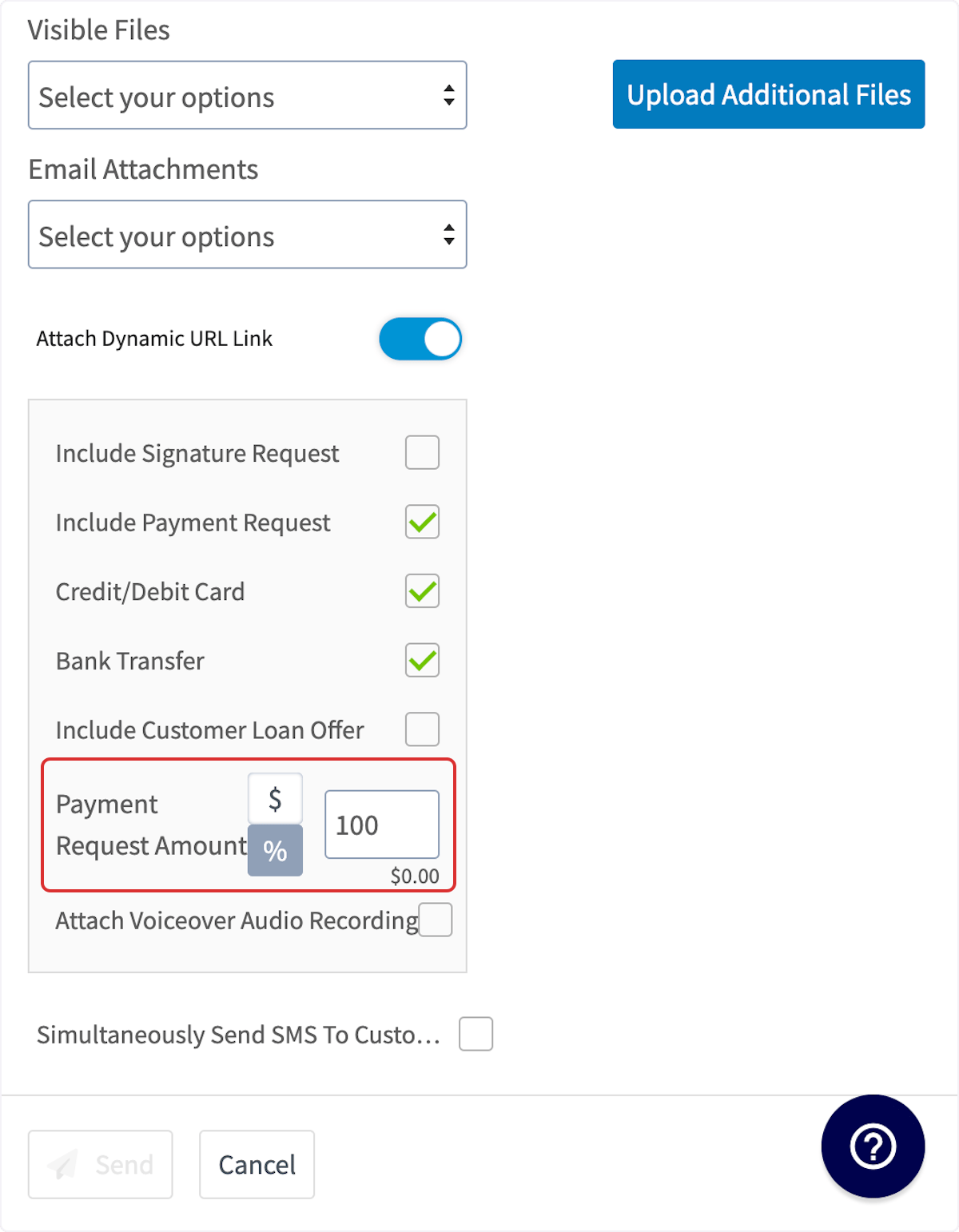
- Scroll down in the email window and confirm Include Payment Request is checked, along with Credit/Debit Card, Bank Transfer, or both.
-
In Payment Request Amount, enter a dollar amount or a percentage of the total — use the $ and % buttons to switch between the two.
- Select Send to email the estimate or invoice and its payment request to the customer.
Set the amount due on an invoice
Change what the invoice shows as due, so the customer sees the deposit or draw instead of the full balance.-
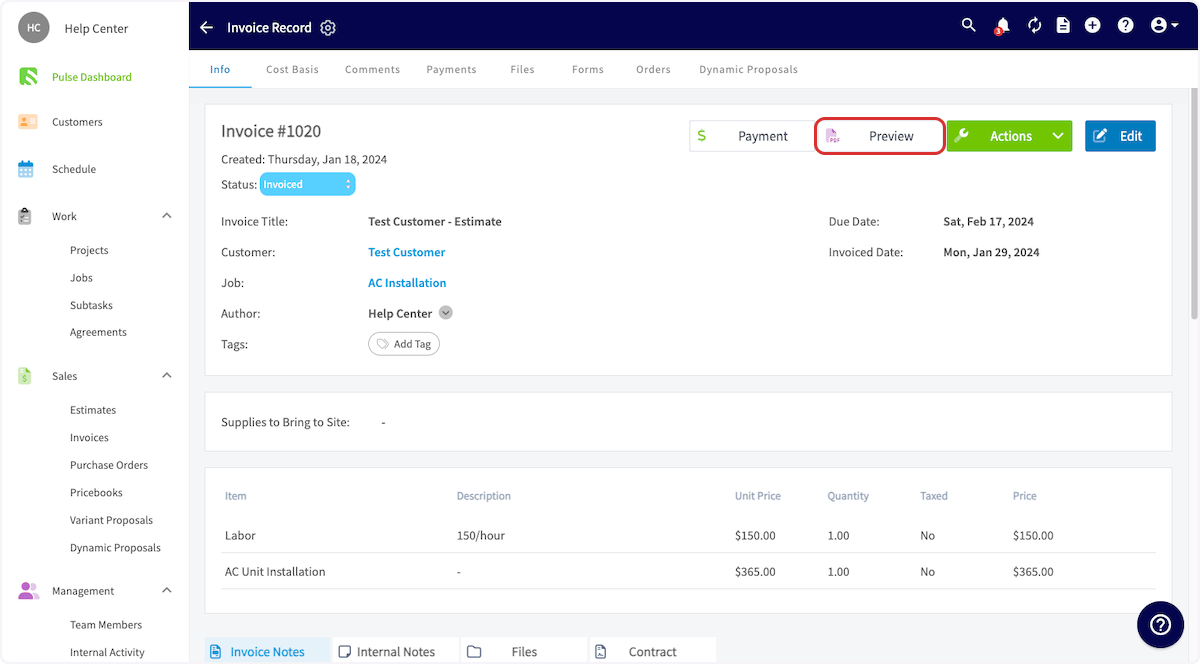
Open the invoice record and select Preview.
-
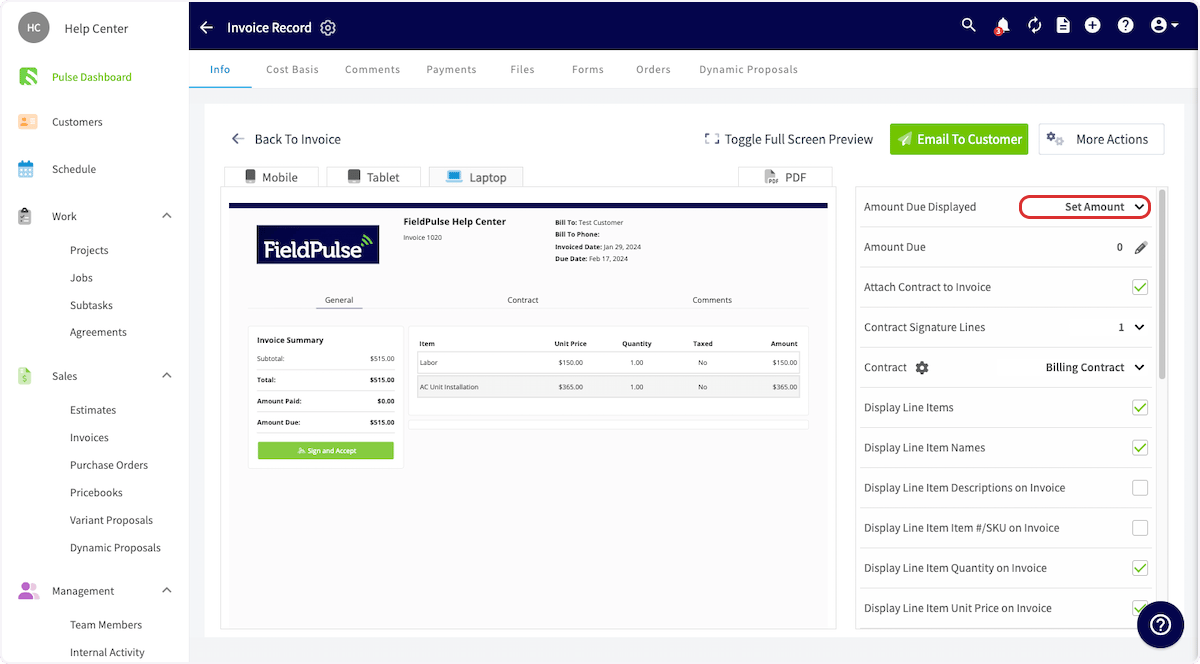
In the invoice preview, select the value next to Amount Due Displayed.
-
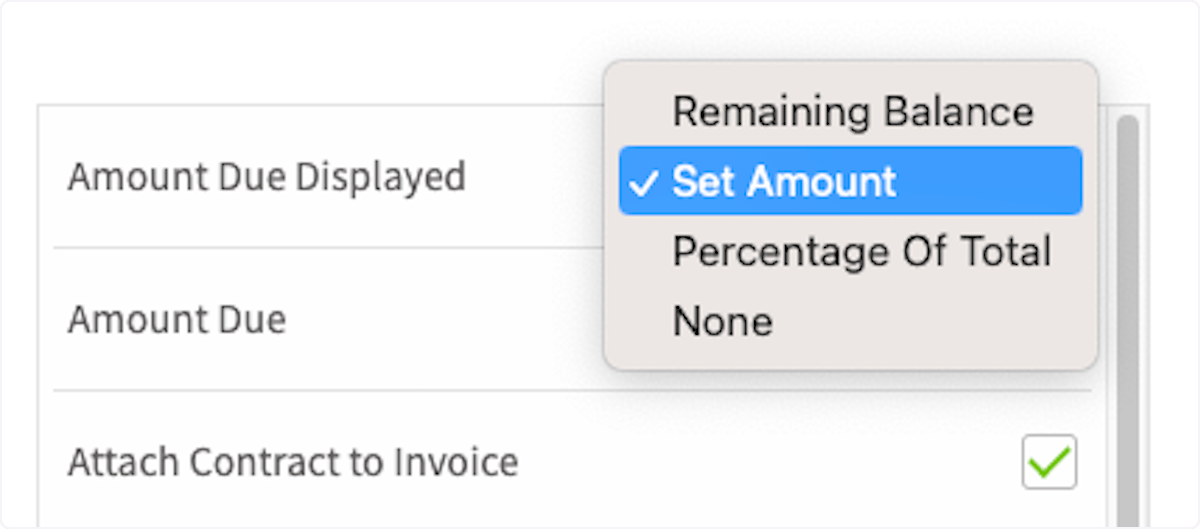
Choose what to collect — Remaining Balance, Set Amount, or Percentage Of Total.
-
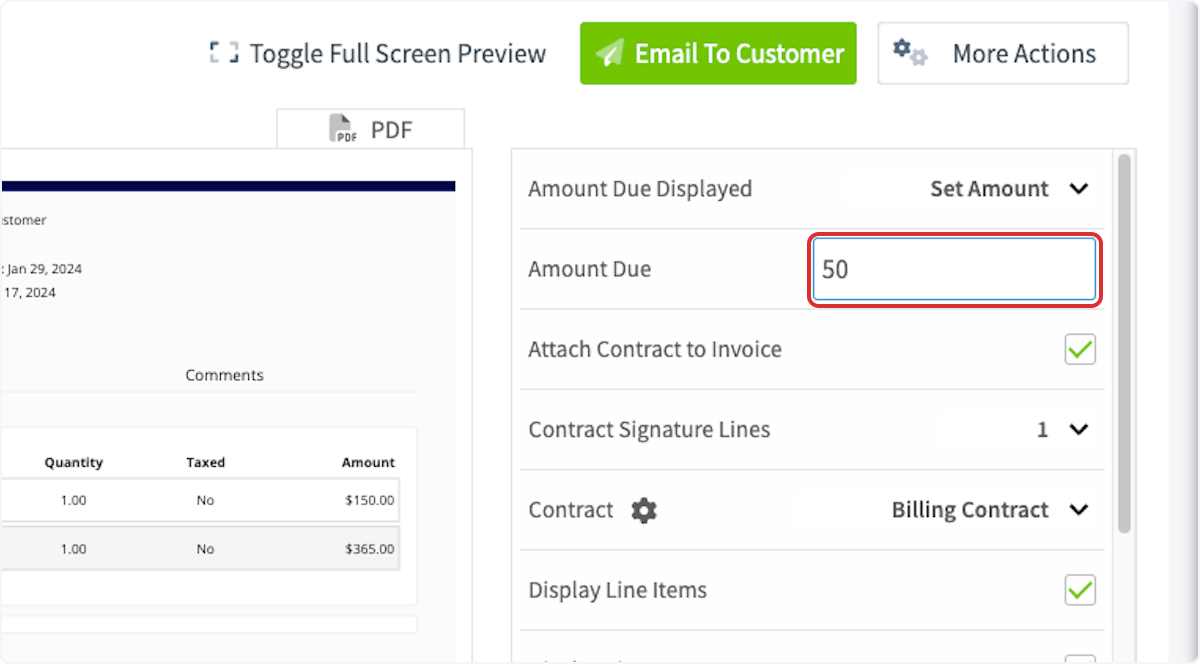
For Set Amount, enter the dollar figure in the Amount Due field. For Percentage Of Total, enter the percentage in the Percentage of Total Amount field.
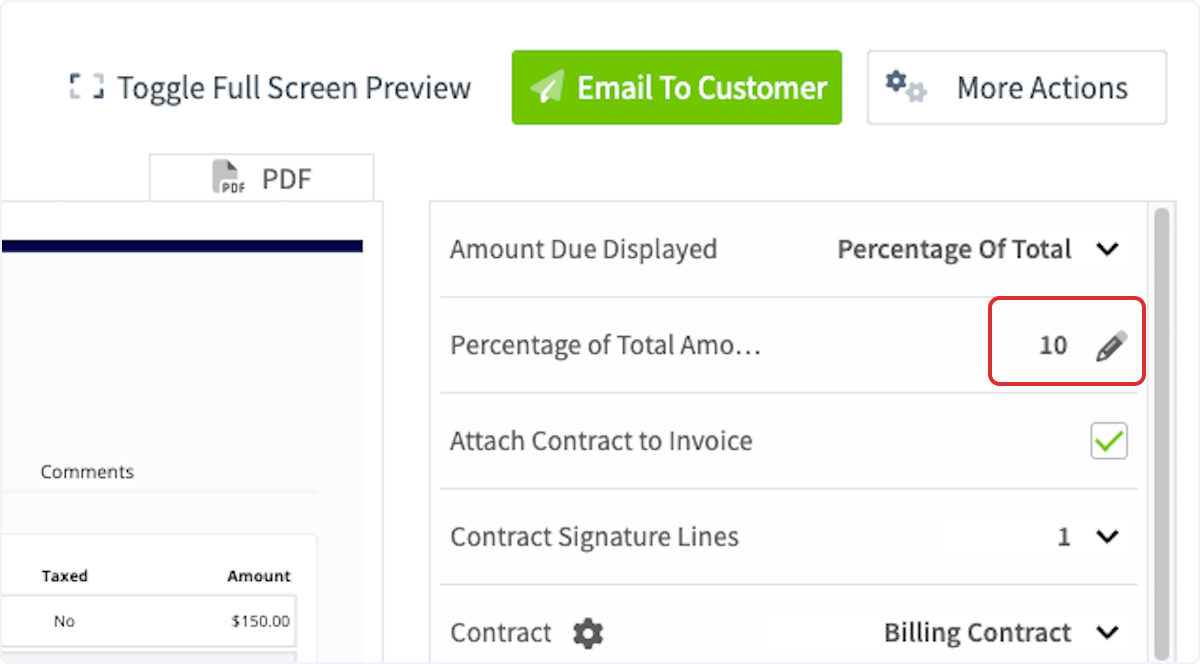
-
Check the preview — the invoice summary now shows the amount you set under Amount Due, with the invoice total unchanged above it.
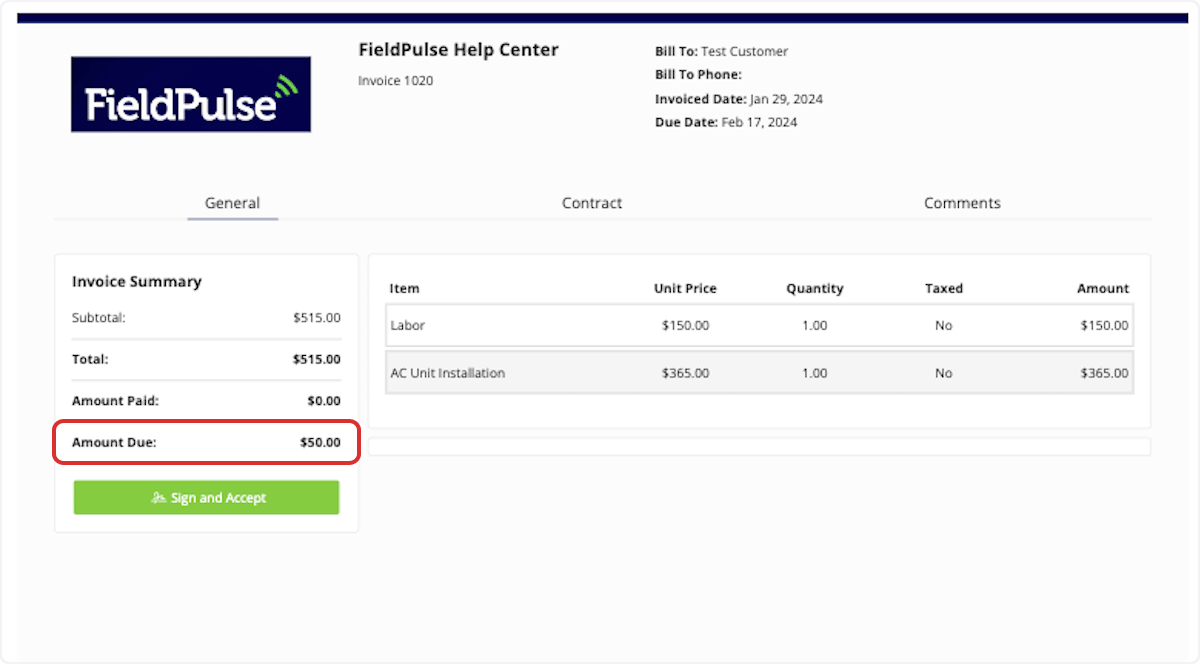
- Email the invoice to the customer, or collect payment on site.
Generate a progress invoice
Produce a separate progress invoice PDF for the amount you want to collect now.-
Open the invoice record and select Actions.
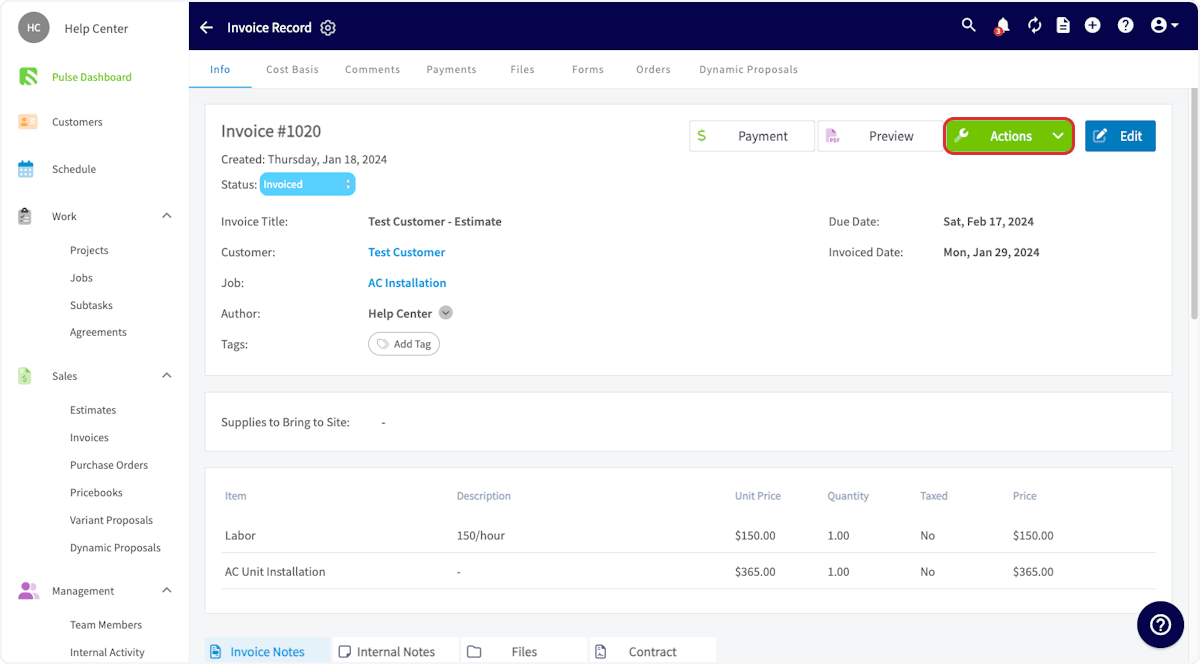
-
Under PDFs, select Generate Progress Invoice.
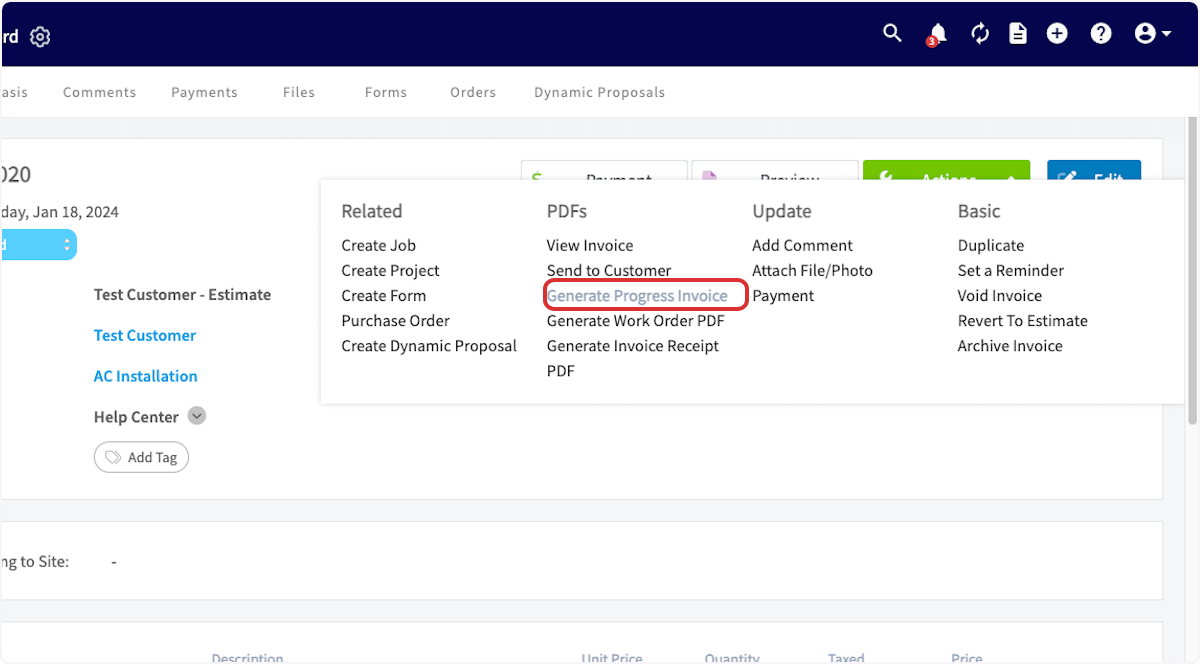
-
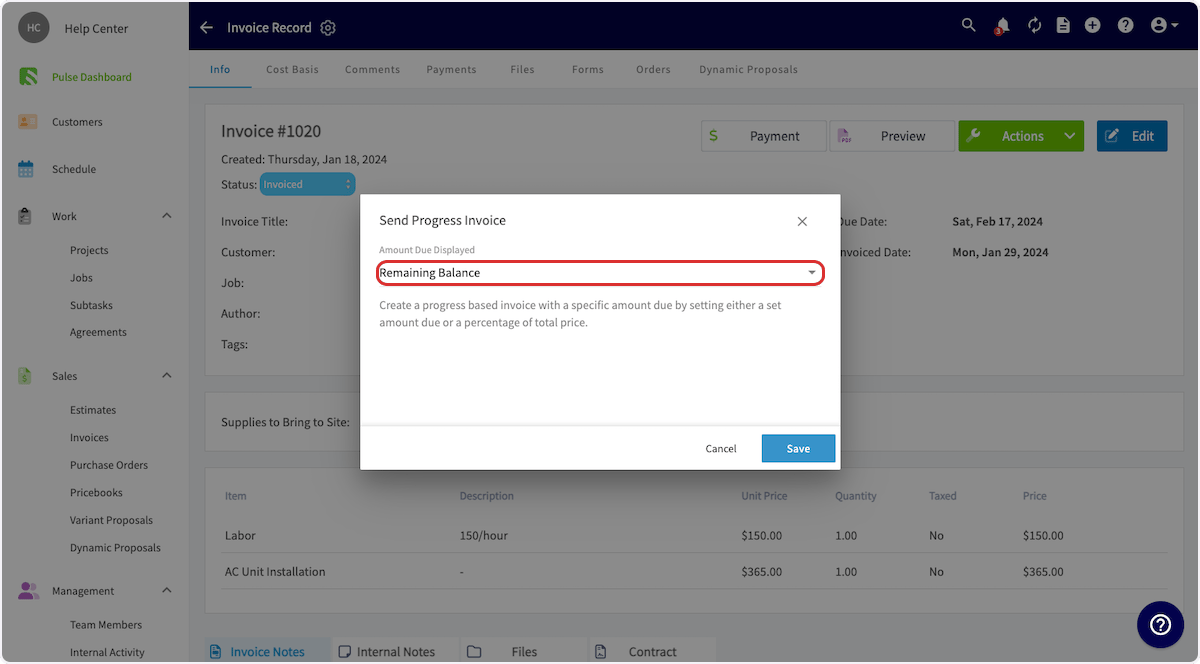
In the Send Progress Invoice pop-up, set Amount Due Displayed to Remaining Balance, Set Amount, or Percentage Of Total.
-
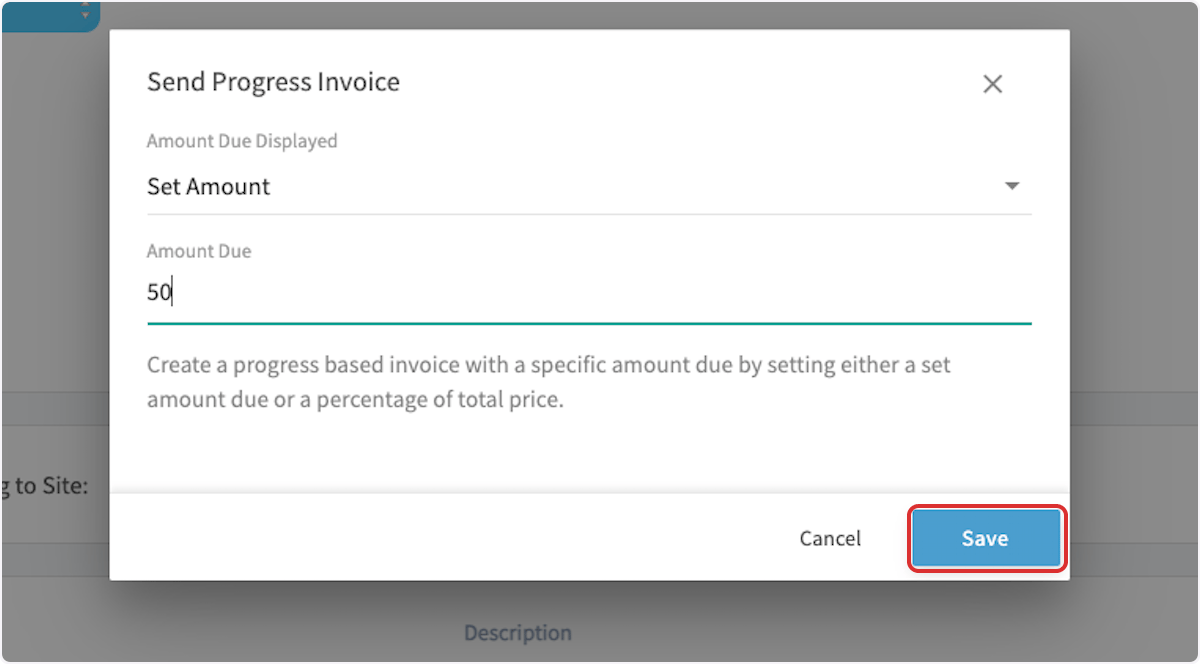
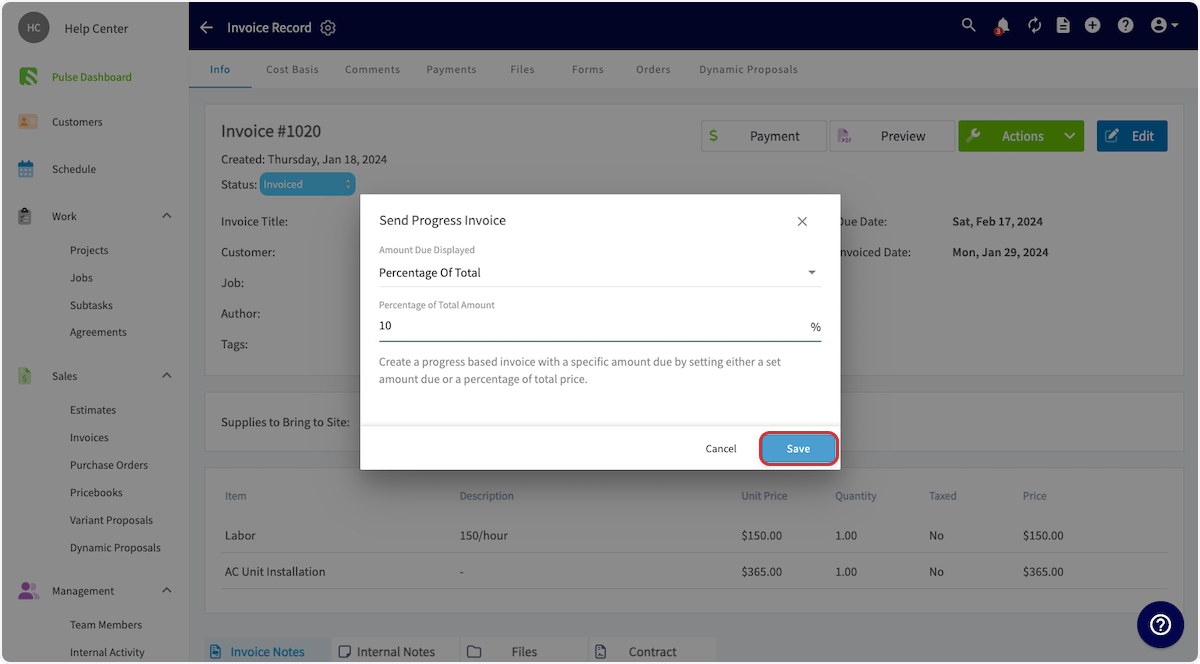
For Set Amount, enter the dollar figure in the Amount Due field; for Percentage Of Total, enter the percentage in the Percentage of Total Amount field. Then select Save.
-
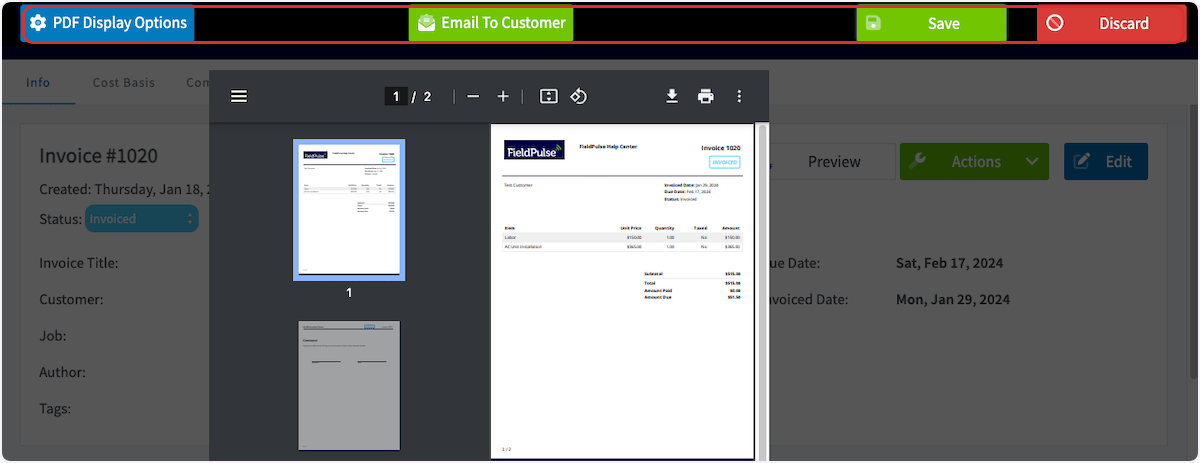
A PDF preview of the progress invoice opens. Adjust PDF Display Options, then select Email To Customer, Save to keep the PDF on the invoice record, or Discard.