
Who uses this: Admins have full reporting access, and Team Managers can be given it. Service Agents and Limited Agents do not have reporting access. Availability: All regions.A subtask report is built from the Subtasks tab in raw data reporting, and it pulls subtask records — the title, the status, the assigned team members and teams, the due date, and the parent job — into one table you can filter, group, and export.
Overview
A subtask report is how you track the checklist-level work that sits under a job. A subtask is the secondary record type in FieldPulse — it can stand on its own, but it is usually attached under a job record to divide the work into a task list, so different team members can own and status each piece. See How to Use Subtasks for how subtasks are created and used. The subtask report is where you see those records together instead of opening one job at a time. Common subtask reports include status by team member and subtasks by job. Building a subtask report follows the same path as every other raw data report — set a date range, choose the columns, set filters, then read the table. Subtask reporting is part of FieldPulse’s dashboards and reporting. For the parts of the reporting flow that are the same on every record type — groupings, saving a report, adding it to your dashboard, and exporting to CSV — see How to Use Raw Data Reporting.Video walkthrough
Video walkthrough: Creating a subtask report from the date range through columns and filters
Before you begin
- Create the subtasks you want to report on. See How to Use Subtasks.
- Check that your role has reporting access. An Admin has full reporting access; a Team Manager needs Full Reporting access turned on.
Set the date range
- Select Reporting under the Management tab in the left-side menu.
- Select the Subtasks tab, then select Raw Data.
- Select the calendar icon and choose the start date range you want to report on.
- Select Load Data.
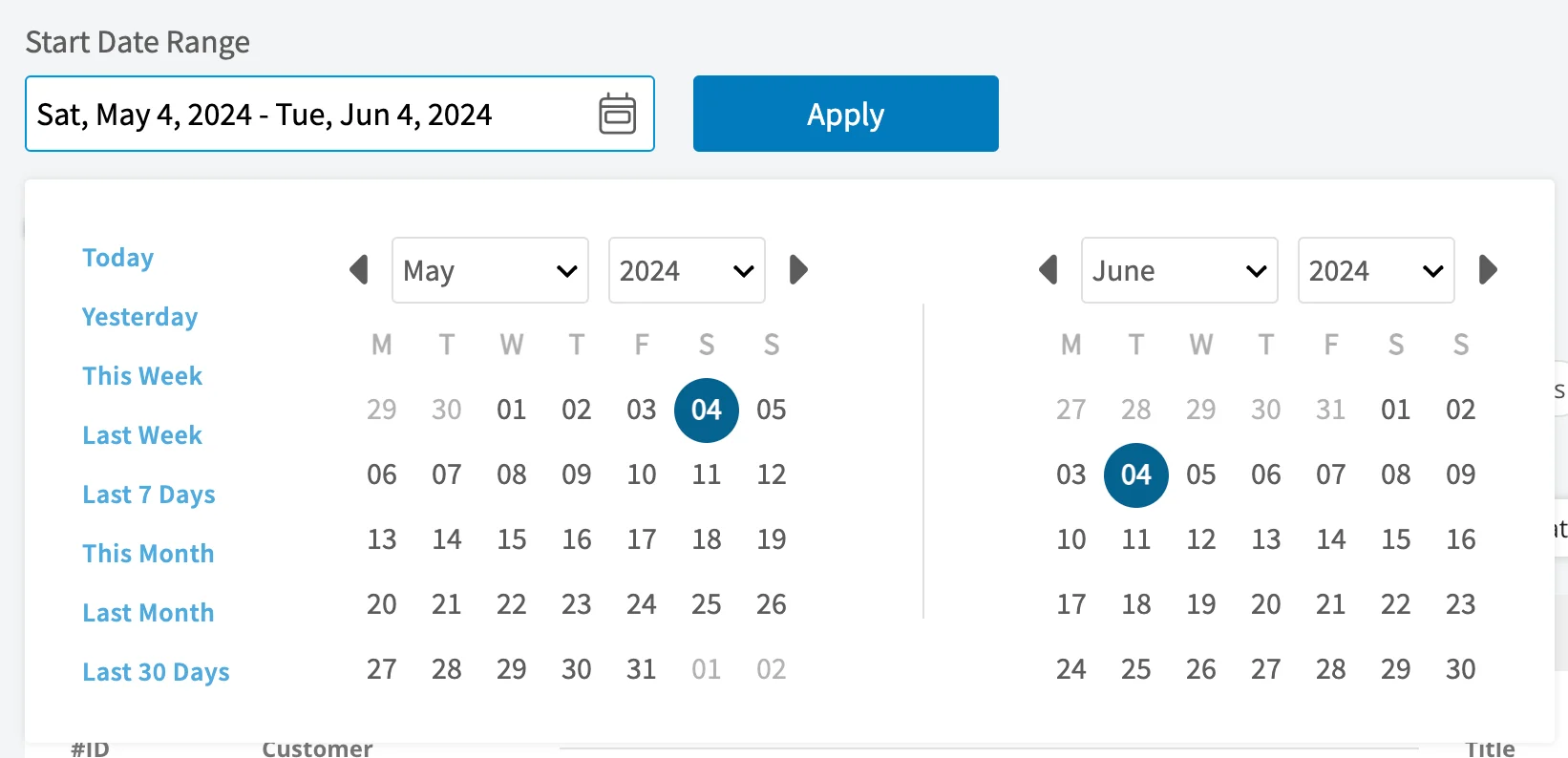
Choose your columns
Select Columns to choose which subtask fields appear in the report table and the order they appear in.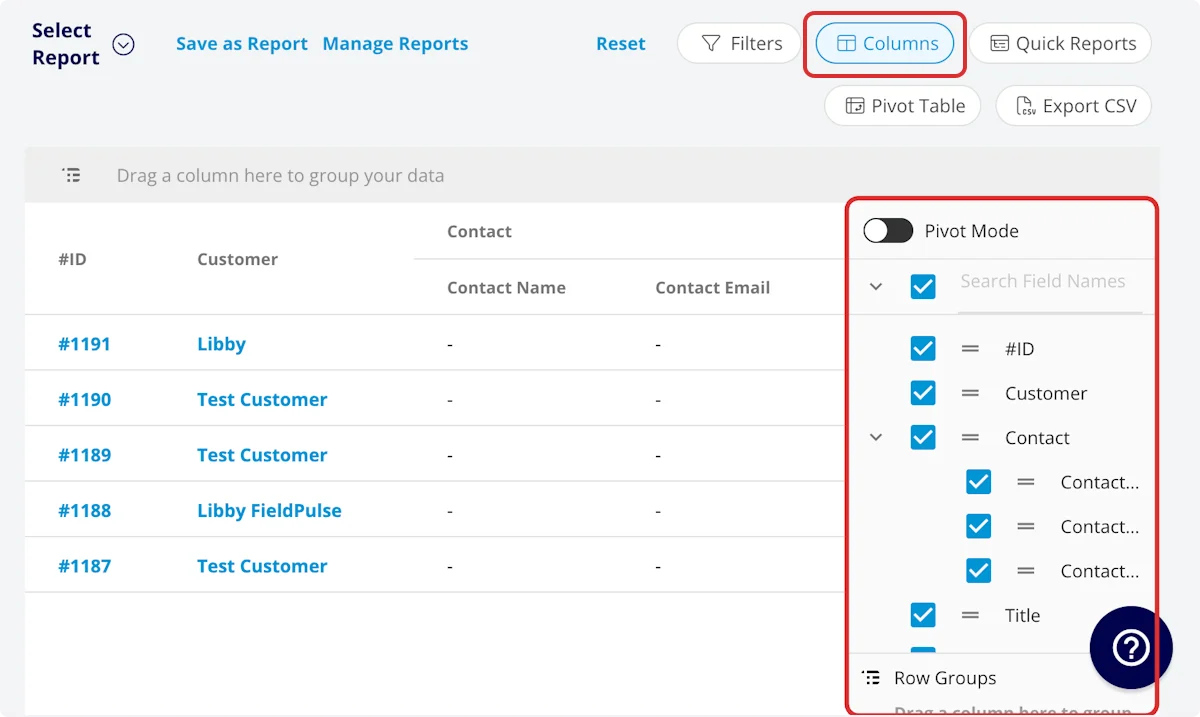
Customer columns
The Customer group adds customer-record fields to the subtask report:Set your filters
Before running the report, set filters to narrow the results. Select the Filters icon, then choose how you want to filter the report.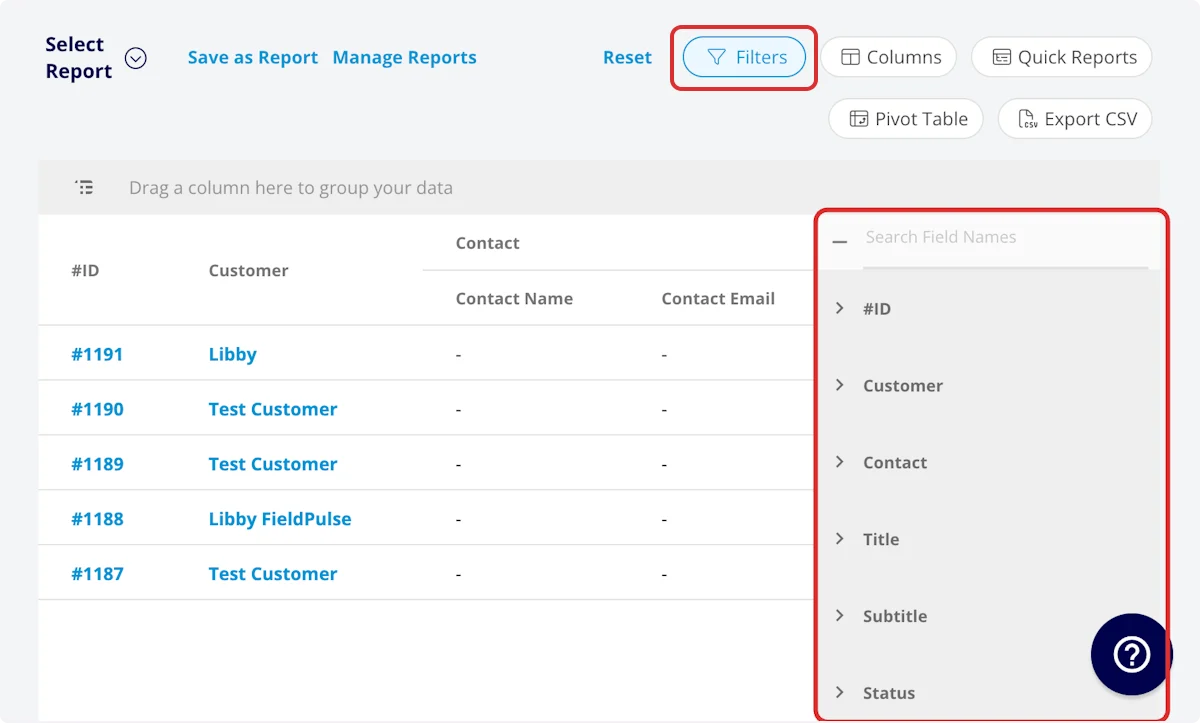
Filter operators
When you filter by contents, choose an operator and then enter the values to filter the data on.Common subtask reports
These are the column and grouping combinations behind the subtask reports companies run most often.Status by team member
Use this report to view each team member’s subtasks sorted by status. Customize the columns to your needs, but include Assigned Team Members and Status, and group by Team Member and Status.Subtasks by job
Use this report to view all subtasks under each parent job. Customize the columns to your needs, but include Parent Job, and group by Parent Job.Video walkthrough: Building the status by team member and subtasks by job reports
Tips
- The subtask report’s default columns cover ownership and dates — Assigned Team Members, Assigned Teams, Created At, and Due Date — so it answers what is outstanding and who owns it.
- Filter Due Date by date to pull the subtasks due inside a window, and keep the Status column to see where each one stands.
- Keep Parent Job and Related Project in the report to see which job or project each subtask belongs to.
- Add the Customer columns when you want customer detail — the lead source, pipeline status, notes, or tags — next to each subtask.