
Who uses this: Admins have full reporting access, and Team Managers can be given it. Service Agents and Limited Agents do not have reporting access. Availability: All regions.Maintenance agreement reports are built in raw data reporting. The Maintenance Agreement report lists your recurring service contracts, with total annual fee, price per bill, service frequency, billing frequency, status, and the last and next job occurrences, in one table. The Occurrences Raw Data report lists every visit on every agreement, one row each, whether or not a job exists for it yet. Together they show the recurring revenue your agreements carry and which visits are due.
Overview
A maintenance agreement report answers one question about your recurring work: which agreements match the conditions you care about. Use it to total the annual fees you are carrying, group agreements by how often you service them or how often you bill them, and see everything one customer is signed up for. Use the Occurrences Raw Data report when you need to check agreement visits against the jobs created for them, for example to find occurrences that still have no job. Building a maintenance agreement report follows the same path as every other raw data report — set a date range, choose the columns, set filters, then read the table. Reporting on maintenance agreements is part of FieldPulse’s dashboards and reporting. For the parts of the reporting flow that are the same on every record type — saving a report, adding it to your dashboard, and exporting to CSV — see How to Use Raw Data Reporting.Video walkthrough
Video walkthrough: Creating a report in raw data reporting
Before you begin
- Create the maintenance agreements you want to report on, and confirm maintenance agreements are enabled in your account. See How to Create a Maintenance Agreement.
- Check that your role has reporting access. An Admin has full reporting access; a Team Manager needs Full Reporting access turned on.
Set the date range
- Select Reporting under the Management tab in the left-side menu.
- Select the Maintenance Agreements tab, then select Raw Data.
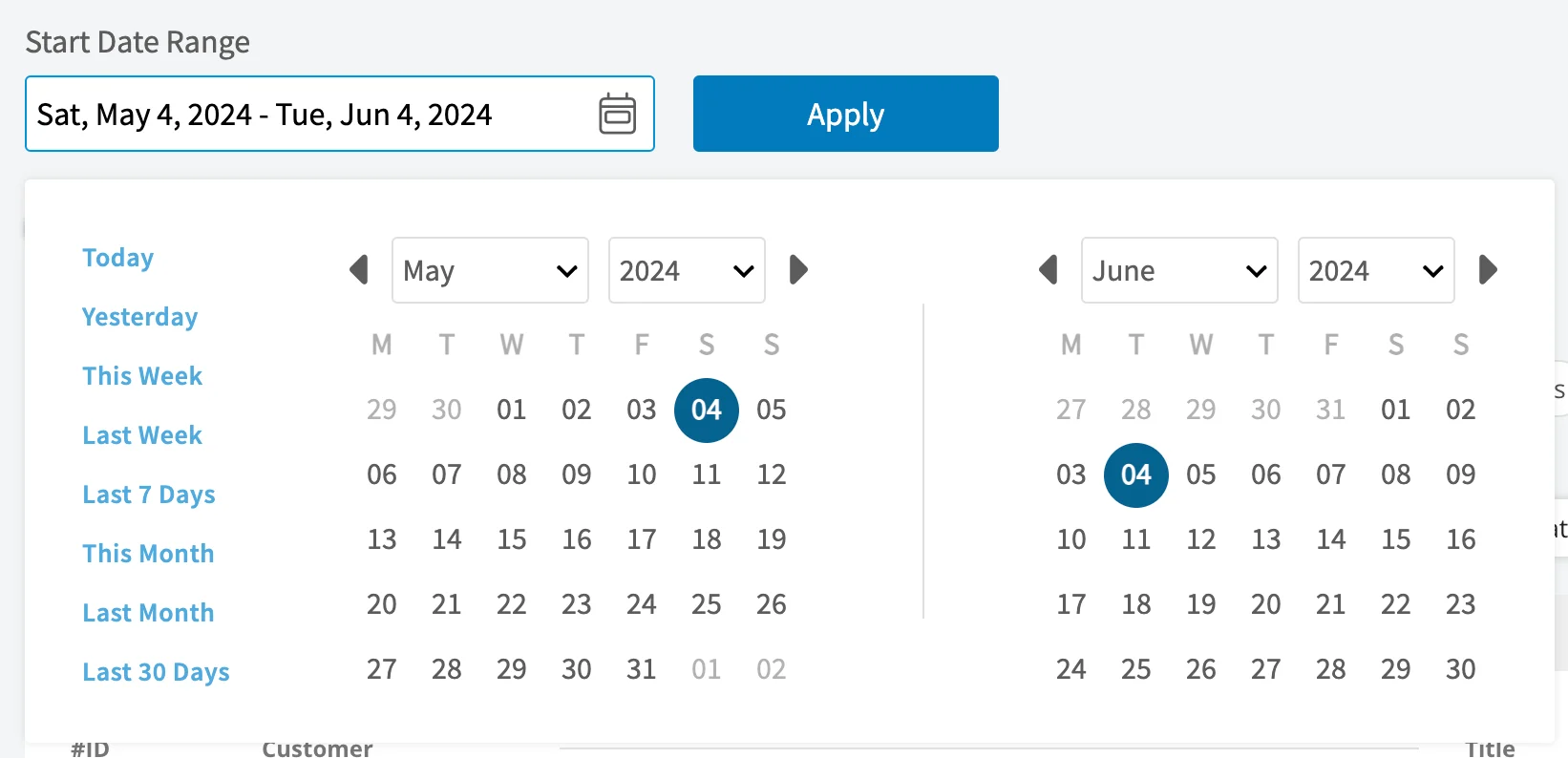
- Choose a date type. Start Date returns agreements whose start date falls inside the date range you pick. The other date types work as they do today.
- Select the calendar icon and choose the date range you want to report on.
- Select Load Data.
Choose your columns
Select Columns to choose which maintenance agreement fields appear in the report table and the order they appear in.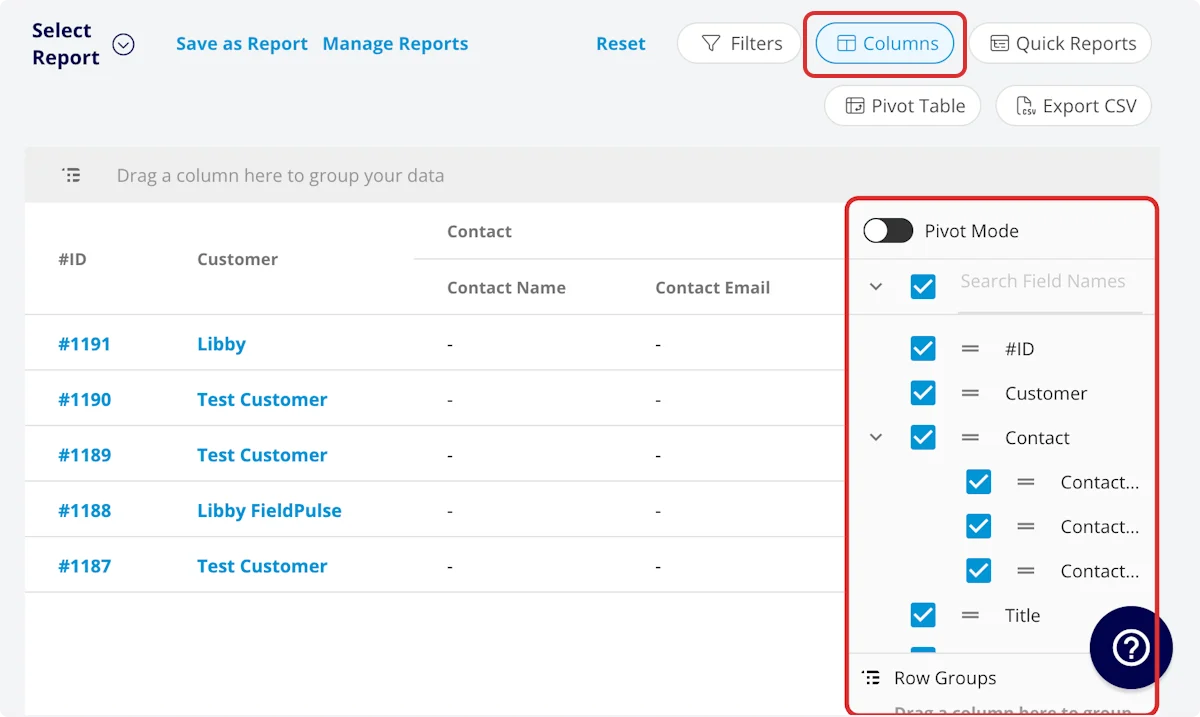
Set your filters
Before running the report, set filters to narrow the results. Select the Filters icon, then choose how you want to filter the report.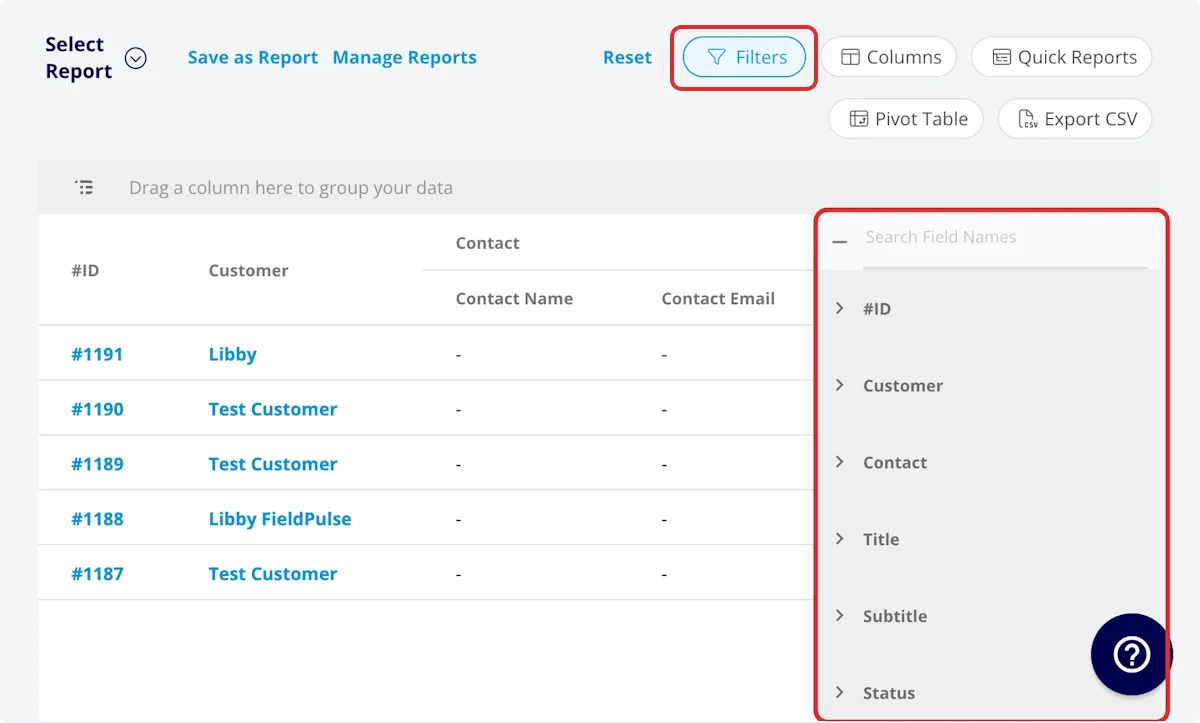
Filter operators
When you filter by contents, choose an operator and then enter the values to filter the data on.Common maintenance agreement reports
Three reports cover most of what teams pull from the Maintenance Agreement tab. Each one keeps whichever columns you want, plus the one column it groups on — drag that column into the grouping bar above the table.Video walkthrough: Building the by-frequency, by-billing-frequency, and by-customer reports
Build an Occurrences Raw Data report
The Occurrences Raw Data report shows each maintenance agreement occurrence as its own row. A row appears for every occurrence, even when no job has been generated for it. Use it to audit agreement visits against the jobs that were created or scheduled for them.- Select Reporting under the Management tab, then select the Maintenance Agreements tab.
- Select Occurrences Raw Data.
- Choose the date range, then select Apply.
- Select Columns and Filters to shape the report, the same way you do for the agreement report. You can also group, save, and export it as described in How to Use Raw Data Reporting.
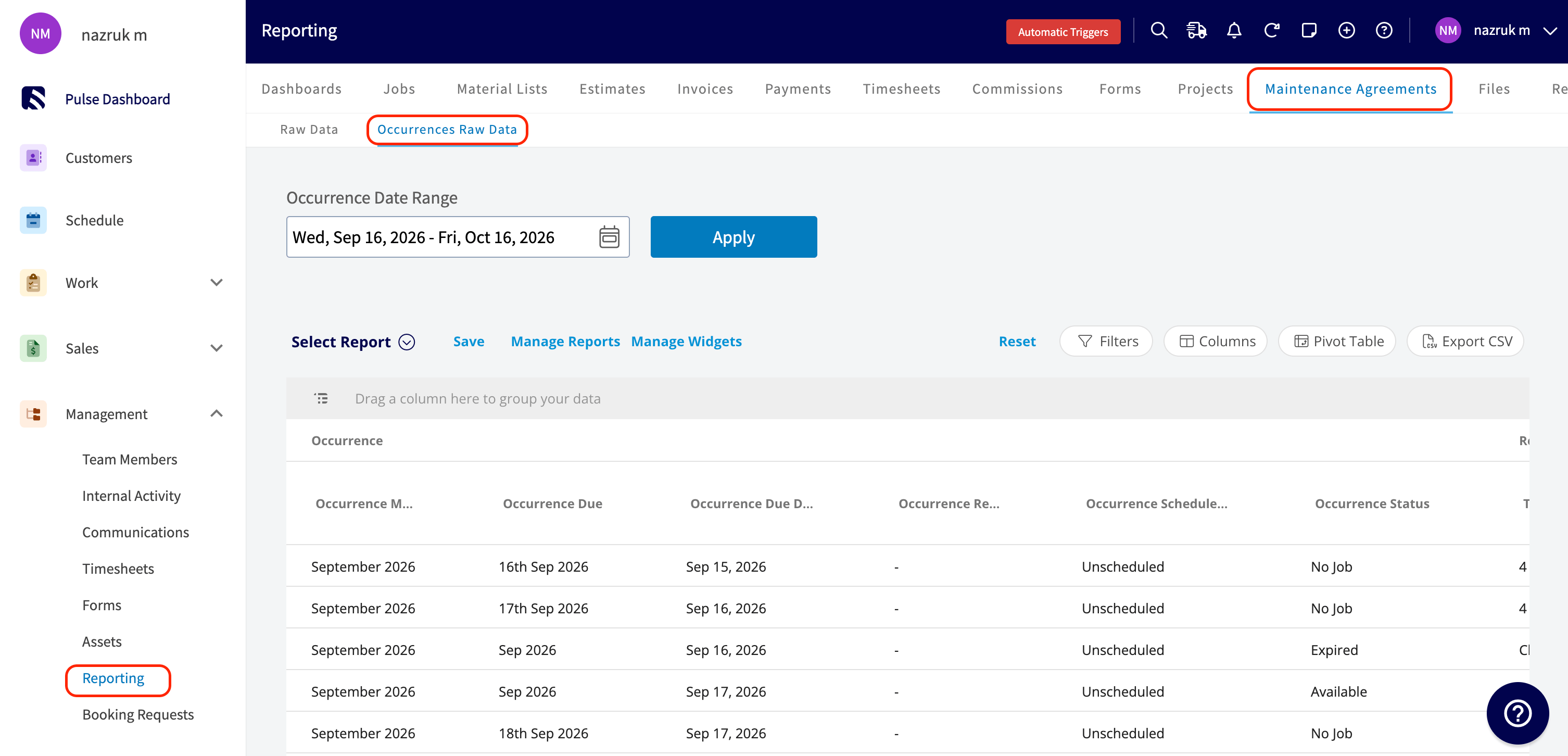
The report also includes related job and customer columns, so you can review the agreement, its job, and the customer in one place.
Tips
- Total Annual Fee is the column to add up when you want the recurring revenue your agreements represent.
- Add the Next Occurrence columns when you want to see which upcoming services already have a job created, what that job’s status is, and when it is booked.
- Use the Occurrences Raw Data report to find occurrences with no job. Filter Occurrence Record to blank.
FAQs
Can I save a maintenance agreement report to use again? Yes. Select Save as Report, then Save as New to store it under Select Report, or Save as Widget to add it to your Pulse Dashboard. See How to Use Raw Data Reporting for the full saving flow. Can I export a maintenance agreement report to a spreadsheet? Yes. Select Export CSV to download the report currently on your screen as a CSV file to your device.Related articles
- How to Use Raw Data Reporting
- How to Create a Maintenance Agreement
- How to Manage Assets
- How to Create Asset Reports