
Who uses this: Admins have Full Reporting access, and Team Managers can be given it. Service Agents and Limited Agents do not have Full Reporting access. Availability: All regions.A user report is built from the Users tab in raw data reporting, and it pulls each team member’s profile, job activity, estimates, invoices, labor cost, timesheet hours, and login activity into one table with a row per user. That table is how you see one person’s full footprint without matching several reports by hand.
Overview
A user report answers one question about your team: what does each person’s work look like across the whole system. Use it to compare productivity before a performance review, check labor cost and hours before payroll, or review roles, status, and last login when you manage licenses. Common user reports include team member performance, payroll and labor cost, and license and seat review. The user report covers every role: Administrators, Team Managers, Service Agents, Limited Agents, and Assignment Users. Building a user report follows the same path as every other raw data report: choose a date type, set a date range, select your users, choose the columns, set filters, then read the table. See How to Use Raw Data Reporting.Video walkthrough
Video walkthrough: Creating a report in raw data reporting
Before you begin
- Add the team members you want to report on. See How to Add New Users.
- Check that your role has reporting access. An Admin has Full Reporting access; a Team Manager needs Full Reporting access turned on.
Set the date type
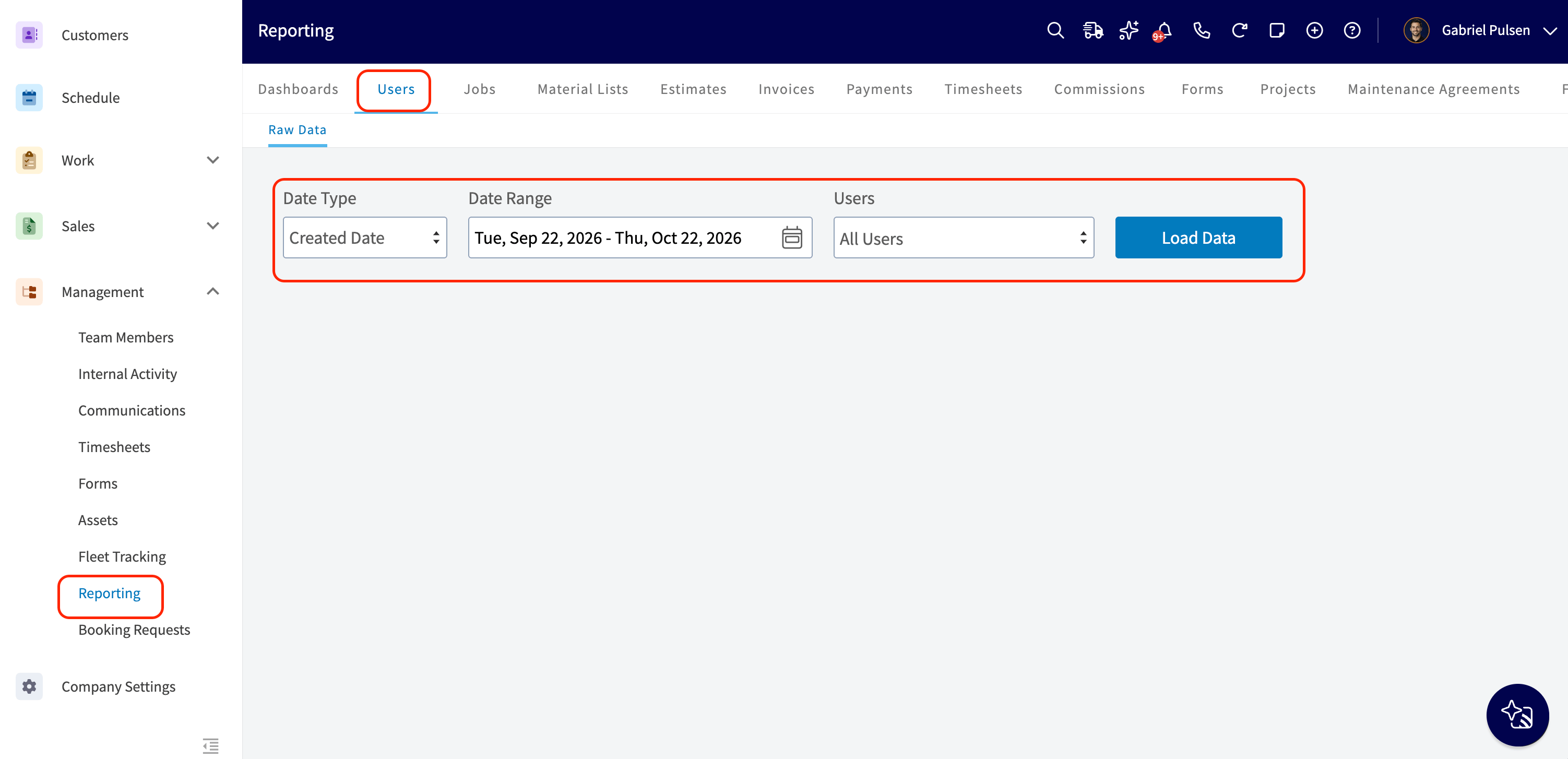
- Select Reporting under the Management tab in the left-side menu.
- Select the Users tab, then select Raw Data.
- Select a Date Type. The date type sets which user date the report runs on, so pick the one that matches the question you are answering.
Set the date range
- Select the calendar icon and choose the start date range you want to report on.
- Select the users to include, or leave the field empty to include everyone. You can search by name or by team.
- Select Load Data.
Choose your columns
Select Columns to choose which user fields appear in the report table and the order they appear in.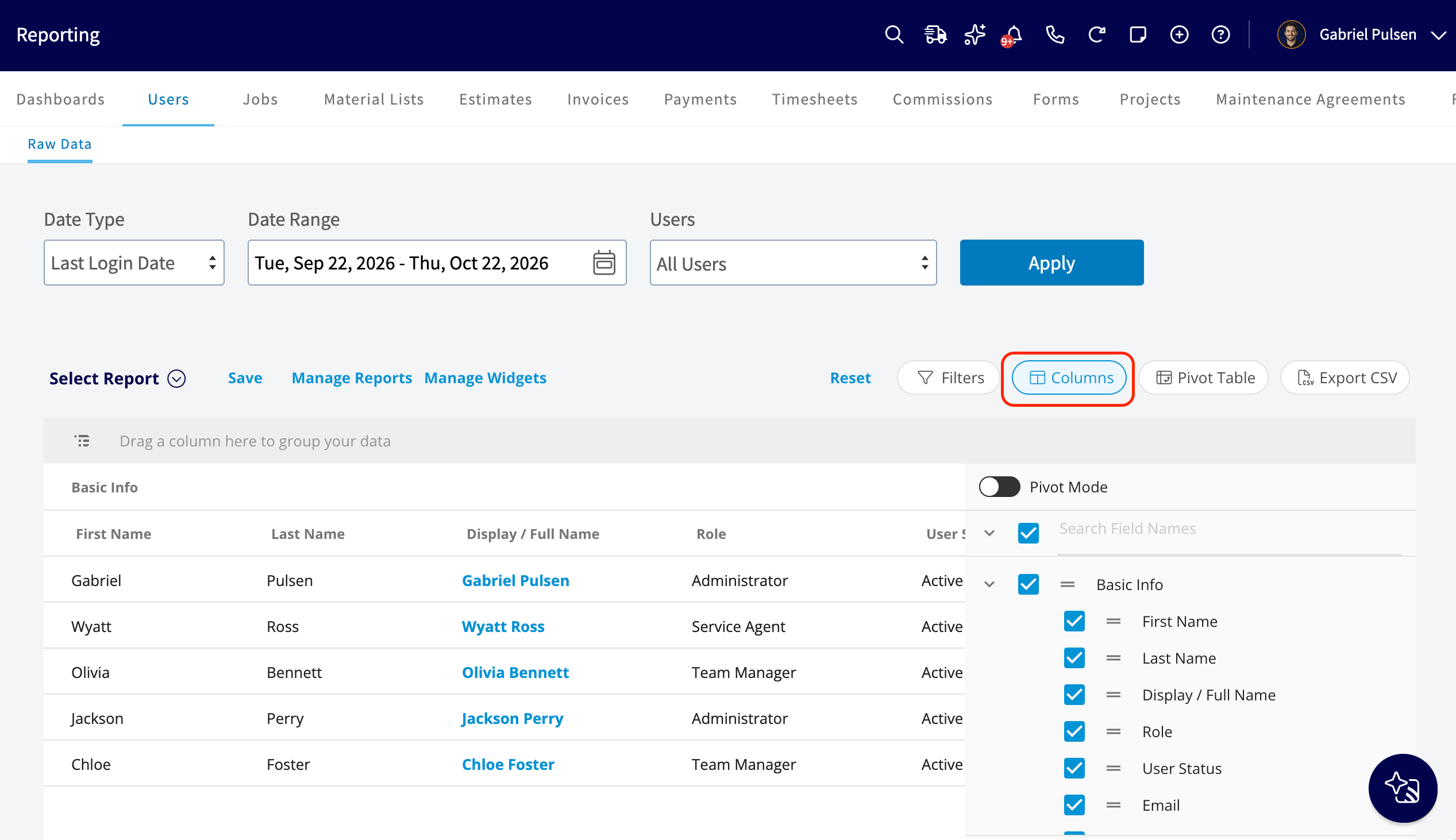
Set your filters
Before running the report, set filters to narrow the results. Select the Filters icon, then choose how you want to filter the report.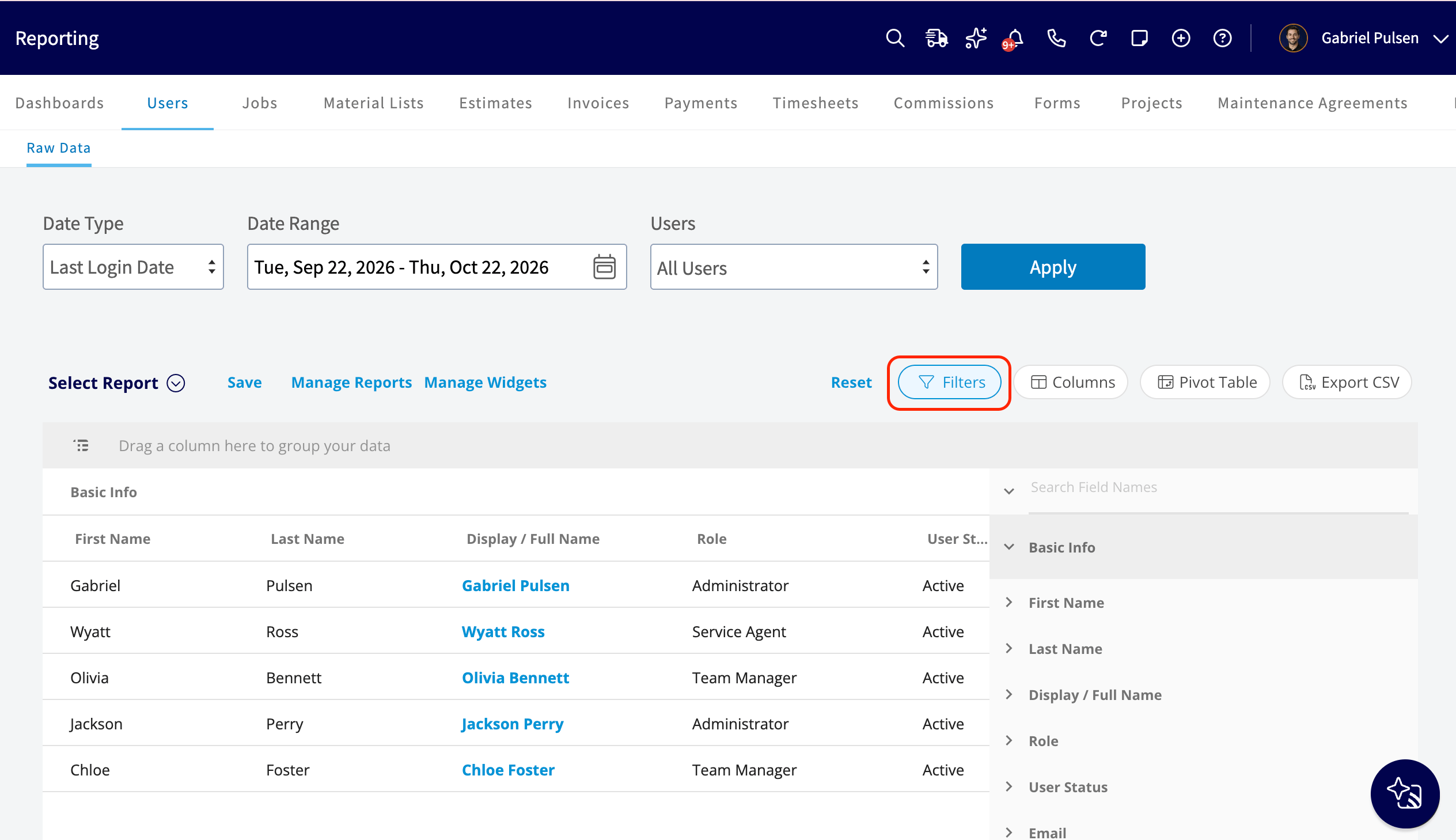
Filter operators
When you filter by contents, choose an operator and then enter the values to filter the data on.Common user reports
These are the column combinations behind the user reports companies run most often.Team member performance
Use this report to compare productivity across your team before a review. Customize the columns to your needs, but include Display / Full Name, Total Jobs Completed, Estimate Conversion Rate, and Total Invoiced (Author).Payroll and labor cost
Use this report to check hours and cost before you run payroll. Customize the columns to your needs, but include Display / Full Name, Total Hours (general timesheet), Hourly Cost Rate, Total Labor Cost, and Utilization %.License and seat review
Use this report to see who has access and who is still using it. Customize the columns to your needs, but include Display / Full Name, Role, User Status, Last Login Date, and Login Count.FAQs
What loads if I don’t select a user? The report loads every user. Select one or more users in the user field to narrow it down. Can I save a user report to use again? Yes. Select Save as Report, then Save as New to store it under Select Report, or Save as Widget to add it to your Pulse Dashboard. See How to Use Raw Data Reporting for the full saving flow. Can I export a user report to a spreadsheet? Yes. Select Export CSV to download the report currently on your screen as a CSV file to your device. Can I run a user report in the mobile app? No. Raw data reporting is a web experience, so open Reporting from a browser.Related articles
- How to Use Raw Data Reporting
- User Roles and Permissions Details
- How to Create Job Reports
- How to Create Estimate Reports
- How to Create Commission Reports
- How to Create Timesheet Reports