
Who uses this: Admins have full reporting access, and Team Managers can be given it. Service Agents and Limited Agents do not have reporting access. Availability: All regions.A purchase order report is built from the Orders tab in raw data reporting, and it pulls the purchase orders you send to your vendors — order number, status, payment status, vendor, total, and the dates each order was created, ordered, expected, and received — into one table.
Overview
A purchase order report answers one question about your purchasing — which purchase orders match the conditions you care about. Use it to sort purchase orders by status, group them by vendor, and line up the key dates on each order from created through received. Building a purchase order report follows the same path as every other raw data report — set a date range, choose the columns, set filters, then read the table. Purchase order reporting is part of FieldPulse’s dashboards and reporting. Purchase order reports are built on the Orders tab, while the reports covering the stock itself are built under Invoices — see How to Create Inventory Reports. For the parts of the reporting flow that are the same on every record type — saving a report, adding it to your dashboard, and exporting to CSV — see How to Use Raw Data Reporting.Video walkthrough
Video walkthrough: Creating a report in raw data reporting
Before you begin
- Create the purchase orders you want to report on. See How to Manage Purchase Orders.
- Check that your role has reporting access. An Admin has full reporting access; a Team Manager needs Full Reporting access turned on.
Set the date range
- Select Reporting under the Management tab in the left-side menu.
- Select the Orders tab, then select Raw Data.
- Select the calendar icon and choose the start date range you want to report on.
- Select Load Data.
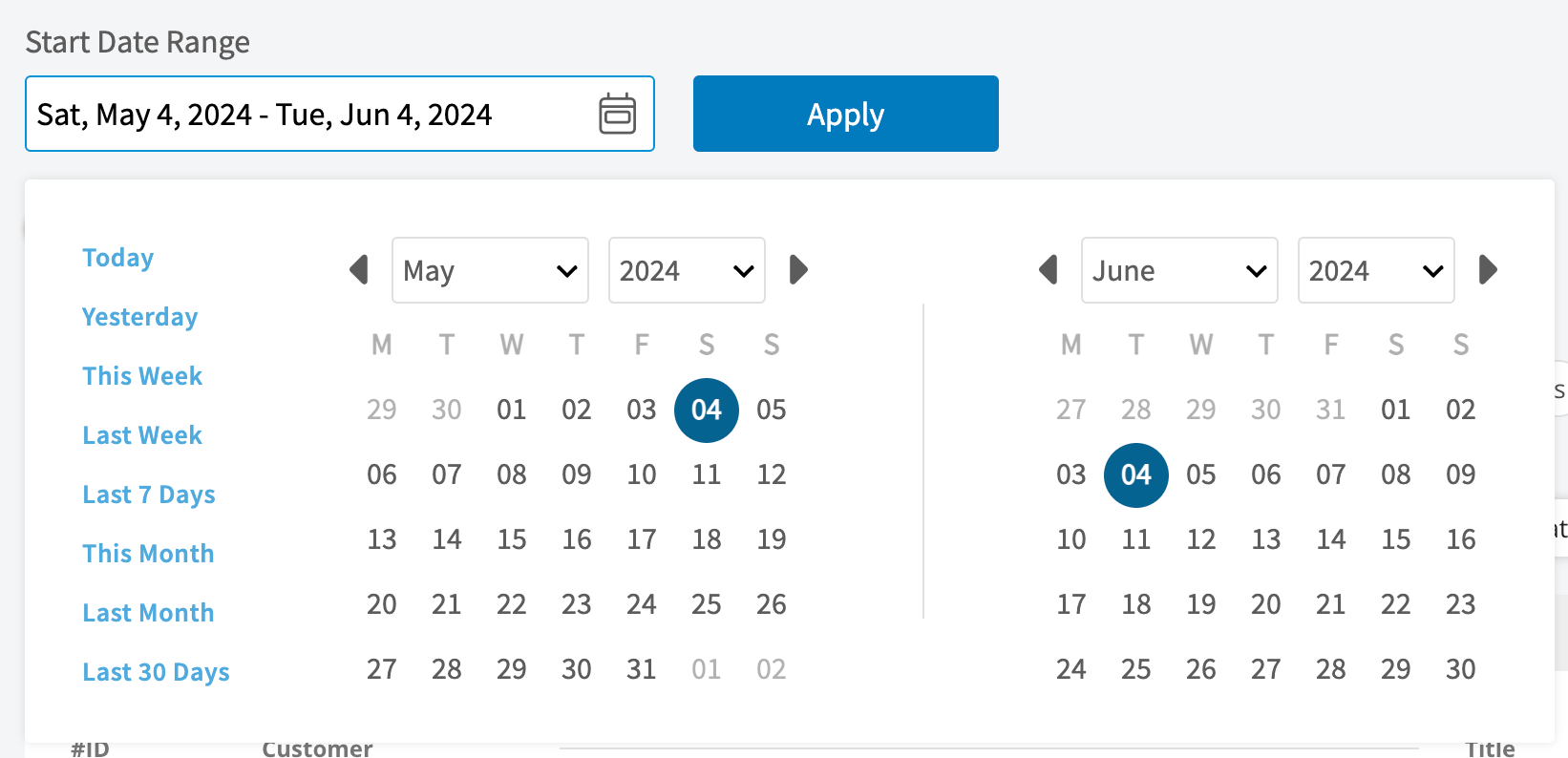
Choose your columns
Select Columns to choose which purchase order fields appear in the report table and the order they appear in.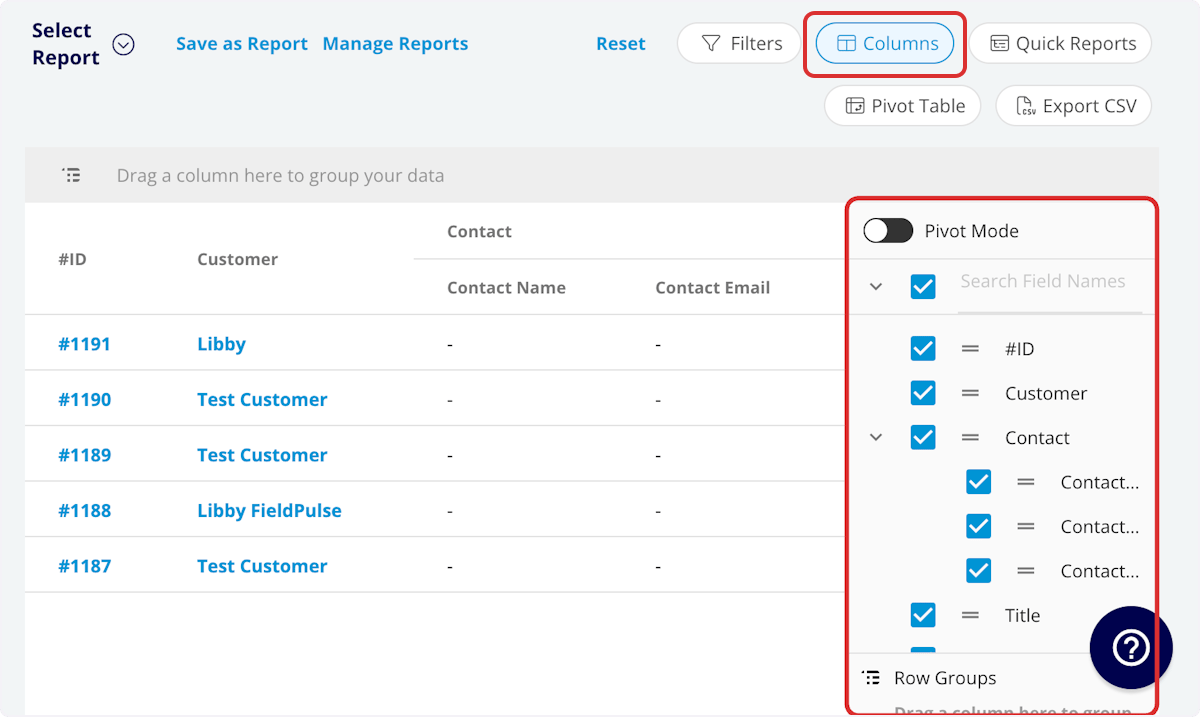
Customer detail columns
The Customer entry expands into the customer record’s own fields:Set your filters
Before running the report, set filters to narrow the results. Select the Filters icon, then choose how you want to filter the report.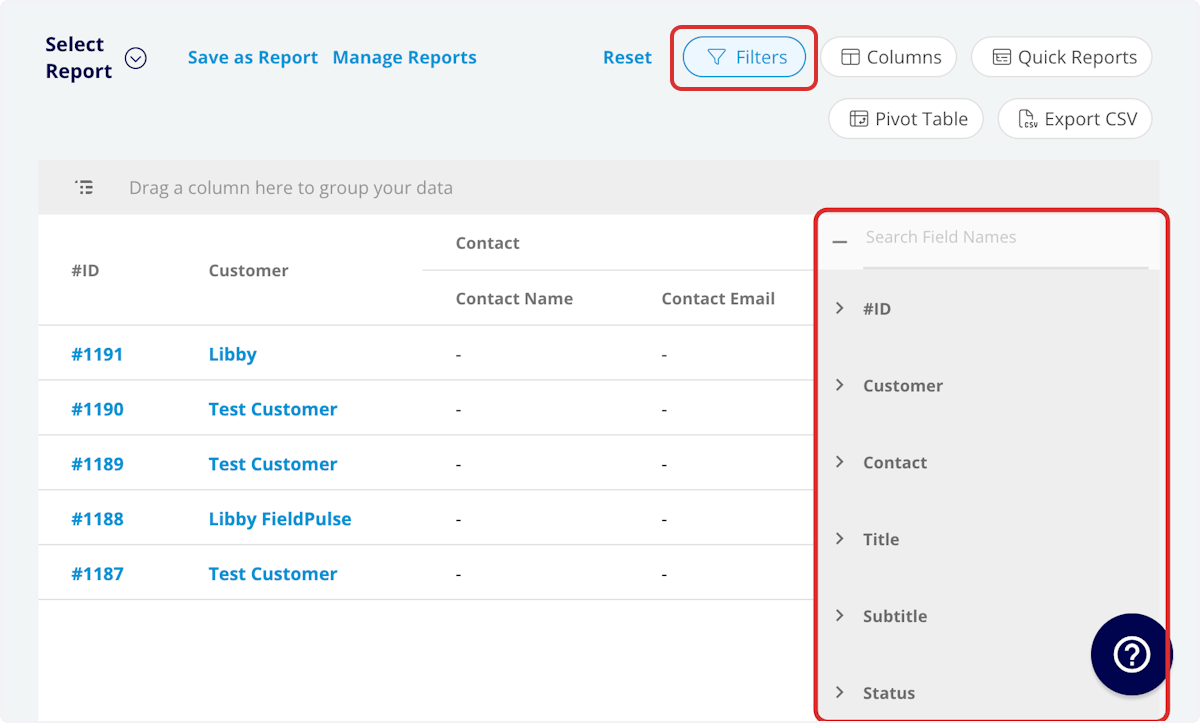
Filter operators
When you filter by contents, choose an operator and then enter the values to filter the data on.Common purchase order reports
Three purchase order reports cover most of what teams ask of this data. Customize the columns to whatever you need, then add the columns each report calls for. To group a report, drag that column into the bar above the report table — see How to Use Raw Data Reporting for the full grouping flow.Video walkthrough: Building the common purchase order reports
Tips
- Include Created At, Order At, Expected Delivery At, and Received At together to read one order’s timeline across a single row, from the day it was created to the day it arrived.
- Include Payment Status next to Total to see the amount of each purchase order alongside where its payment stands.