
Uploading the Excel Template into Google Sheets
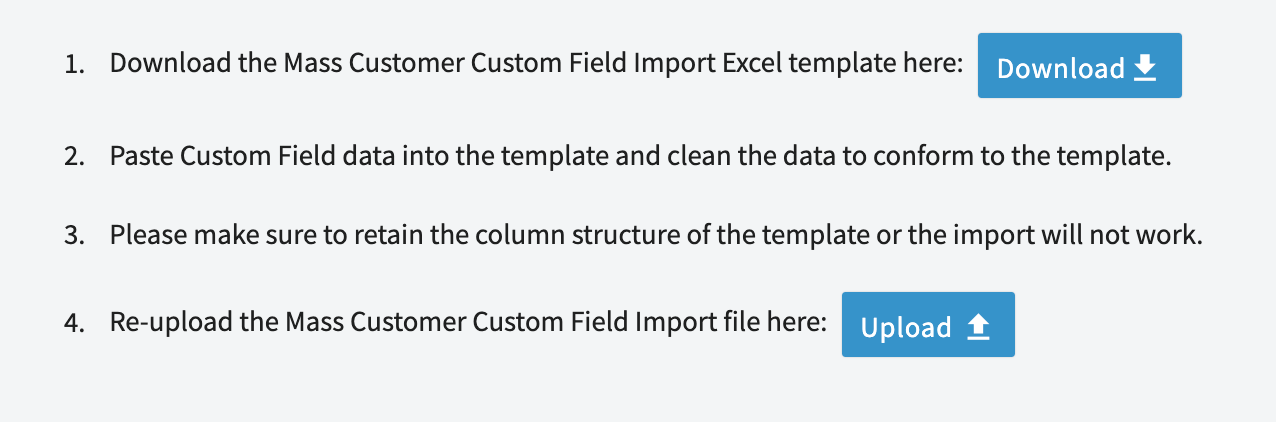
After pressing the blue Download button to download the Excel template to your computer, we will then open Google Sheets in a tab on your web browser. Then click on the Blank Spreadsheet option to open a new Google Sheet.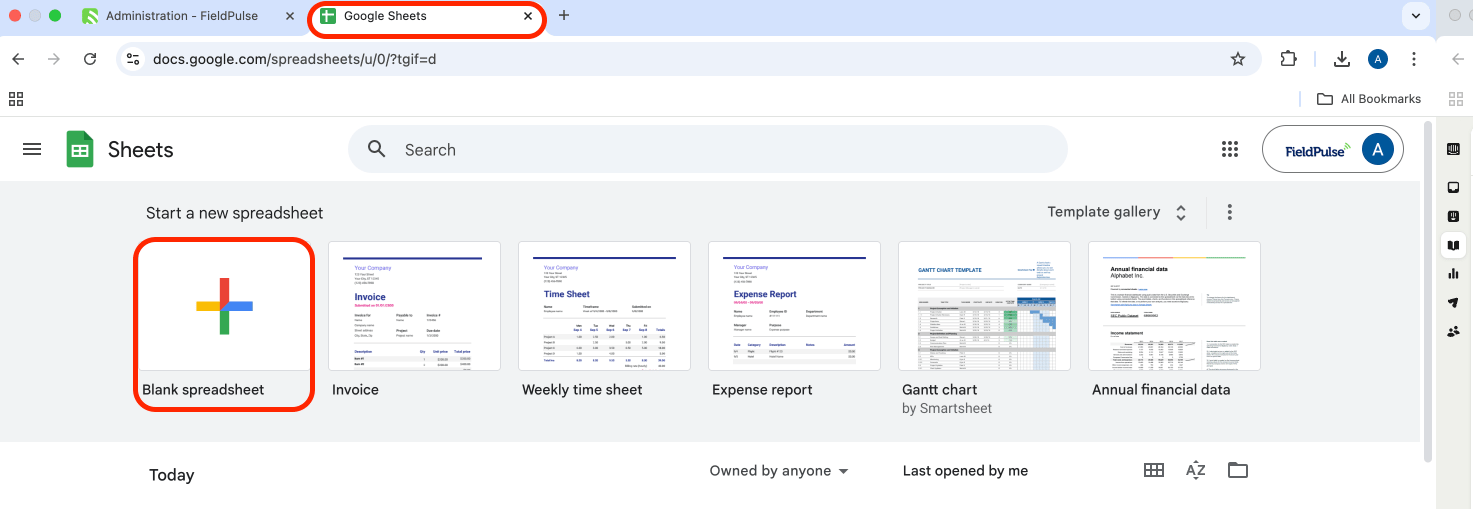
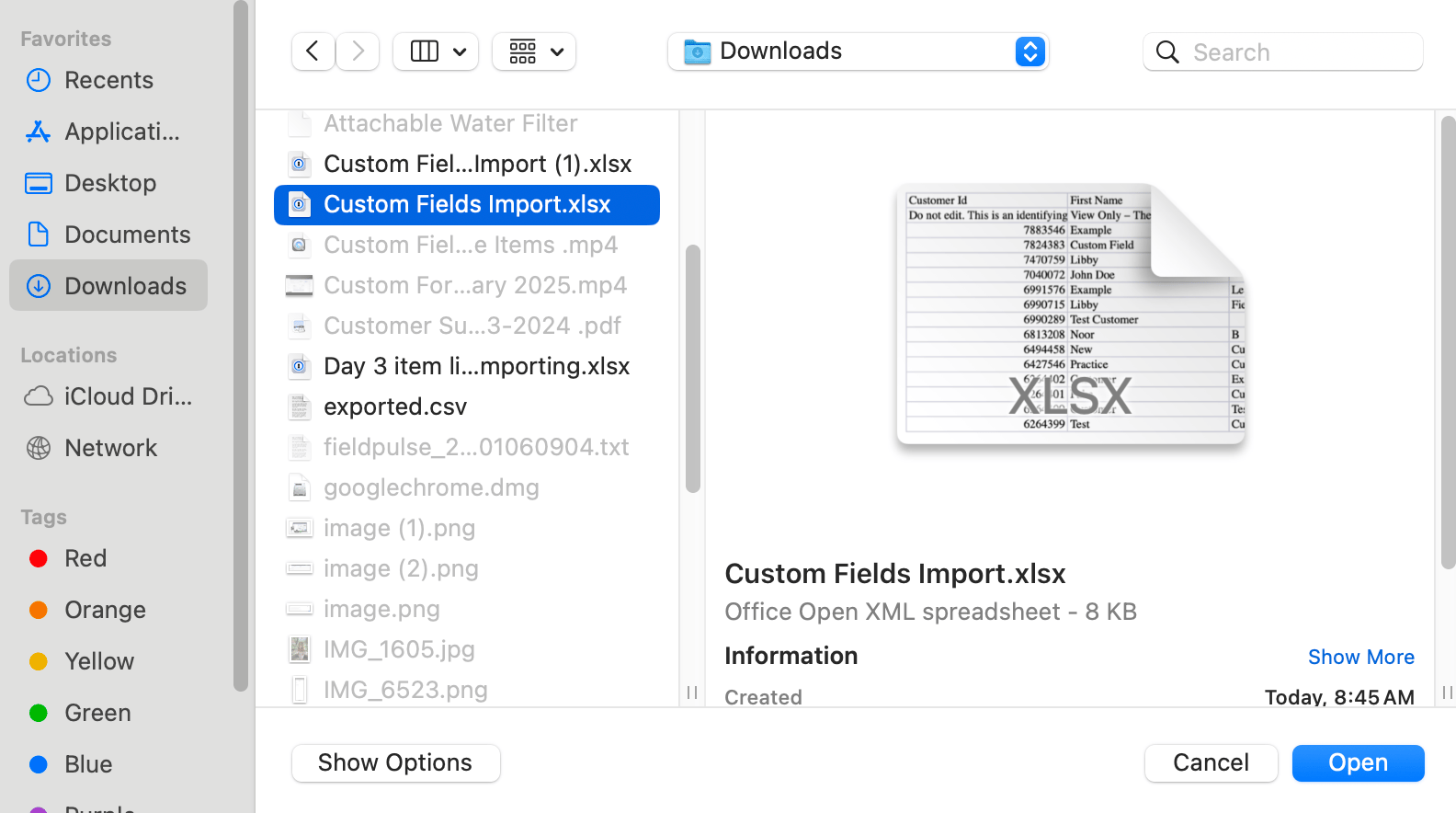
Adding to/Editing the Spreadsheet
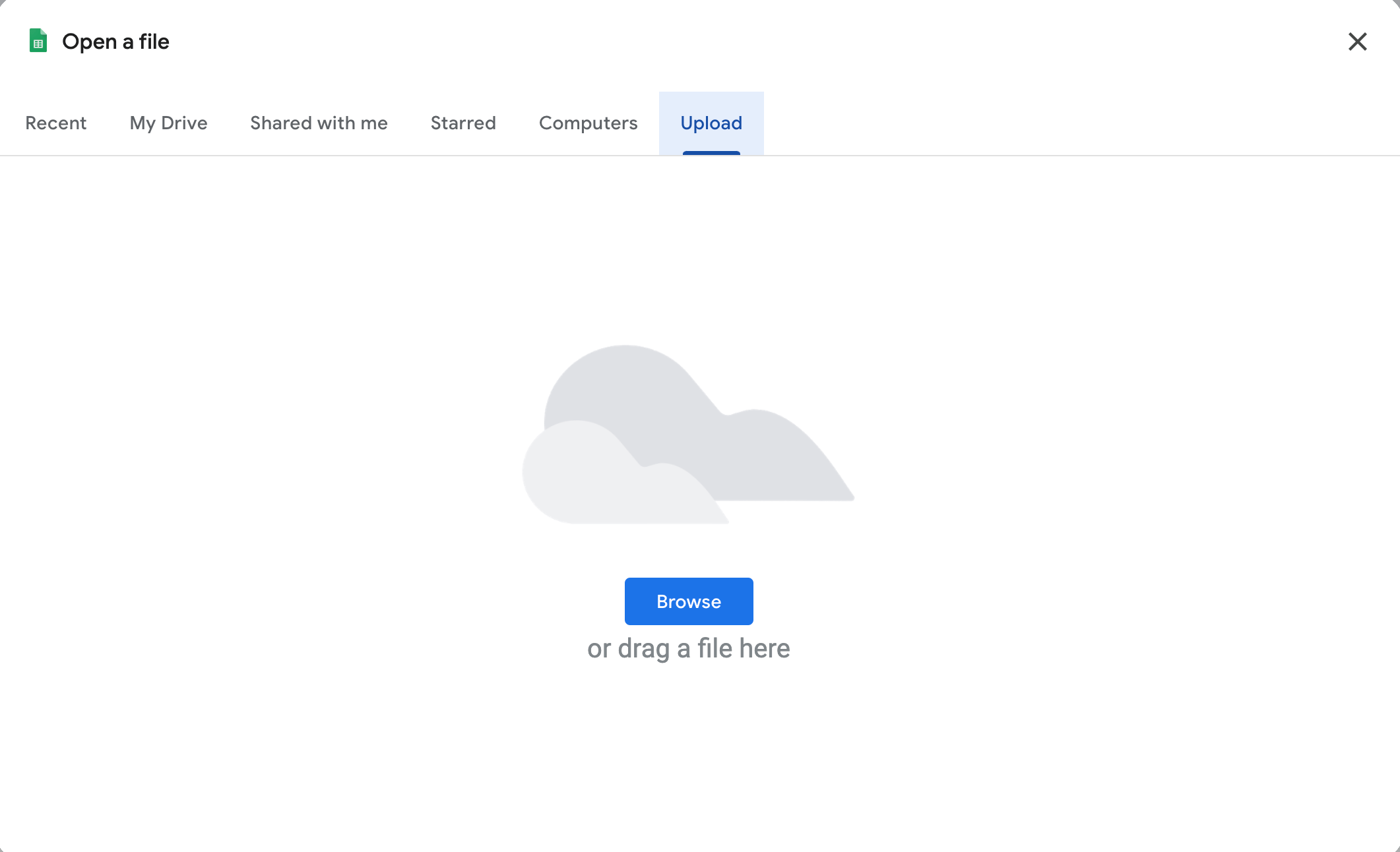
The template has successfully been imported and you are ready to get started! Note that the cells above the red line should not be edited. Please read the instructions carefully. Go ahead and add/edit necessary information.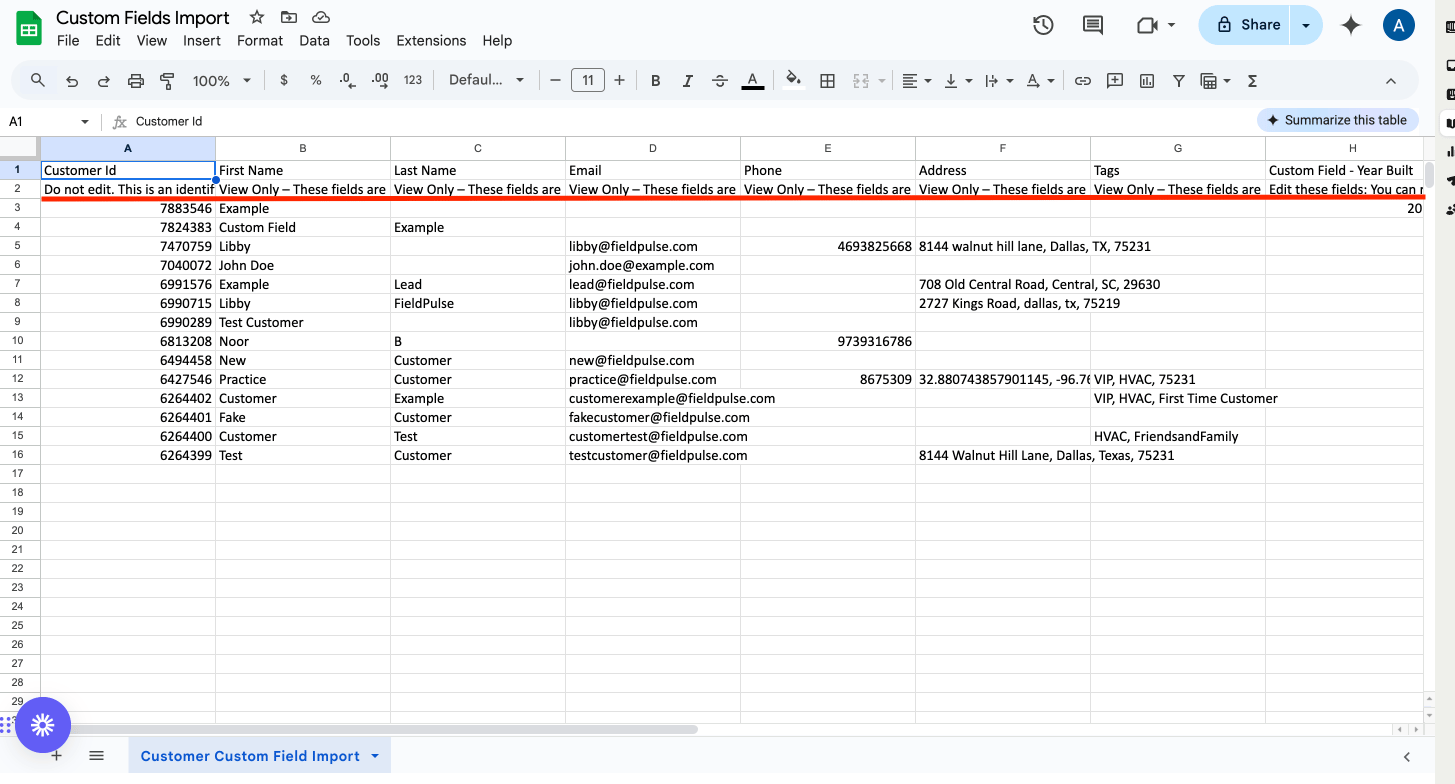
Downloading the Spreadsheet then Uploading Again to FieldPulse
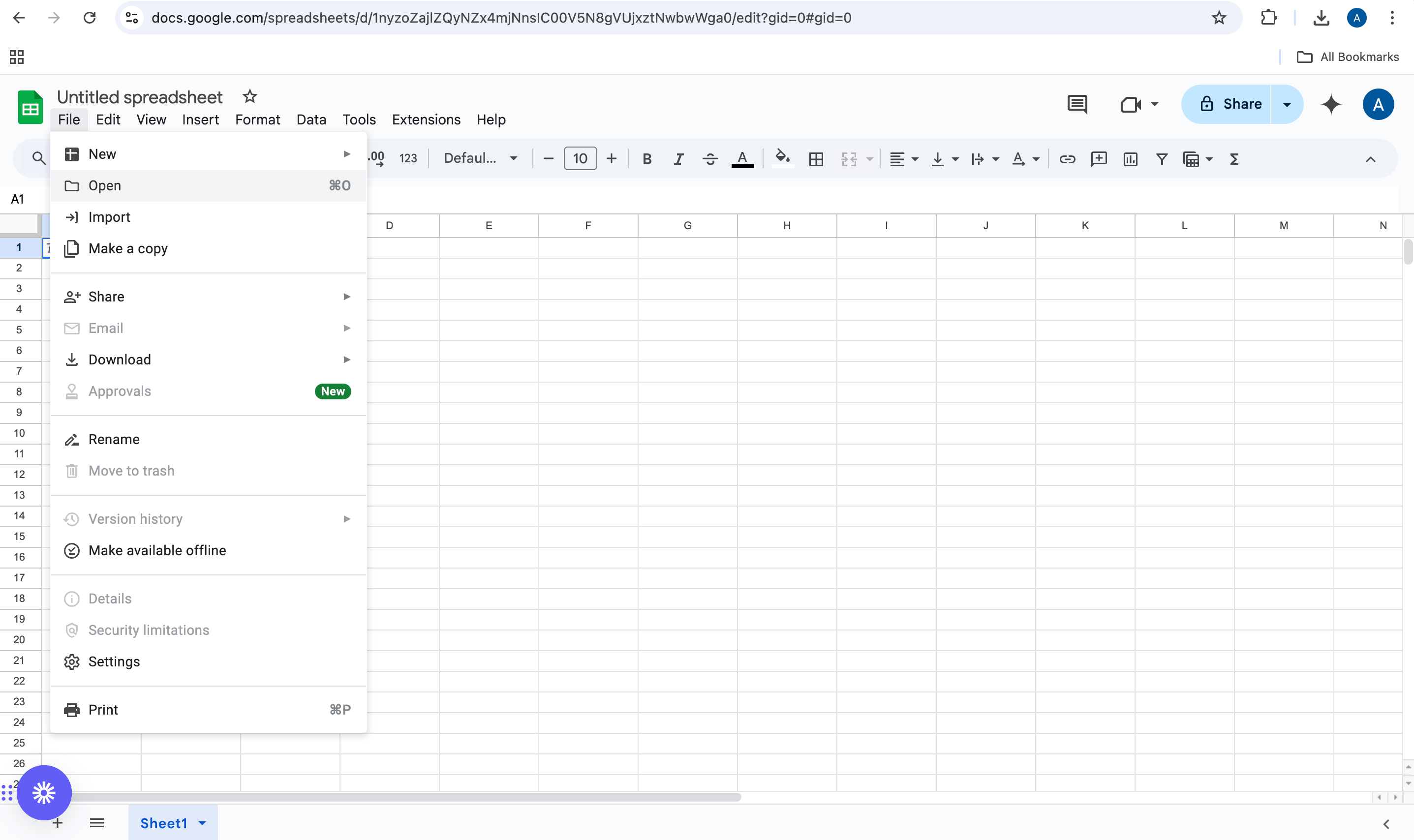
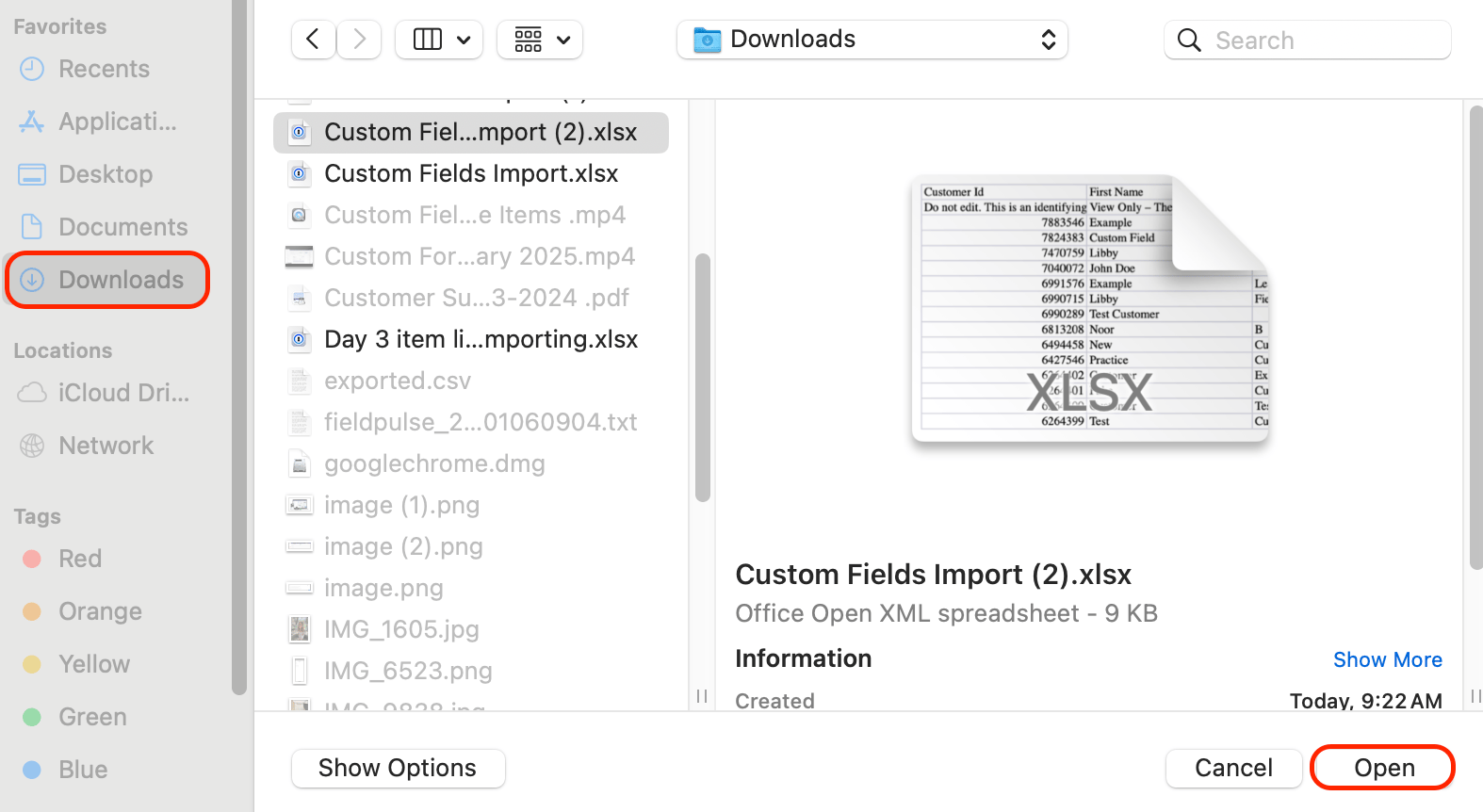
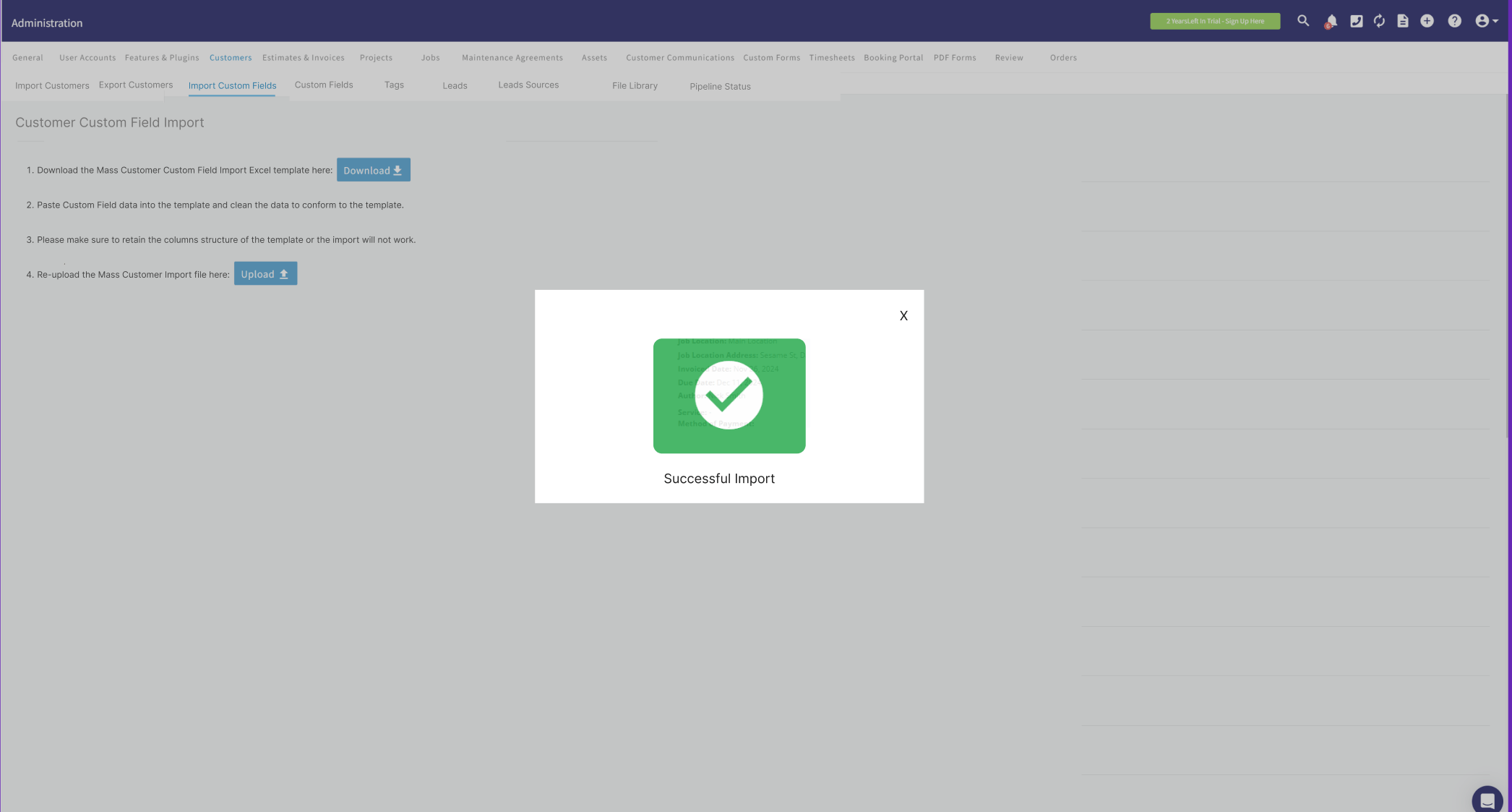
When you are done entering/editing the information on the spreadsheet we will download this form so these changes can be reflected on FieldPulse. Go to File, then hover your mouse over where it says Download. By doing this it will provide you with choices. In this case, choose Microsoft Excel (.xlsx). This will then initiate the download of this spreadsheet to your computer.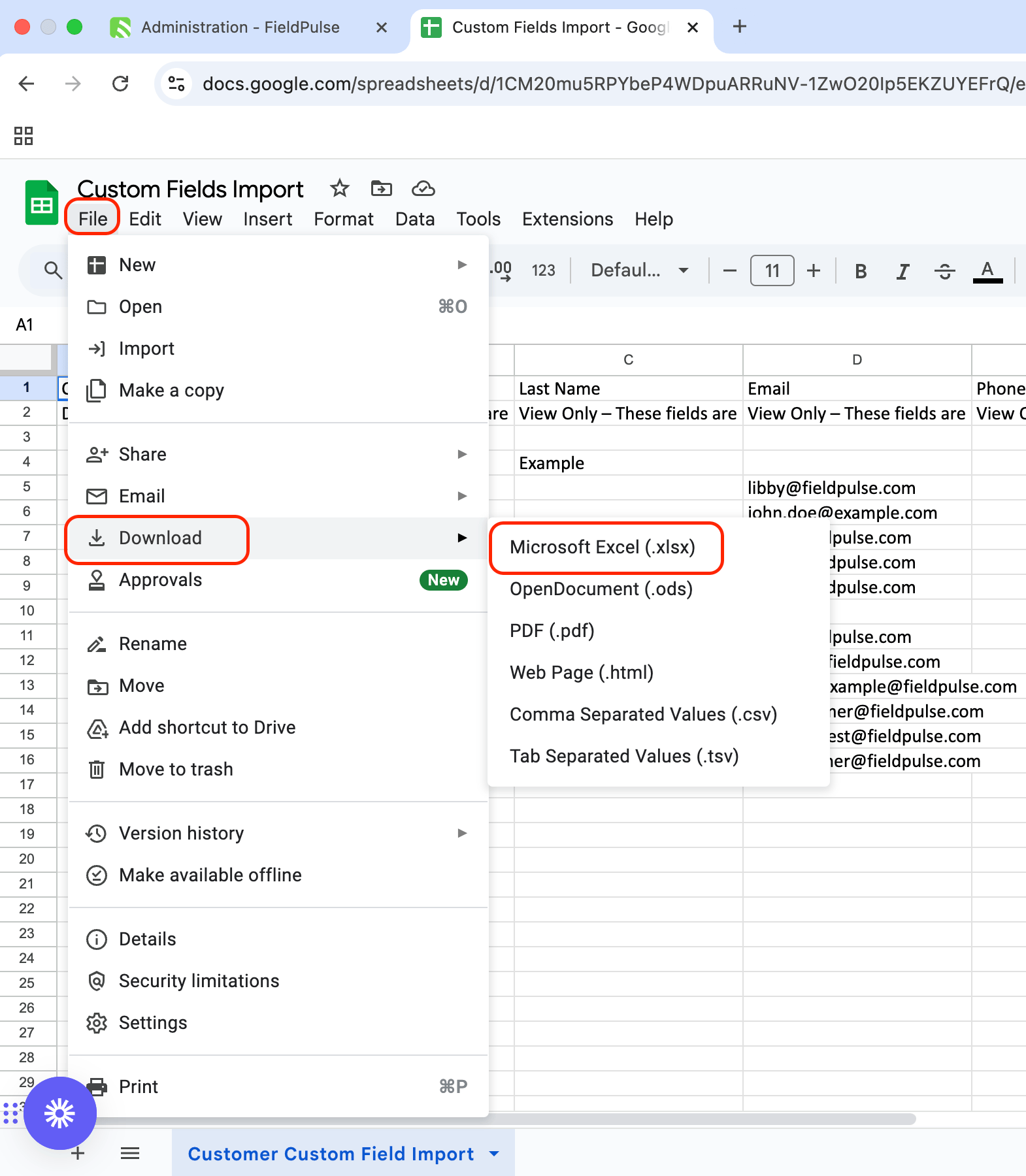
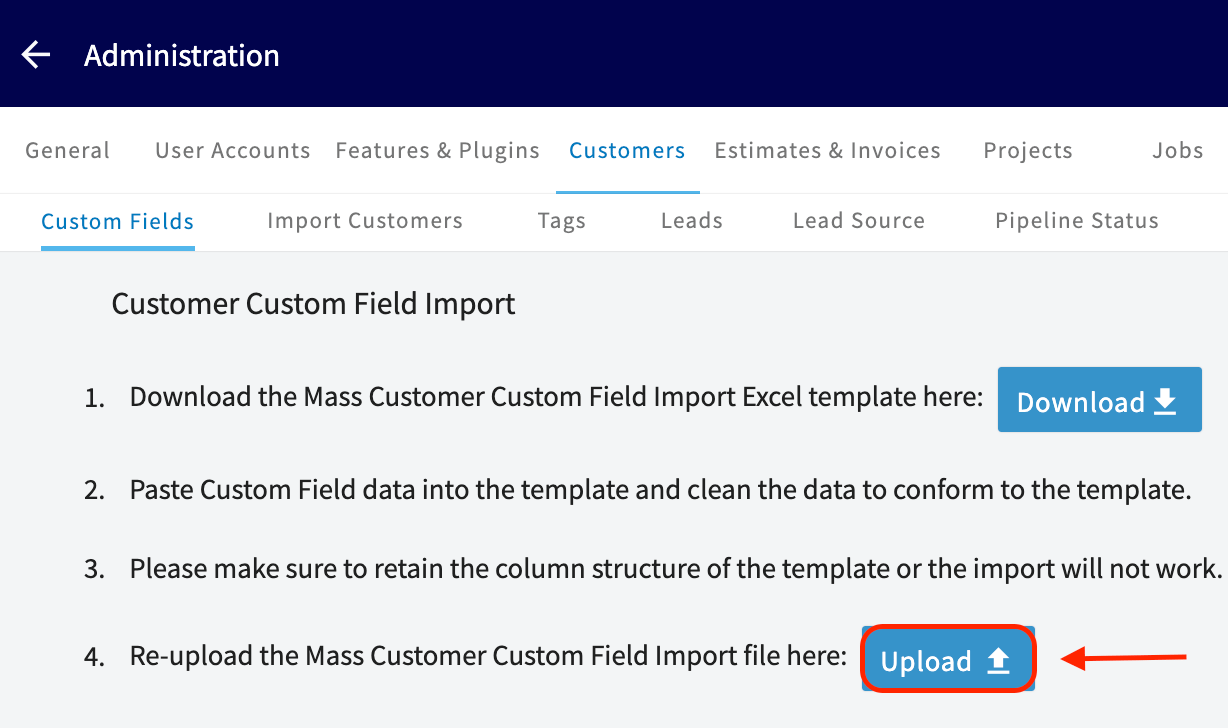
Have additional questions? Contact us at support@fieldpulse.com or use the chat feature in the bottom right corner of your screen.