
Why This is a Game Changer for Your Business
Customizable Workflow Pipelines- We want your sales process in FieldPulse to align with your actual business operations. This feature allows you to define and label statuses that resonate with your workflow—from initial review through approval to job handoff.
- Create distinct workflows for various job types or sales cycles, ensuring that your team consistently adheres to the right processes. Plus, maintain accounting accuracy as each status smoothly maps to corresponding categories in QuickBooks, ensuring seamless syncing.
- Manage your estimates and invoices like a real pipeline. Our kanban board, Estimates & Invoices By Status, makes it easy for all stakeholders—from front office staff to leadership—to quickly identify what’s progressing, what’s stalled, and what demands attention. Each card features key details, such as relevant names and amounts, displayed prominently, while status columns offer a summary at the top, highlighting cash flows within the pipeline.
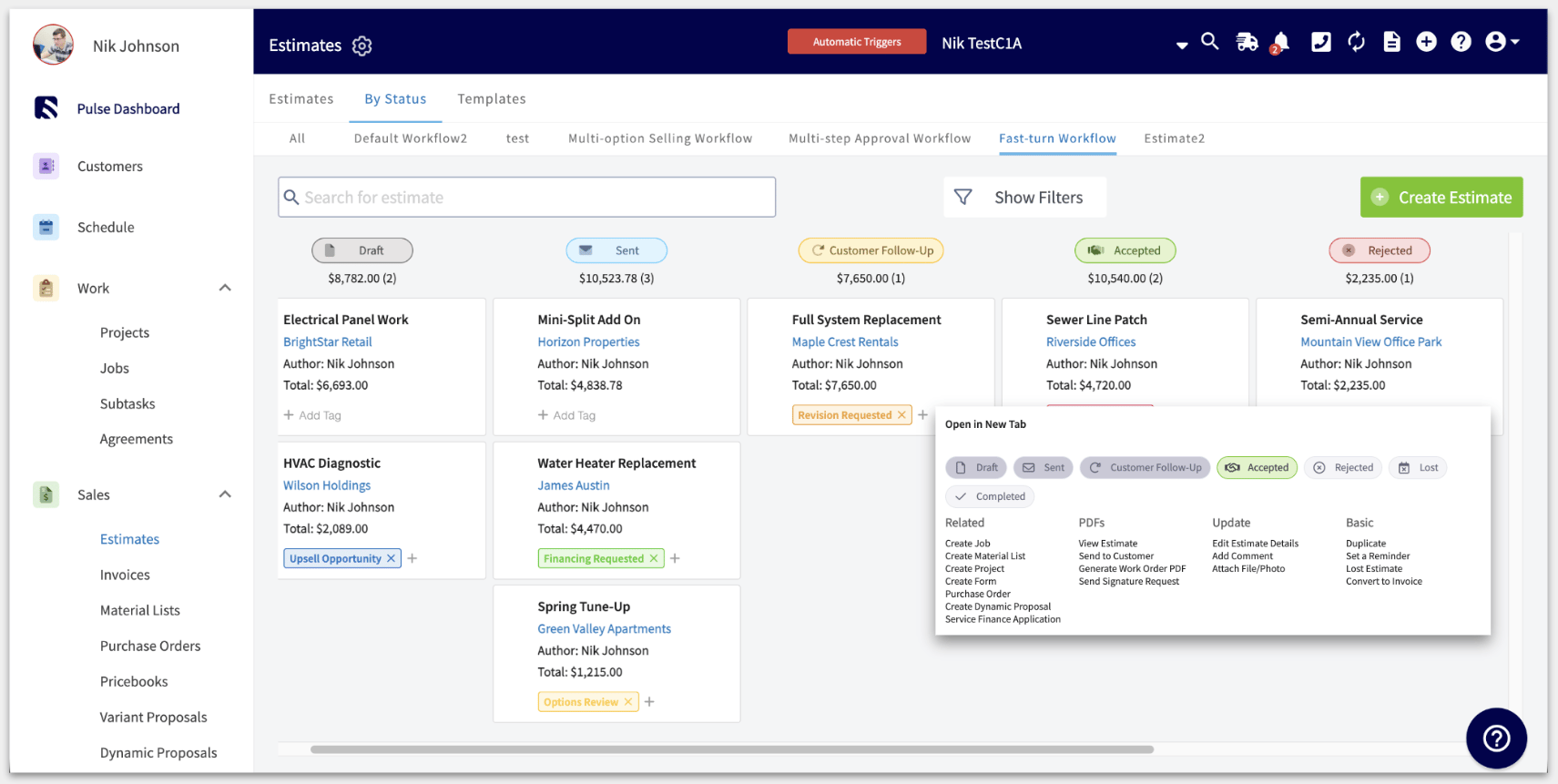
General Configuration Steps
Navigate to Company Settings > Estimates and Invoices > choose either the E_stimate Custom Status_ tab or the Invoice Custom Status tab. If you plan to use a specific workflow most of the time, select the Set as Default button next to your chosen workflow. This default workflow will then be applied to your records (either Estimate or Invoice). Remember, even if a default workflow is selected, you can still edit and modify the workflow associated with any individual Estimate or Invoice record at the time of creation. Here, you’ll see the default workflow that was added to your FieldPulse account upon signup. If you want to create a new workflow, click on Create Custom Status Workflow.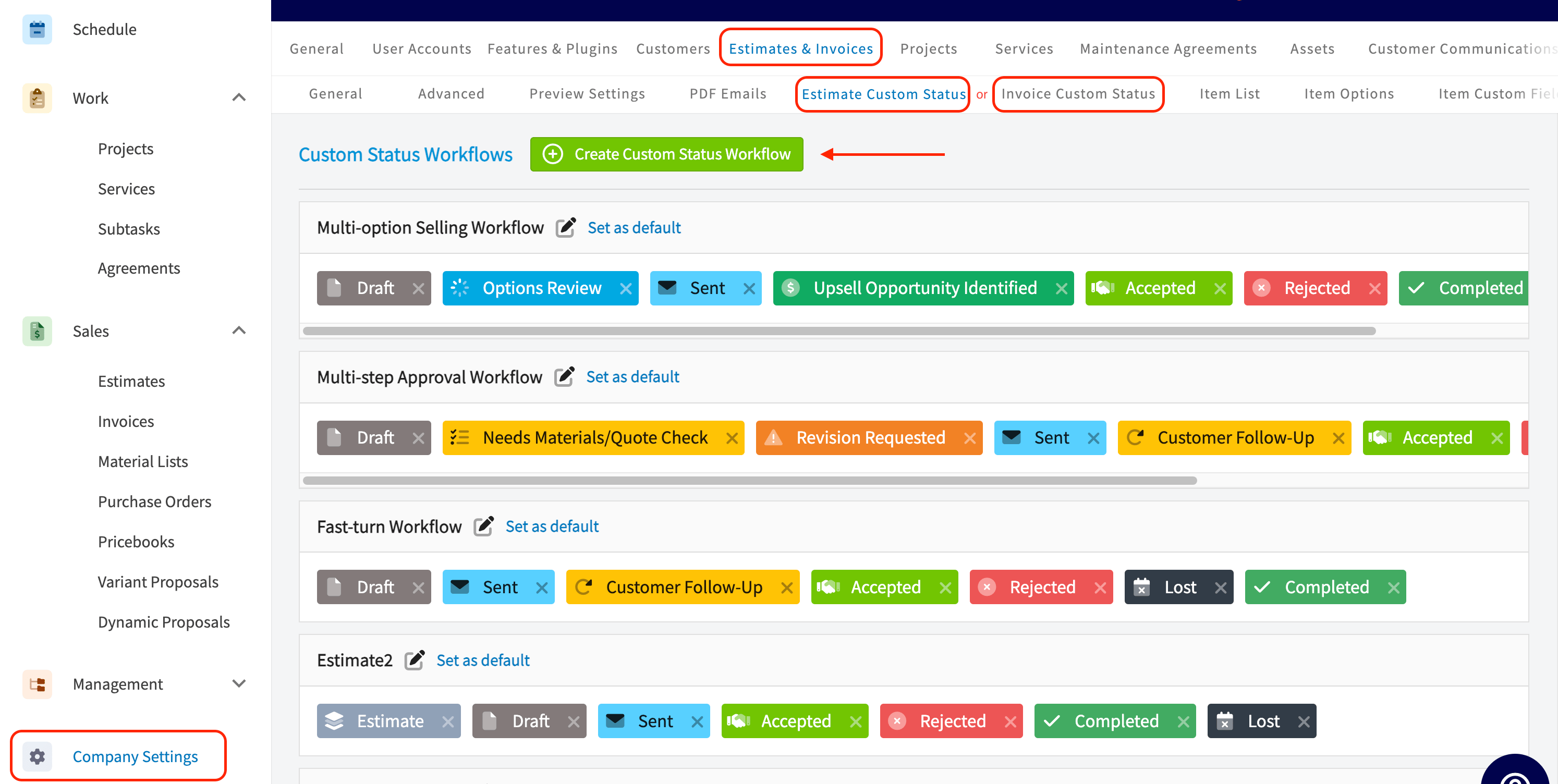
Estimate Specific Configuration Steps
There are 12 Status Buckets for Custom Estimate Workflows. Shown in the image below are the requirements and other helpful tips to ensure you are using each Status Type correctly within your workflows.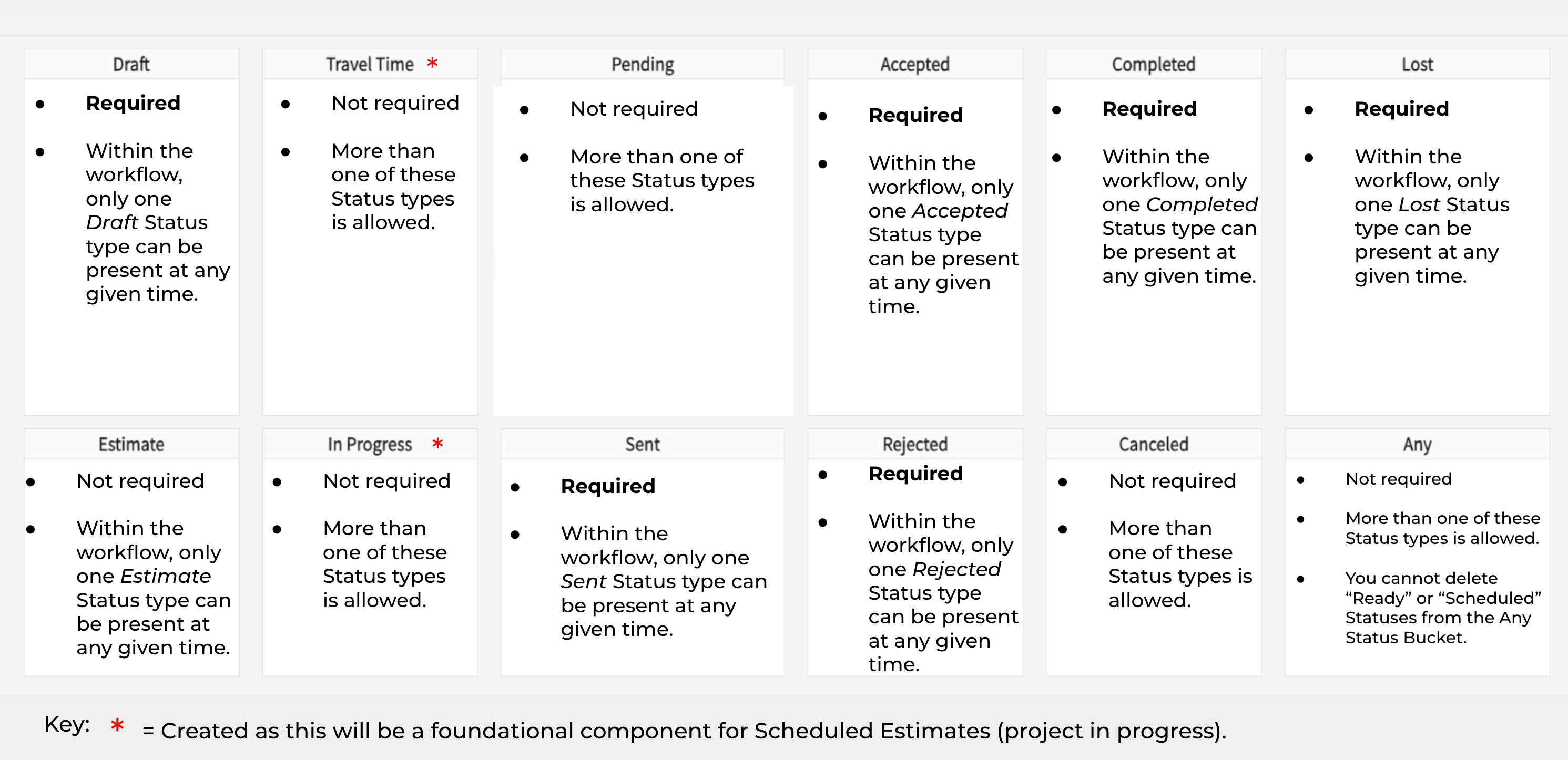
Important QuickBooks Note: Any Estimate that syncs from QuickBooks will default to be assigned to the Default Estimate Workflow. You can edit the Estimate to reassign the workflow assigned if desired.
Related Invoice Status Workflow:
After an Estimate record has been converted to an Invoice record, this indicates the specific flow that you want your Invoice record to follow.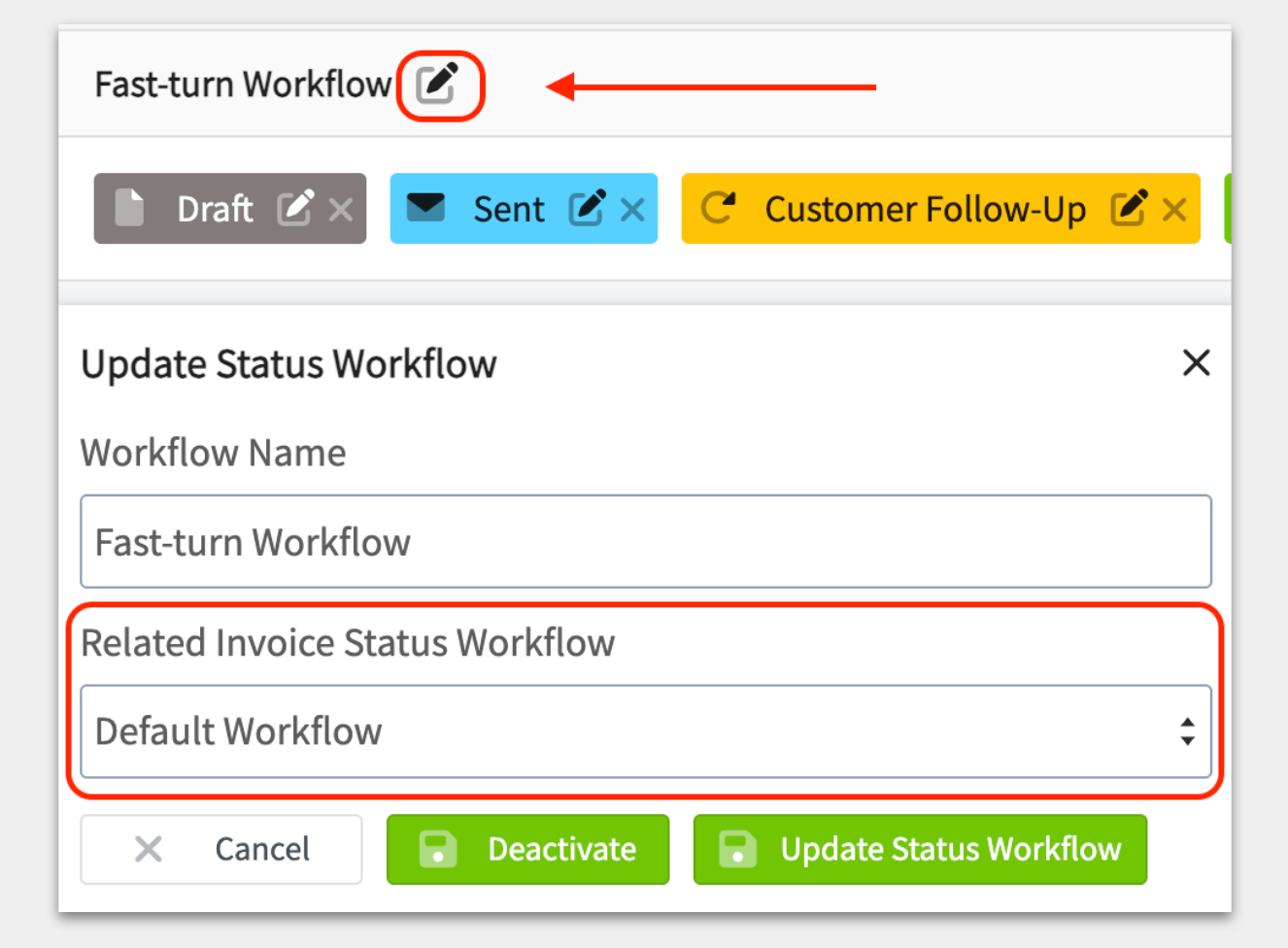
Invoice Specific Configuration Steps
There are 7 Status Buckets for Custom Invoice Workflows. Shown in the image below are the requirements and other helpful tips to ensure you are using each Status Type correctly within your workflows.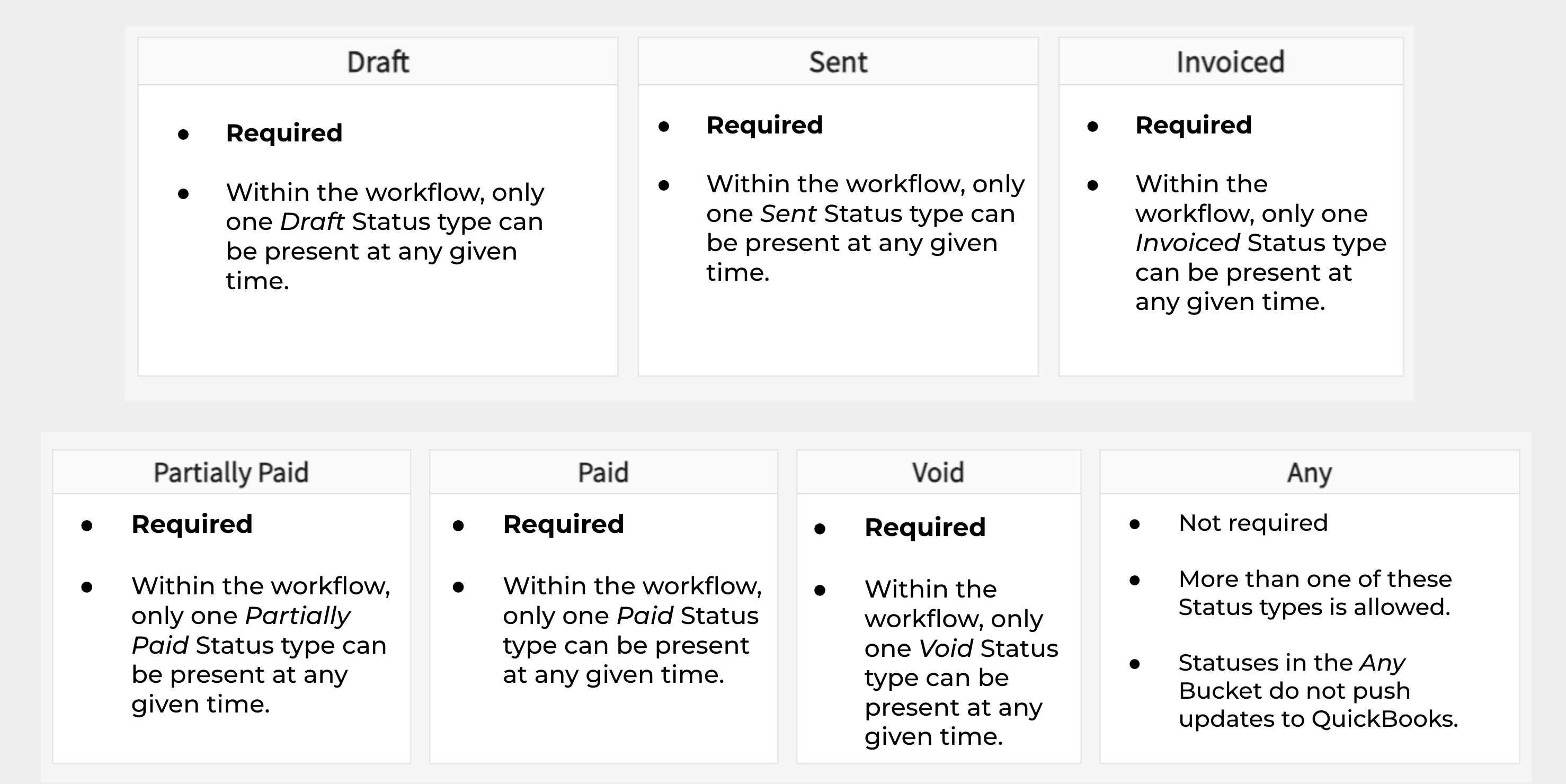
You cannot remove or edit the names of the Default Invoice Statuses in each bucket, but you can change the color and symbol for each Status.
View Your Estimates & Invoices By Status
- From the left-hand menu on your screen, select either the Estimates or Invoices tab.
- Once you’re in either tab, click on the By Status subpage at the top of the screen.
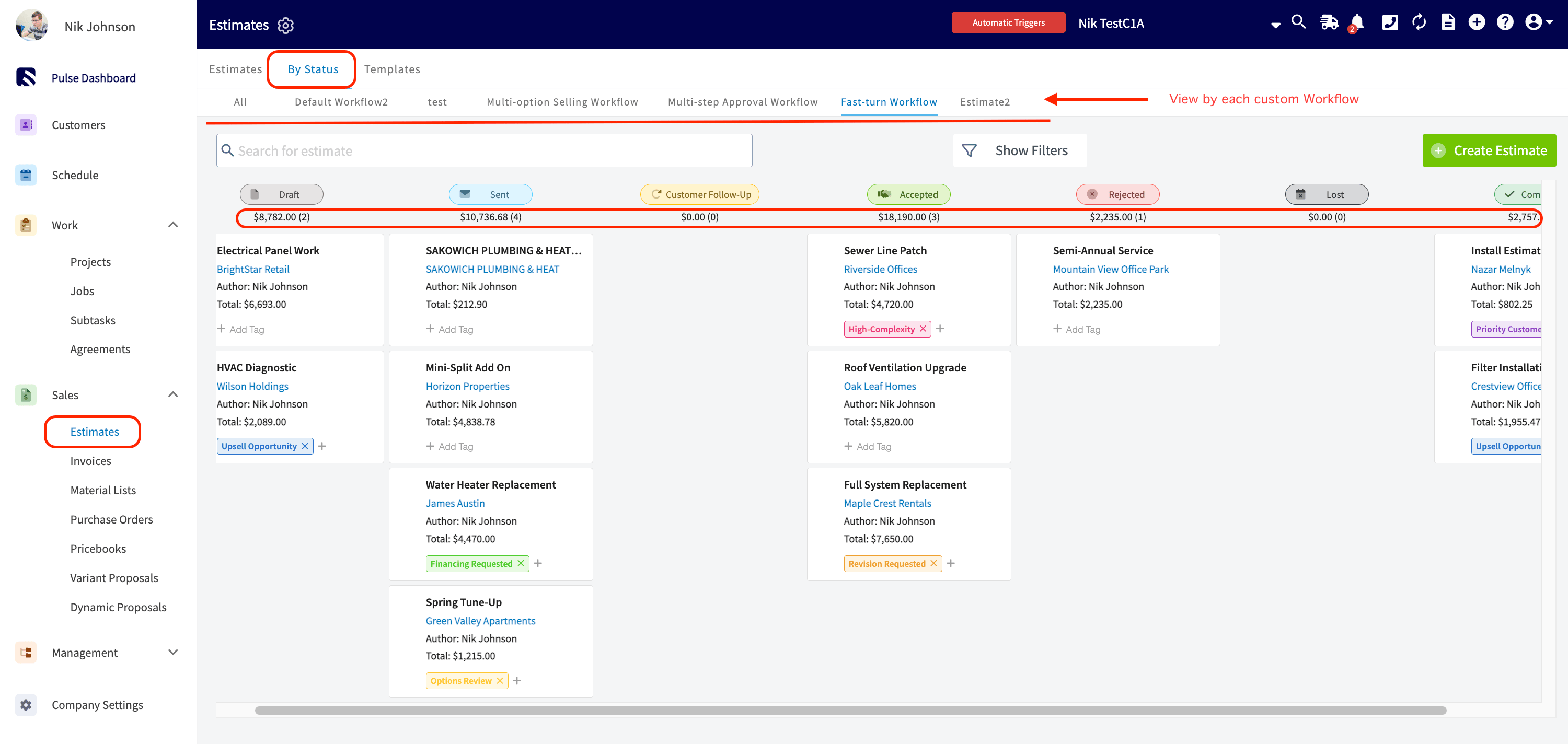
Functionality of Each Estimate or Invoice Tile:
- Drag and Drop: Easily rearrange tiles as needed.
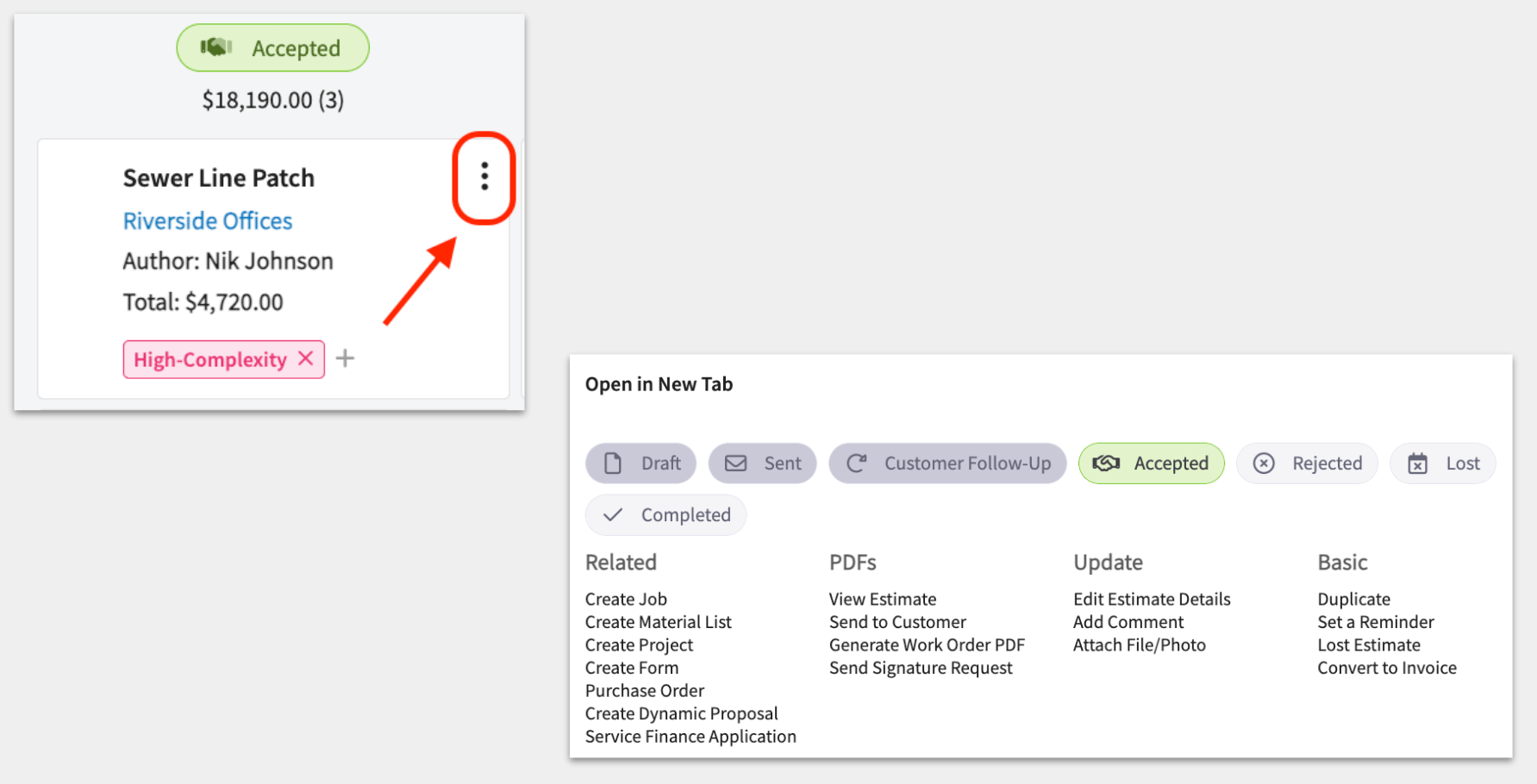
- Quick Access to the Action Menu: Access important options directly from this screen without navigating elsewhere in the app. From here, you can create related records, view and generate various PDFs, and make updates.
Customer Communications & Automatic Triggers
You can set up automatic email and text communications for your customers whenever there’s a change in the status of either your Custom Estimate or Custom Invoice Status Workflows. This feature enables you to associate specific templates with triggers, allowing messages to be sent automatically. This not only saves you time but also keeps your customers informed when it matters most.Newly Added Automatic Triggers:
- When Estimate Status is changed to [Status].
- When Invoice Status is changed to [Status].
Value Add:
Utilizing these triggers provides additional opportunities to follow up on open estimates and unpaid invoices. You can also request reviews once invoices are finalized and revisit estimates that didn’t convert initially, as we know that not every “no” is a permanent rejection.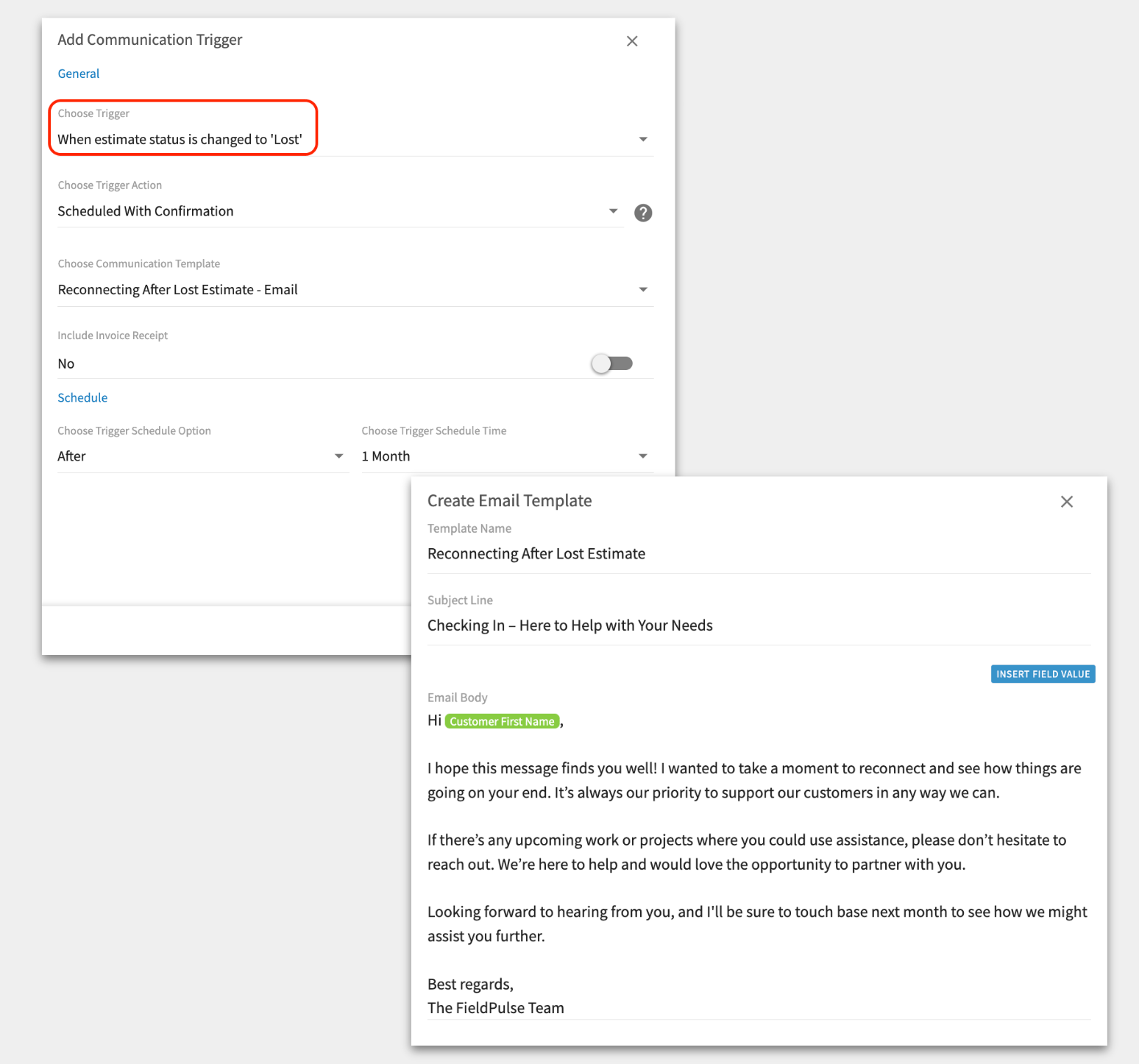
To learn more about customer communications & automatic triggers, click here.
Custom Estimate and Invoice Status Workflows in Reporting
Below is a list of updates to our reporting functionality within FieldPulse since the release of Custom Estimate and Invoice Workflow Status.Reporting Updates:
-
Job Reporting:
-
New column: Related Invoice Status
- This column gives you visibility into what Status the Related Invoice is in.
-
New column: Related Invoice Status Type
- This column allows you to filter by Type of Status. The types you can filter by include: Draft, Sent, Invoiced, Partially Paid, Paid, Void, Any.
-
New column: Related Invoice Status
-
Estimate Reporting:
-
New column: Assigned Workflow
- You can report on the Estimate Status Workflow assigned on the record.
-
New column: Status
- This column gives you visibility into what Status your Estimate is in.
-
New column: Status Type
- This column allows you to filter by Type of Status. The types you can filter by include: Draft, Travel Time, Pending, Accepted, Completed, Lost, Estimate, In Progress, Sent, Rejected, Canceled, Any.
-
New column: Assigned Workflow
-
Invoice Reporting:
-
New column: Assigned Workflow
- You can report on the Invoice Status Workflow assigned on the record.
-
New column: Status
- This column gives you visibility into what Status your Invoice is in.
-
New column: Status Type
- This column allows you to filter by Type of Status. The types you can filter by include: Draft, Sent, Invoiced, Partially Paid, Paid, Void, Any.
-
New column: Assigned Workflow
-
Payments Reporting:
-
New column: Parent Invoice Status
- When running your payments reports, utilize this column to verify that all invoices are fully paid. This allows you to easily identify any that are only partially paid or still in the Sent status, waiting for payment from your customers.
-
New Column: Parent Invoice Status Type
- This column allows you to filter by Type of Status. The types you can filter by include: Draft, Sent, Invoiced, Partially Paid, Paid, Void, Any.
-
New column: Parent Invoice Status
To learn more about Reporting in FieldPulse, click here.
Have additional questions? Contact us at support@fieldpulse.com or use the chat feature in the bottom right corner of your screen.