Who uses this: Admins and Founding Users have full access; Team Managers and Service Agents need the Ability to View Item List permission. Availability: All regions.The item list is your catalog of everything you sell — services, labor, products you track, and products you do not track. When you build an estimate or invoice, every line item on it comes from the item list. You build the item list three ways — a mass import, an accounting sync, or adding items by hand — and inventory is the slice of that same list you have chosen to track by quantity, value, and location.
Overview
The item list and inventory are two views of the same catalog, and keeping the two terms straight makes the rest of this page simple. The item list holds every product and service you offer — Service, Service - Labor, Product - Inventory, and Product - Non Inventory items — along with relevant information such as quantity, value, and other attributes. Line items on estimates and invoices are added from the item list. Inventory is the catalog of only the line items you have designated as Product - Inventory, along with relevant information such as quantity, value, location, and other attributes. Every inventory item is an item-list item, but not every item-list item is inventory. The item type you choose on each item is what decides which of the two views it lands in:Video walkthrough
Video walkthrough: setting up the item list and inventory
Before you begin
- Decide which materials you track as Product - Inventory and which you offer without tracking stock as Service, Service - Labor, or Product - Non Inventory. The item type is set on each item as you create it.
- Set up your inventory hubs first if you want stock counted by location, so you can assign quantities to a hub while you add each item.
- Confirm the user has the Ability to View Item List permission turned on. See Setting Up Inventory Permissions.
Step-by-step setup
Choose how to add your items
You can add line items to the item list three ways. Pick the one that matches where your items live today.Add a line item on web
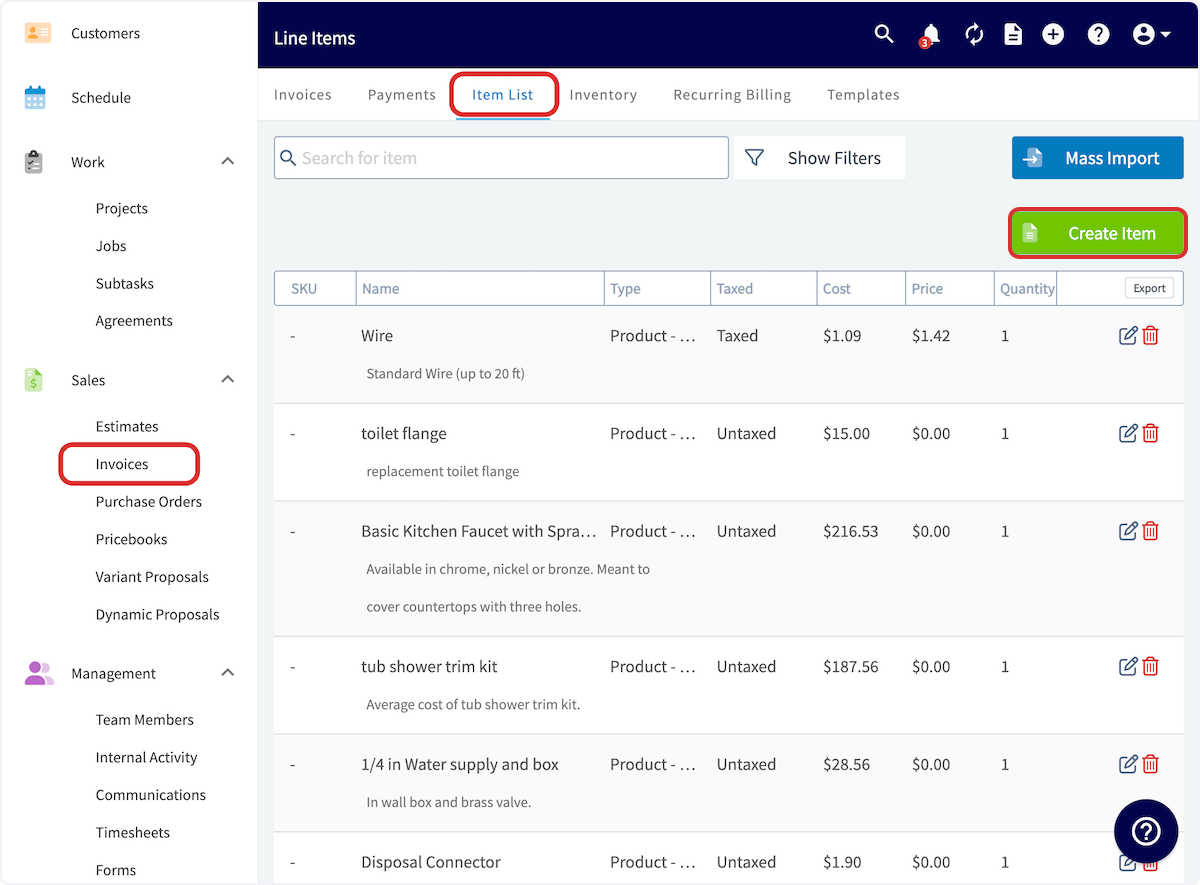
- Select Invoices in the left-side menu, then select the Item List tab in the header.
-
Select Create Item.
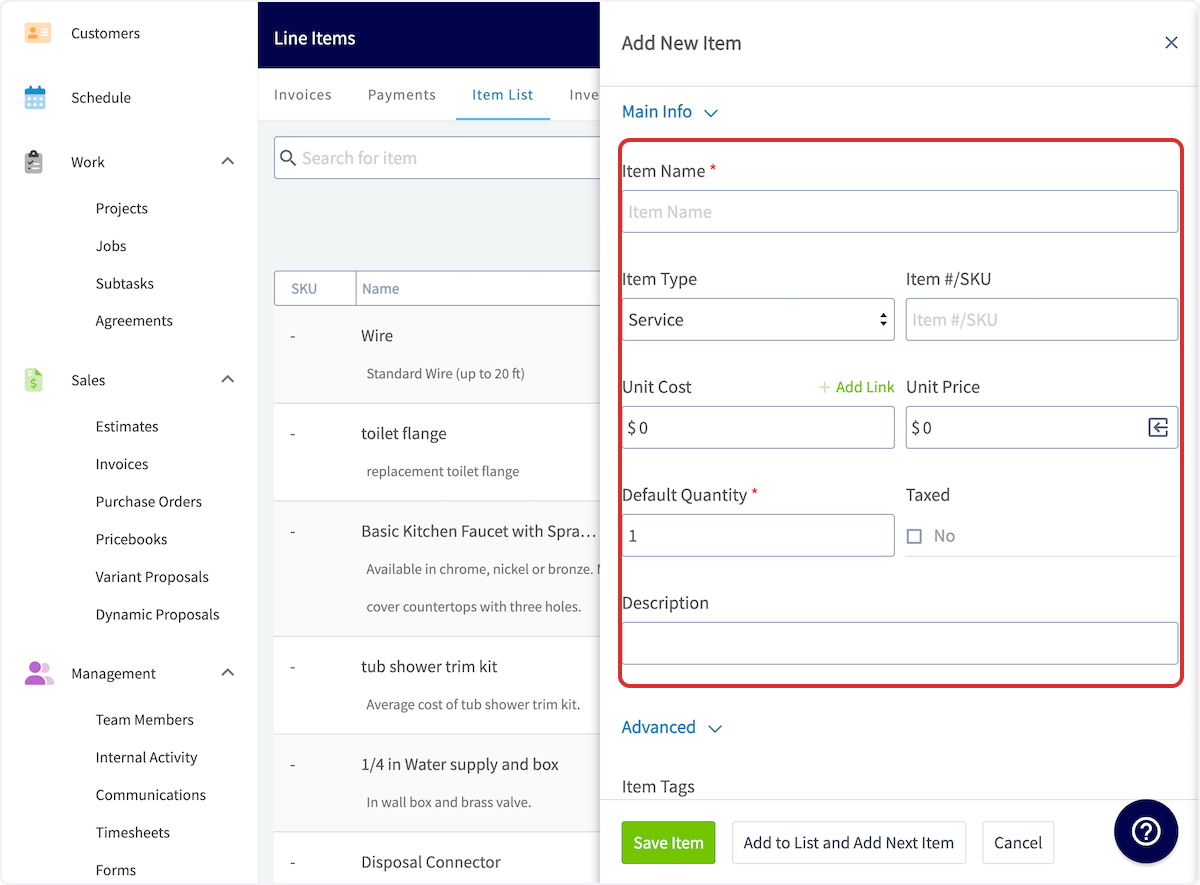
- Enter the Item Name.
- Choose the Item Type — a service, a product you track in inventory, a product you do not track in inventory, or labor that feeds Job Costing (Service - Labor).
- Enter an Item #/SKU if you use one.
-
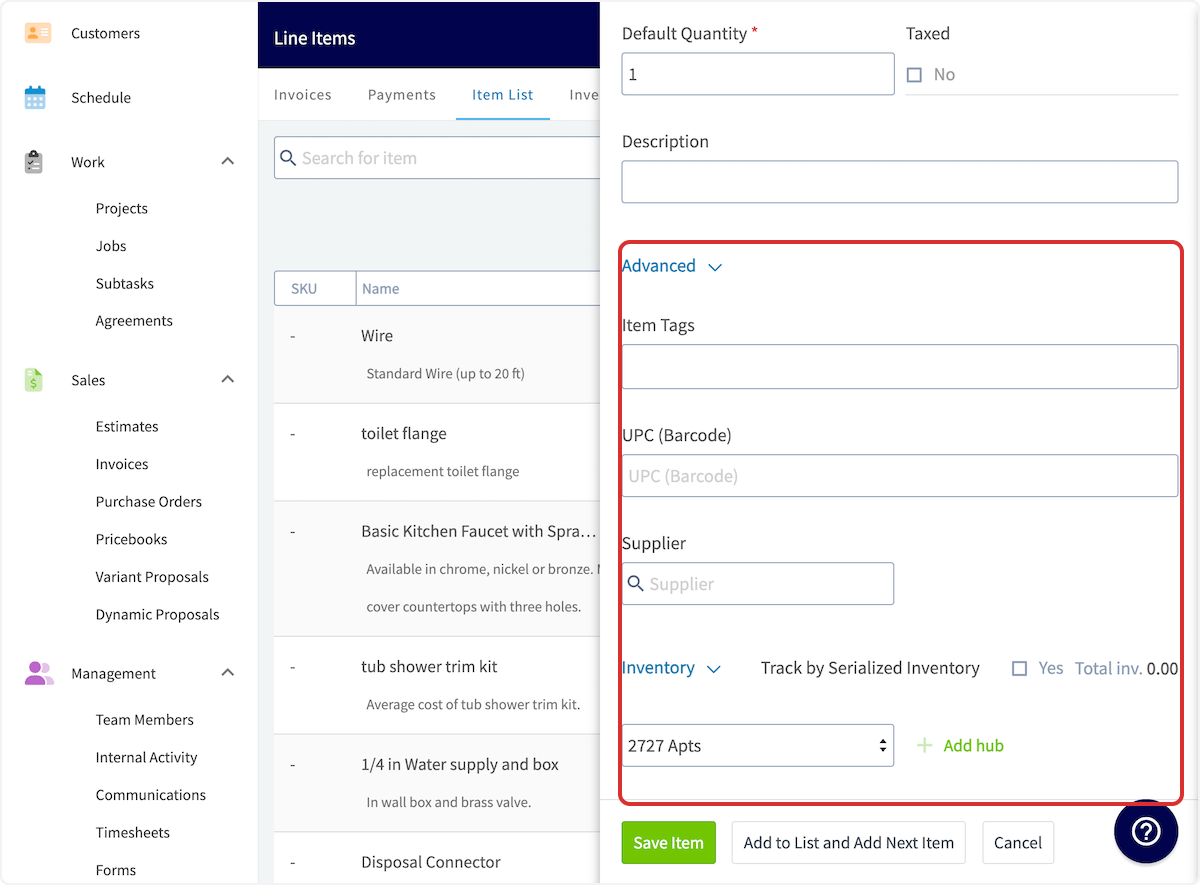
Optionally set the Unit Cost, Unit Price, Default Quantity, Taxed, and Description. None of these are required, because price, quantity, and taxation can be modified after the item is inserted into an invoice. If you do fill them out, they automatically populate the line item with default values in all of your invoices, and those values can still be modified after they are added.
- Optionally add a markup percentage. See How to Use Markups & Margins.
- Under Advanced, add Item Tags and a UPC (Barcode) for the item if you use them.
- Link a Supplier if the item type is Product - Non Inventory or Product - Inventory.
- For a Product - Inventory item, turn on Track by Serialized Inventory to give each unit a serial number. See Serialized Inventory Overview.
-
For a Product - Inventory item, add inventory to different hubs and set up auto-replenishment. See Inventory Hubs Overview and How to Manage Purchase Orders.
- Select Save Item. The new line item is saved in the item list and you can now use it on estimates and invoices.
Add or update items by barcode on mobile
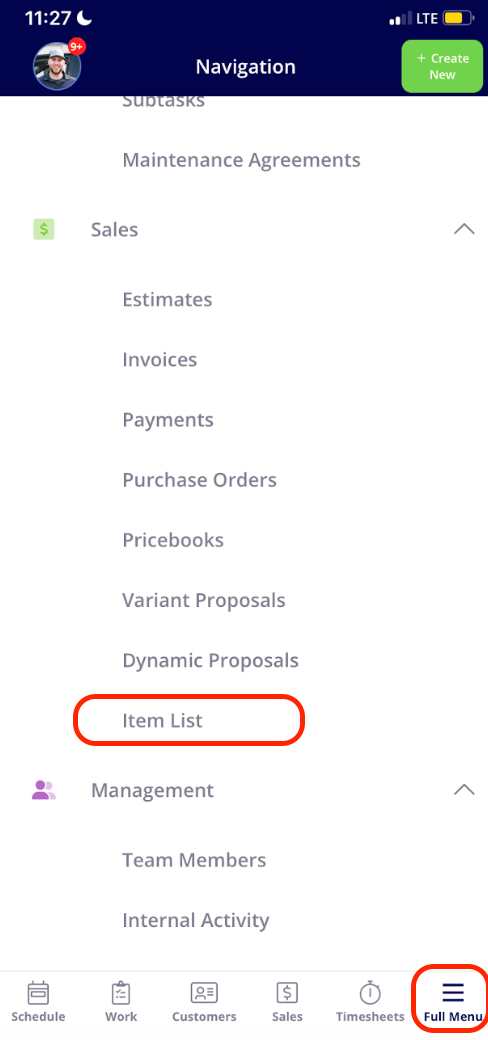
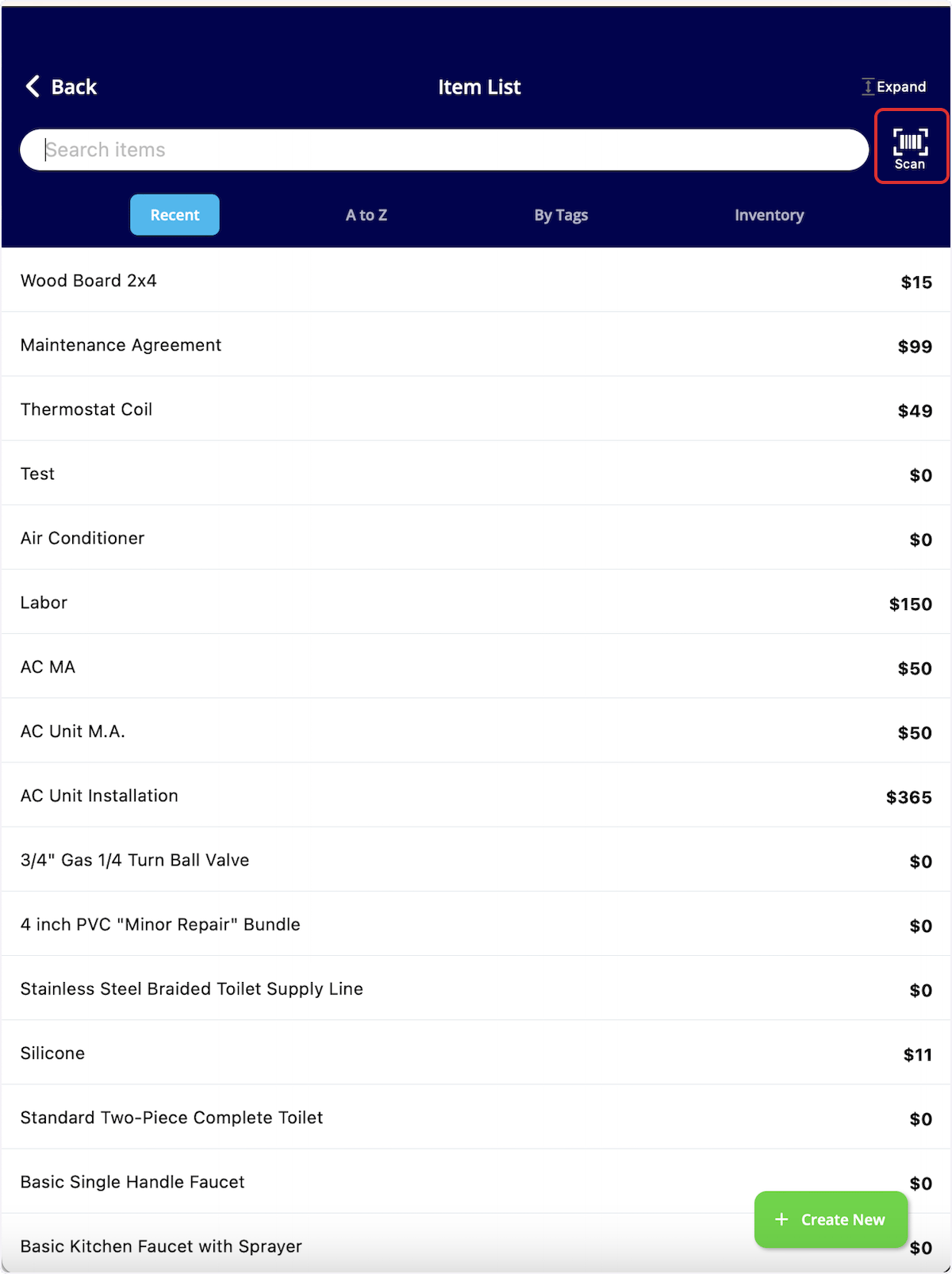
The mobile barcode scanner adds new items and updates existing ones without searching by name, and it lets you update cost, pricing, inventory, and inventory location quickly.- In the mobile app, select Full Menu, then select Item List.
-
Select the barcode Scan icon.
- Point your device camera at the barcode.
- If the barcode does not exist in your system, the screen reads No Results Found. Select Create New Item to add it.
-
If the barcode is already in your system, adjust the item name, unit cost, and unit price on the scan screen.
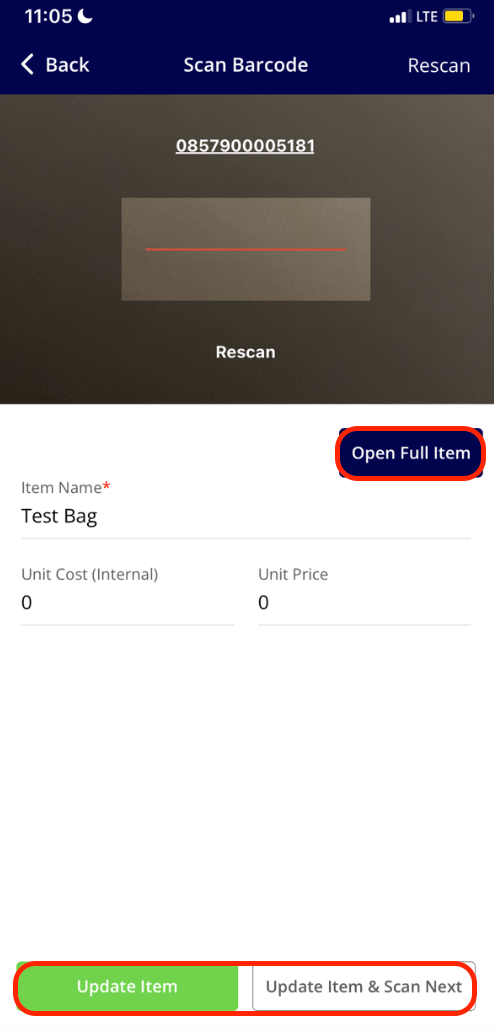
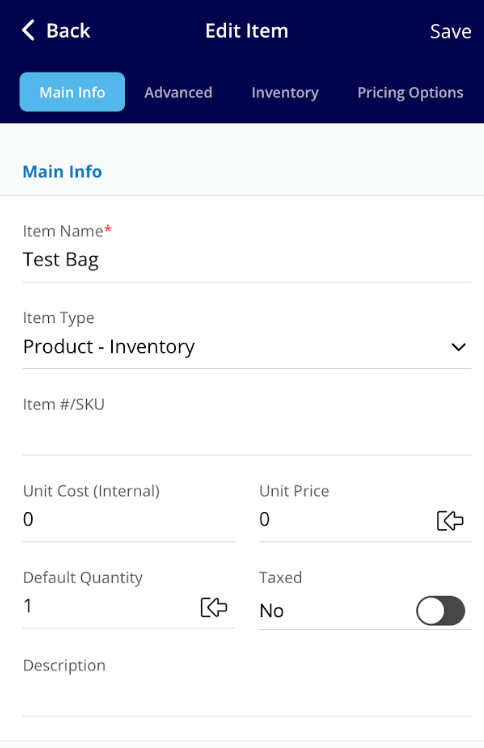
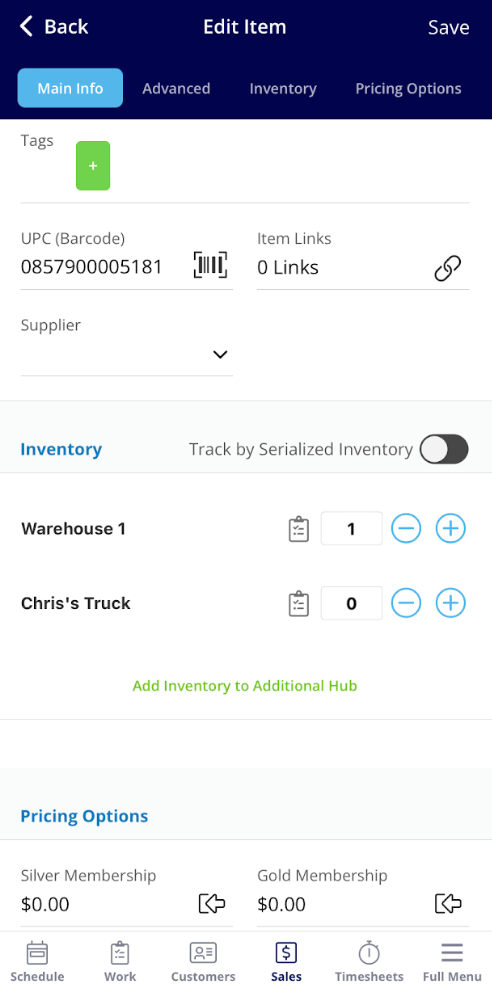
- Select Open Full Item to edit the rest of the item. From there you can make edits on the Main Info, Advanced, and Pricing Options tabs, and adjust the count for each inventory hub in the Inventory section below.