
Creating Custom Tags
To add a job tag when creating or editing a job, scroll to Job Tags and click in the field. You can type in a custom tag to add a new tag into the system. Click Enter after each tag you’d like to use. You can also customize the color of your new tag! You can also select from a previously used tag in the tags list.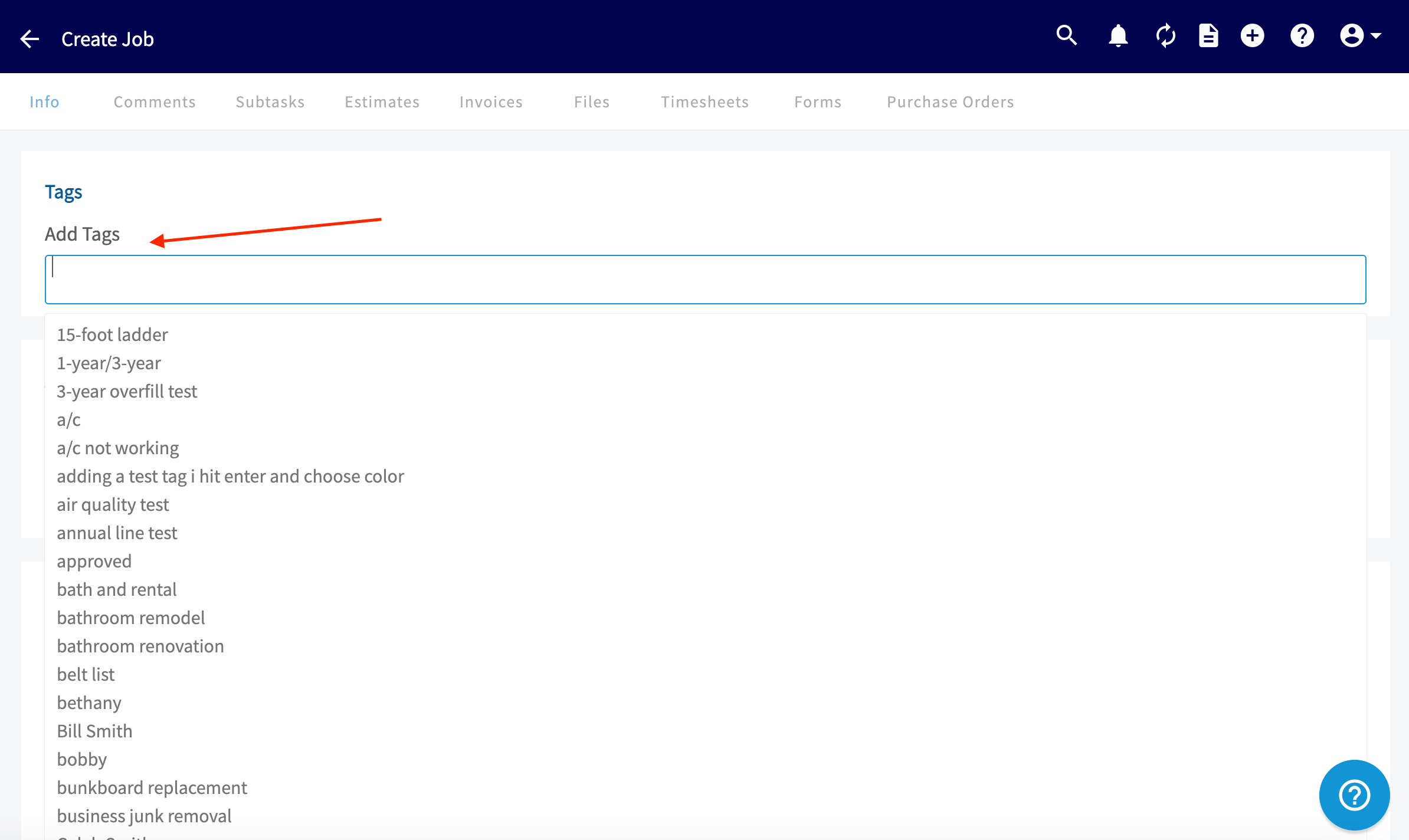
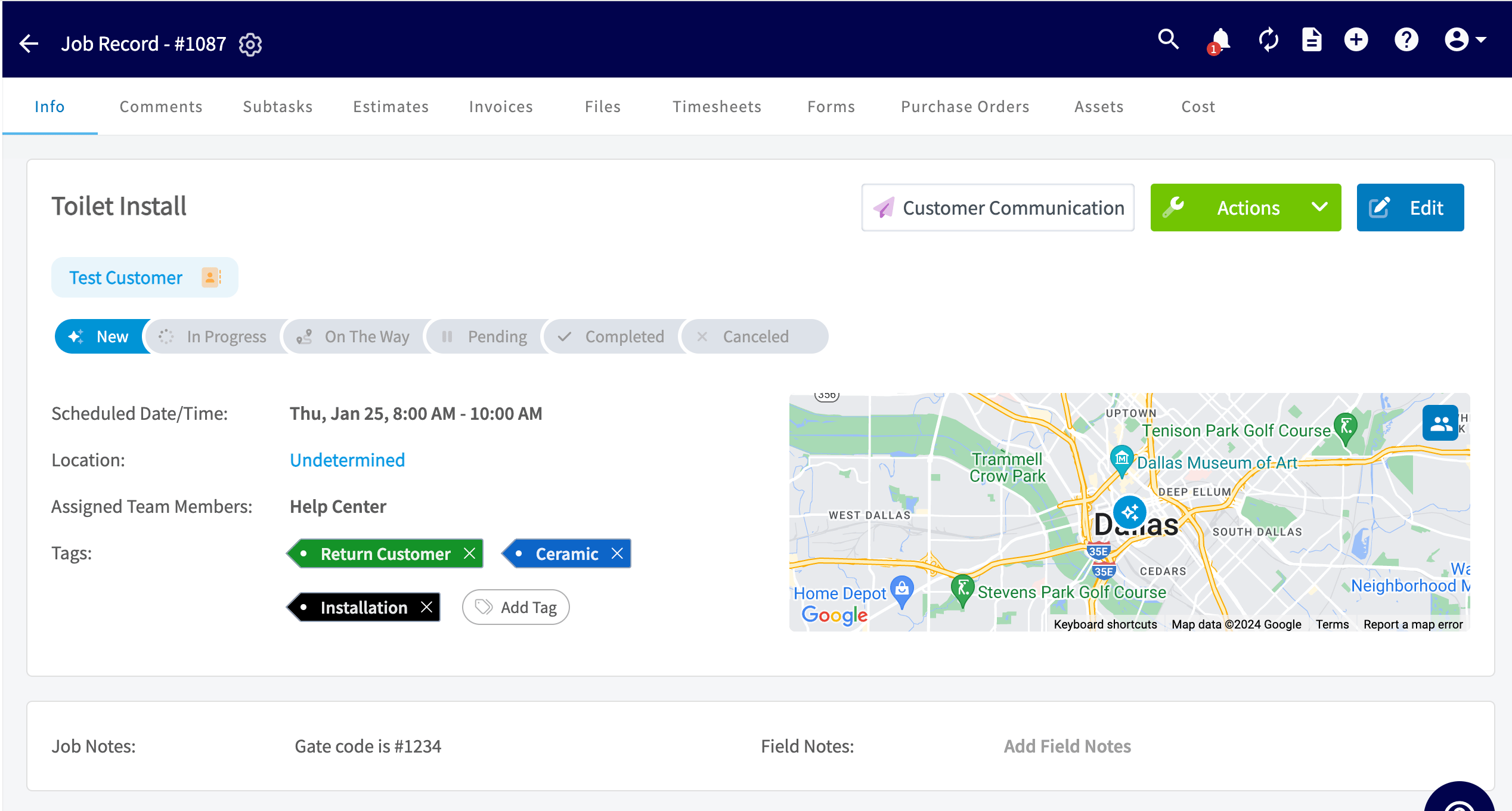
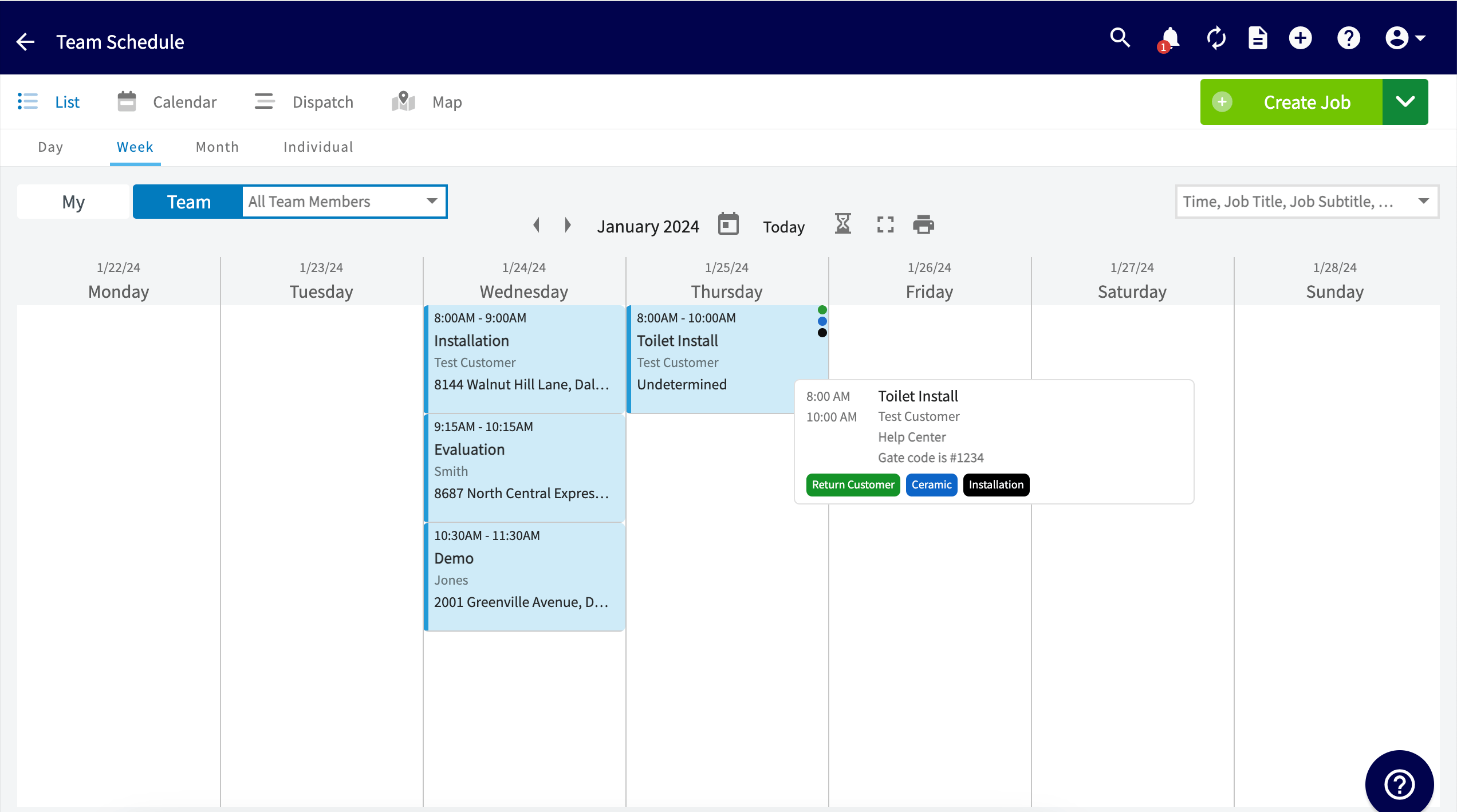
Sorting Your Jobs by Tags
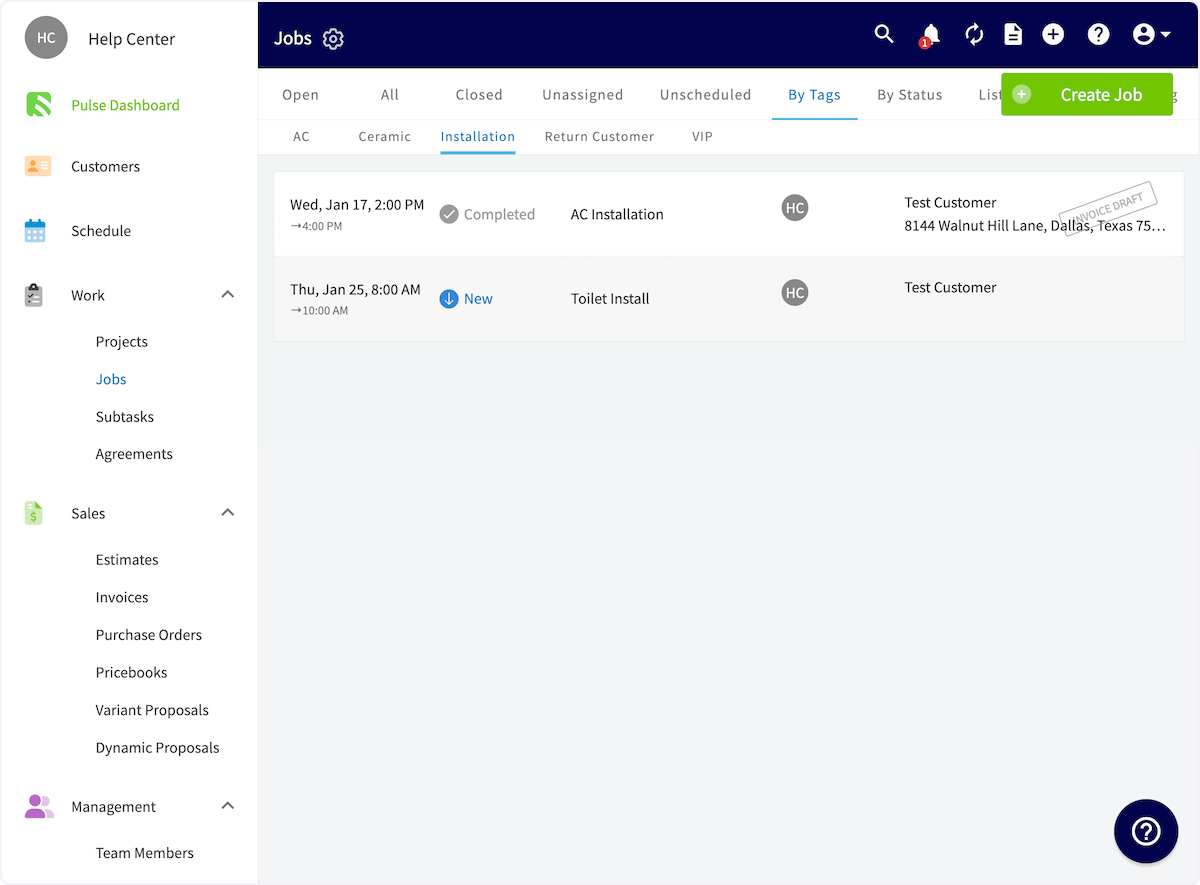
Once you’ve tagged your jobs, you can view your jobs organized by tags. To do so, go to the Jobs page and click By Tags. From this list, select the tag you’d like to view.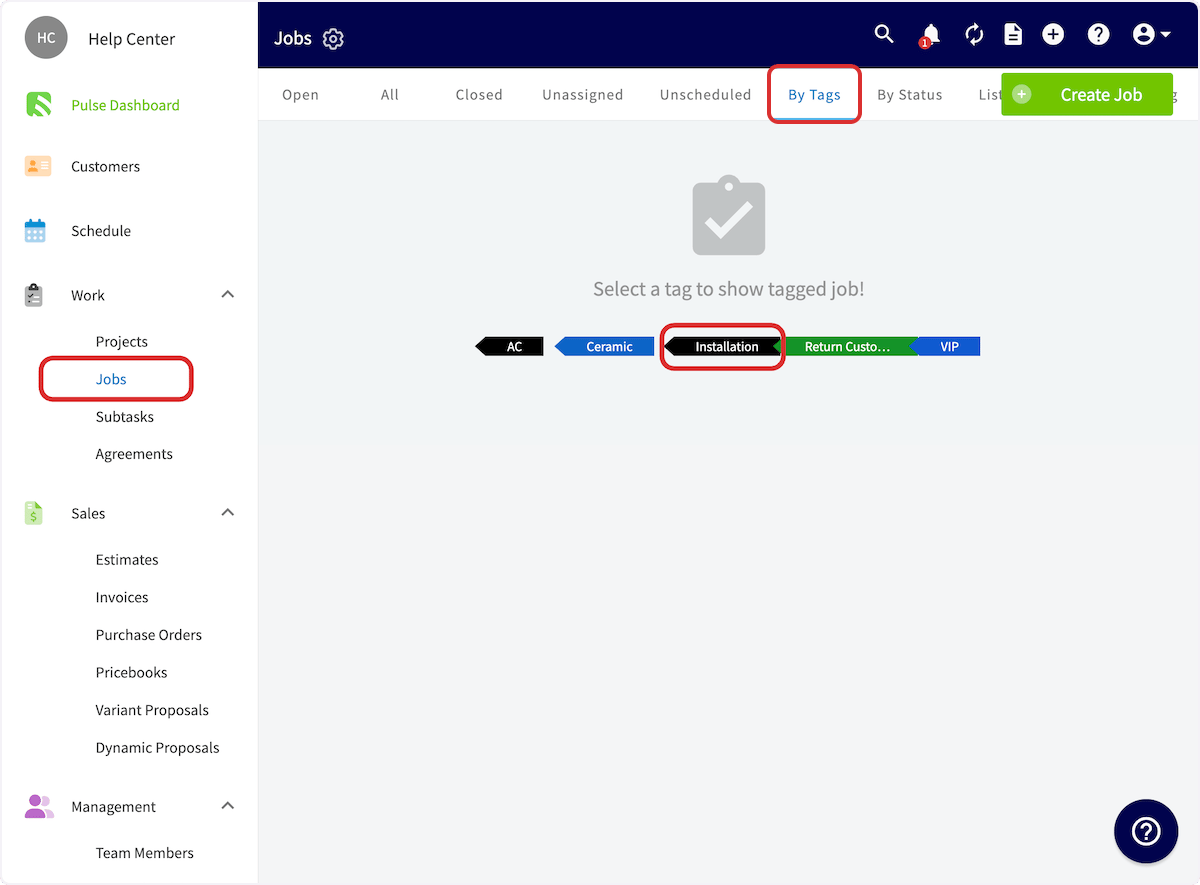
Deleting a Tag
To delete a tag from the Job record, simply click the little “x” that populates by the tag. To delete and tag and prevent it from popping up as an option to choose from on future job records you will need to navigate to Company Settings. Locate the Jobs tab and click on Tags. From here you can easily click the little “x” that populates by the tags you wish to delete.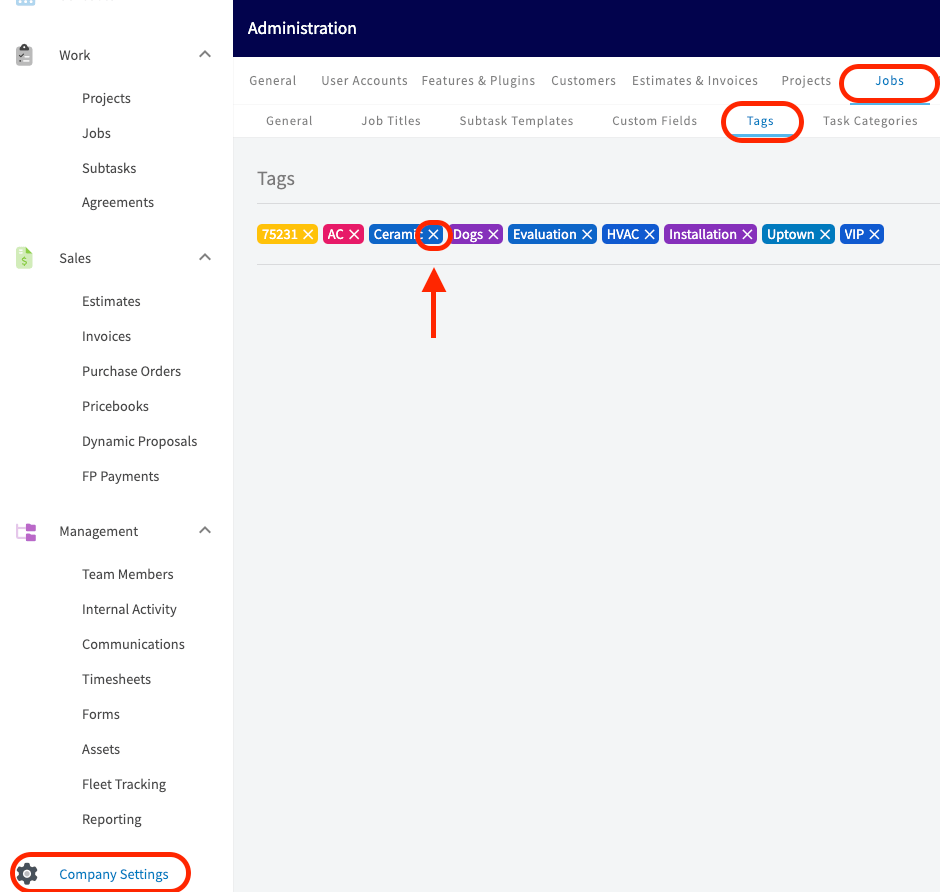
Have additional questions? Contact us at support@fieldpulse.com or use the chat feature in the bottom right corner of your screen.