
Overview
Record locking helps protect the integrity of your financial data by automatically restricting edits to estimates and invoices once they hit key milestones, like when an Estimate is converted, an Invoice is finalized, or an Invoice is fully paid. It’s a practical way to prevent accidental changes.Turning On Record Locking
Record locking is configurable in three ways, and you can use any combination depending on the workflow you want to enforce. All three toggles default to off. Here’s how to turn them on:- Step 1: Go to Company Settings → Estimates & Invoices → Advanced.
- Step 2: Turn on any of the three locking toggles described below.
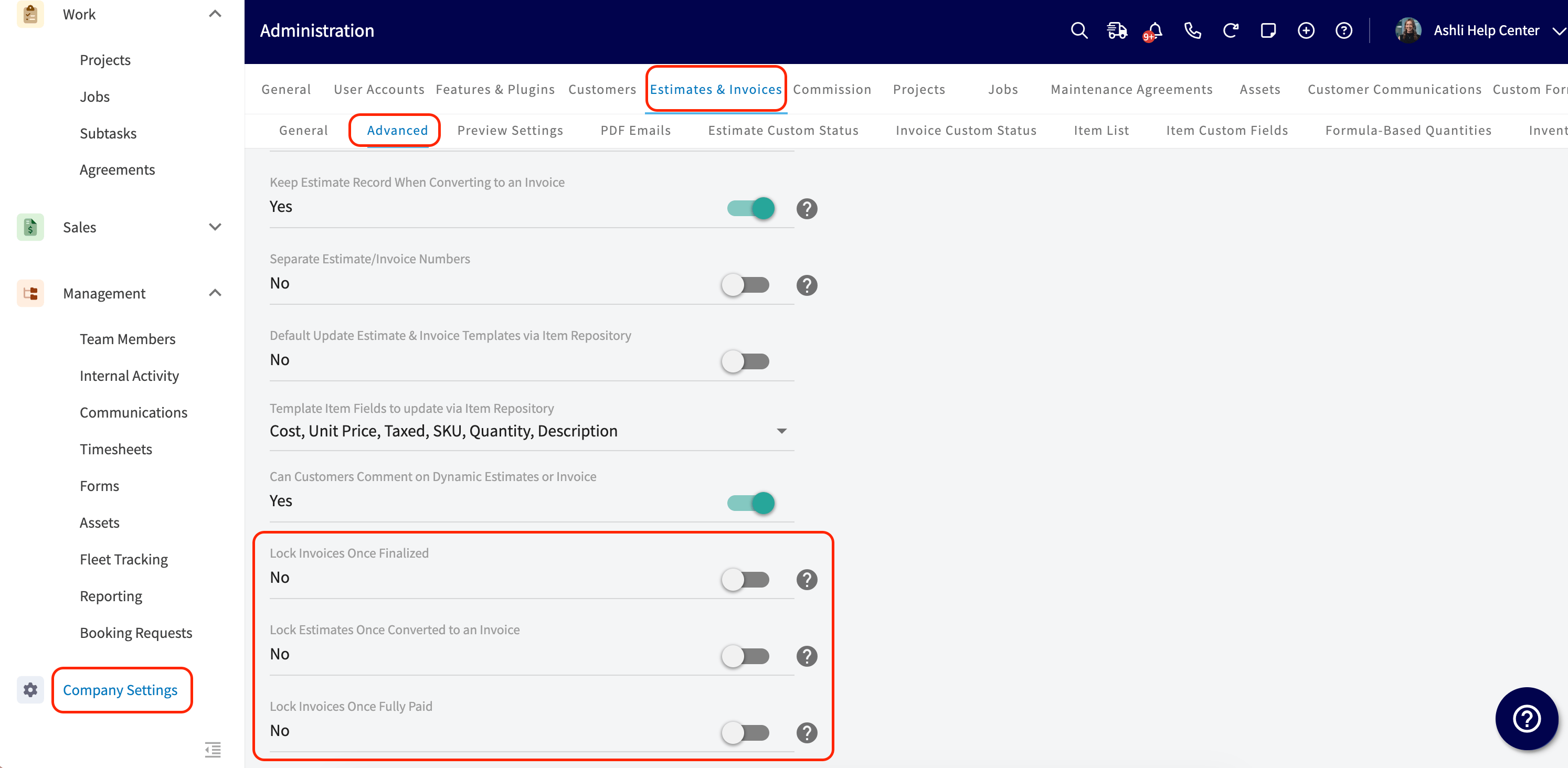
Lock Estimates Once Converted to an Invoice
When this is on, an Estimate is automatically locked the moment it’s converted into an Invoice. The Edit button on the Estimate is disabled on both web and mobile right after the Invoice is created.Lock Invoices Once Finalized
When this is on, an Invoice is automatically locked once it’s finalized. This disables both the Edit button and customer-facing Invoice notes on web and mobile.Lock Invoices Once Fully Paid
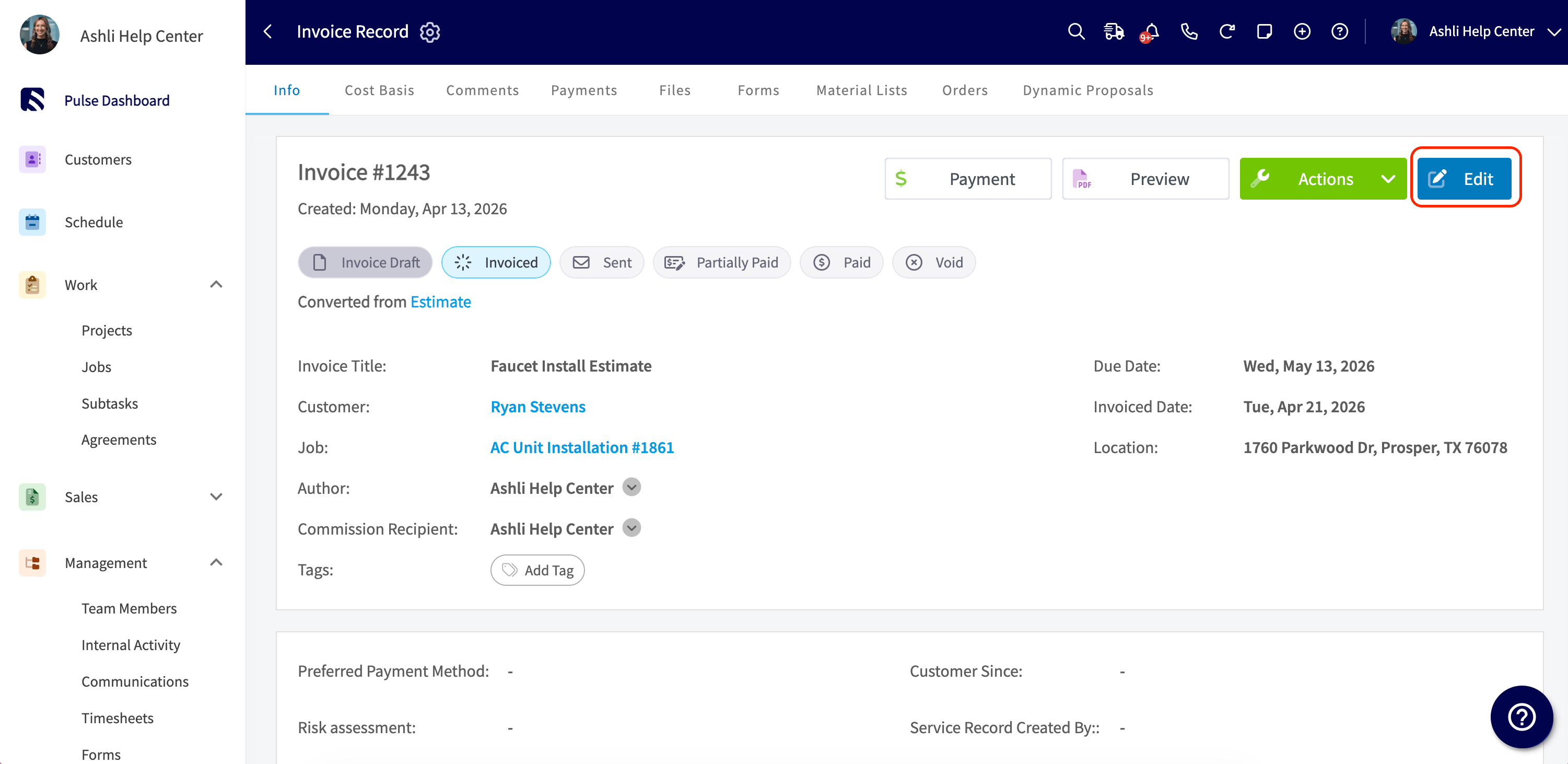
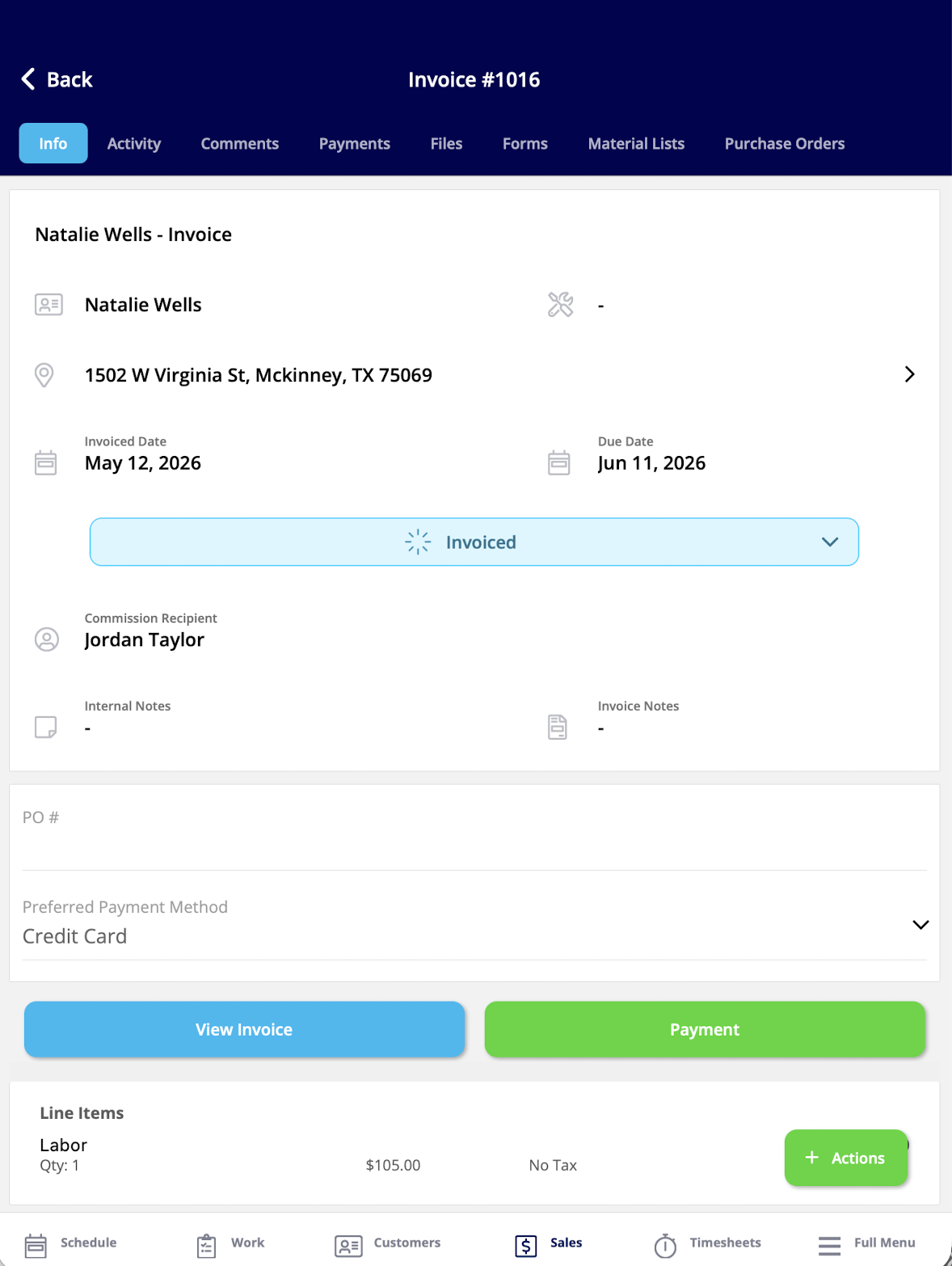
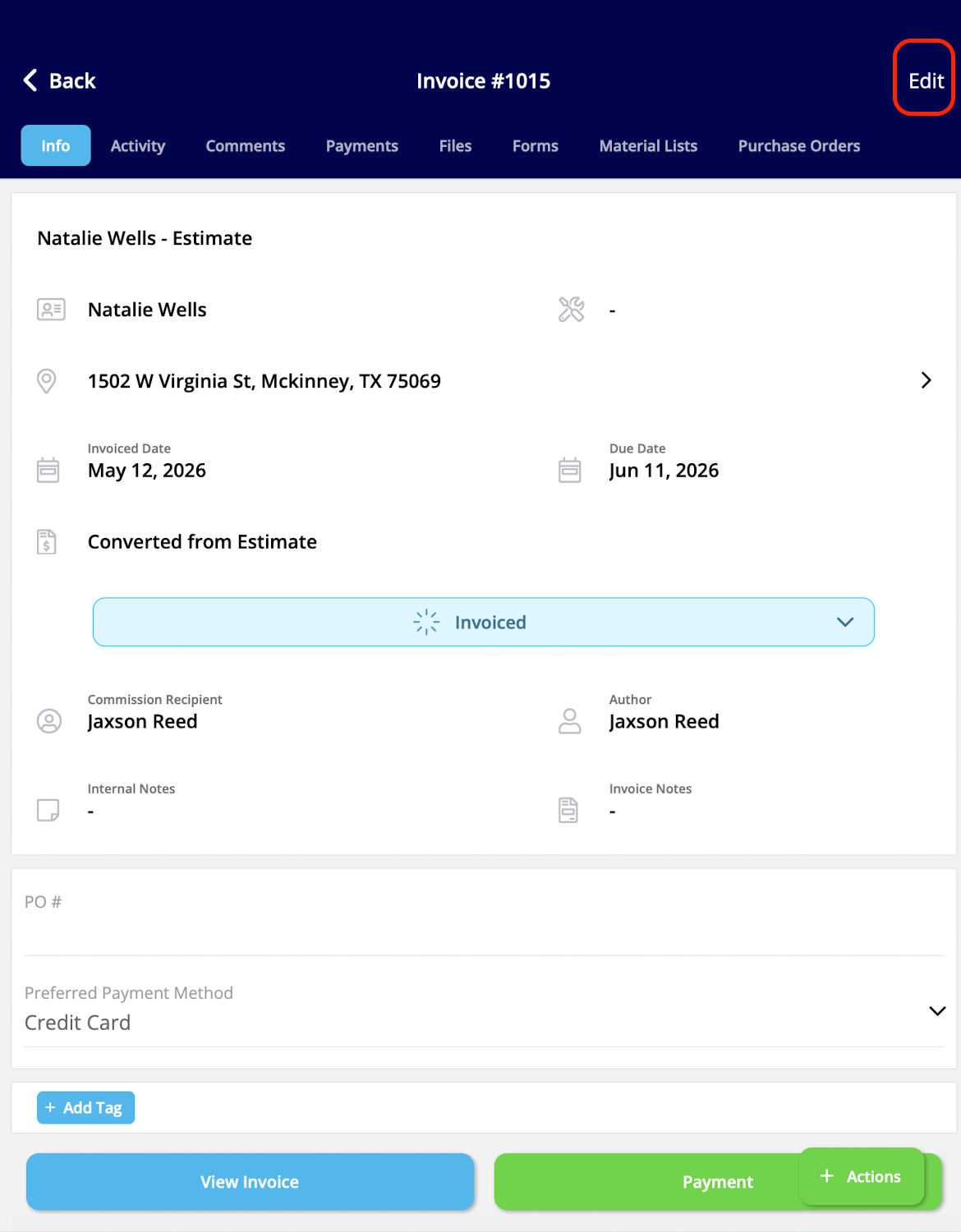
When this is on, an Invoice is automatically locked once it’s fully paid, regardless of payment method (manual, online, or synced). This disables both the Edit button and customer-facing Invoice notes on web and mobile. A locked Estimate and/or Invoice will have no Edit button on the Web App or on the Mobile App. Locked on Web: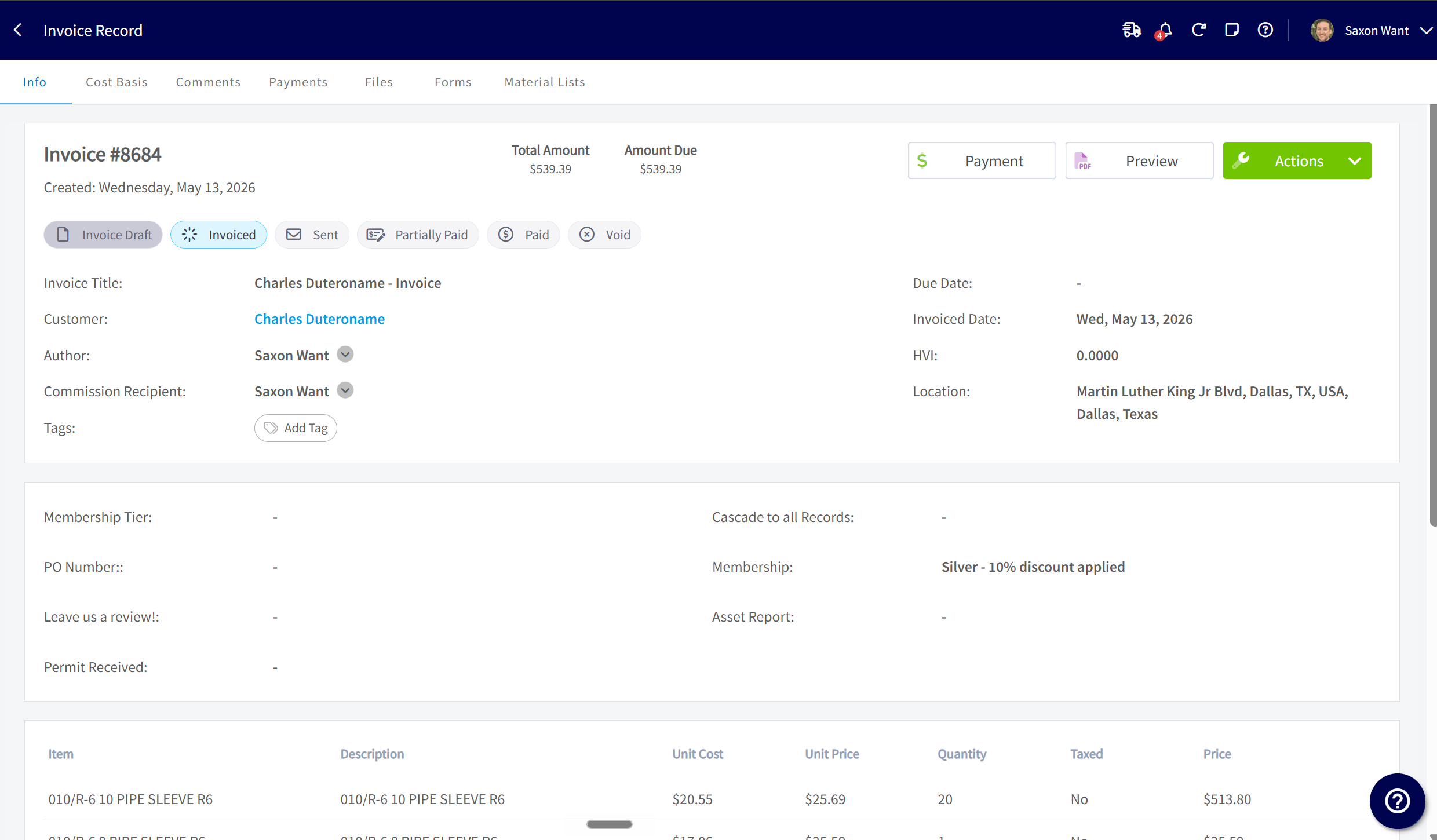
Giving Specific Users Override Access
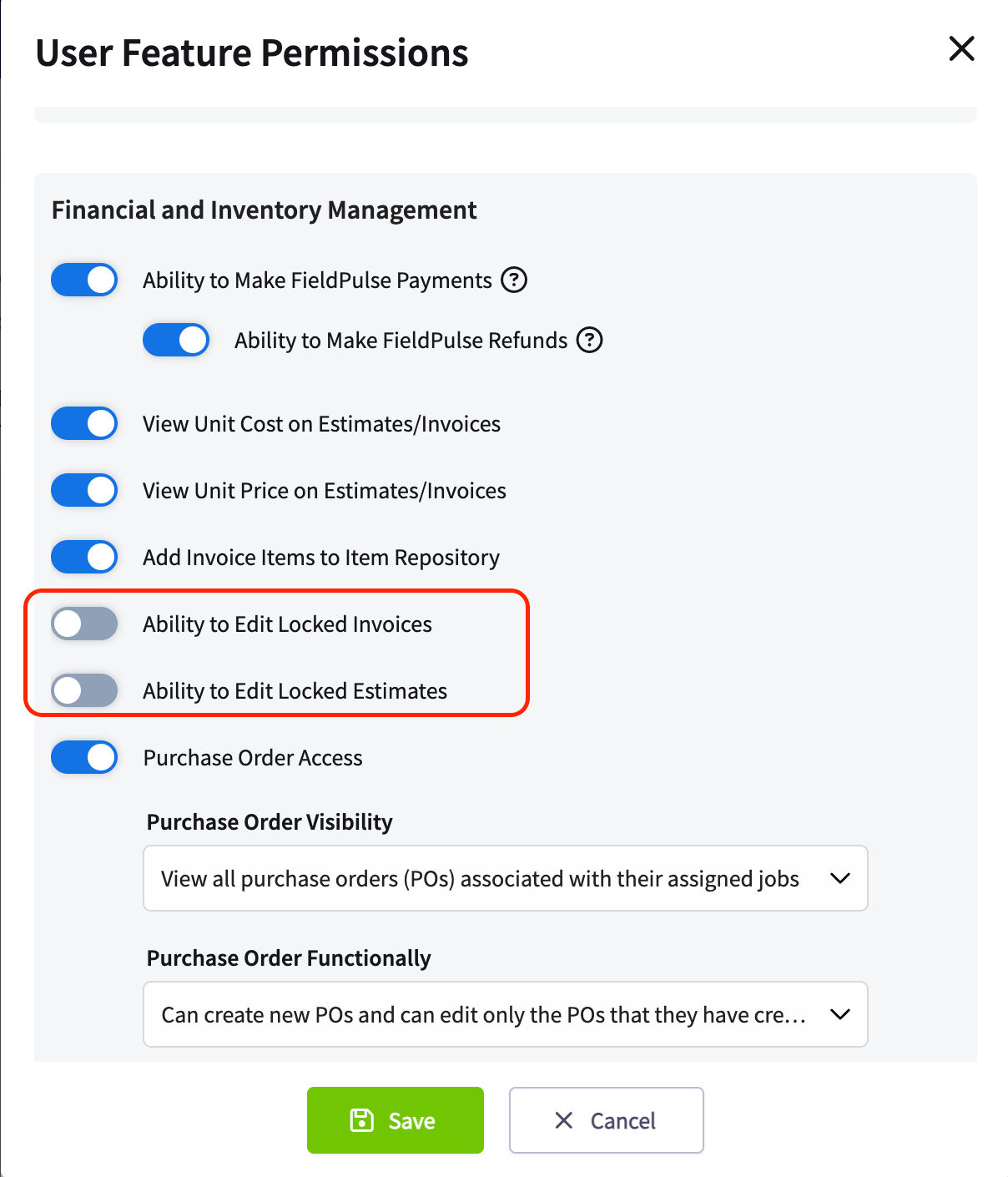
Most teams want at least one role that can still make edits after a record is locked, like a manager who needs to fix a typo after payment posts. You can grant that ability with a single permission. Here’s how to enable it:- Step 1: Go to Company Settings → User Roles.
- Step 2: Open the role you want to update (Team Manager or Service Agent).
- Step 3: Turn on Ability to Edit Locked Records.
What Happens on a Locked Record
When a record is locked, the following actions are turned off:- The Edit button (top right of the record) is disabled.
- For Invoices, customer-facing Invoice notes are also locked.
- Line Items, pricing, taxes, discounts, notes, and customer details cannot be changed.
- Material Lists cannot be added to a locked Estimate or Invoice.
- Editing tags and related customer fields from the view-only record.
- Attaching internal notes and files.
- Adding comments.
- Updating record status and custom fields.
- Viewing the full record, history, and activity.
Have additional questions? Contact us at support@fieldpulse.com or use the chat feature in the bottom right corner of your screen.