
Creating Formula-Based Quantities
Start by clicking on Company Settings from the menu on the left hand side of your screen and selecting Estimates & Invoices. Navigate to Formula-Based Quantities and select Add Formula.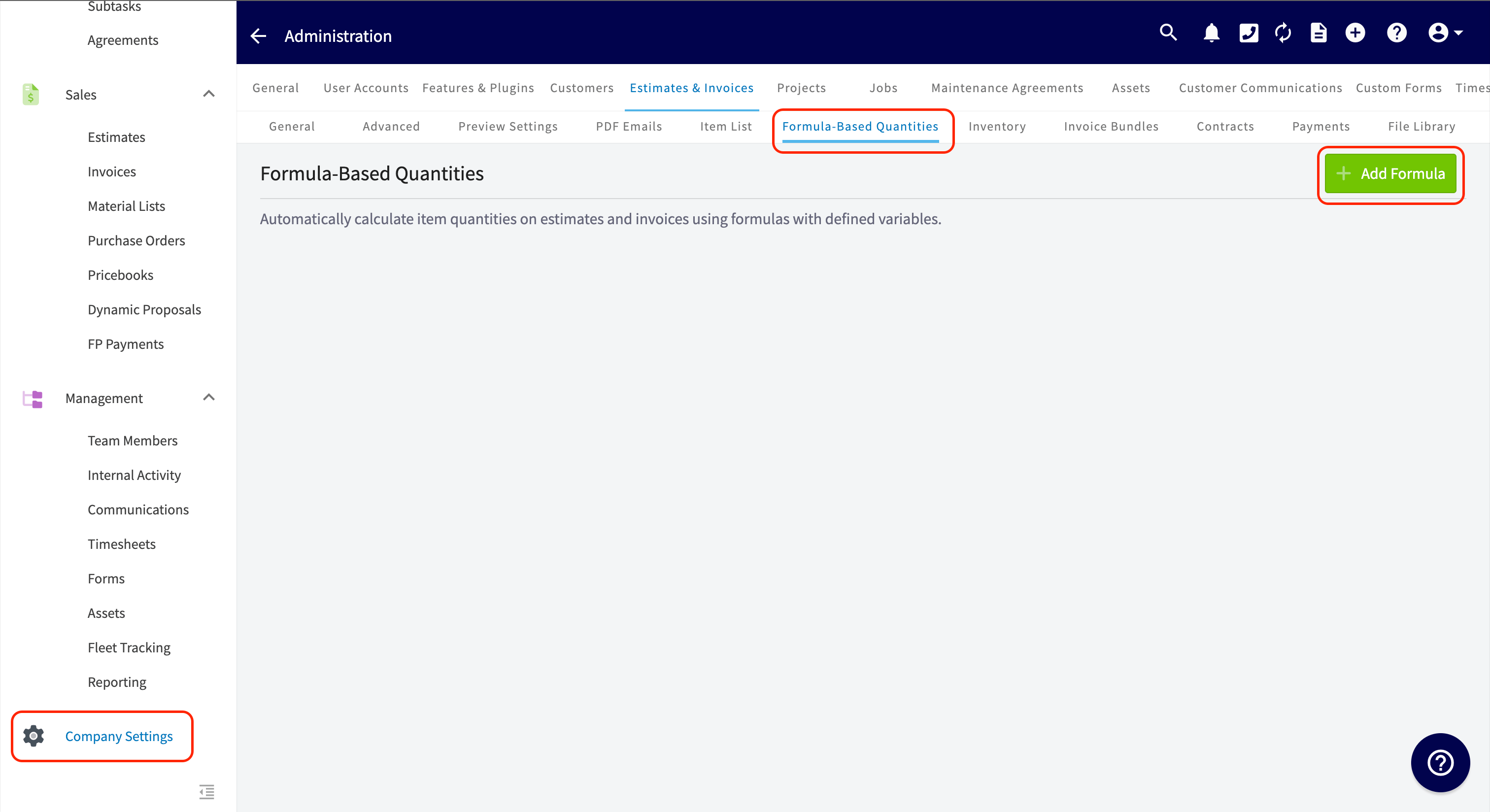
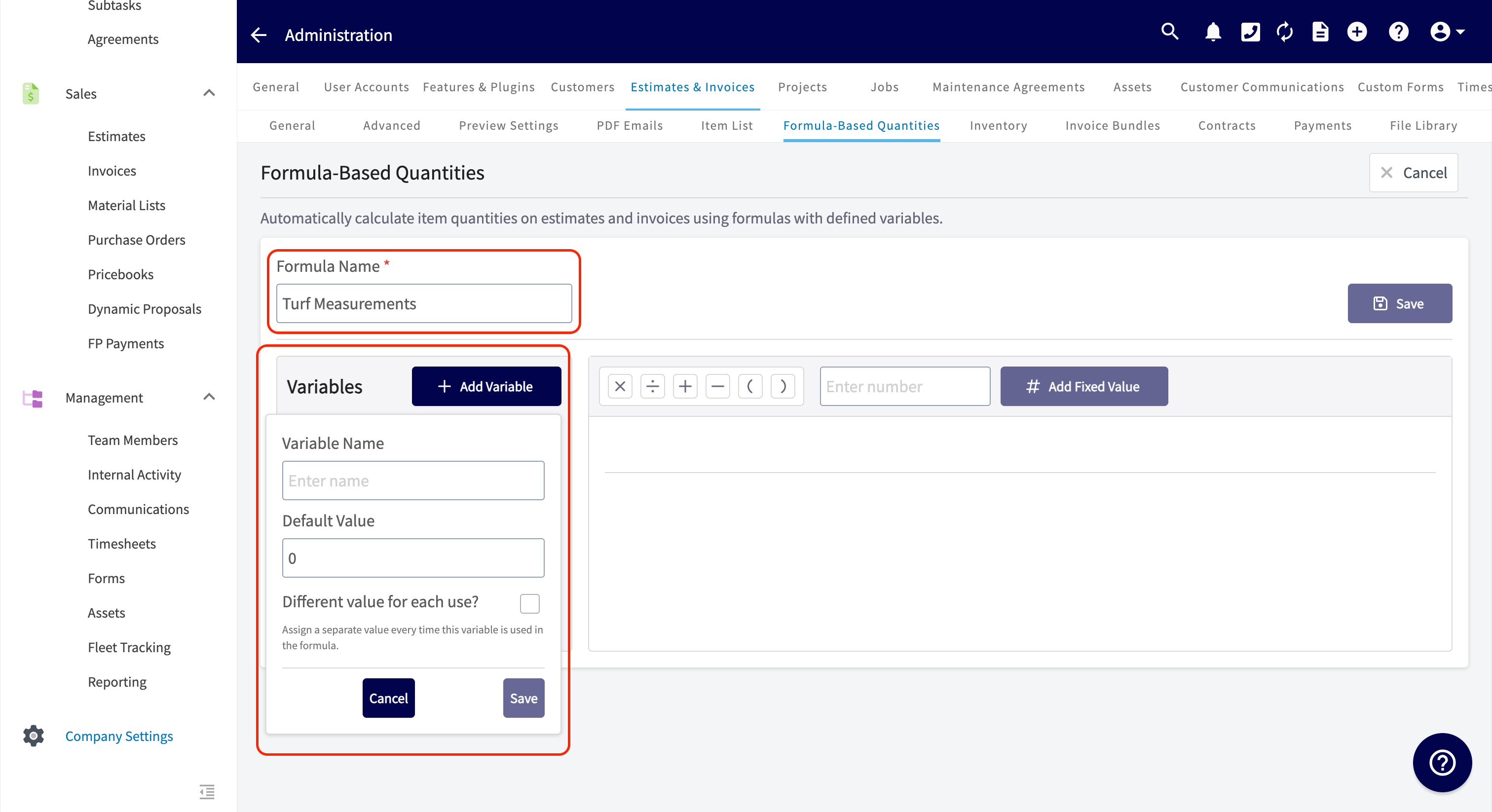
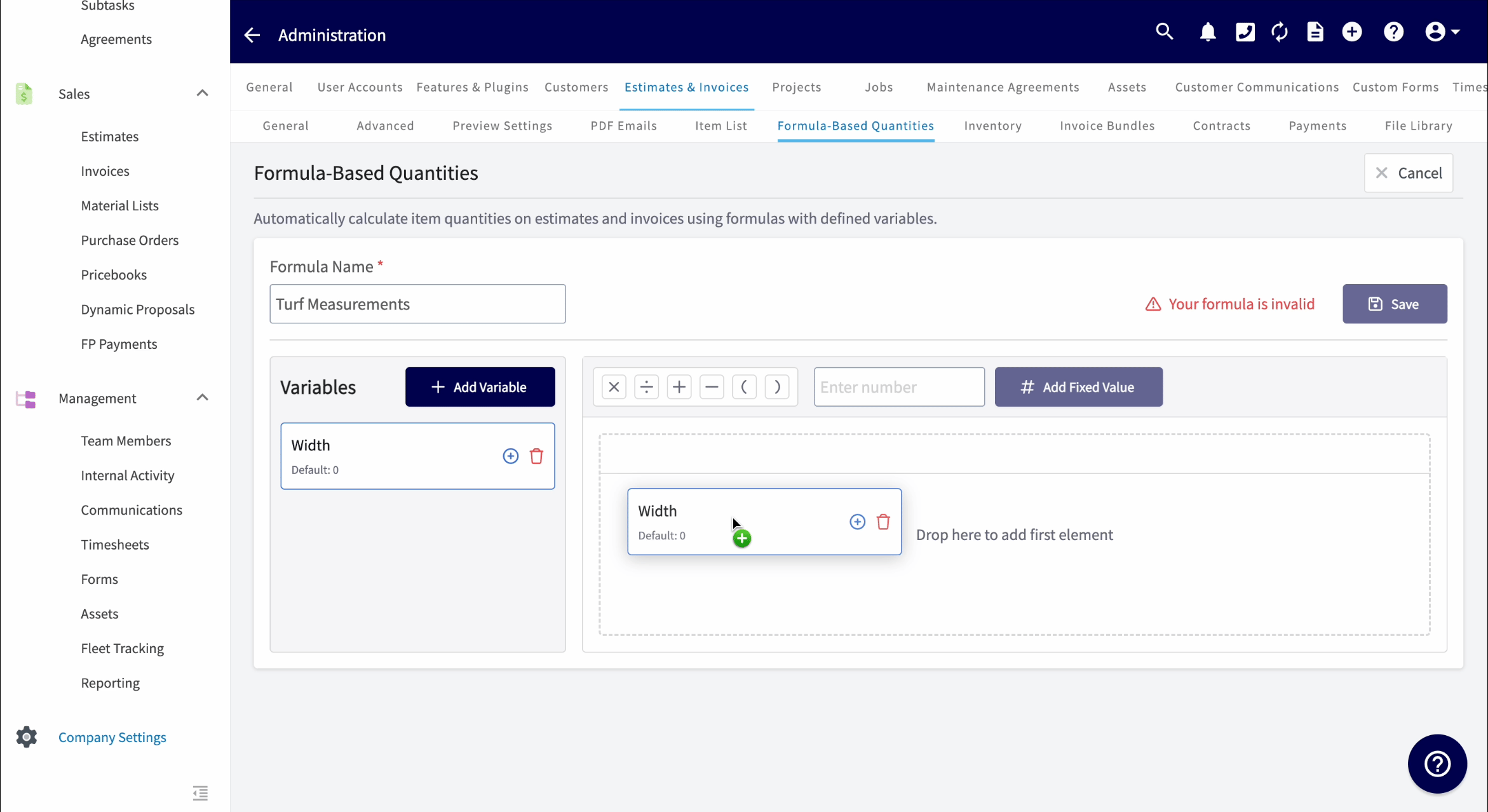
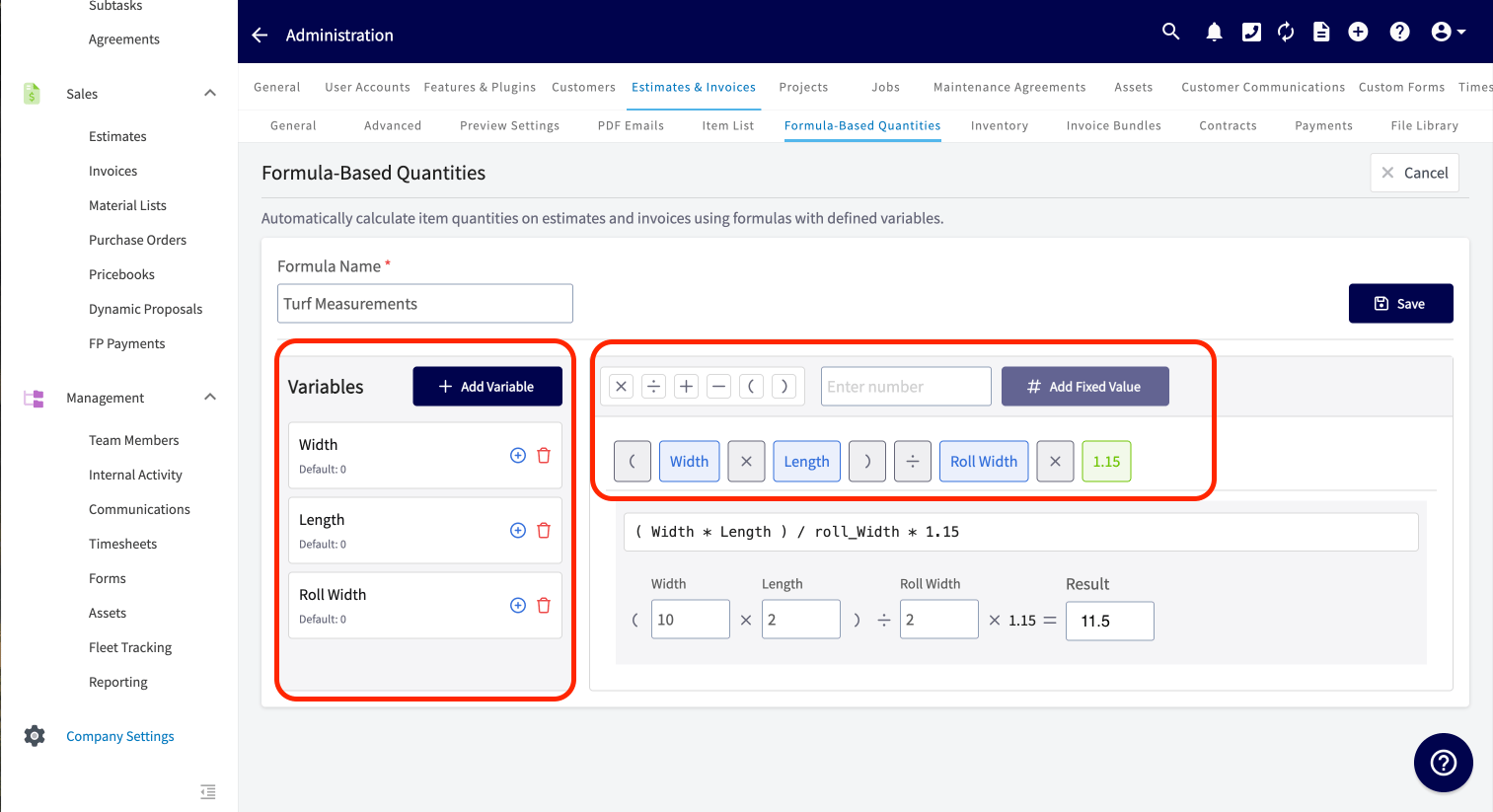
Viewing Formula-Based Quantities
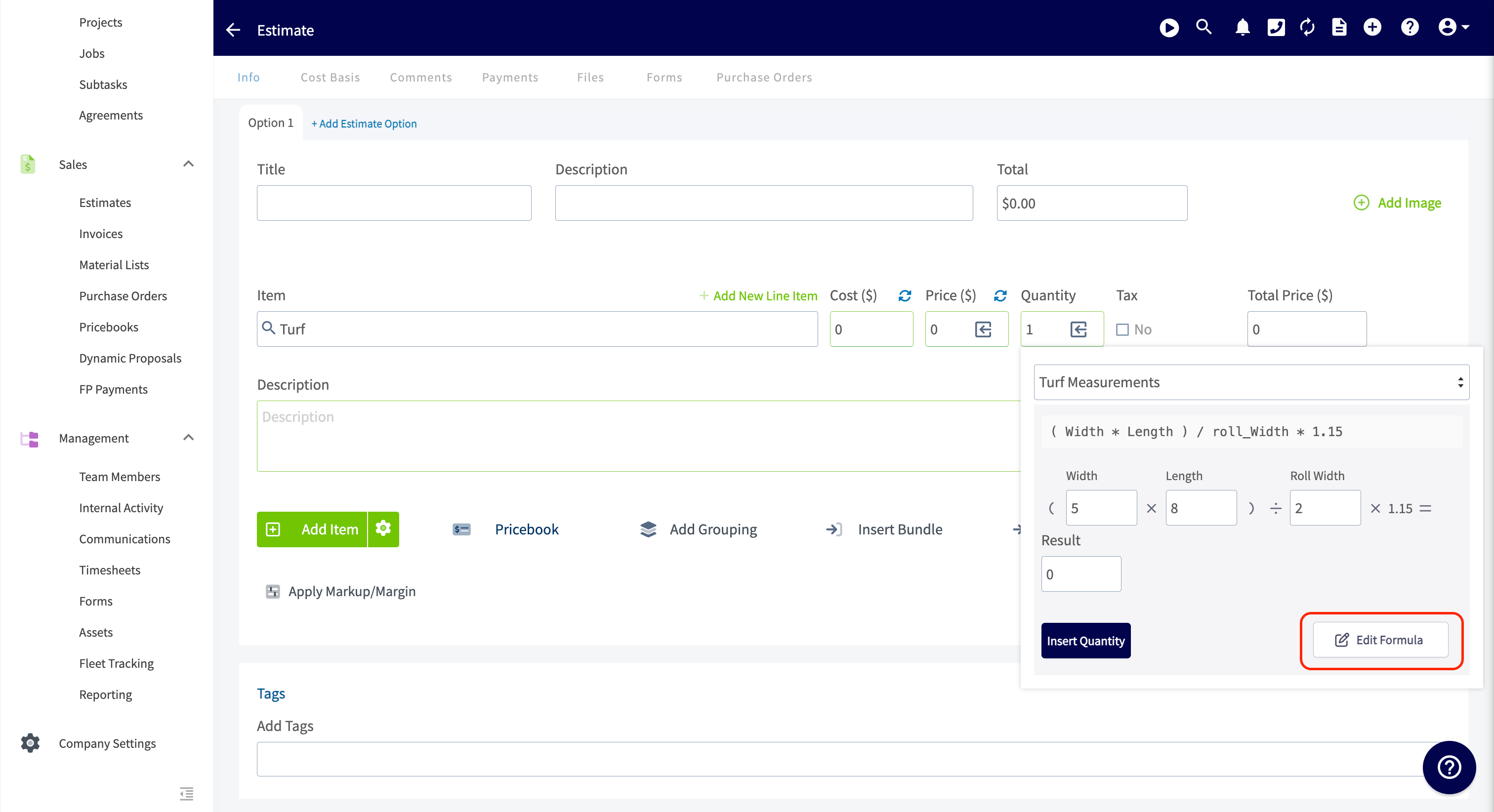
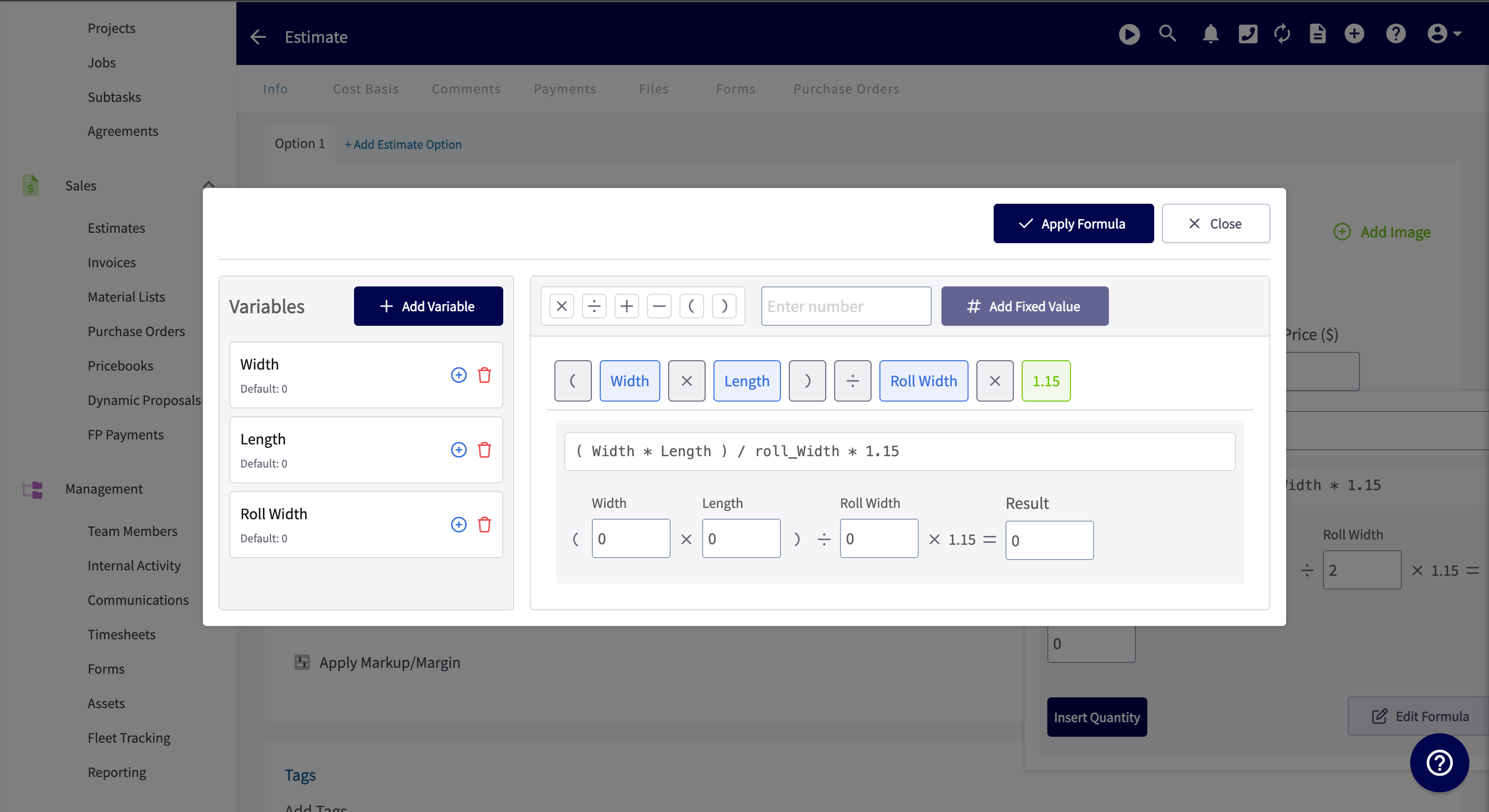
Once you save your formula, it will be ready for use when adding items to estimates, invoices, and material lists. Click the arrow icon in the quantity field, and from the dropdown menu, select your desired formula. After taking your measurements, you can enter them here, and FieldPulse will automatically calculate the quantity to insert into the estimate, invoice, or material list. Below is an example of formula-based quantities on an estimate record.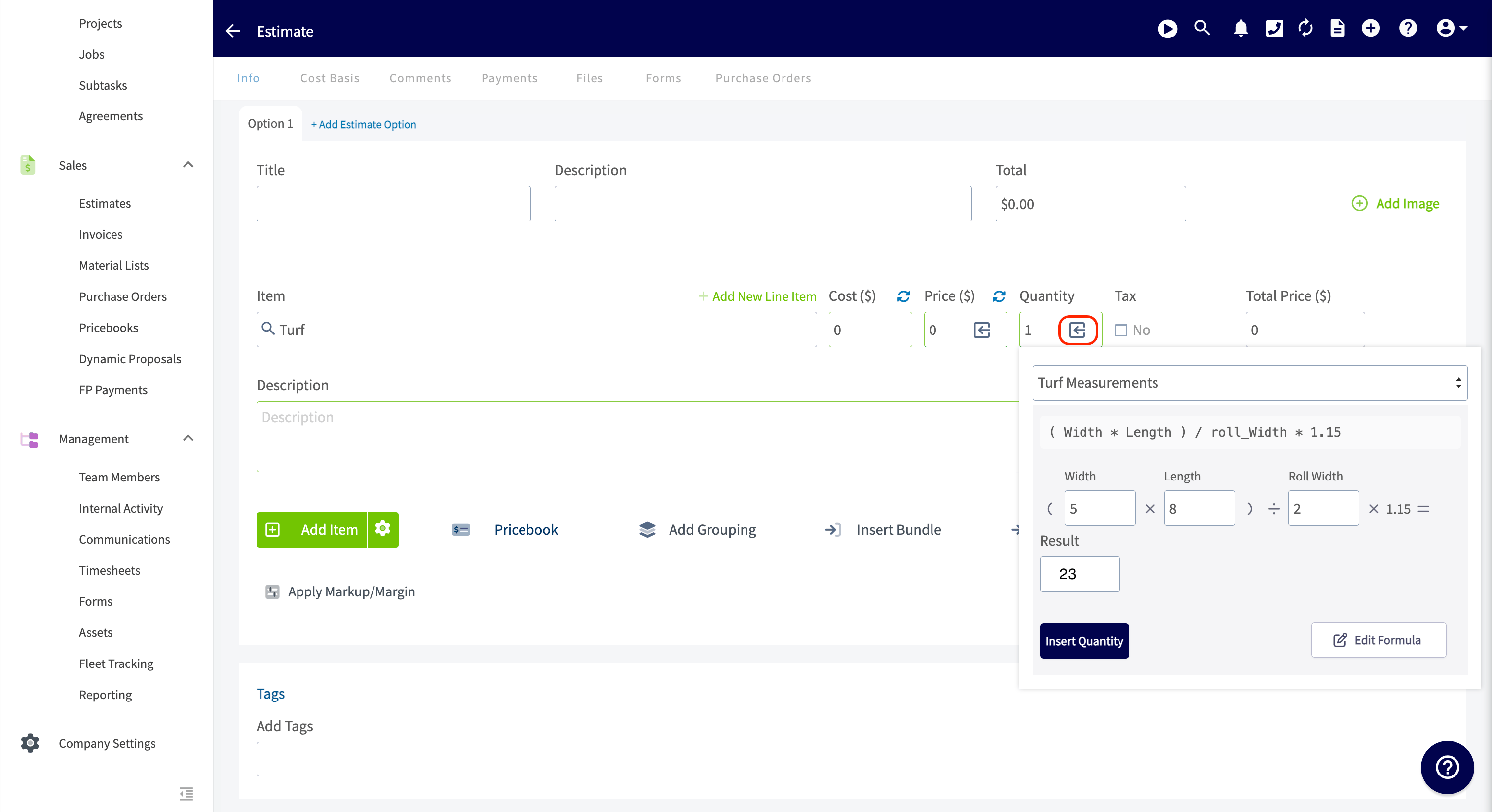
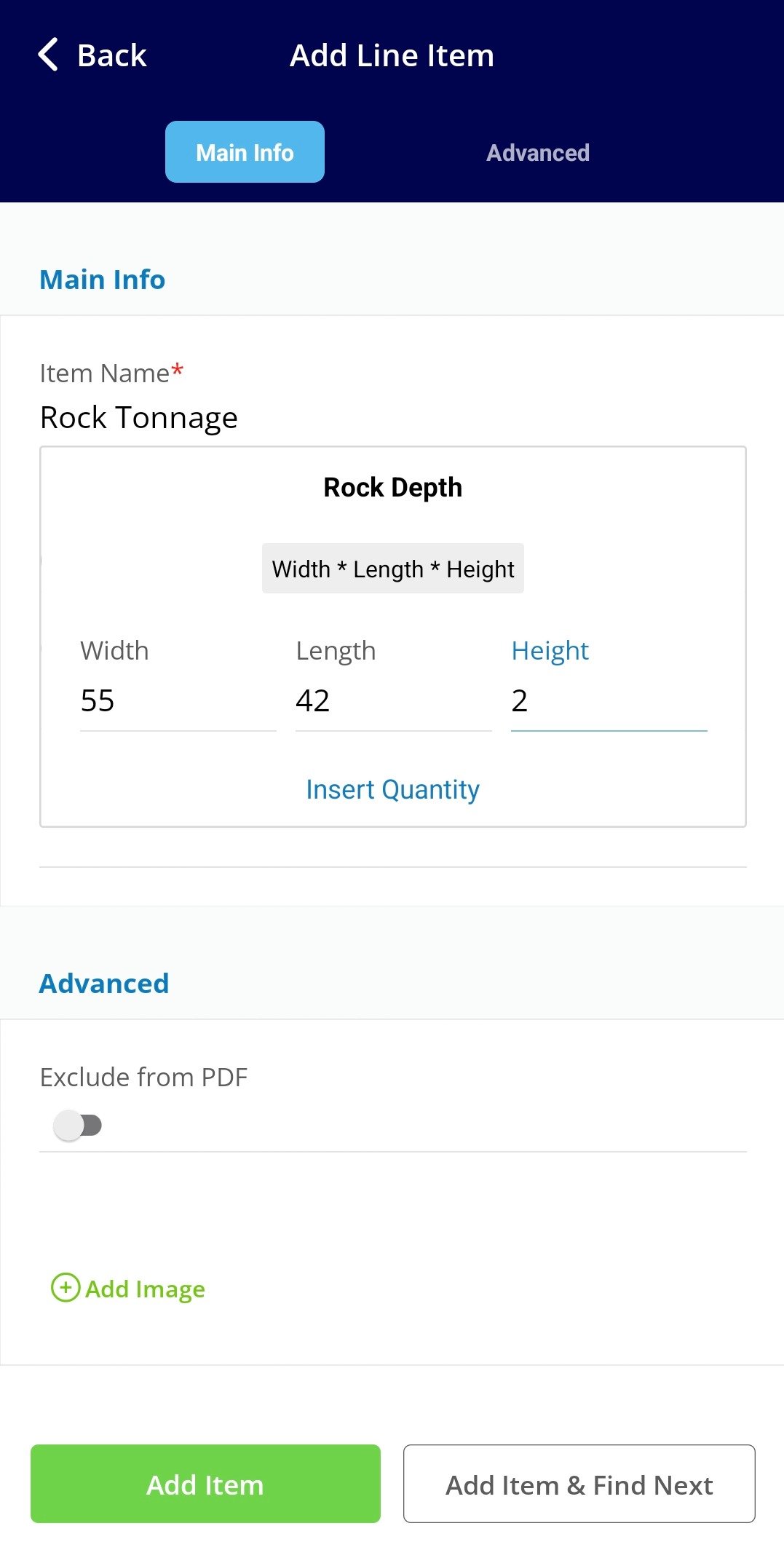
View From The Mobile App
Interactive Demo
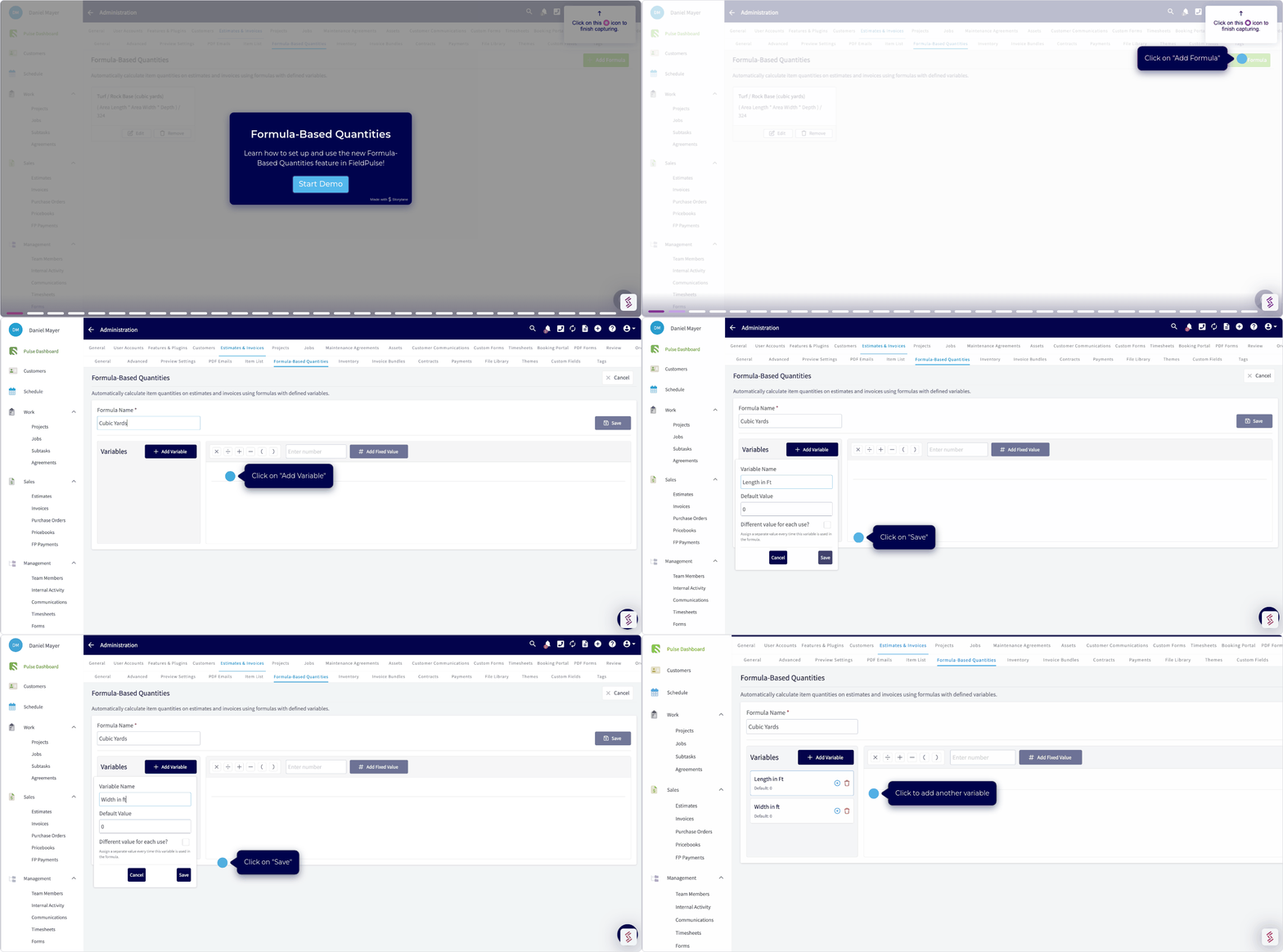
a formula based quantities demo to see formula based quantities in action!
Have additional questions? Contact us at support@fieldpulse.com or use the chat feature in the bottom right corner of your screen.