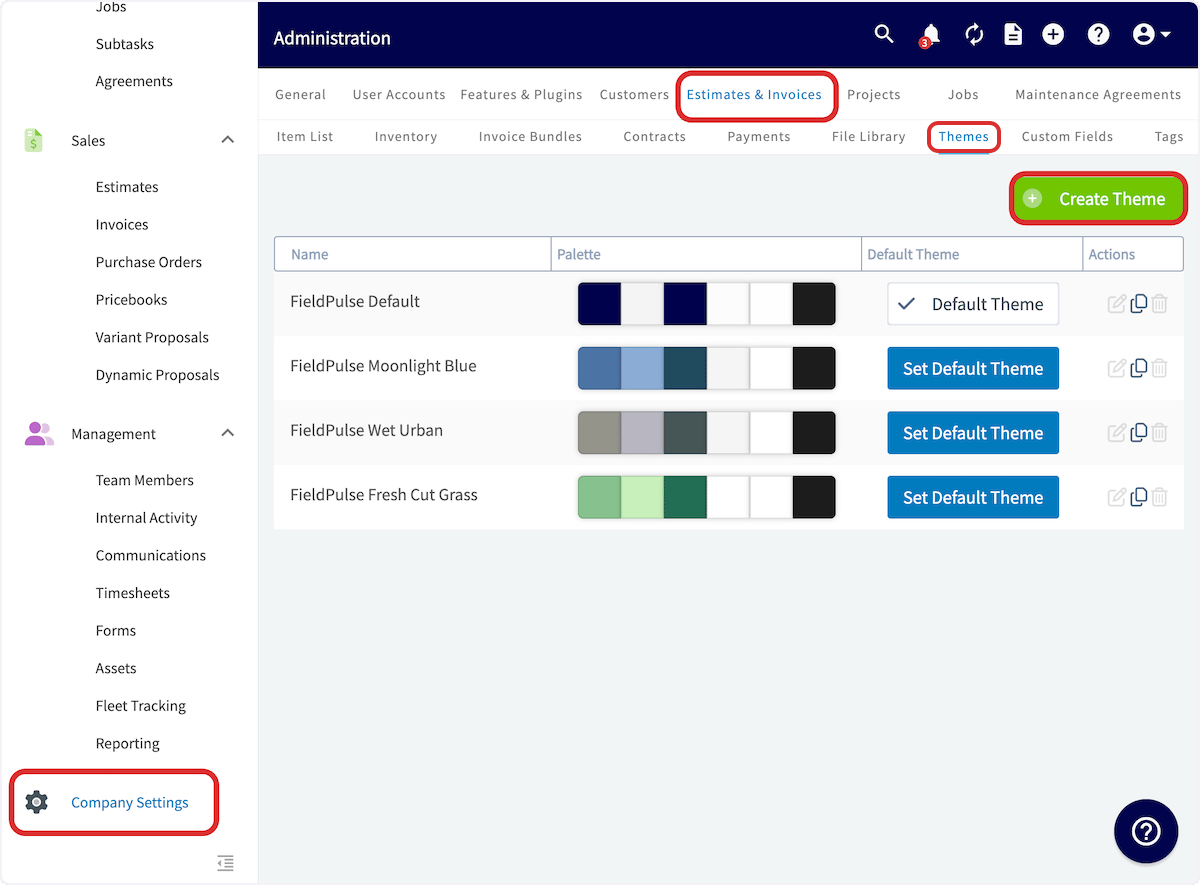
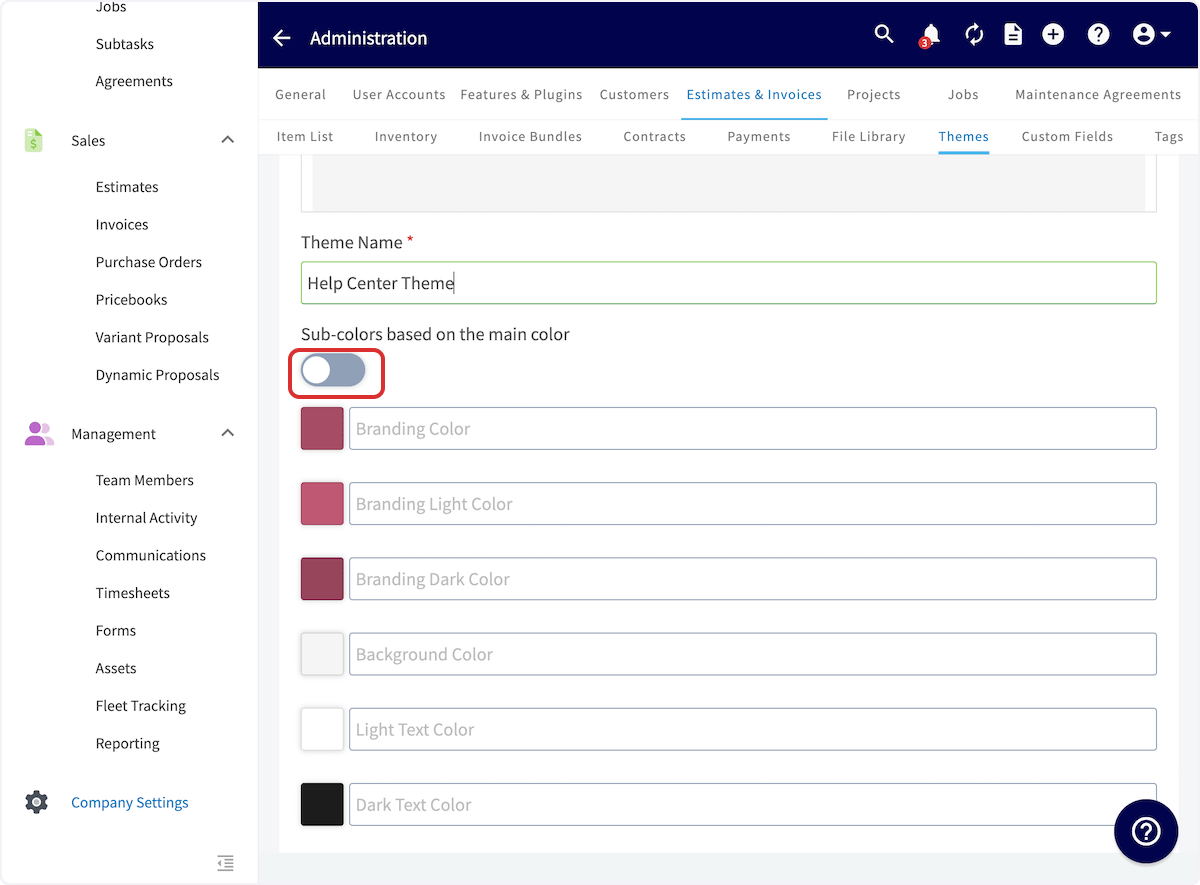
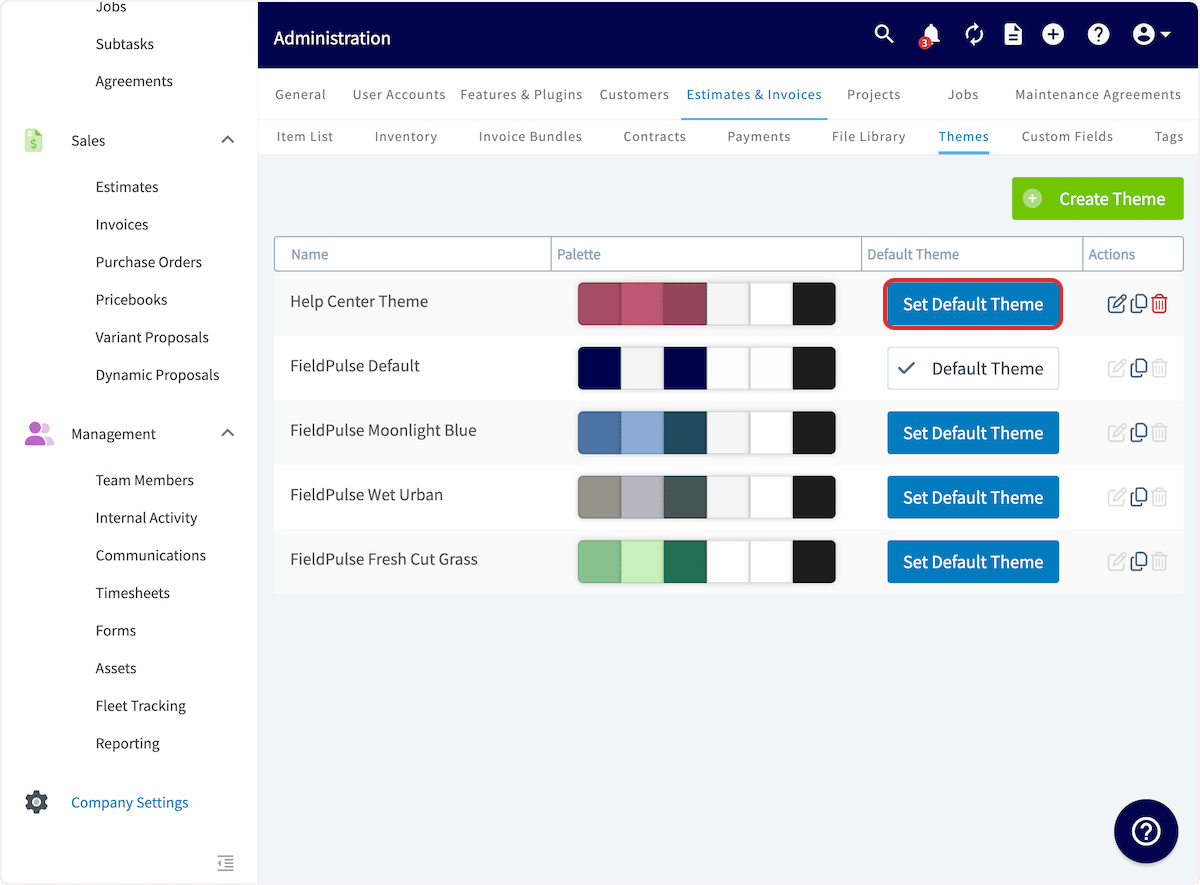
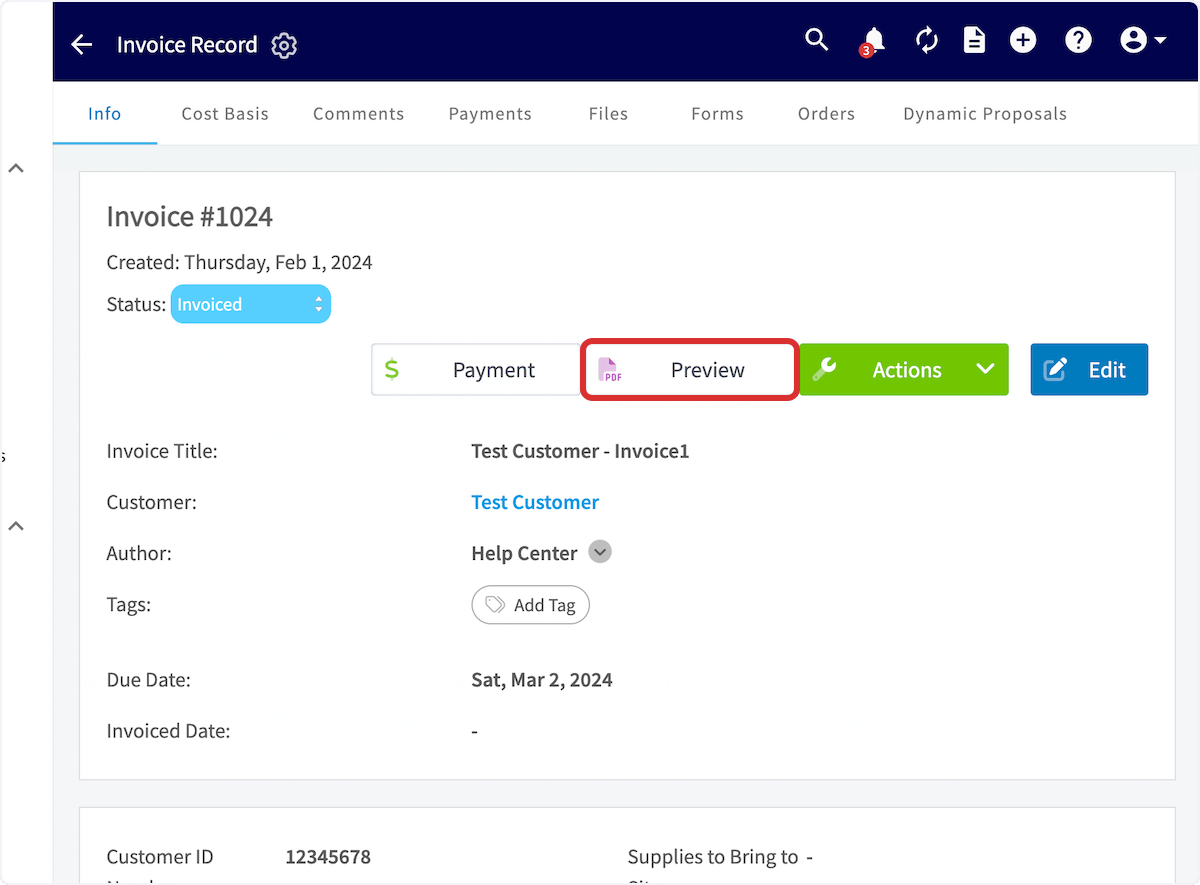
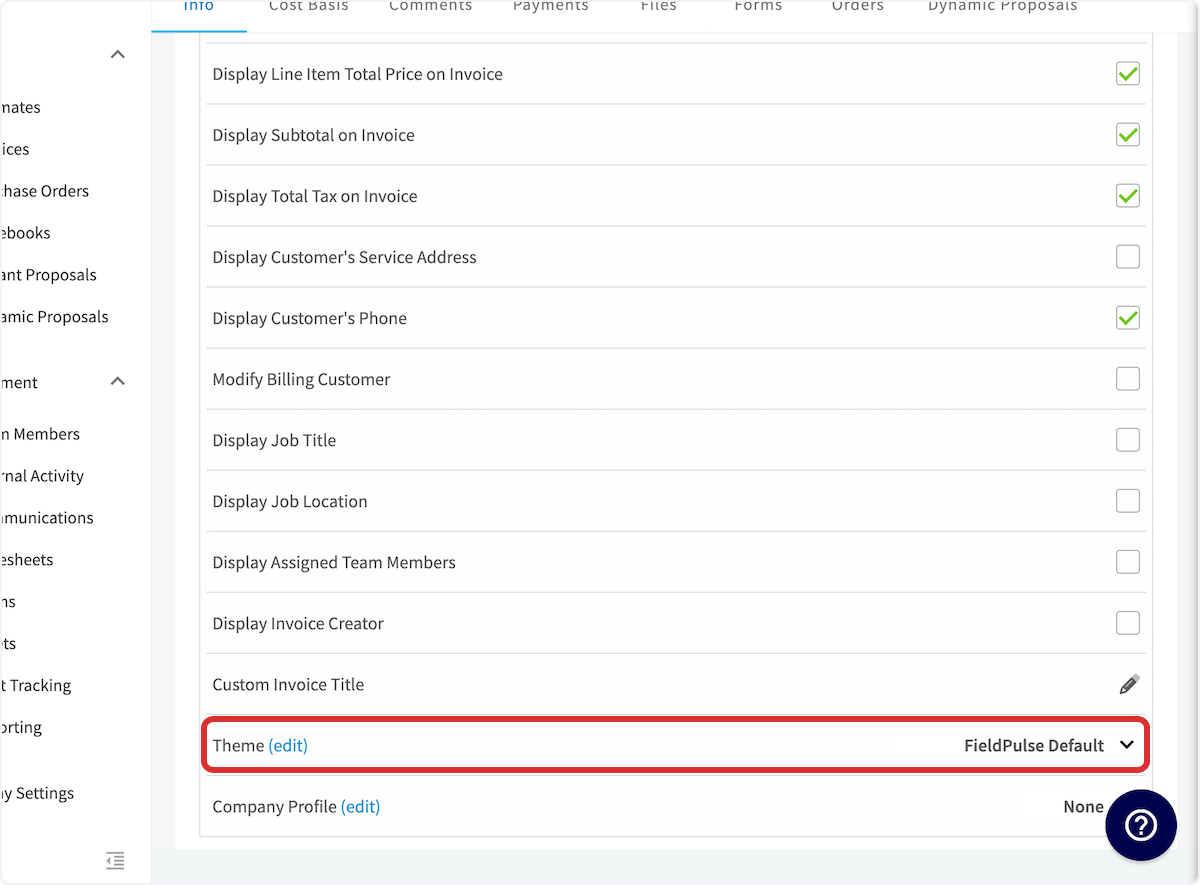
To create a custom theme, navigate to Company Settings, then select Estimates & Invoices. Click on Themes in the sub-header. To create a new theme, select Create Theme. Click on Themes You will need to give your new theme a name and select a main branding color. You can toggle on/off Sub-colors based on the main color, which will automatically generate sub-colors (ON) or you can individually select your sub-colors (OFF). Click on each color box to adjust the color or enter a color code. Scroll up to preview your new theme on an estimate/invoice. Once your theme is complete, be sure to press Save. Click on Theme Name * To change your default theme, select Set Default Theme. Click on Set Default Theme If you want to change the theme of a specific estimate/invoice from the default theme for any reason, navigate to the estimate/invoice record and click Preview. Click on Preview Scroll down on the settings on the right-side of the preview until you see Theme. Here you can select a different theme to use for this estimate/invoice. If you want to change the default theme, press Edit or navigate back to Company Settings and change your default theme. Click on Theme (edit)…

Video Tutorial


Have additional questions? Contact us at support@fieldpulse.com or use the chat feature in the bottom right corner of your screen.