
Enabling Bill to Parent
Bill to Parent is turned off by default. To turn it on for your account: Go to Company Settings, then click Estimates & Invoices. Click Advanced in the sub-header. Toggle on Enable Bill to Parent at the top of the page.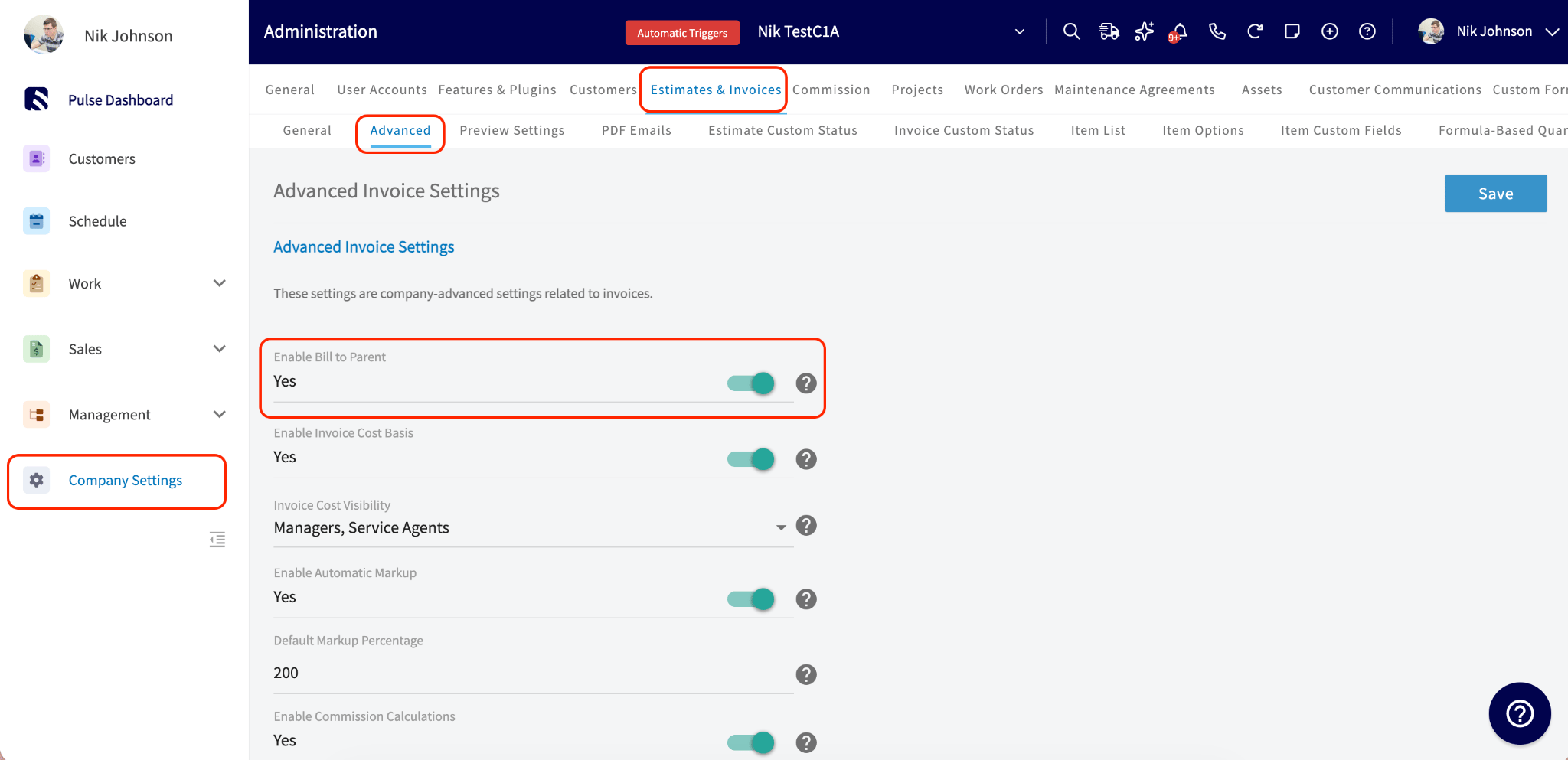
Setting Up Bill to Parent on a Customer Record
Once the feature is enabled at the account level, you can turn it on for individual child customers. Step 1: Open a child customer record and click Edit.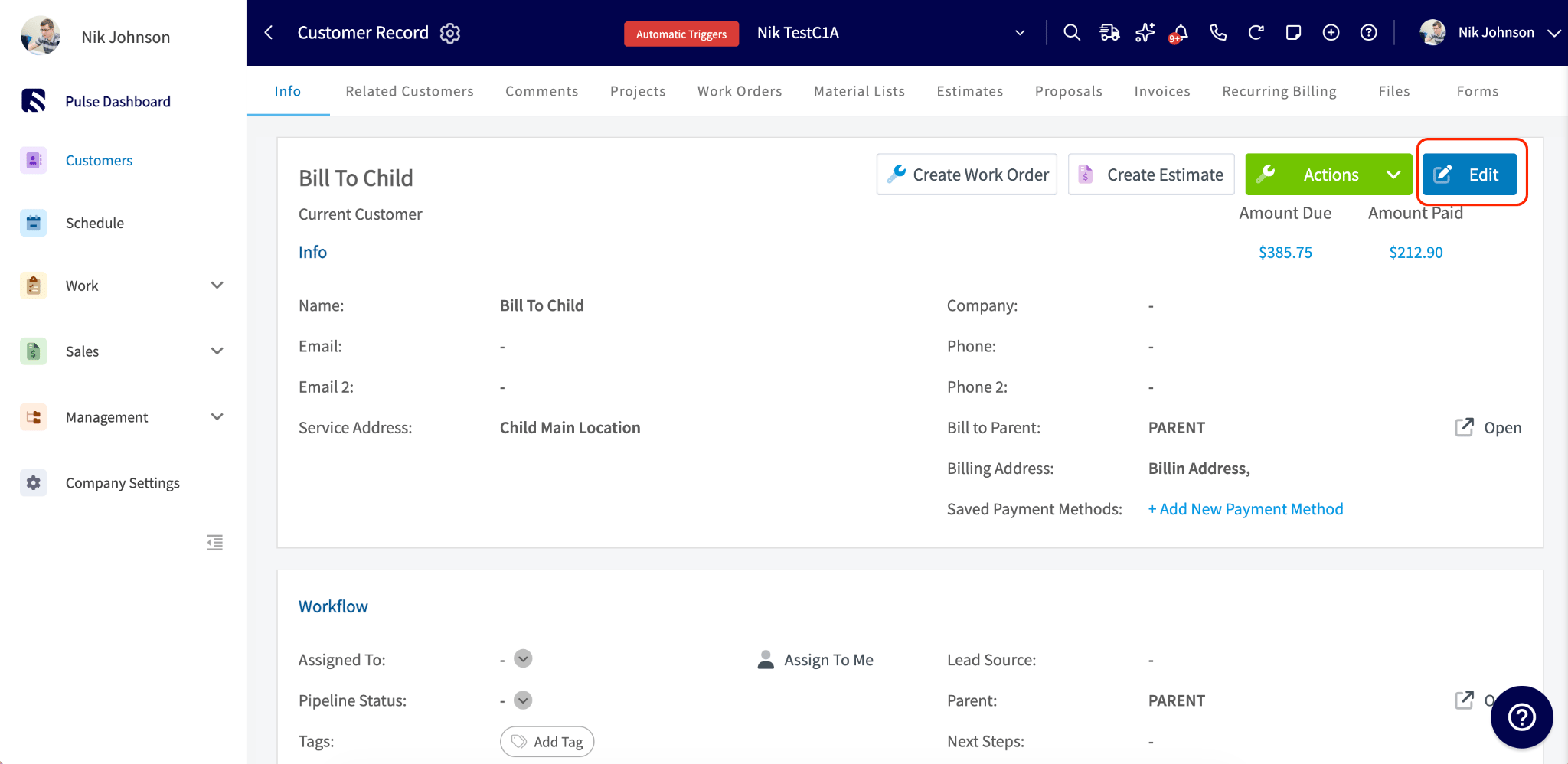
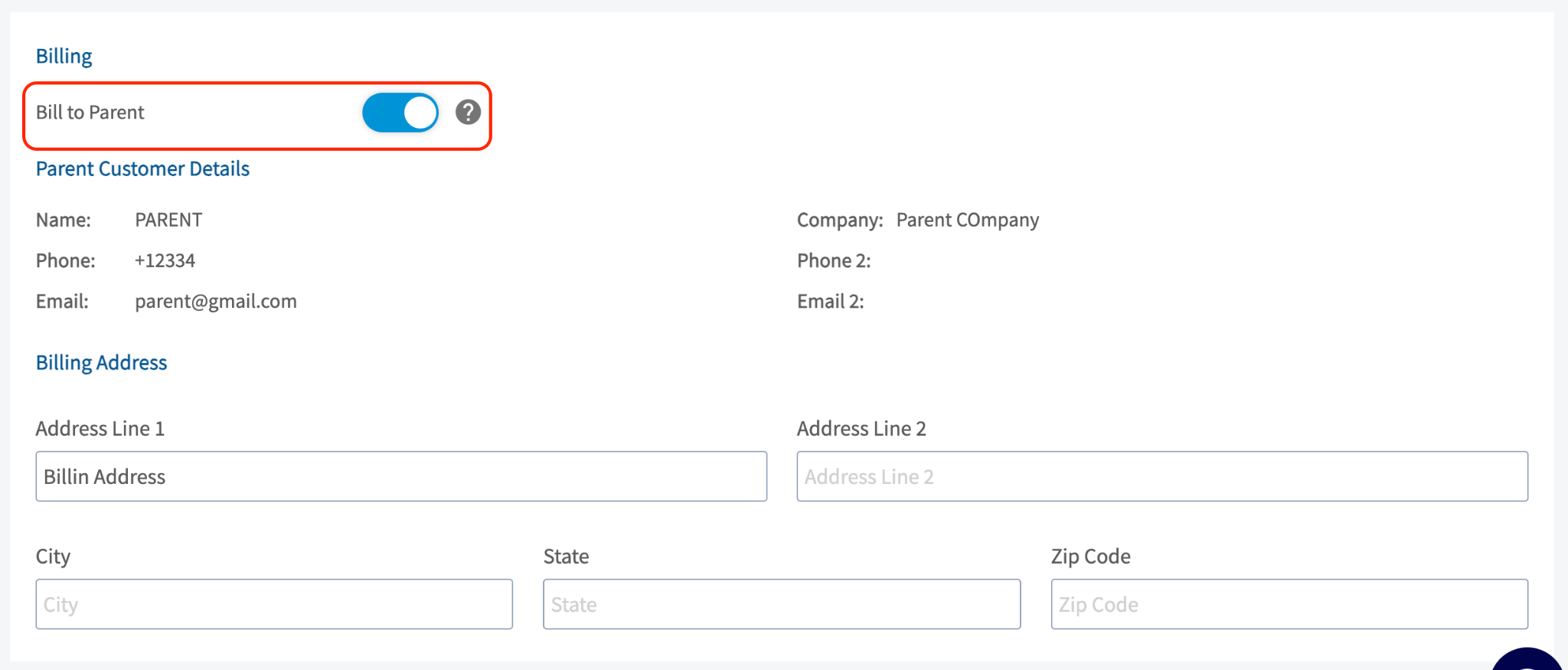
- The parent’s billing address is pulled into the child’s billing address field. If the parent does not have a billing address on file, the parent’s service address is used instead.
- The Use Separate Billing Address toggle is hidden while Bill to Parent is on, since billing details are now inherited from the parent.
- The child inherits the parent’s tax exempt status and default net terms.
Using Bill to Parent on Estimates and Invoices
When Bill to Parent is enabled on a child customer, a Bill To dropdown appears on their estimates and invoices. The dropdown has two options:- Parent Customer (the default when Bill to Parent is on)
- Customer (the child themselves)
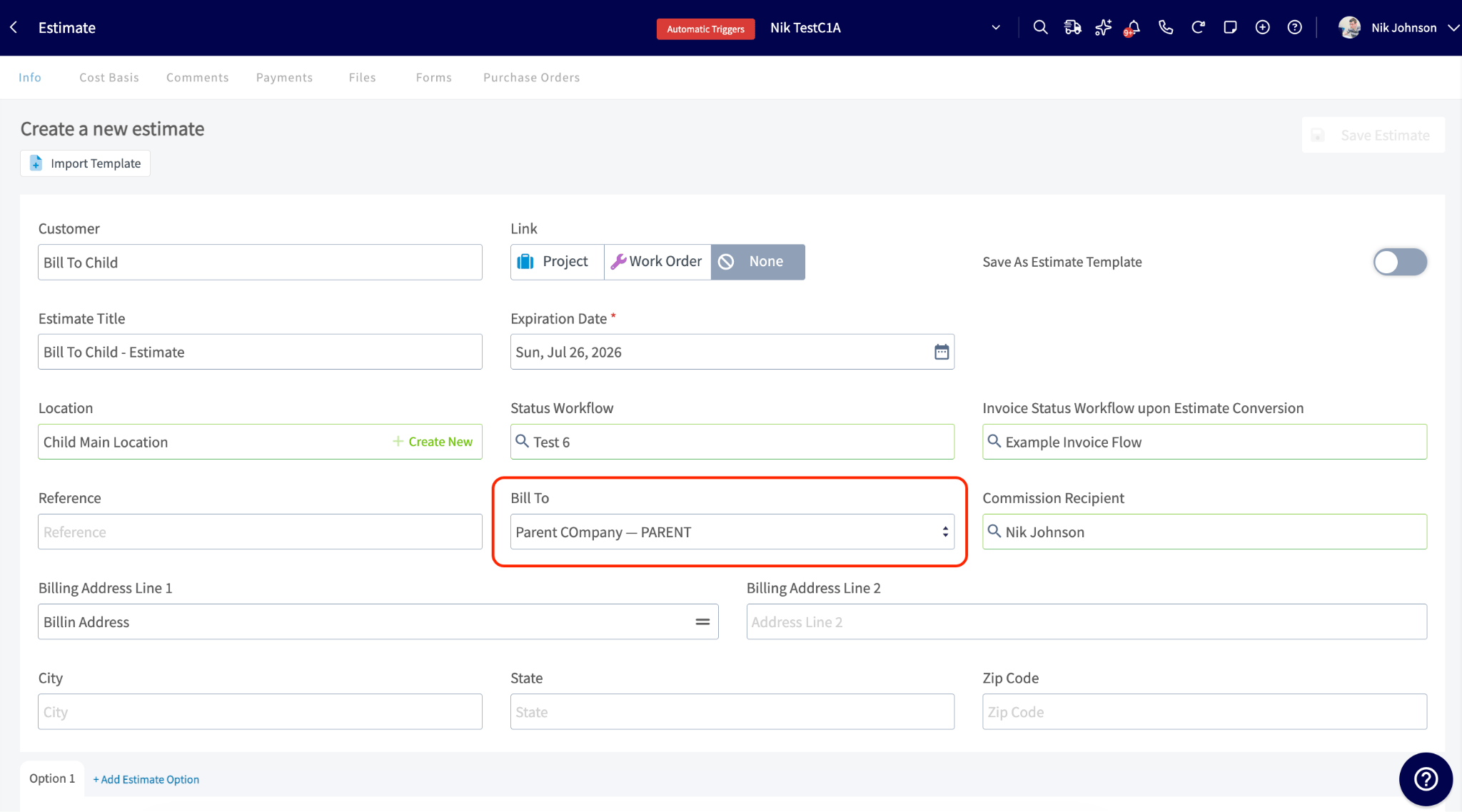
- The billing address is pre-populated with the parent’s billing address. You can edit it directly by typing a custom address or clicking the address icon to quickly insert the parent address, customer address, or service address.
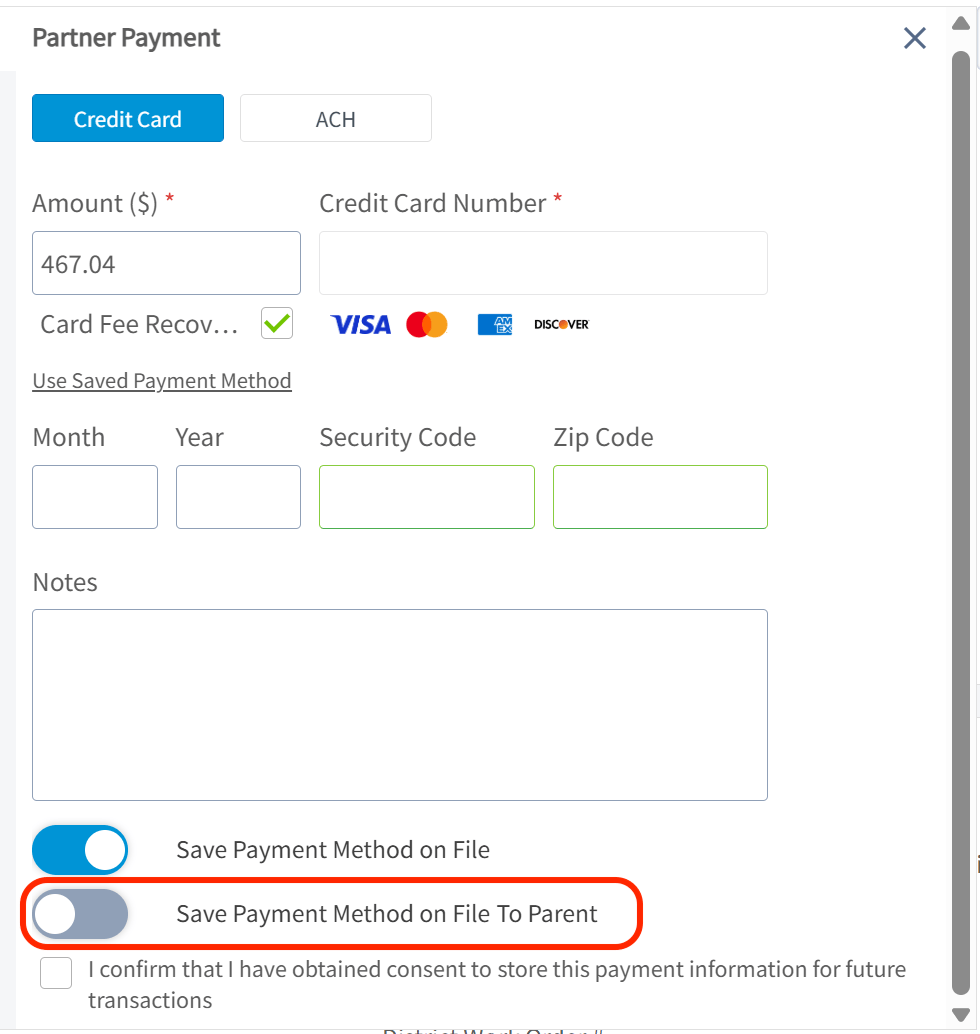
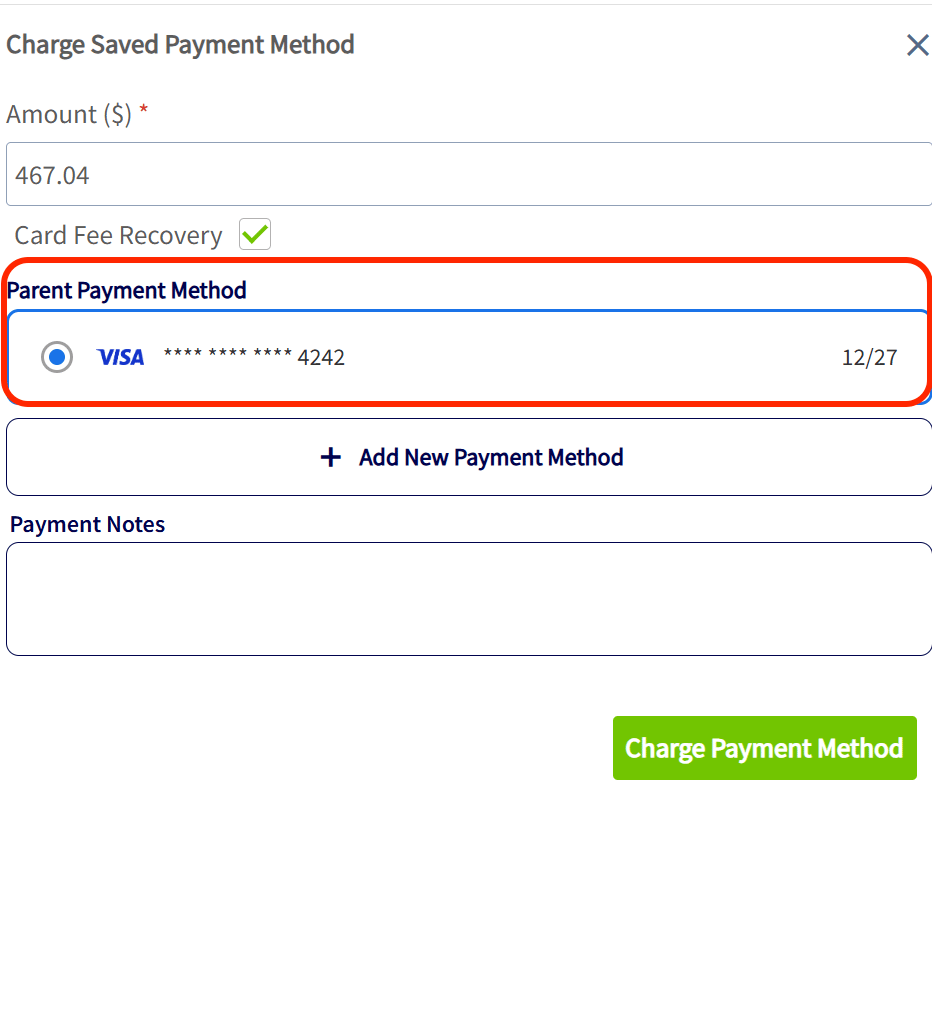
- The parent customer’s saved card on file is available to charge for payment.
- The parent’s email is synced to the invoice in QuickBooks Online instead of the child’s email.
Bill to Parent Display Settings
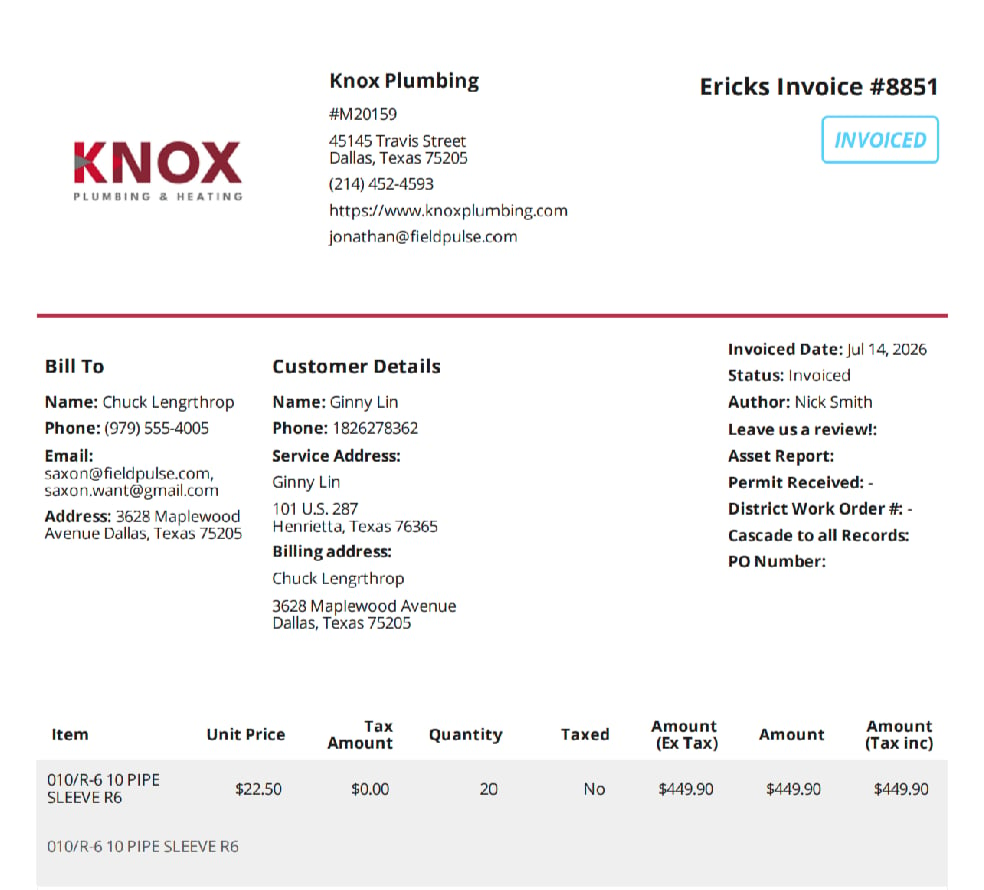
When Bill to Parent is enabled, you can control which billing details appear on your estimate and invoice PDFs. These settings work in two layers: your Company Settings define the account-wide defaults, and the preview panel on each individual estimate or invoice lets you adjust them for that record only. To set your account defaults, go to Company Settings > Estimates & Invoices > Preview Settings. You will see a new billing section just below the existing Display Customer’s Email toggle.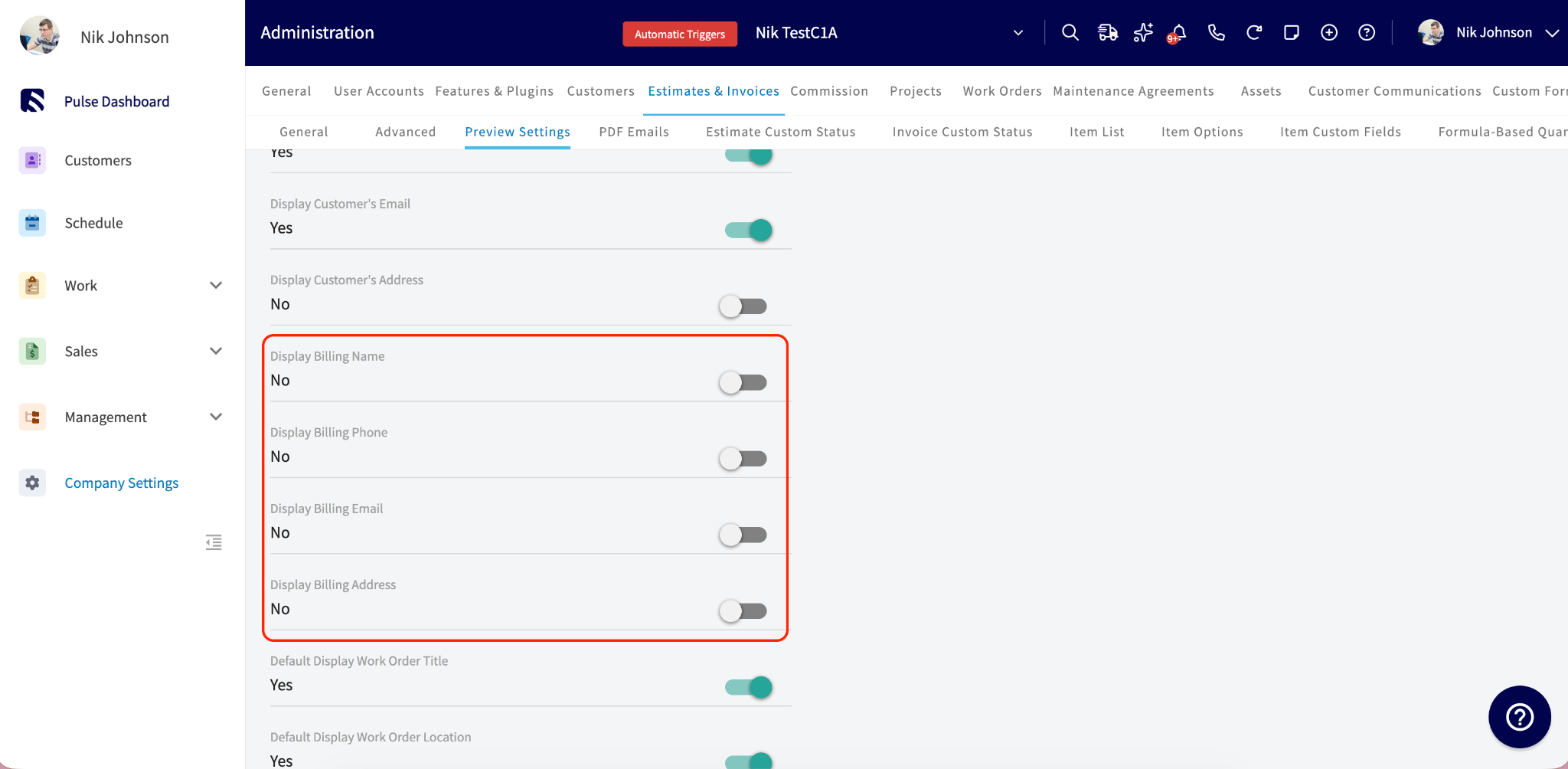
- Display Billing Name — shows the parent customer’s name in a “Bill To” section on the PDF
- Display Billing Phone — shows the parent customer’s phone number
- Display Billing Email — shows the parent customer’s email address
- Display Billing Address — shows the parent customer’s billing address
- Modify Billing Details — allows you to enter custom billing information on a per-record basis, overriding what is pulled from the parent customer. When enabled, you can enter a custom billing name, phone number, email, and address.
Accounting Integrations & Bill to Parent Sync
The way Bill to Parent information syncs with your accounting integration depends on the accounting software you use. The sections below describe which invoice fields are synced when Bill to Parent is enabled on an invoice.Sync Behavior at a Glance
QuickBooks Online Sync
Note: For parent customers with an Account Type of Commercial, QuickBooks Online stores the billing information as:- Line 1: Bill To Name
- Line 2: Bill To Company Name
- Lines 3–5: Bill To Address
Filtering the Related Customers List by Bill To
On a parent customer’s record, open the Related Customers tab, then go into the Estimates and Invoices subtab. This shows every estimate and invoice tied to that parent’s related (child) customers, and you can filter the list two ways:- Invoice Customer — filters by whose job it was: All (everything related to this customer), Child Accounts Only (child invoices), or Customer Only (invoices on the parent’s own record).
- Bill To — filters by who’s actually being billed: Parent Customer (only records billed to the parent) or Customer (only records billed to the child themselves).
Limitations & Current Restrictions
Recurring Billing Support
Bill to Parent is not currently supported for Recurring Billing. Recurring invoices will continue to use the standard customer billing information. Support for Bill to Parent in recurring billing is planned for a future release.Offline Mode Limitations
Bill to Parent details cannot be configured while working in Offline Mode. While you can still create estimates and invoices offline, you must reconnect to the internet to specify or update Bill To information before finalizing and sending the document.FAQs
Who can turn Bill to Parent on and off? The account-level setting in Company Settings requires admin access. The Bill to Parent toggle on a customer record can be changed by anyone with customer create/edit permissions, and the Bill To dropdown on estimates and invoices can be changed by anyone with estimate/invoice edit and create permissions. Does Bill to Parent work on the mobile app? Yes, Bill to Parent works the same on both web and mobile. Will turning on Bill to Parent change my existing estimates and invoices? No. Only new estimates and invoices created after you enable it are affected. Existing documents keep their original billing details. If I update the parent’s billing address later, do the child customers update too? It depends on whether the child’s address was customized. If the child’s billing address still matches the parent’s old address (it was inherited), it updates automatically to the new parent address. If the child’s billing address was manually edited to something different, it is preserved and won’t be overwritten. What happens if I turn Bill to Parent off for a single customer? New estimates and invoices for that customer will bill the child directly, and the Bill To dropdown no longer appears on new documents. Historical documents billed to the parent keep their Bill To details. What happens if I turn off the account-level Enable Bill to Parent setting? Will I lose data? No data is lost. When the Enable Bill to Parent setting is turned off, the Bill to Parent toggle remains on customer records for reference only. New records are automatically created and billed to the customer record, and the Bill To field is no longer visible on new estimates or invoices. Existing records and historical billing information remain unchanged, ensuring your records and audit trail stay accurate. You can re-enable the setting at any time. When I save a new card during payment, does it save it to the parent or the child? If the customer has a parent, you’ll see an extra toggle when saving a payment method: Save to Parent Customer (off by default). Turn it on to save the card to the parent’s account only; leave it off to save it to the child. I enabled “Bill with parent” in QuickBooks Online, does that carry over to FieldPulse? Yes, the setting syncs both ways. When a customer syncs from QuickBooks Online with Bill with Parent enabled, FieldPulse automatically turns on the Bill to Parent toggle and uses the billing address from QuickBooks. If QuickBooks has no billing address, the field stays blank until you add one in FieldPulse, which then pushes back to QuickBooks. Why is the Unlink button greyed out on my child customer? If any of the child’s invoices have been paid by the parent, unlinking is blocked. This follows a QuickBooks rule that preserves accounting history — unlinking in this state would cause unrecoverable sync errors. If you need to change the relationship, you can edit the parent’s information directly, recreate the customer under a new parent, or delete the linked payments in QuickBooks Online. How can I see all invoices billed to a parent across their child accounts? On the parent’s customer record, open the Estimates & Invoices subtab and use the Invoice Customer filter (web app only). Choose All (everything billed to this customer), Child Accounts Only (child invoices billed to this parent), or Customer Only (invoices on the parent’s own record). In the invoice list, why does the Customer column show the child instead of the parent? The Customer column always shows who the invoice belongs to (where the work was done), not who pays. The Bill To information tells you who’s being billed — keeping the two separate makes it easy to answer both “whose job was this?” and “who’s paying?” How many levels of parent/child customers are supported? Up to 5 levels. The parent record’s invoice filtering includes children, grandchildren, and so on, across all supported levels. Can I report on Bill to Parent activity? Yes. The Estimate, Invoice, and Customer raw data reports have columns including Bill To Parent Enabled, Bill To, Parent Customer Company Name, Parent Customer Phone, Parent Customer Email, and Billing Address, and each can also be used as a filter. Can I move a child customer to a different parent once it has billing history? Once a child customer has invoices that were paid using the parent’s payment method, QuickBooks Online permanently links that child to the parent to preserve accounting history and the audit trail. This can’t be undone without deleting the shared transactions. If a customer needs to move to a new parent (for example, a property management company taking over a location), the recommended approach is to recreate the customer under the new parent using a slightly different name, rather than re-parenting the existing record. The original customer and its billing history stay intact under the original parent.Have additional questions? Contact us at support@fieldpulse.com or use the chat feature in the bottom right corner of your screen.