
Create an Inventory Report
Date Range
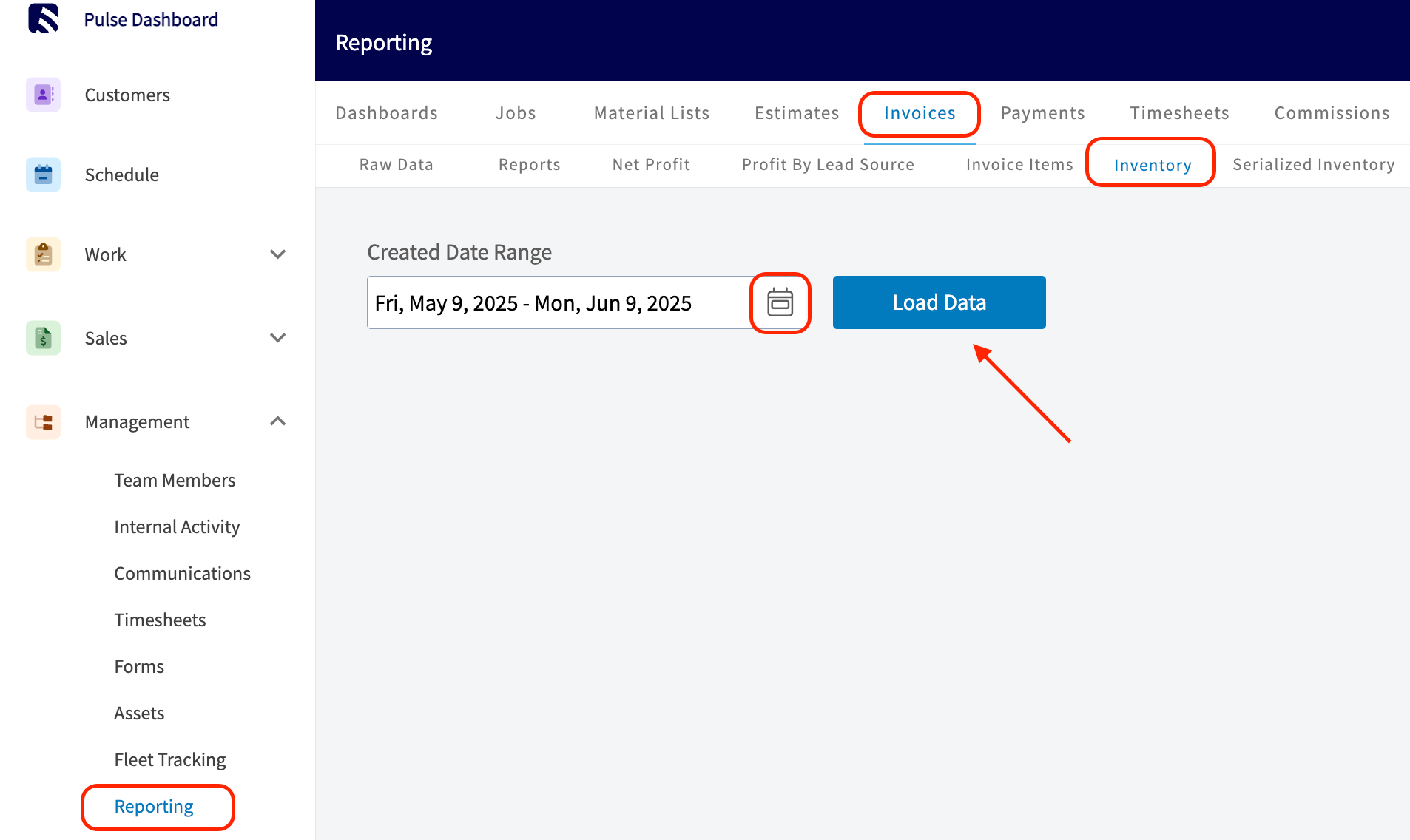
Begin by selecting the start date range for which you’d like to report on. Click on the calendar icon to select a date range and click Load Data.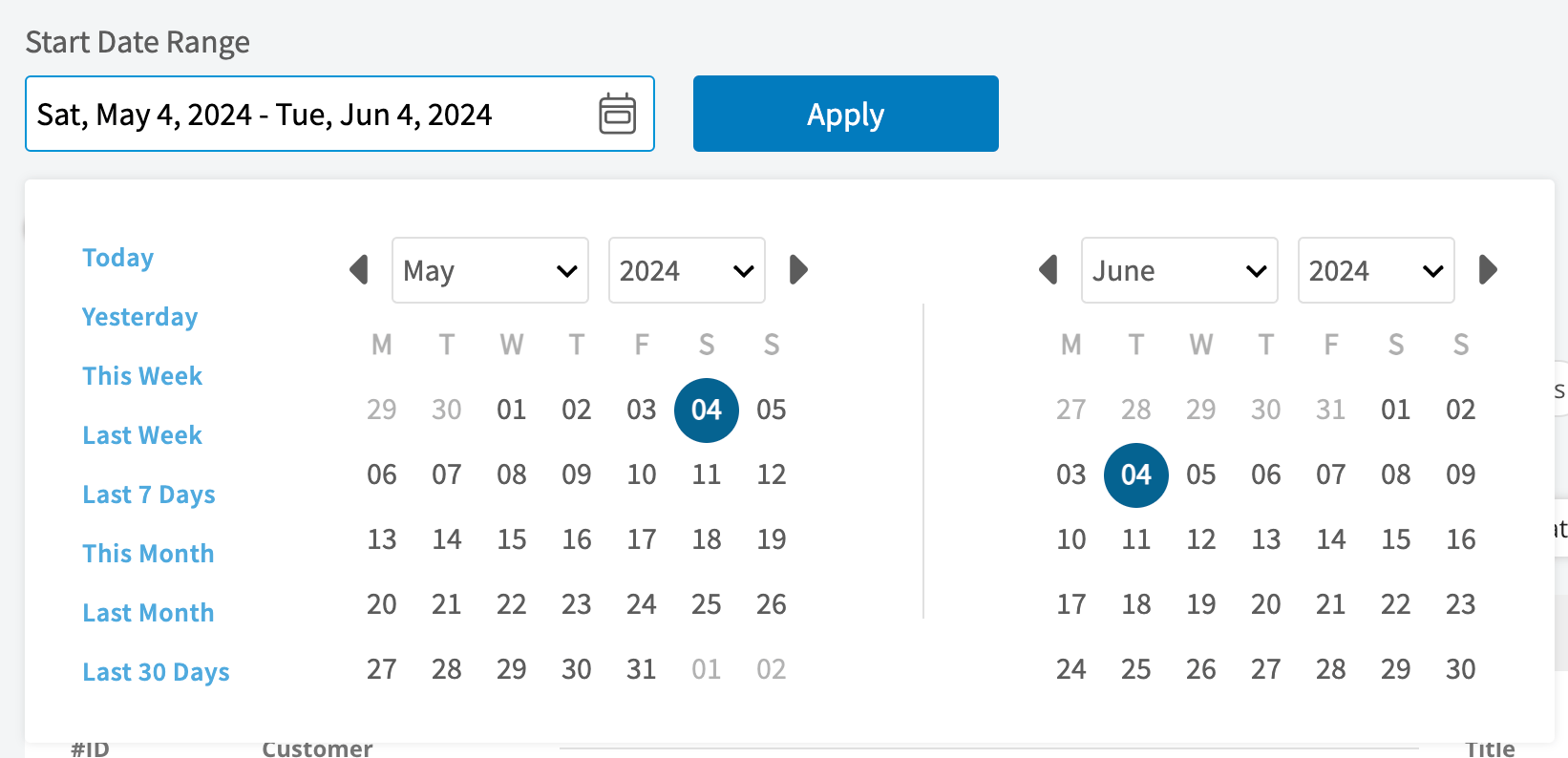
- Today: From 12:00 AM to the current time
- Yesterday: Previous day from 12:00 AM to 11:59 PM
- This Week: From Monday through Sunday of the current week
- Last Week: Previous week
- Last 7 Days: Previous seven days, including today
- This Month: From the first of the current month to the current day
- Last Month: Entire month before the current month
- Last 30 Days: Previous 30 days, including today
- Custom: Use the calendar to select start and end dates
Columns
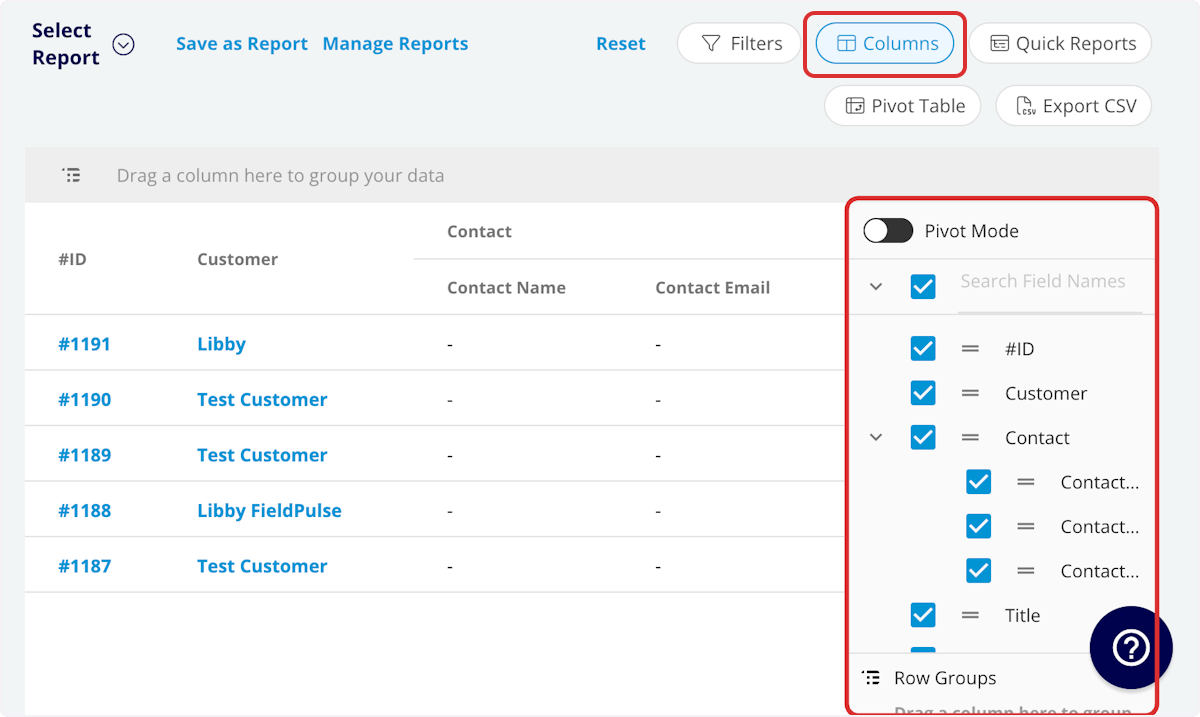
- Item Name: Line item name
- Description: Line item description
- SKU: Item #/SKU
- Type: Product - Inventory
- Unit Cost: Unit cost
- Unit Price: Unit price
- Quantity: Default quantity
- UPC: UPC/barcode
- Tags: Tags on line item
- Created At: Date and time the line item was created
- Supplier Name: Linked supplier
- Hub Name(s): Quantity stored at each hub
Filters
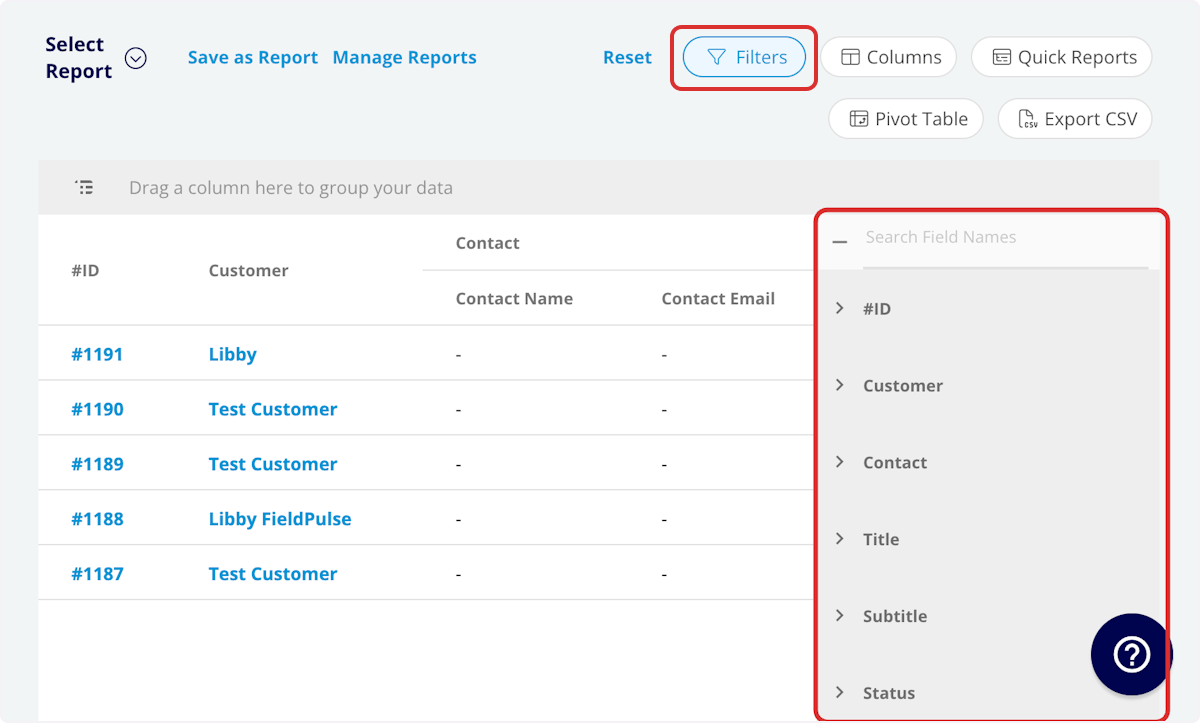
- Item Name: filter by contents
- Description: filter by contents
- SKU: filter by contents
- Type: filter by contents
- Tags: filter by contents
- Created At: filter by date
- Supplier Name: filter by contents
- Hub Name(s): filter by contents
Common Inventory Reports
Inventory by Supplier
Use this report to view all inventory sorted by the linked supplier. Columns: Customize to your needs, but must include Item Name and Supplier Group by: SupplierFAQs
Is there a way to view the inventory assigned to each technician’s van? Yes! Navigate to Company Settings > Estimates & Invoices > Inventory.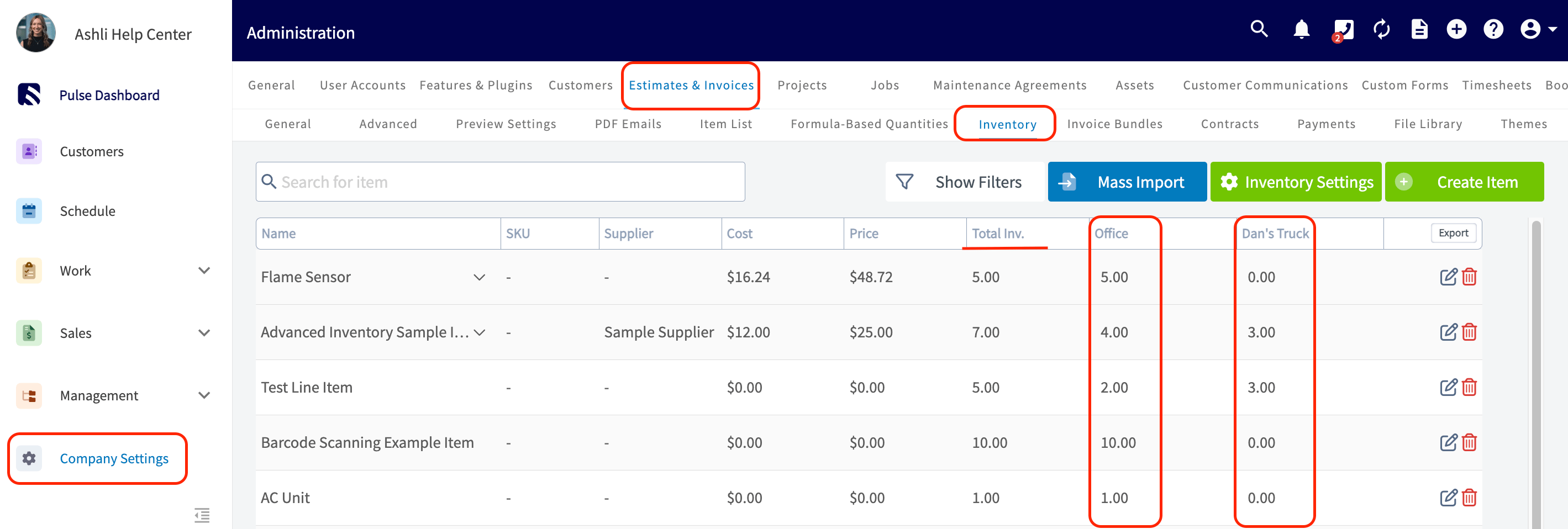
Have additional questions? Contact us at support@fieldpulse.com or use the chat feature in the bottom right corner of your screen.