
Create a Purchase Order Report
Date Range
Begin by selecting the start date range for which you’d like to report on. Click on the calendar icon to select a preset date range and click Load Data.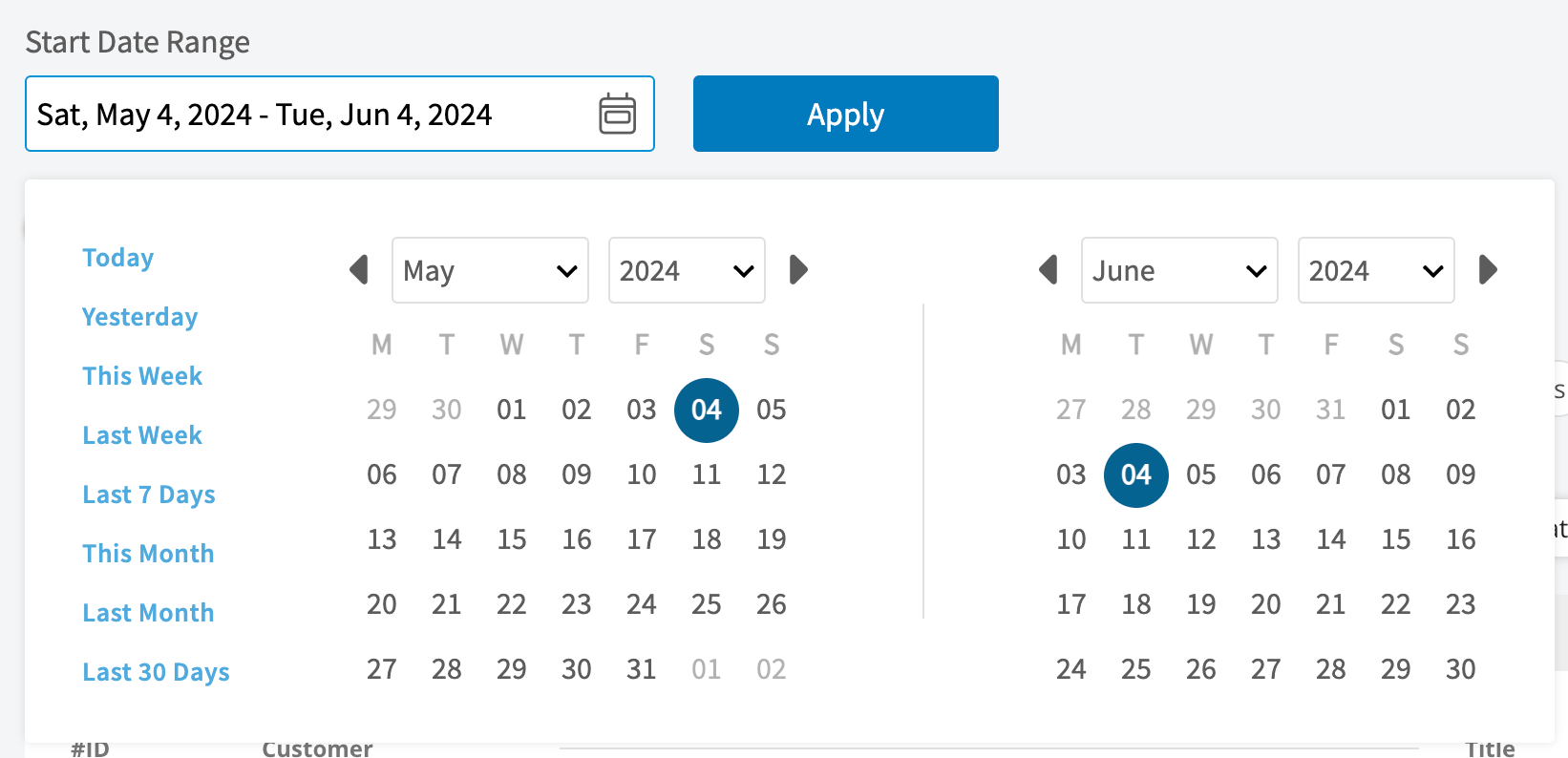
- Today: From 12:00 AM to the current time
- Yesterday: Previous day from 12:00 AM to 11:59 PM
- This Week: From Monday through Sunday of the current week
- Last Week: Previous week
- Last 7 Days: Previous seven days, including today
- This Month: From the first of the current month to the current day
- Last Month: Entire month before the current month
- Last 30 Days: Previous 30 days, including today
- Custom: Use the calendar to select start and end dates
Columns
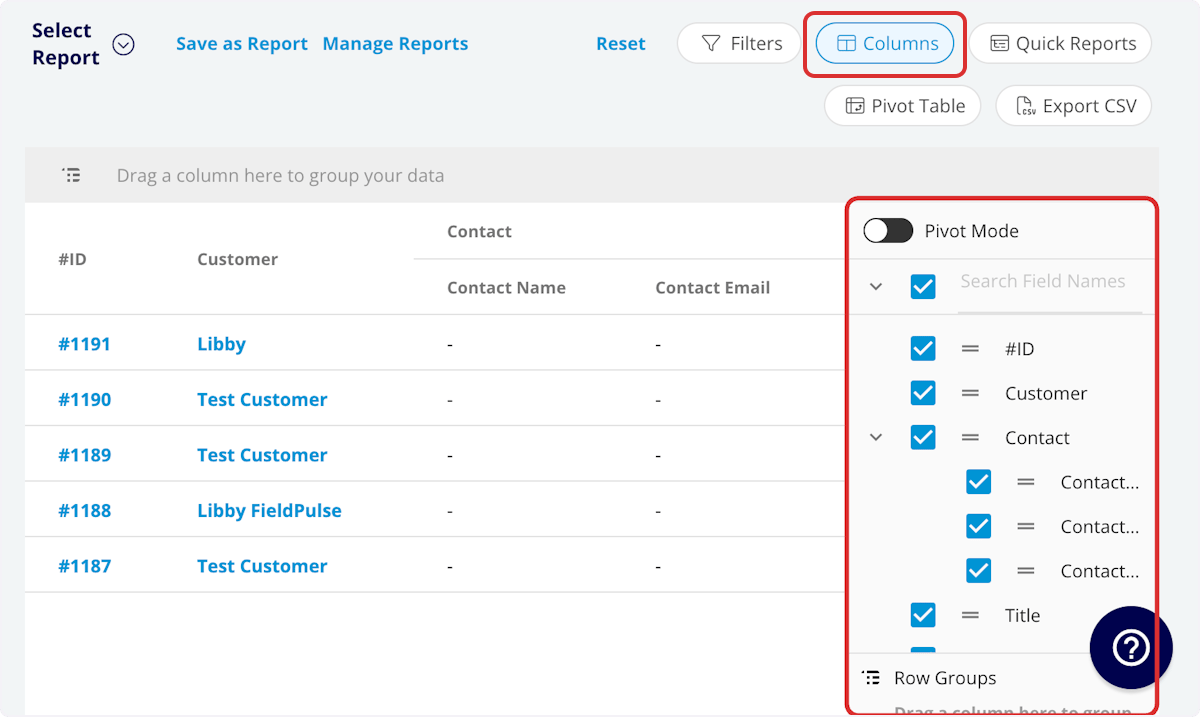
- ID: Purchase order number
- Title: Purchase order title
- Order Number: Supplier order number
- Status: Purchase order status
- Payment Status: Payment status
- Address: Delivery or pickup address
- Vendor: Supplier
- Tax Rate: Tax rate
- Delivery Method: Delivery or pickup
- Delivery Instructions: Delivery instructions
- Comment:
- Customer: Related customer
-
Related Project:
- Name: Related project
- Status: Status of the related project
-
Parent Job:
- Name: Related job
- Status: Status of the related job
- Parent Invoice: Related invoice
- Created At: Date and time the purchase order was created
- Assigned: Assigned team member
- Order At: Date and time the purchase order was ordered
- Expected Delivery At: Date and time the purchase order is expected to be delivered
- Received At: Date and time the purchase order was delivered
- Total: Total dollar amount of purchase order
-
Customer
- Custom Fields: User-created fields related to the customer record
- Customer Phone: Customer’s primary phone number
- Customer Email: Customer’s primary email address
- Customer Phone 2: Customer’s secondary phone number
- Customer Email 2: Customer’s secondary email address
- Customer Assigned To: User assigned to customer record
- Customer Lead Source: Lead source on the customer record
- Customer Pipeline Status: Customer’s custom sales pipeline status
- Customer Next Steps: Next steps listed on custom sales pipeline
- Customer Notes: Notes on customer record
- Customer Job Notes: Job notes on customer record (automatically inserted onto job records)
- Customer Created Date: Date and time the customer was added to FieldPulse
- Customer Tags: Tags attached to the customer record
- Tags: Tags on purchase order
- Custom Fields: User-created fields related to the purchase order
Filters
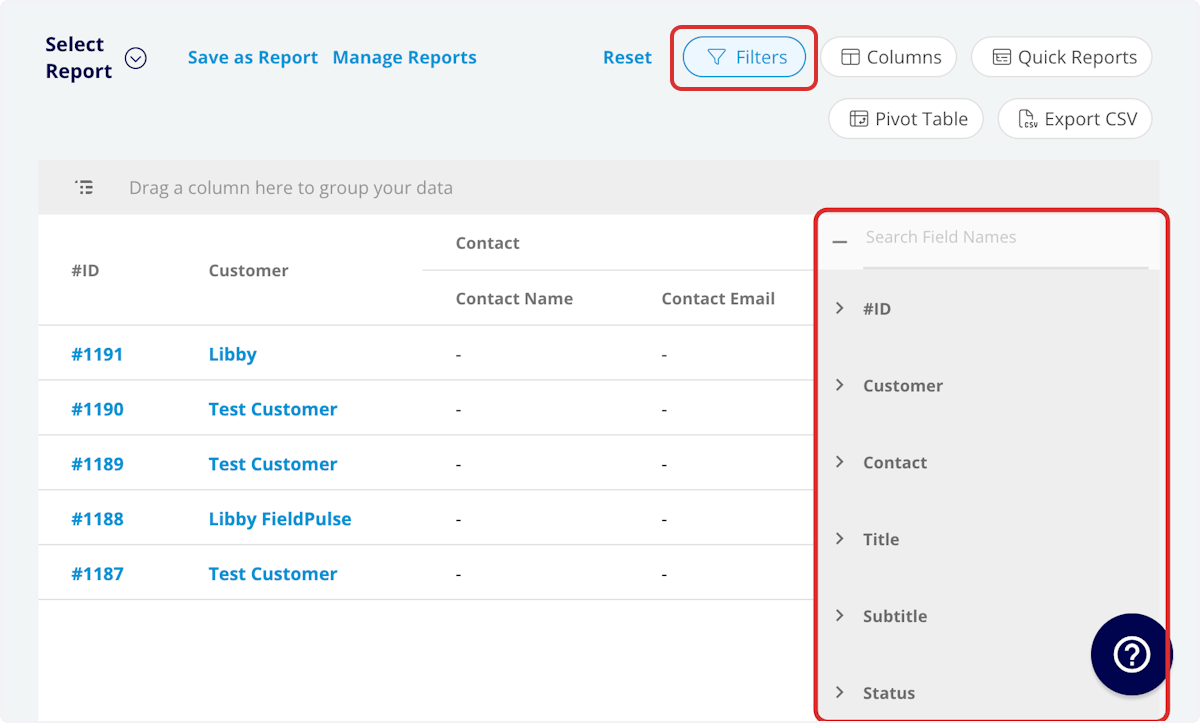
- ID: filter by contents
- Title: filter by contents
- Order Date: filter by date
- Order Number: filter by contents
- Status: select status
- Payment Status: select status
- Address: select address
- Vendor: select supplier
- Tax Rate: select tax rate
- Delivery Method: select delivery or pickup
- Delivery Instructions: select delivery instructions
- Comment: select comment
- Customer: filter by contents
- Related Project: select project
- Parent Job: filter by contents
- Parent Invoice: filter by contents
- Created At: filter by date
- Assigned: filter by contents
- Order At: filter by date
- Expected Delivery Date: filter by date
- Expected Delivery At: filter by date
- Date Received: filter by date
- Received At: filter by date
- Total: filter by contents
-
Customer
- Customer Phone: select phone number
- Customer Email: select email address
- Customer Phone 2: select phone number
- Customer Email 2: select email address
- Customer Assigned To: filter by contents
- Customer Pipeline Status: select status
- Customer Next Steps: filter by contents
- Customer Notes: filter by contents
- Customer Job Notes: filter by contents
- Customer Created Date: filter by contents
- Customer Tags: filter by contents
- Tags: select tag
- Custom Fields: select custom field
Common Purchase Order Reports
Purchase Orders by Order Status
Use this report to sort your purchase orders by status. Columns: Customize to your needs, but must include Status Group By: StatusPurchase Orders by Vendor
Use this report to sort your purchase orders by vendor. Columns: Customize to your needs, but must include Vendor Group By: StatusPurchase Order Key Dates
Use this report to view all key dates associated with your purchase orders. Columns: Customize to your needs, but must include Created At, Order At, Expected Delivery At, and Received At.Have additional questions? Contact us at support@fieldpulse.com or use the chat feature in the bottom right corner of your screen.