
Create a Timesheet Report
Date Range
Begin by selecting date type you’d like to use to generate the report.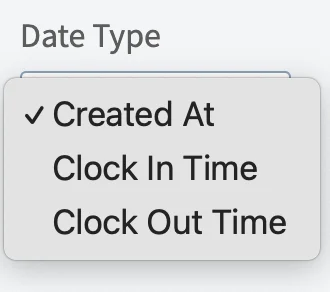
- Created Date: When the timesheet was created
- Clock In Time: When the clock in occurs
- Clock Out Time: When the clock out occurs
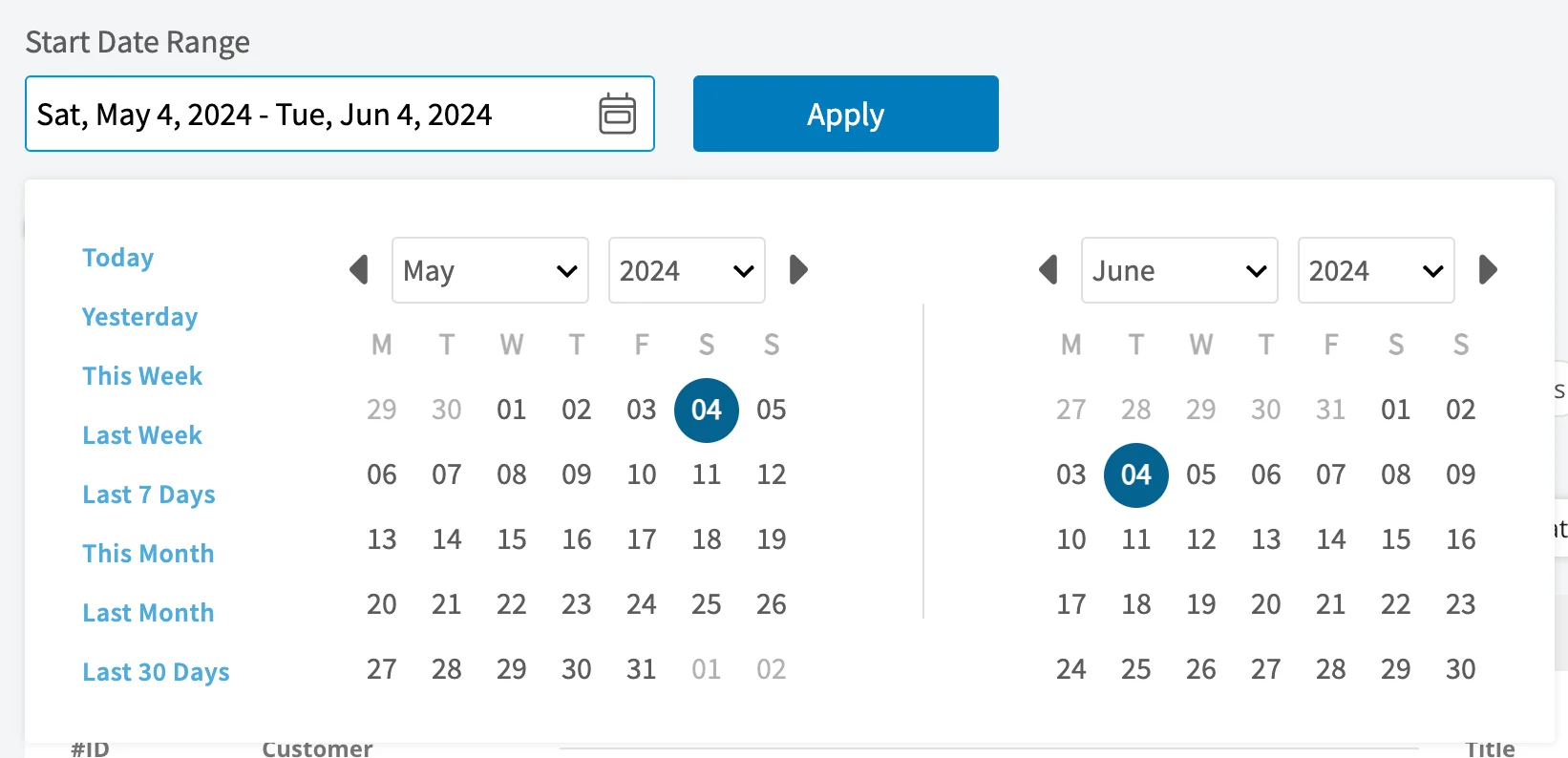
- Today: From 12:00 AM to the current time
- Yesterday: Previous day from 12:00 AM to 11:59 PM
- This Week: From Monday through Sunday of the current week
- Last Week: Previous week
- Last 7 Days: Previous seven days, including today
- This Month: From the first of the current month to the current day
- Last Month: Entire month before the current month
- Last 30 Days: Previous 30 days, including today
- Custom: Use the calendar to select start and end dates
Columns
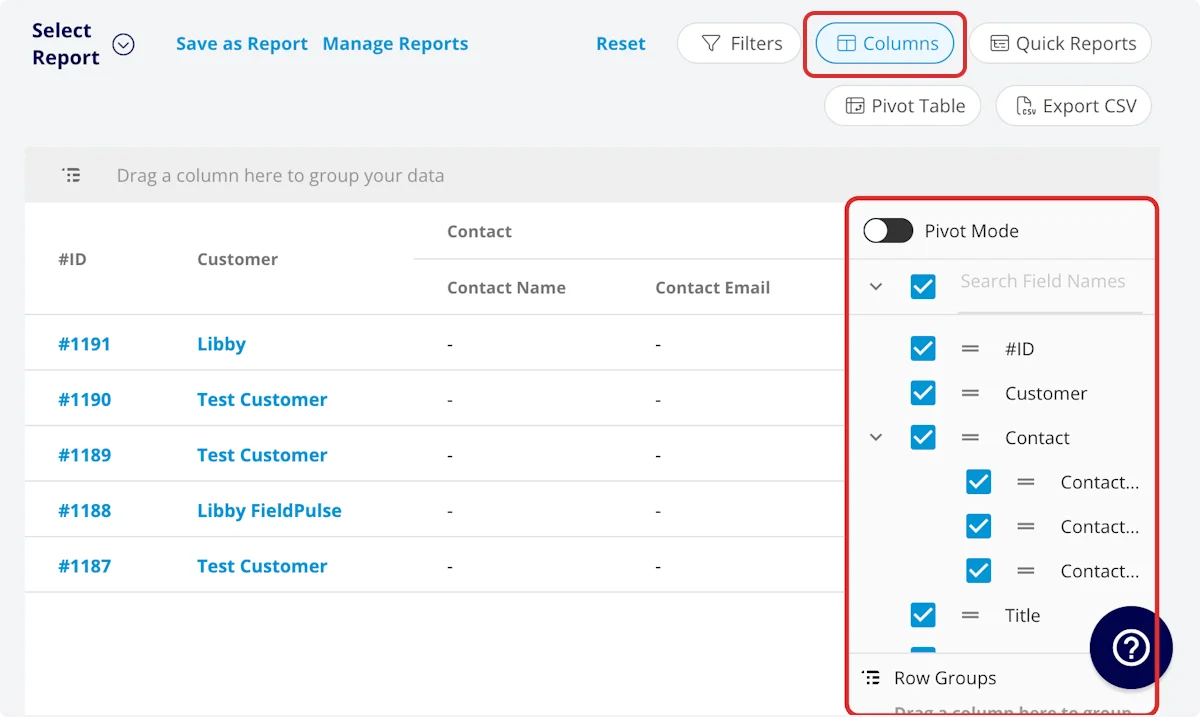
- User: Team member who clocked in/out
- Clock In Title: Clock in title
- Clock Out Title: Clock out title
- Clock In Date/Time: Clock in date/time
- Clock In Date: Clock in date
- Clock In Time: Clock in time
- Clock Out Date/Time: Clock out date/time
- Clock Out Date: Clock out date
- Clock Out Time: Clock out time
- Clock In Notes: Notes left on clock-in record
- Clock Out Notes: Notes left on clock-out record
- Customer: Customer linked to the related job
- Created At: Date and time the timesheet was created
- Tags: Tags on clock-in/out record
- Parent Project: Linked project record
- Parent Job: Linked job record
- Related Job Location Address: Address of the related job record
- Related Job City: City that the related job was completed in
- Related Job State: State that the related job was completed in
- Related Job Zip Code: Zip code that the related job was completed in
- Related Job Location Name: Name of the location that the related job was completed in
- Related Job Notes: Notes on linked job record
- Related Job Field Notes: Field notes on linked job record
- Duration: Time spent clocked in, recorded in HH:MM:SS
- Duration Decimal: Time spent clocked in, recorded in hours
- Timesheet Type: Job Tracking or General Timesheet
Filters
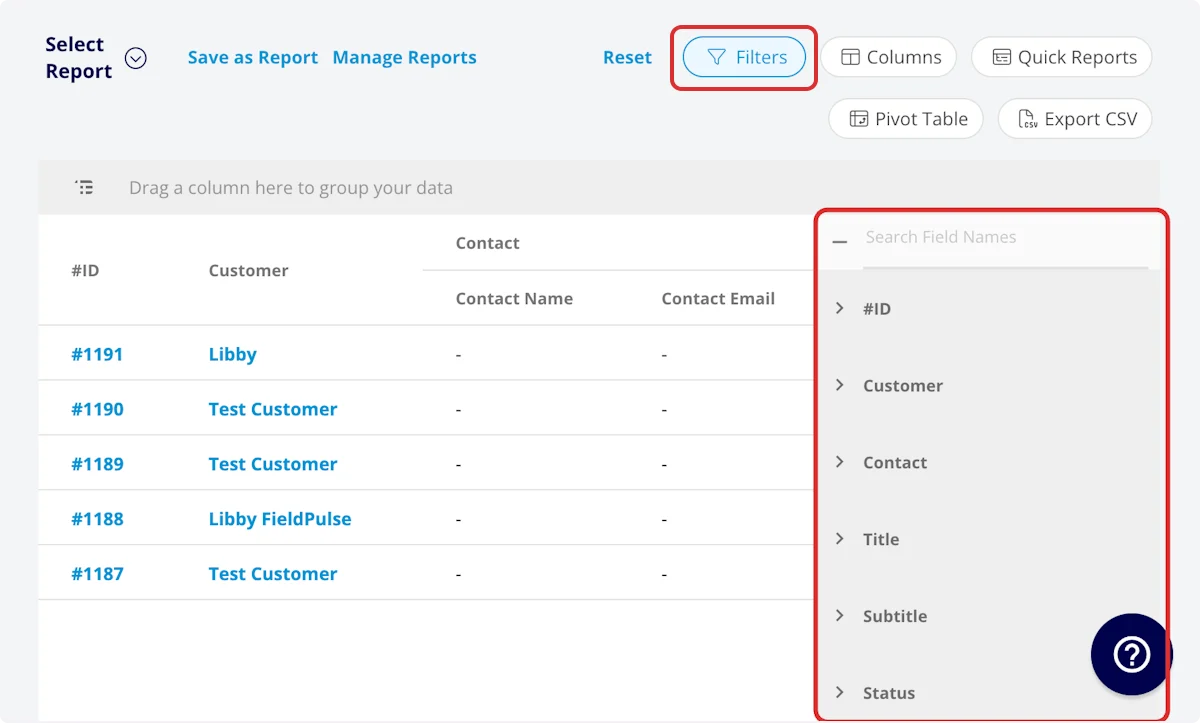
- User: filter by contents
- Clock In Title: filter by contents
- Clock Out Title: filter by contents
- Clock In Date/Time: filter by date
- Clock In Date: filter by date
- Clock In Time: filter by date
- Clock Out Date/Time: filter by date
- Clock Out Date: filter by date
- Clock Out Time: filter by date
- Clock In Notes: filter by contents
- Clock Out Notes: filter by contents
- Customer: filter by contents
- Created At: filter by date
- Tags: filter by contents
- Parent Project: select project
- Parent Job: select job
- Related Job Location Address: filter by contents
- Related Job City: filter by contents
- Related Job State: filter by contents
- Related Job Zip Code: filter by contents
- Related Job Location Name: filter by contents
- Related Job Notes: filter by contents
- Related Job Field Notes: filter by contents
- Duration: filter by contents
- Duration Decimal: filter by contents
- Timesheet Type: Job Tracking or General Timesheet
Common Timesheet Reports
Timesheets by Team Member
Use this report to view timesheets sorted by team member. Columns: Customize to your needs, but must include User Group by: UserTimesheets by Job/Project
Use this report to view timesheets related to the same job or project, providing details on the total duration for a job or project. Columns: Customize to your needs, but must include Parent Job or Parent Project Group by: Parent Job or Parent ProjectTimesheet Duration with Notes
Use this report to view timesheets alongside the related notes, providing needed context around the timesheet durations. Columns: Customize to your needs, but must include Duration or Duration Decimal and Clock-In Notes, Clock-Out Notes, or Related Job Field Notes.Have additional questions? Contact us at support@fieldpulse.com or use the chat feature in the bottom right corner of your screen.