
To learn more about FieldPulse’s commission structure, the commission structures guide.
Create a Commission Report
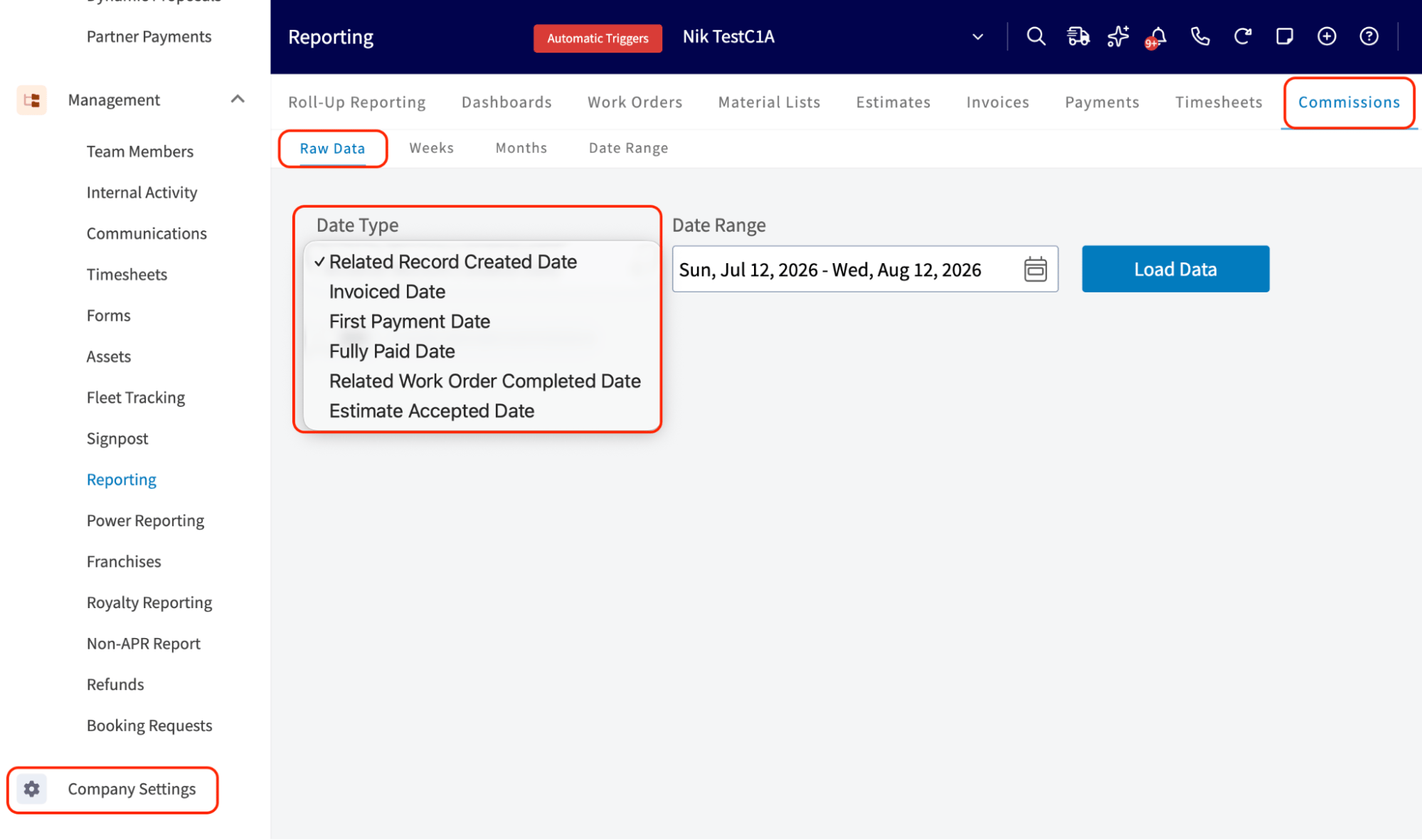
Step 1: Date Type
Choose one of the following options:- Related Record Created Date: This refers to the date associated with the Estimate or Invoice record.
- Invoiced Date: This is the date when the Invoice was sent to the customer.
- First Payment Date: This is the date the customer made their first payment.
- Fully Paid Date: This is the date the invoice was paid in full.
- Related Work Order Completed Date: This is the date the related job was marked complete.
- Estimate Accepted Date: This is the date the customer accepted the related estimate.
Step 2: Date Range
Select the start date for the reporting period. Click on the calendar icon to choose a preset date range, then click Load Data.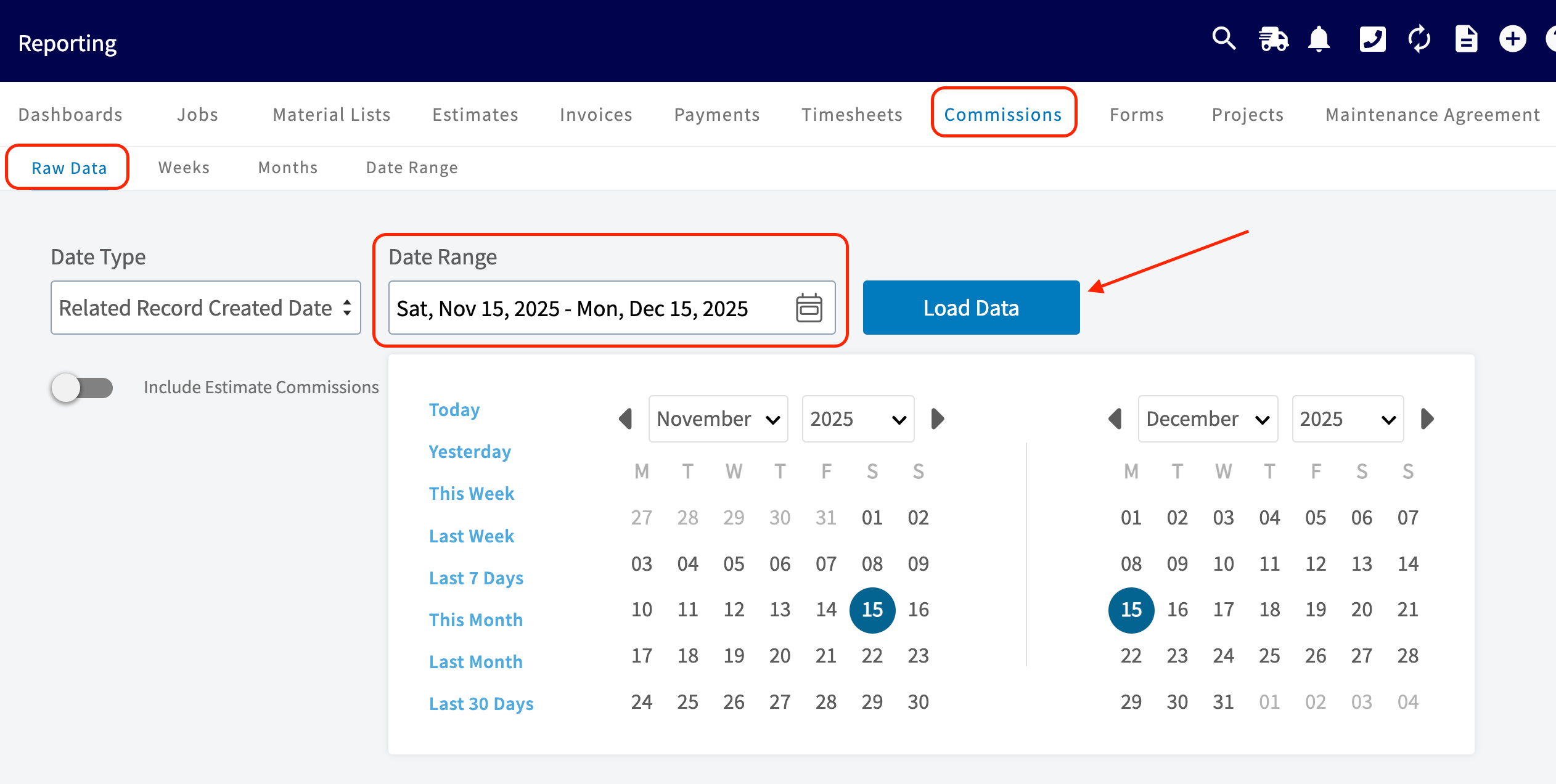
- Today: From 12:00 AM to the current time
- Yesterday: Previous day from 12:00 AM to 11:59 PM
- This Week: From Monday through Sunday of the current week
- Last Week: Previous week
- Last 7 Days: Previous seven days, including today
- This Month: From the first of the current month to the current day
- Last Month: Entire month before the current month
- Last 30 Days: Previous 30 days, including today
- Custom: Use the calendar to select start and end dates
Step 3: Columns
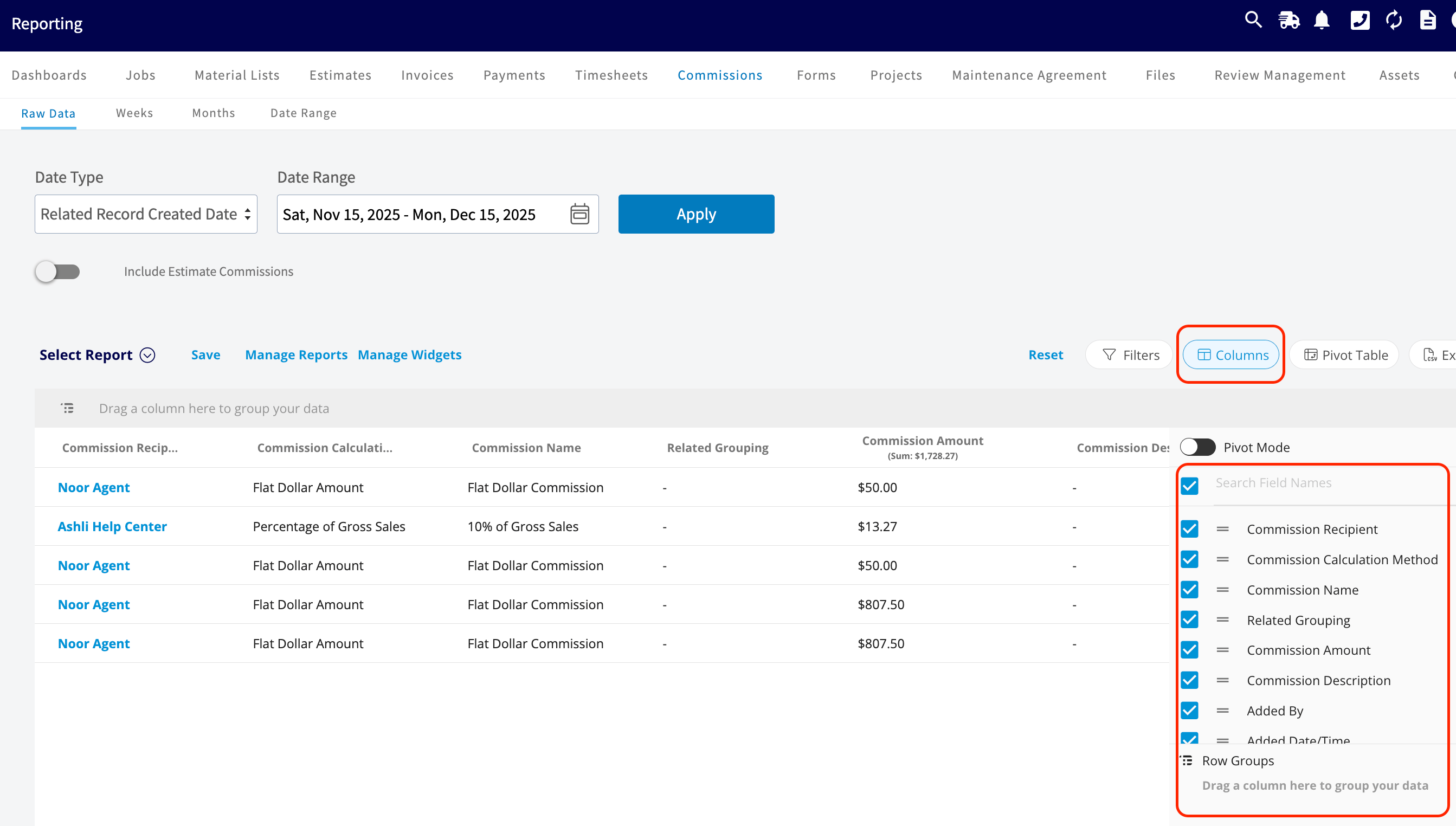
Select the columns to include in your report by clicking Columns. Commission reports include these columns by default:- Commission Recipient
- Commission Type
- Commission Name
- Related Grouping
- Commission Amount
- Commission Description
- Added By
- Added Date/Time
- Related Estimate
- Related Invoice
- Related Invoice Status
- Related Job
- Related Job Status
- Related Customer
Group by Commission Recipient & Related Job
Have additional questions? Contact us at support@fieldpulse.com or use the chat feature in the bottom right corner of your screen.