
Who uses this: Admins only — only users with the Admin role can block and unblock numbers, and a block applies to your whole team. Availability: United States and Canada · Requires the Engage add-on.Blocking a number in Engage stops calls and texts to and from that number for you and everyone on your team. Only users with the Admin role can block or unblock a number. An Admin can block a contact, a customer, or an unknown number, and can add a number to the block list even if it has never contacted you — useful for shutting down known spam before it reaches your crew.
Overview
A block in Engage is team-wide. Once a number is blocked, no one on your team can call or text it and it can’t call or text any of you — all communication in both directions stops. An Admin blocks a number from its conversation and manages every blocked number from the Blocked Numbers page in Engage settings. There is no limit to how many numbers you can block.Block a number
Only users with the Admin role can block a number.
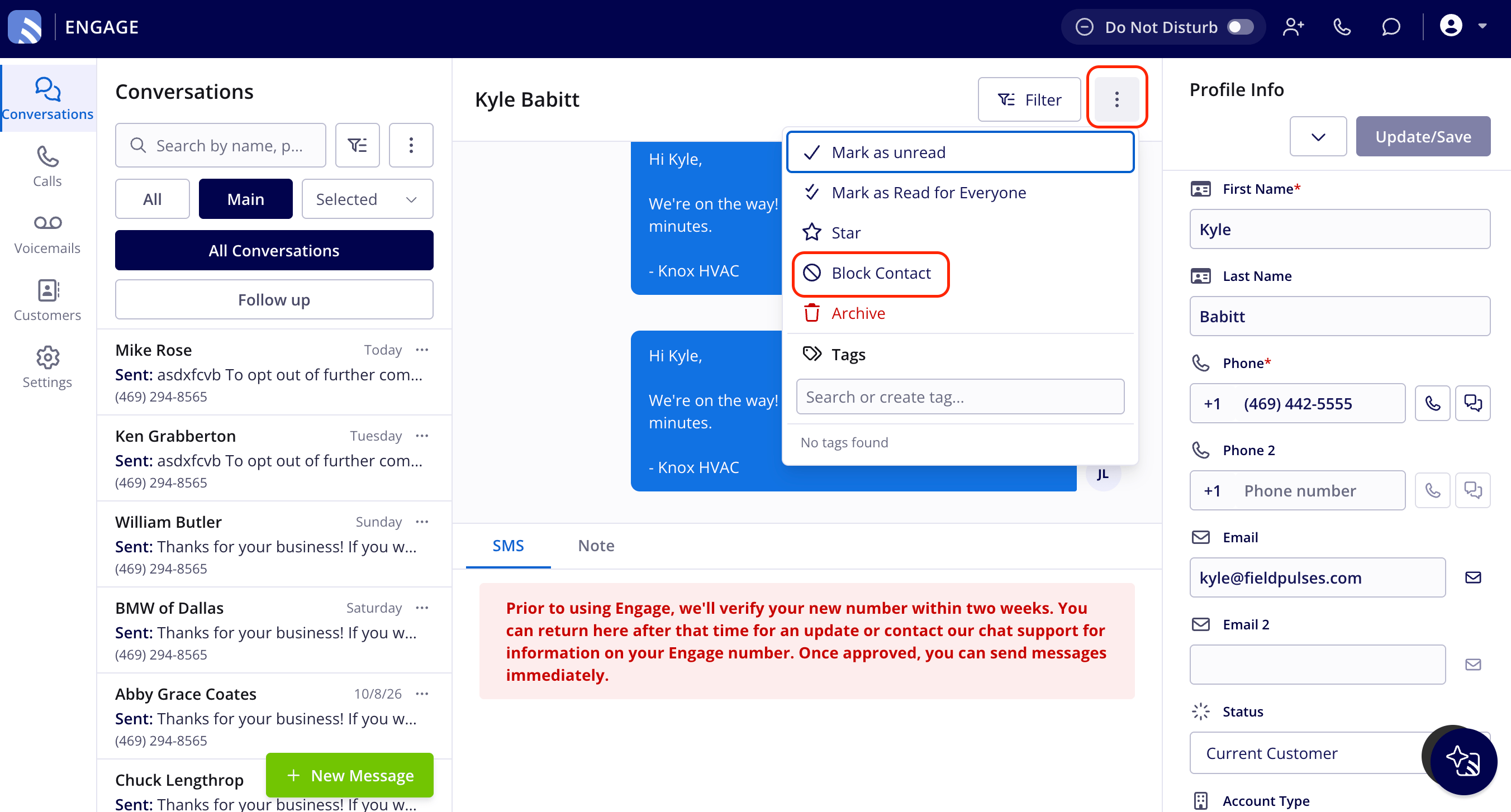
- Open the conversation with the number you want to block.
- Select the three-dot menu at the top right of the conversation.
- Select Block Contact.
- Confirm when prompted to block the number.
Block a number preemptively
An Admin can add a number to the block list even if it has never contacted you and isn’t saved in your contacts. This is useful for blocking known spam numbers before they reach your team. Select Settings in the left navigation bar, select Blocked Contacts, then select Block Number on the Blocked Numbers page and search for a customer or contact to block, or type an unknown number.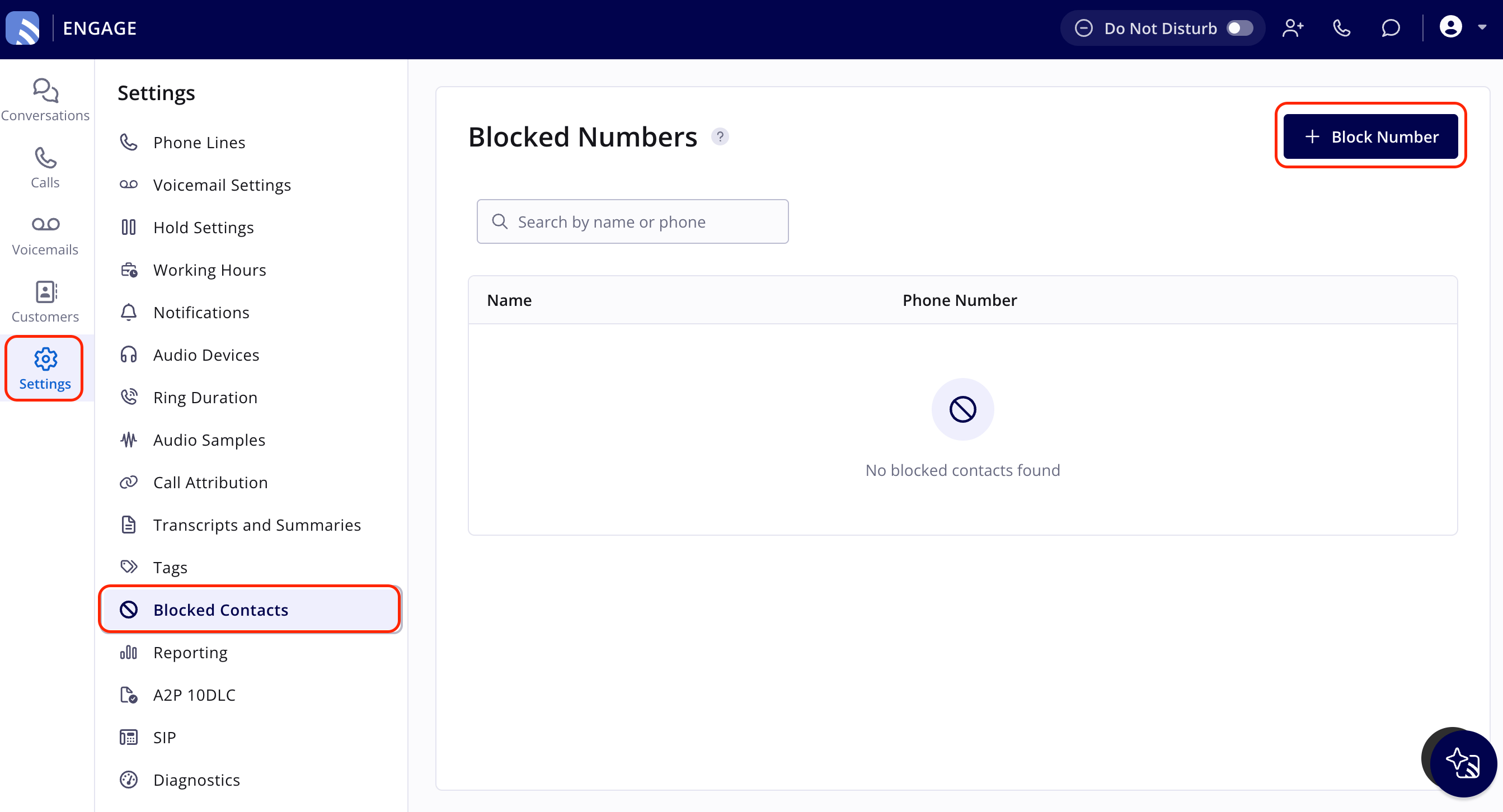
Manage and unblock numbers
Only users with the Admin role can unblock a number.- Select Settings in the left navigation bar.
- Select Blocked Contacts. The Blocked Numbers page lists every blocked number, with a search function to find a specific one.
- To unblock, select the number and confirm to allow communication again.