
Who uses this: Any user with access to Engage. Building and saving your own filters depends on an Admin turning on custom filters for team members. Availability: Requires the Engage add-on. Filtering and sorting work on web and mobile.A long list of conversations, calls, and voicemails hides the one callback that matters. Engage gives you four ways to cut through it — saved and custom filters, the All Conversations and Follow up toggle, quick filter tabs, and sorting — and the list updates in real time as you make selections.
Overview
Filters narrow the list in any Engage view to the items that match the categories and options you choose. Saved Filters are the filters your Admin has assigned to you plus any you have saved yourself; the All Conversations and Follow up toggle switches between the full list and only the items you have not read; quick filter tabs are one-click shortcuts built into each view; and the Sort By dropdown changes the order of whatever the list currently shows. Admins set up company filters and the filter behavior your team sees. See Setting Up Engage Filters.Before you begin
- Filters your Admin assigned to you show a locked icon. You can turn them on or off, but you cannot edit them.
- To build and save filters of your own, your Admin must have turned on custom filters for team members on the Engage Filters page.
On web
Open the filter panel
- Select the filter button to the left of the 3-dot menu in any Engage view.
- The button turns navy blue and the filter panel slides out from the right side of the screen.
- Make your selections. Your list of conversations, calls, or voicemails stays visible and updates in real time as you select filters.
- To close the panel, select the filter button again, select a Saved Filter, or open any conversation, call, or voicemail.
Apply a saved filter
- Select Saved Filters in the filter panel to see every filter available to you — the ones your Admin assigned and any you created yourself.
- Select a saved filter. The list updates immediately to show matching results, and the filter panel closes on its own.
Build and save your own filter
- Select your filter options in the panel, then select Apply.
- To keep the selection for later, select Save and enter a name when prompted.
- To rename one of your saved filters, double-click its name. To delete it, select the trash icon next to it and confirm.
Sort your list
Use the Sort By dropdown in any Engage view to change the order of your results.On mobile
Filtering and sorting work the same on mobile, with a two-screen filter flow instead of a slide-out panel.- Tap the filter button in any Engage view. The first screen shows the filter options.
- Tap Saved Filters to open a second screen with the filters available to you, then tap one to apply it.
- Your list updates in real time as you make selections, the same as on web.
All Conversations and Follow up toggle
Below the search bar on the Conversations, Calls, and Voicemails lists, a toggle switches between All Conversations and Follow up. All Conversations is selected by default and shows the full list. Follow up shows only the items you have not read yet. Follow up is tracked per user, so you see your own unread items, not your teammates’. No setup is needed, and the toggle is available to every user with access to Engage.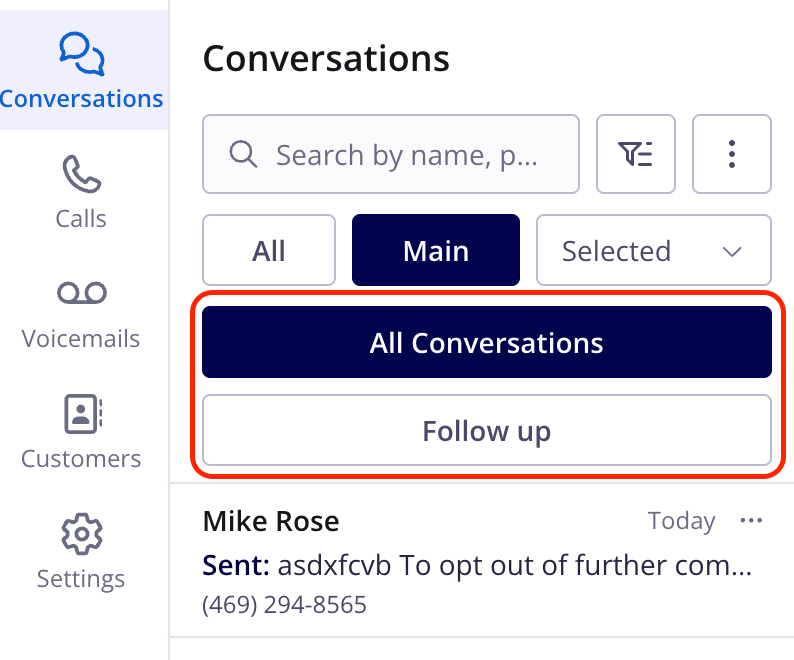
Switch between All Conversations and Follow up
- Open the Conversations, Calls, or Voicemails list in Engage.
- Select Follow up below the search bar. The list reloads from the top and shows only your unread items.
- Select All Conversations to return to the full list.
Quick filter tabs
Each view in Engage has built-in quick filter tabs below the search bar that narrow results without building a custom filter.Filtered and unfiltered sections
When a filter is active and your Admin has turned on Display Unfiltered Results, Engage splits the list into two sections:- Filtered section — named after your active saved filter, or “Filtered Results” if you built a custom filter without saving it.
- Unfiltered Results — everything outside the filter’s scope. This section starts collapsed and sits below the filtered section.