
Who uses this: Admins and Team Managers who manage Engage phone lines. Availability: United States and Canada · requires the Engage add-on.SIP (Session Initiation Protocol) lets Engage calls run through cloud-based VoIP desk phones and computers instead of only the Engage app, and DID (Direct Inward Dialing) rings a phone number straight through to a specific phone. You set up SIP from Engage settings by creating a SIP domain, adding credentials for each phone number, and enabling SIP on each phone line.
Overview
When your office runs on desk phones, your phone system and your customer records live in two different places. Connecting Engage via SIP puts those calls on the same system as the rest of your business. SIP is the technology that carries real-time calls over the internet, so cloud-based VoIP phones and computers can place and receive Engage calls. DID gives a phone number a direct path to a specific phone, so callers reach the right person without going through a traditional PBX system or a human operator. Engage SIP currently supports:- Incoming calls
- Outgoing calls
- Hold
- Transfer
Caller ID is not currently supported for SIP phones.
Before you begin
- Confirm Engage is enabled on your account. Engage is available in the United States and Canada; to enable it, email support@fieldpulse.com or use the chat feature in the bottom right corner of your screen. See Engage Overview.
- Complete 10DLC registration. 10DLC registration must be complete before you can use SIP. See Setting Up 10DLC Compliance Registration.
- Use a cloud-based VoIP phone or computer. The devices you connect over SIP must be cloud based. For a Yealink desk phone, see Setting Up a Yealink VoIP Phone.
- Confirm you have administrative access to your VoIP phone. If you purchased the phone through another provider, you may not have administrative access — contact that provider, or purchase a new VoIP phone if they cannot grant it.
- Know which phone numbers you are connecting. You set up SIP credentials and enable SIP for each phone number individually.
Step-by-step setup
- Open Engage and log in with the same credentials you use for your FieldPulse account.
- Select Settings in the left navigation bar.
- Select SIP.
-
Select Create Domain to start setting up your Engage system with SIP.
![Engage with Settings highlighted in the left navigation bar, SIP highlighted in the Settings list, and the Create Domain button highlighted on the Session Initiation Protocol [SIP] page](https://mintcdn.com/fieldpulse/uOzxf2Gode7FxGlR/static/images/_api/10450226-connecting-engage-via-sip-session-initiation-protocol-did-direct-inward-dialing/07.png?fit=max&auto=format&n=uOzxf2Gode7FxGlR&q=85&s=4d35ac775b5d639021aae4adc7cb6cbf)
-
Select Add Credential to create credentials for a phone number. Set up credentials for each phone number you want to use with SIP.
![The Session Initiation Protocol [SIP] page showing the SIP Server #1 and SIP Server #2 hostnames, with the Add Credential button highlighted under SIP Credentials](https://mintcdn.com/fieldpulse/uOzxf2Gode7FxGlR/static/images/_api/10450226-connecting-engage-via-sip-session-initiation-protocol-did-direct-inward-dialing/08.png?fit=max&auto=format&n=uOzxf2Gode7FxGlR&q=85&s=88c60174b3285d8399acecd8e5e73fd5)
-
In the Set up new SIP Credentials window, choose the phone line under Username [Phone Lines], enter a password, and select Add Credential.
Your password must be a minimum of 12 characters, contain at least 1 digit, and have mixed case (upper and lowercase).
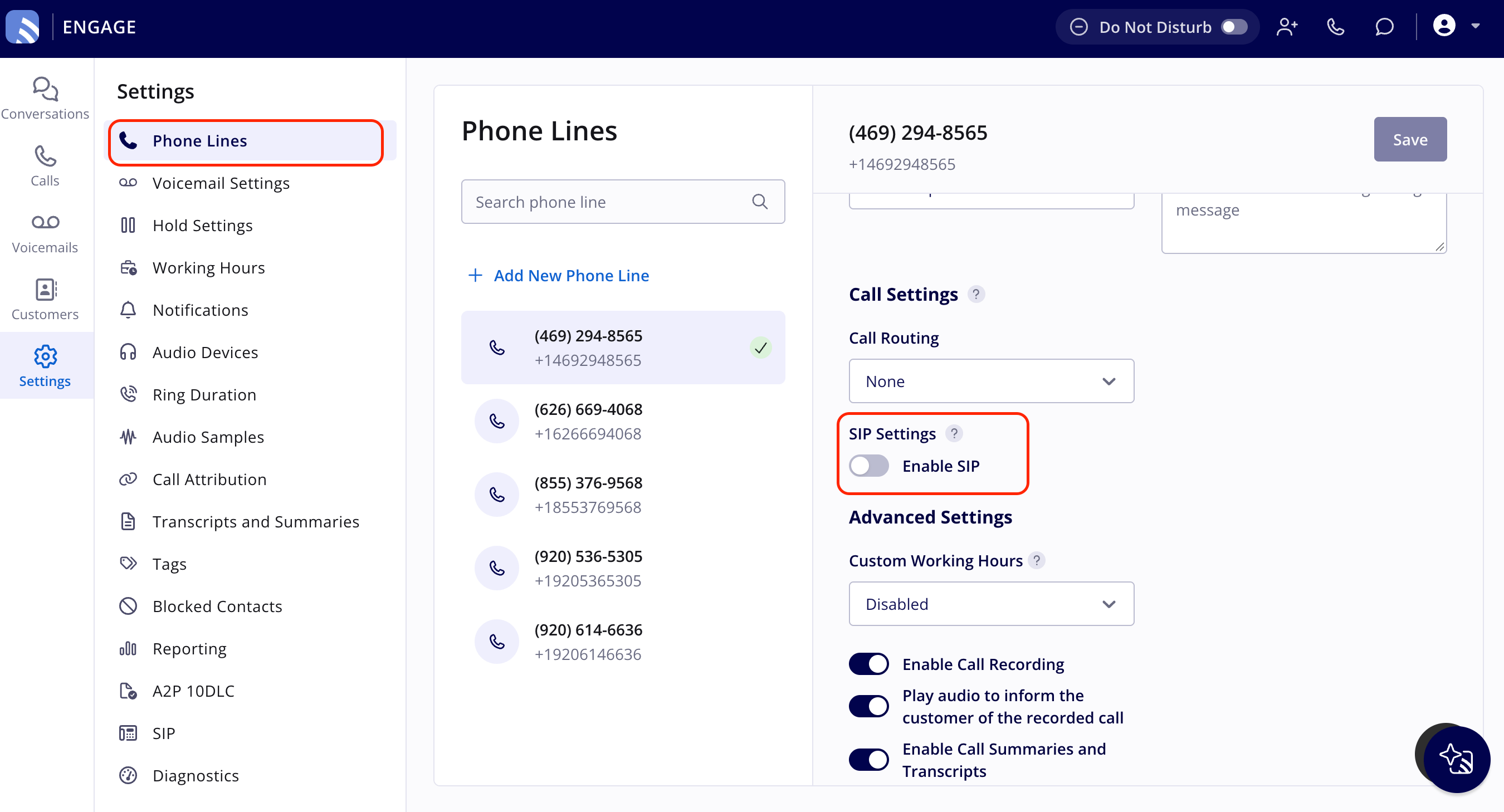
- Select Settings in the left navigation bar, then select Phone Lines and select the phone line you want to route through SIP.
-
On the phone line, scroll to the SIP Settings header and toggle on Enable SIP. Do this for each phone number you want to route through SIP.
- Select Save.