Who uses this: Admins, Team Managers, and Service Agents. Limited Agents have no access to Engage. Availability: Engage add-on · United States and Canada · Engage by FieldPulse app for iOS and Android.The Engage by FieldPulse mobile app lets you text customers, return calls, listen to voicemails, and open customer records from your device, using the same Engage phone lines as the web app. Calls, texts, and voicemails handled on mobile are saved to the same customer record as on the web app, so the office and the field work from one history.
Overview
The mobile app covers day-to-day communication. Account-wide Engage setup, such as reporting and tag management, stays in the web app.How it works
The Engage mobile app has five tabs along the bottom of the screen: Conversations, Calls, Voicemails, Customers, and Settings. The first three tabs share the same All, Main, and Selected options at the top, so you can view one phone line or every line you have access to. The top of each tab also has a filter button, a search button, and a three-dot menu.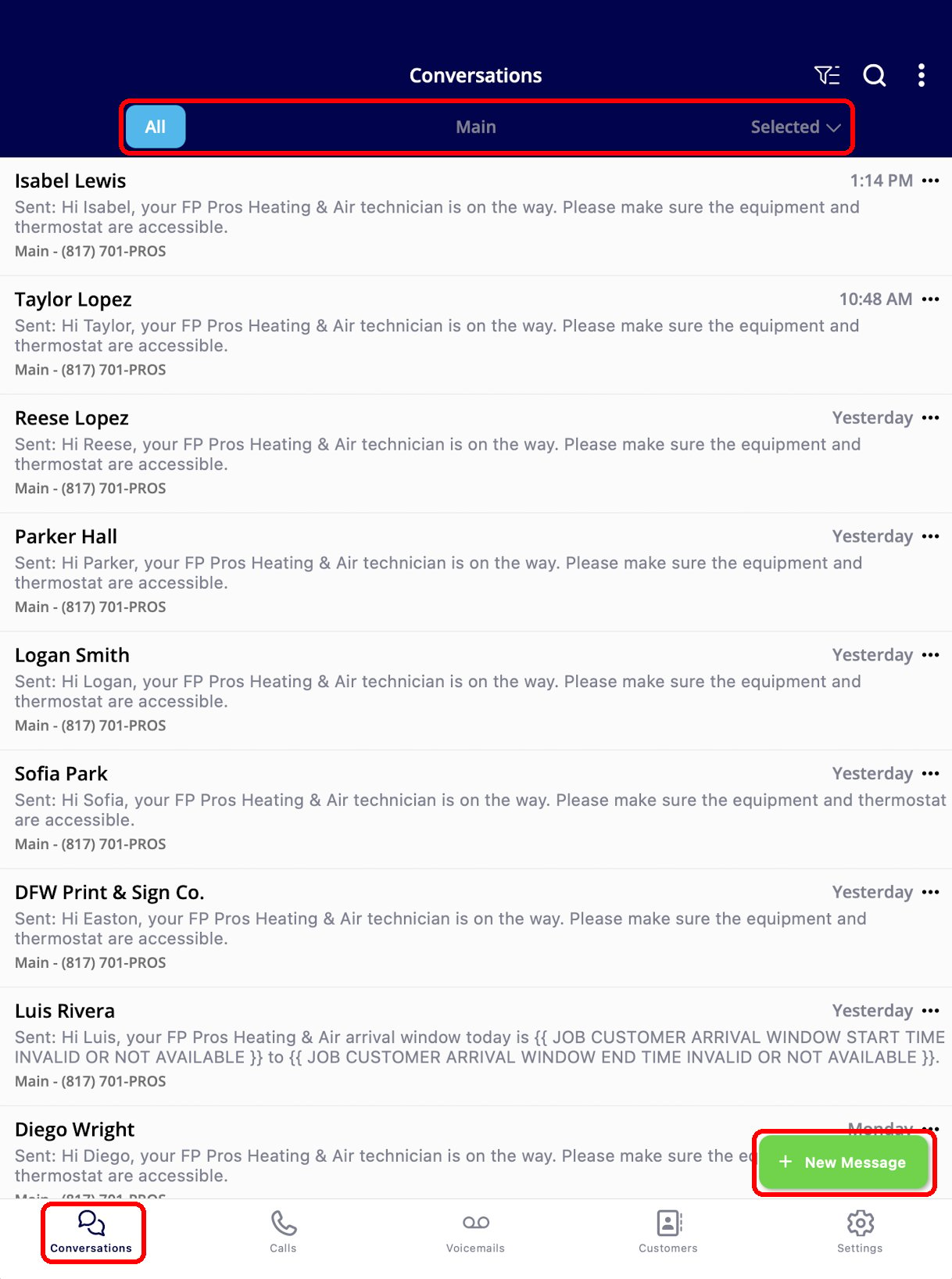
Conversations
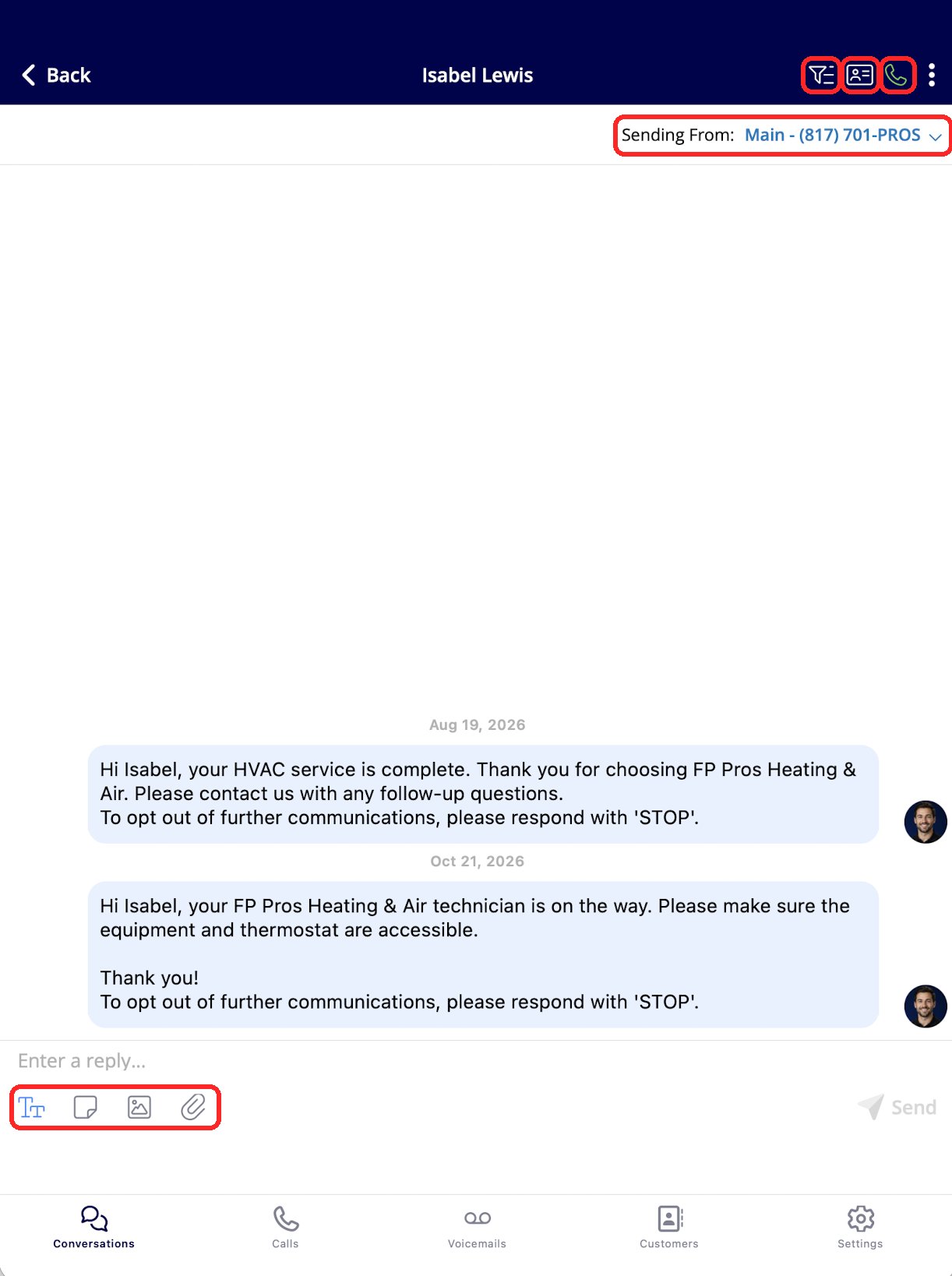
The Conversations tab lists your customer text threads. Each row shows the customer’s name, the most recent message, the phone line it was sent from, and when it was sent. Tap a conversation to open it, or tap New Message to start a new text. Inside a conversation, you can:- Choose the outbound phone line from Sending From at the top of the screen.
- Type a reply, format the text, and attach an image or file, then tap Send.
- Tap the phone icon in the top-right corner to call the customer.
- Tap the contact card icon to open the customer’s FieldPulse record.
- Tap the filter button to narrow the conversation history by communication type or team member.
Texts require 10DLC registration. See Setting Up 10DLC Compliance Registration.
Calls
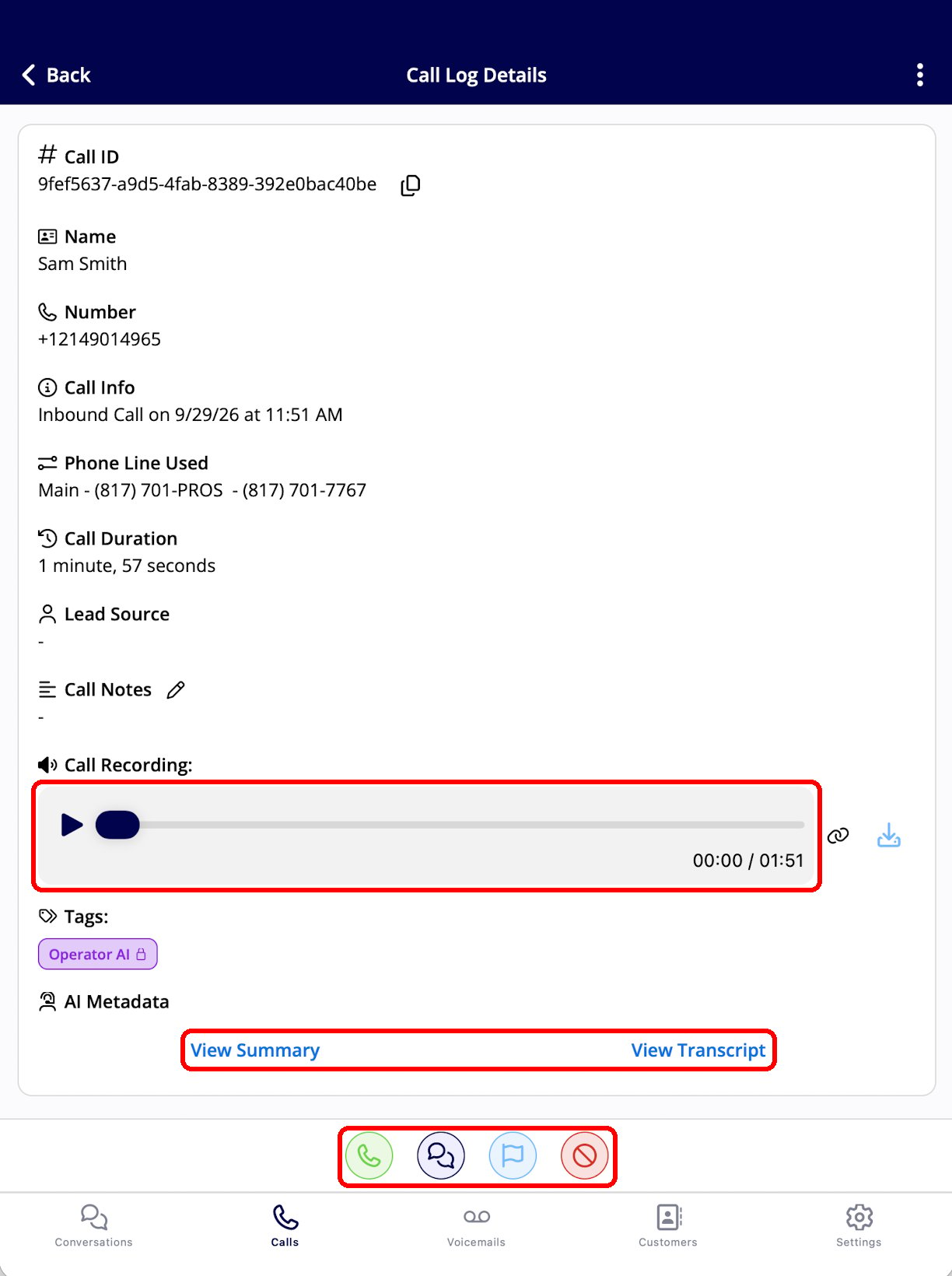
The Calls tab lists incoming and outgoing calls. Each row shows the customer’s name, phone number, the phone line used, the date, the call length, and the team member who handled an outgoing call. Tags, such as Operator AI, appear on the row. Tap the green phone icon to call the customer back, or the chat icon to text them.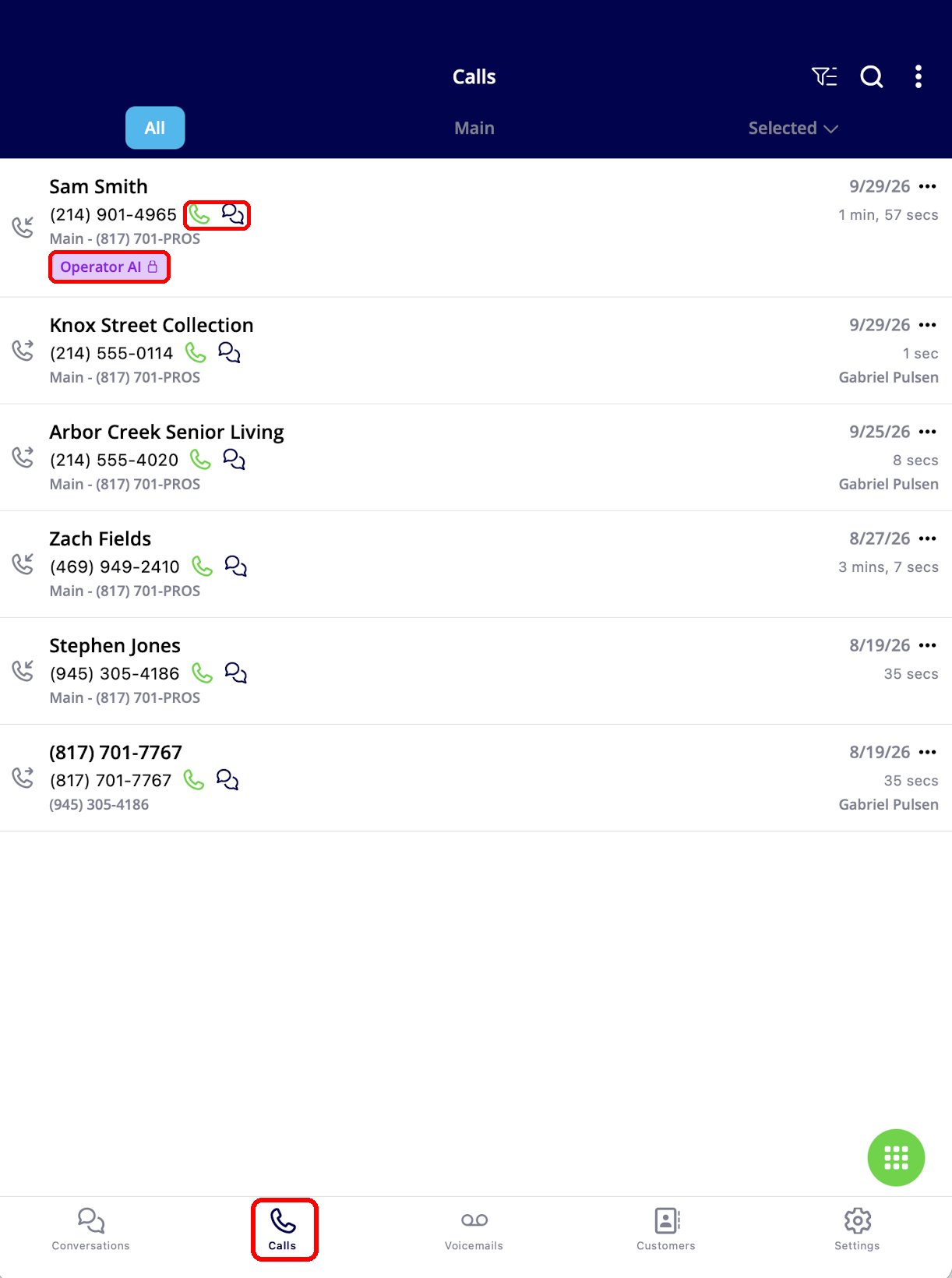
The buttons at the bottom of the screen let you call the customer, text them, or block the number. See How to Block a Phone Number and Setting Up Call Transcripts and Summaries.
Voicemails
The Voicemails tab lists customer voicemails for your phone lines. Open a voicemail to listen to the recording and read its AI-generated summary below the player. When there are no voicemails, the tab shows No voicemails.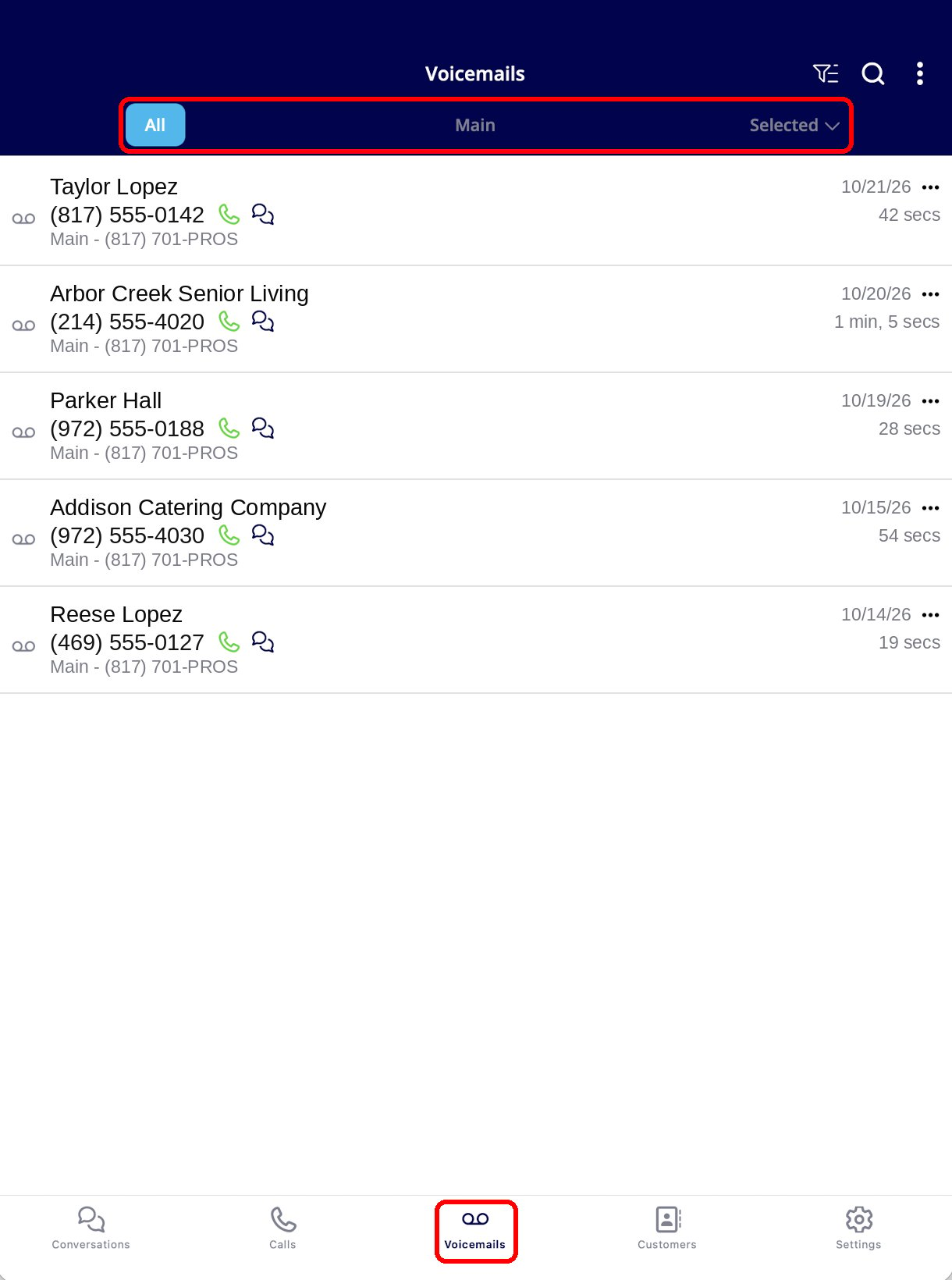
Customers
The Customers tab lists your customers with three options at the top: Recent, All, and Assigned to Me. Each row shows the customer’s name, phone number, and status, such as Current Customer, with a phone icon to call and a chat icon to text. Use the search button to find a customer by name or phone number.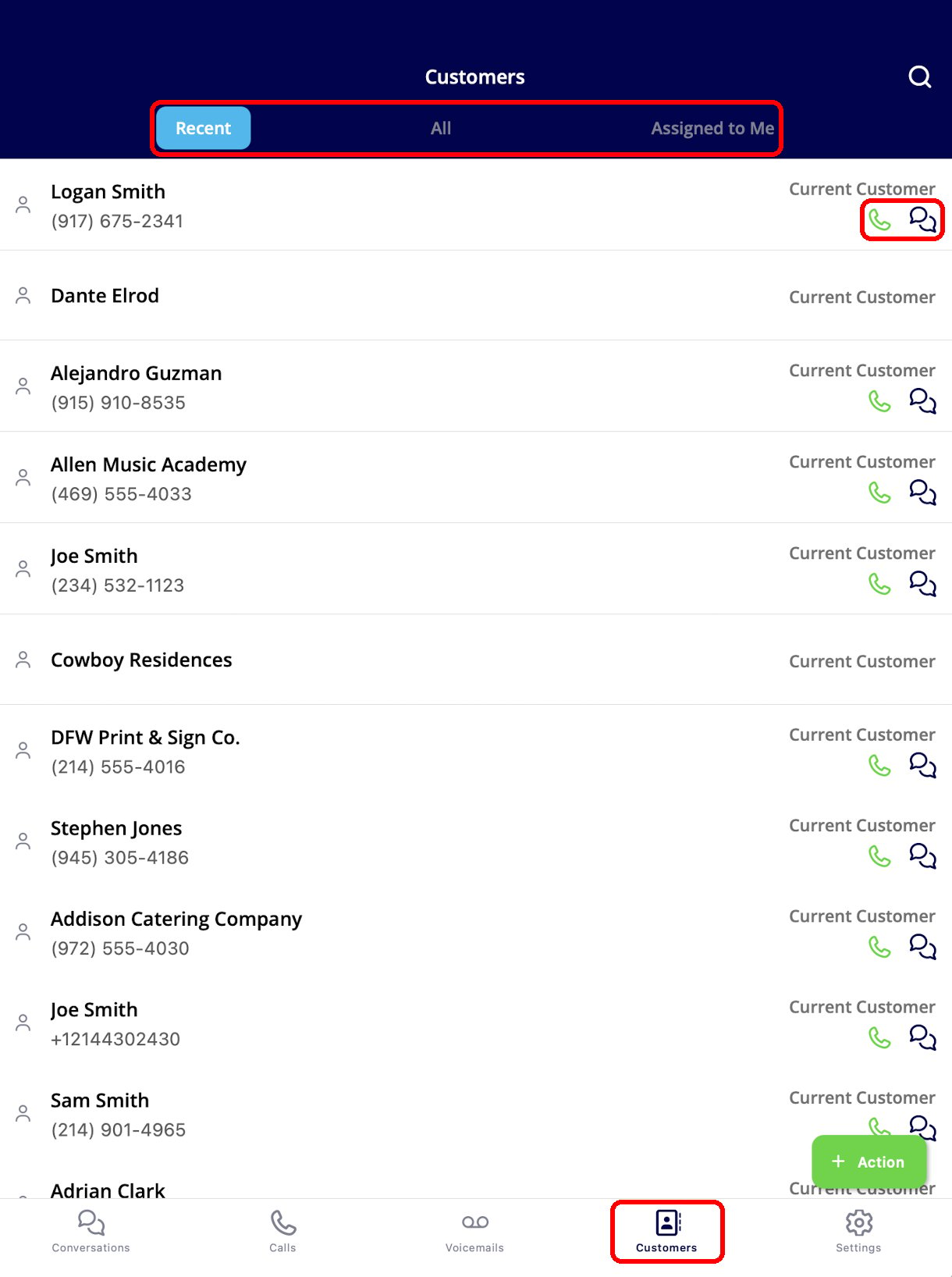
Filter, search, and mark as read
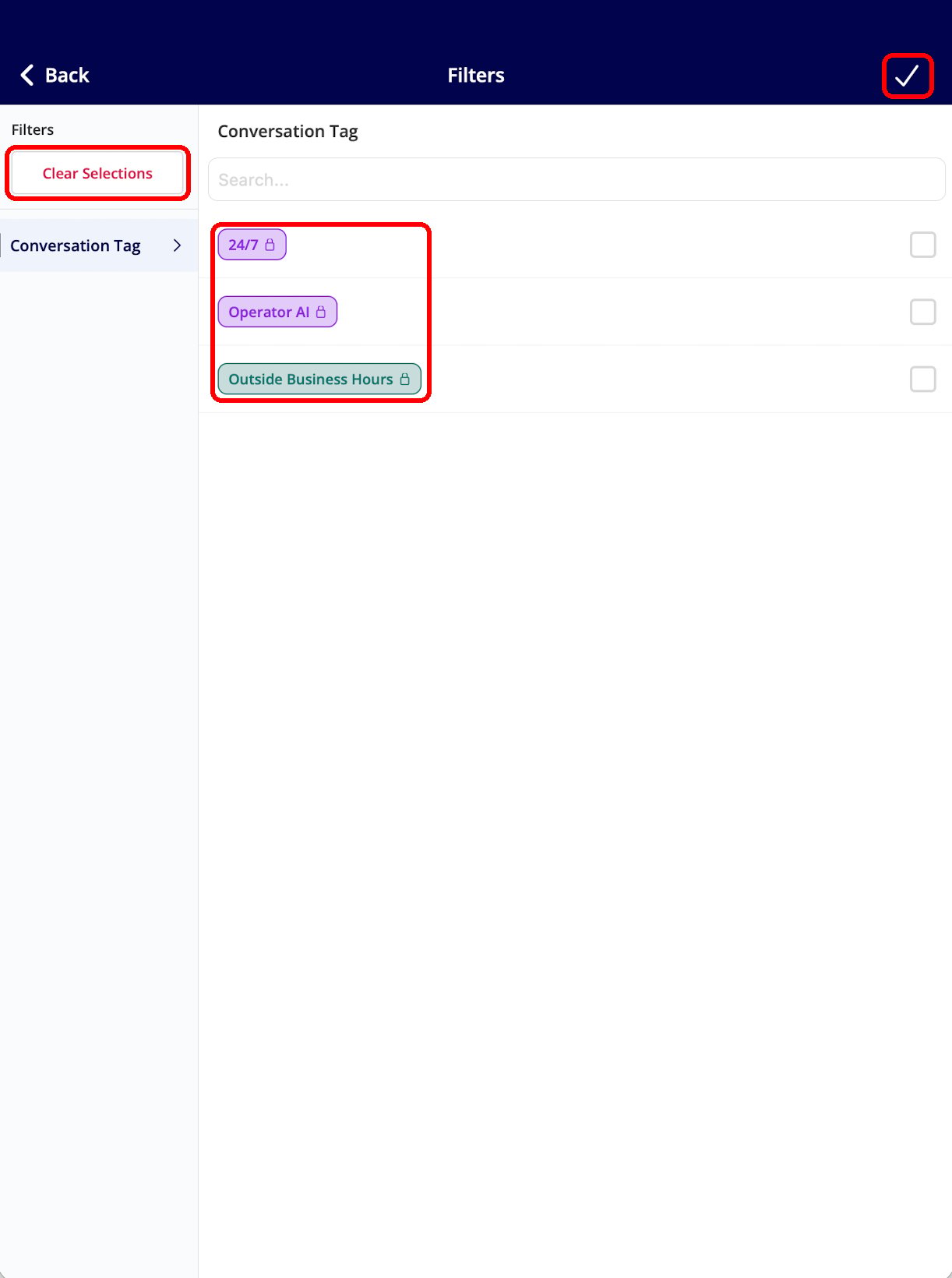
- Filter by tag. Tap the filter button, choose one or more tags under Conversation Tag, then tap the check mark to apply. Tap Clear Selections to start over. Tags with a lock icon, such as 24/7, Operator AI, and Outside Business Hours, are system tags that Engage applies automatically. See How to Create Custom Tags in Engage.
- Search. Tap the magnifying glass to search by name or phone number.
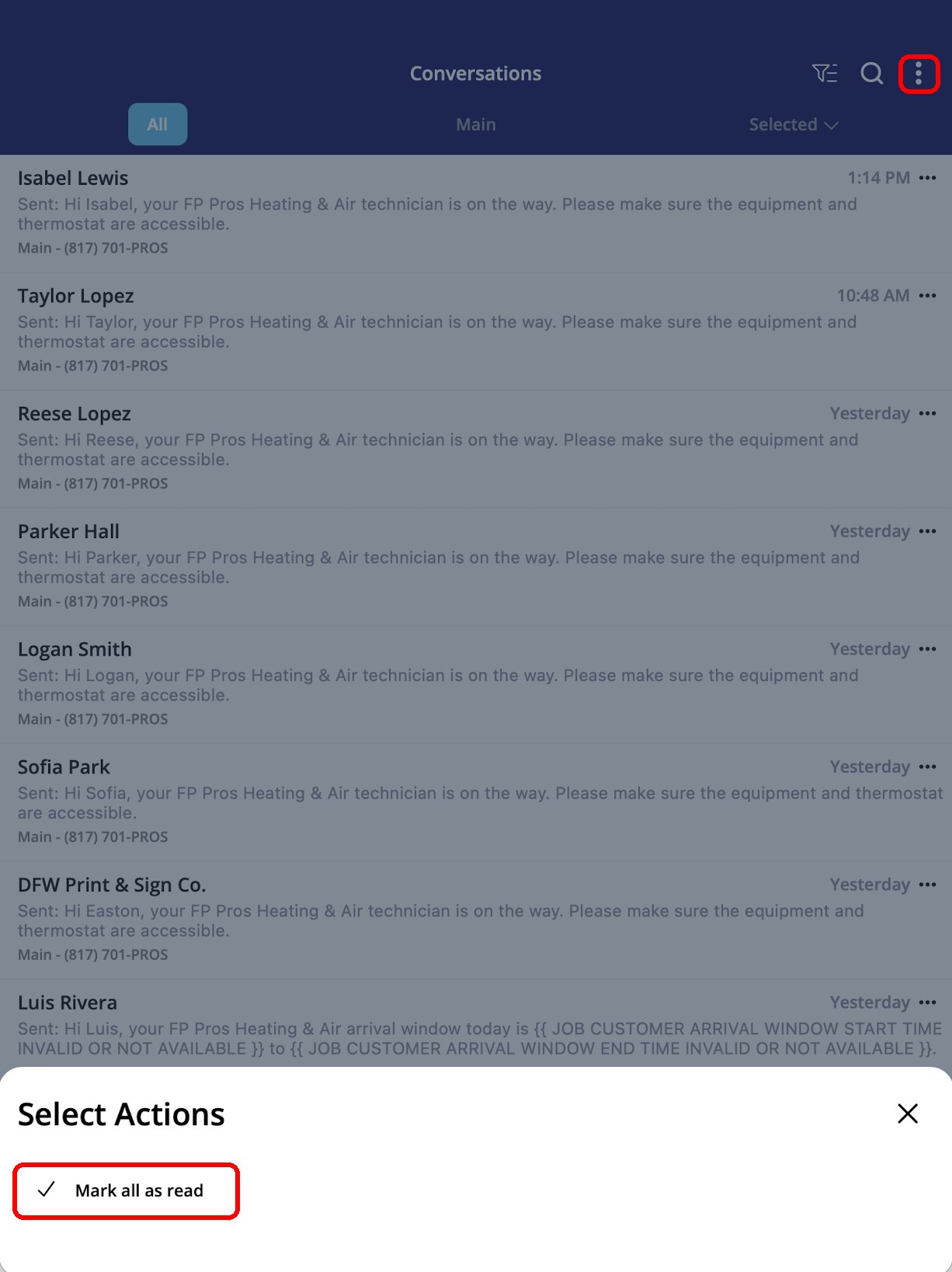
- Mark everything as read. Tap the three-dot menu, then Mark all as read under Select Actions. This clears unread items for your whole team. See How to Mark Engage Conversations and Notifications as Read.
Settings
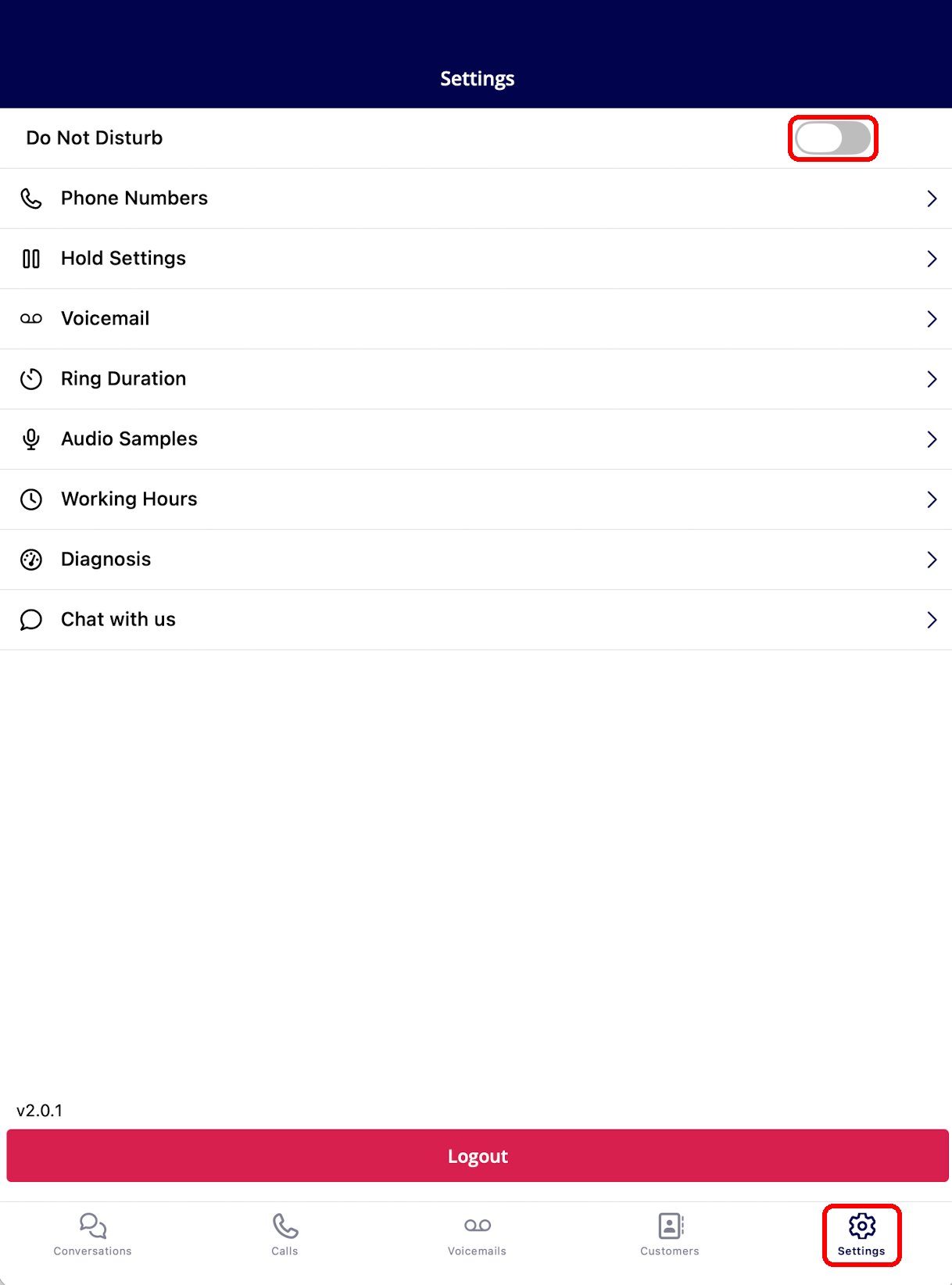
The Settings tab holds the controls for your own Engage experience. Turn Do Not Disturb on to send your incoming calls straight to voicemail without changing anyone else’s availability.