
Who uses this: Admins and Team Managers who manage Engage phone lines; Admins set the per-user privacy permissions. Availability: Engage add-on · United States and Canada.An Engage user role is the set of call and line permissions a person has in Engage, and it follows from their FieldPulse company role. Every Engage user is assigned to exactly one phone line but can manage more than one, regardless of role — and any user can transfer calls to lines they don’t manage. Use this page to match each FieldPulse company role to the Engage permissions it recommends.
Overview
Engage access is not the same for everyone. A user’s FieldPulse company role determines whether the user can access Engage at all, which line the user is assigned to, which lines the user can manage, and whose activity the user can see. Assigning a user to a single line automatically makes that user the line manager of it. For what each company role can do across the rest of FieldPulse, see User Roles and Permissions Details.Role reference
Each FieldPulse company role maps to a recommended Engage setup:
Line assignments and line managers are set on each phone line — see Phone Line Settings Details.
Privacy and communication controls for Service Agents
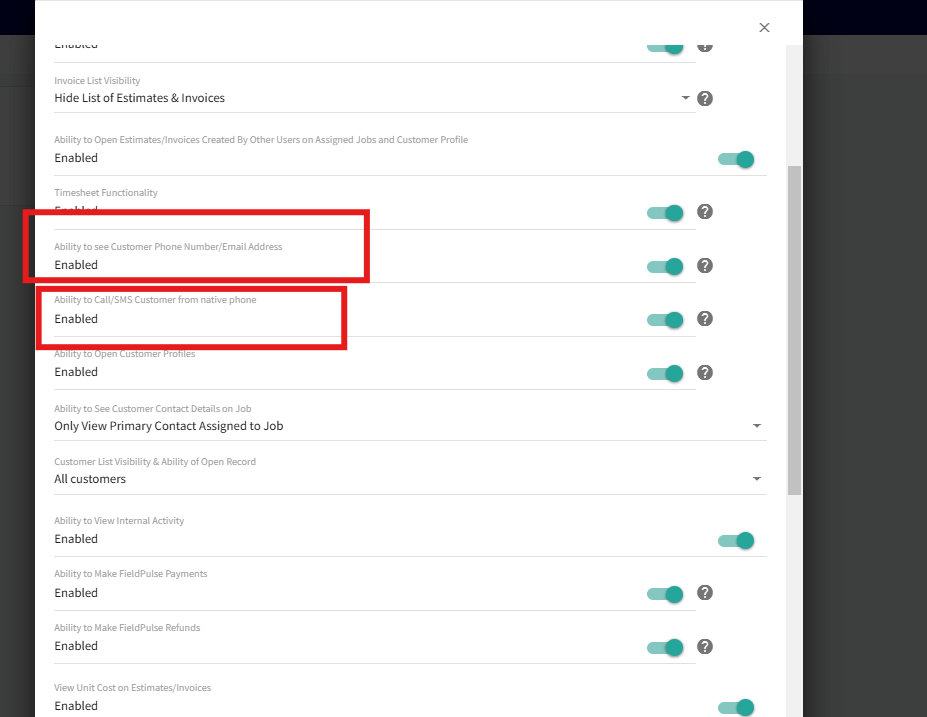
Beyond line assignment, two per-user controls tighten what a Service Agent sees and how they communicate:
Both controls live in User Feature Permissions on the user account: Ability to see Customer Phone Number/Email Address and Ability to Call/SMS Customer from native phone. An Admin adjusts these toggles per user — see How to Add New Users for where User Feature Permissions live on the user account.
Notes & limitations
- Every Engage user is assigned to exactly one phone line but can manage multiple lines, regardless of role.
- Any user can transfer calls to lines they don’t manage.
- Assigning a user to a single line automatically makes them the line manager of it.
- When multiple users share a line, every assignee can view each other’s activity on that line.
- Reporting access follows the FieldPulse role. Admins and Team Managers can open Reporting in Engage settings, and Team Managers see only the lines they’re assigned to or manage. A Team Manager with no assigned or managed line can’t open Reporting. See How to Create an Engage Report.