
Who uses this: Team Managers and Admins can create, edit, and remove call-to-record links from web. Availability: Engage add-on. Creating and editing links is web only; mobile is view-only.Link an Engage call to the record it’s related to, so the call and the record each lead you to the other. You add links from web, from either the call or the record.
Overview
Engage stores every inbound, outbound, and missed call made through a phone line. Linking a call to a FieldPulse record connects that call to the Job, Estimate, Invoice, Project, or Maintenance Agreement it’s related to. Once a call and a record are linked, the record shows the call in its Source section and the call shows the record in its Related Records section, so either side leads you to the other. Every Engage call also gets a unique Call ID, so you can reference a specific call in a ticket or a note without pulling up the recording. Linking can be manual or automatic, depending on your account’s Call Attribution setting (see Setting Up Call Attribution).Before you begin
- Engage must be enabled on your account, and you need Engage view permission to see linked calls and records.
- Enable Call-to-Record attribution must be turned on. It’s on by default, set to Manual, so links won’t appear until someone adds them unless an Admin switches the setting to Automatic.
- Editing the Source section on a record requires edit permission for that record type. A user who can’t edit Invoices can’t edit an Invoice’s linked calls.
On web
Find a call’s Call ID
- Open Engage and select Calls, or open a call from Conversations.
- Select the call to open its Call Log Details page.
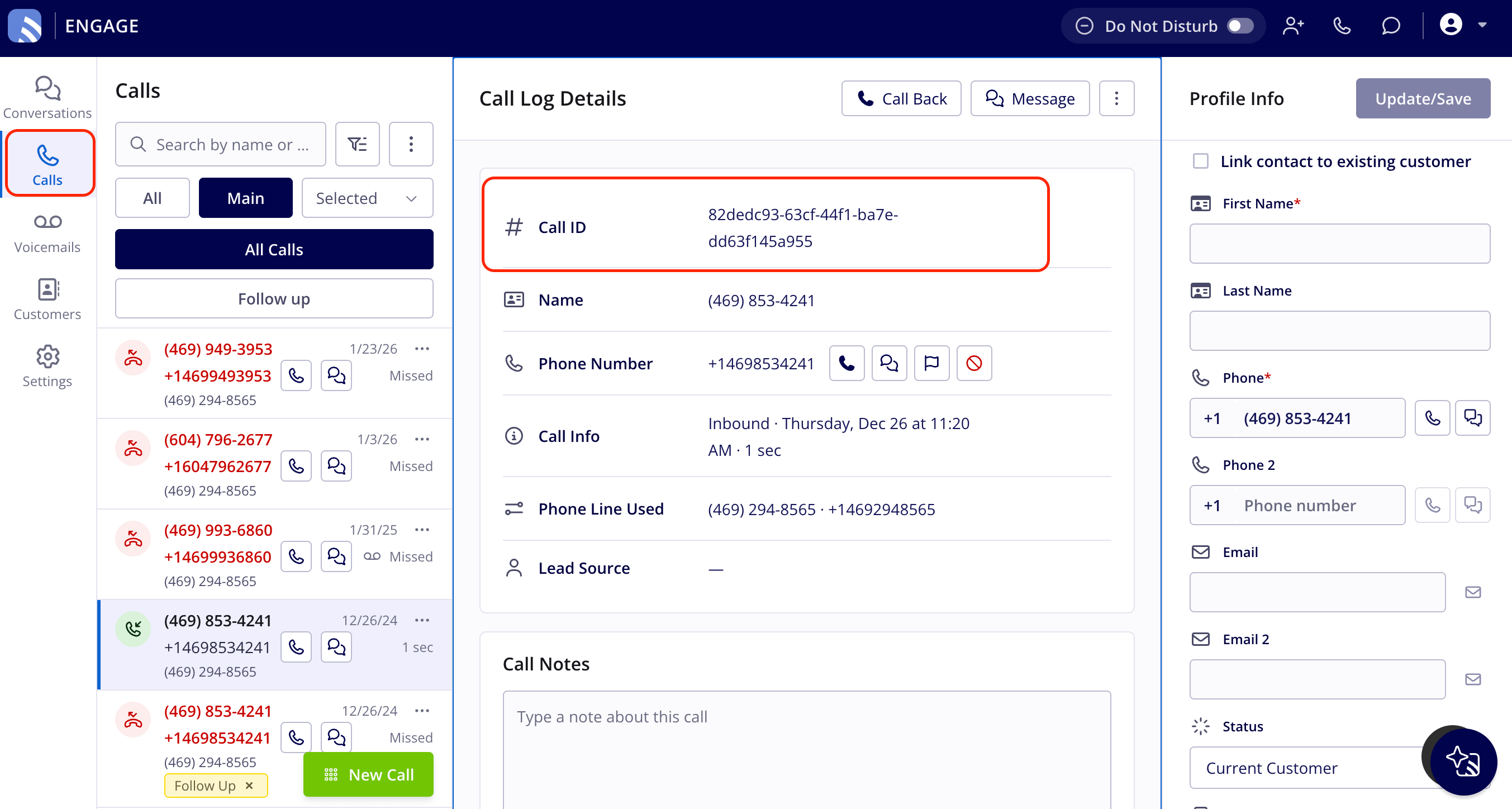
- Find the Call ID field at the top of the call’s details, above Name.
- Hover over the Call ID row and select Copy to copy it.
Link records to a call
- Open the call’s Call Log Details page.
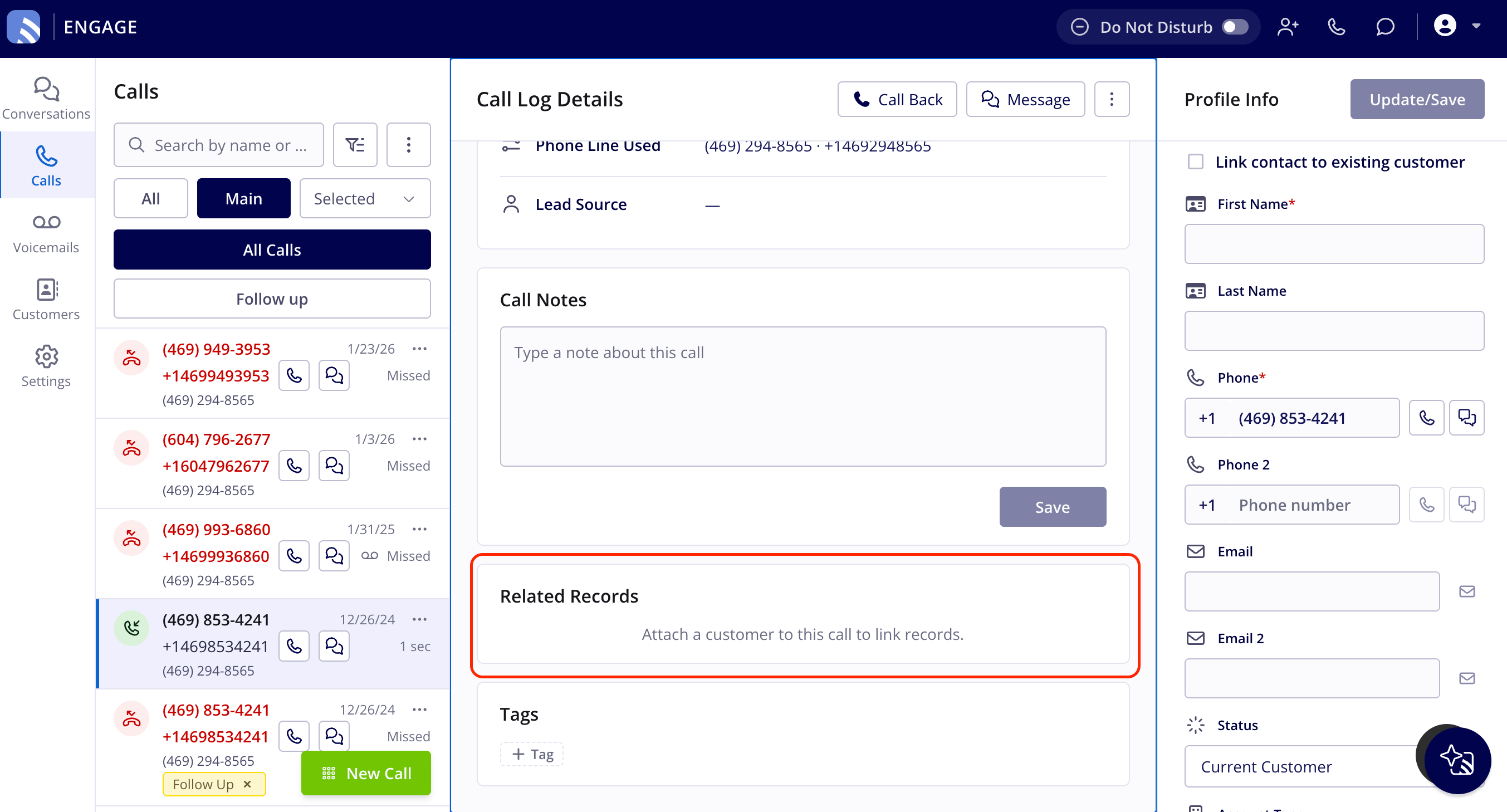
- In the Related Records section, select + Add Related Records (or Manage Related Records if records are already linked). + Add Related Records only appears once a customer is attached to the call.
- In the Link Records to Engage popup, select the tab for the record type: Projects, Jobs, Invoices, Estimates, or Maintenance Agreements.
- Use the search field to find records for that customer, then select the checkbox next to each record you want to link.
- In the Choose Primary Record list below the table, select the star icon next to the record that should be the primary record. Choosing a primary is required.
- Select Save.
Link a call to a record
- Open the Job, Estimate, Invoice, Project, or Maintenance Agreement record.
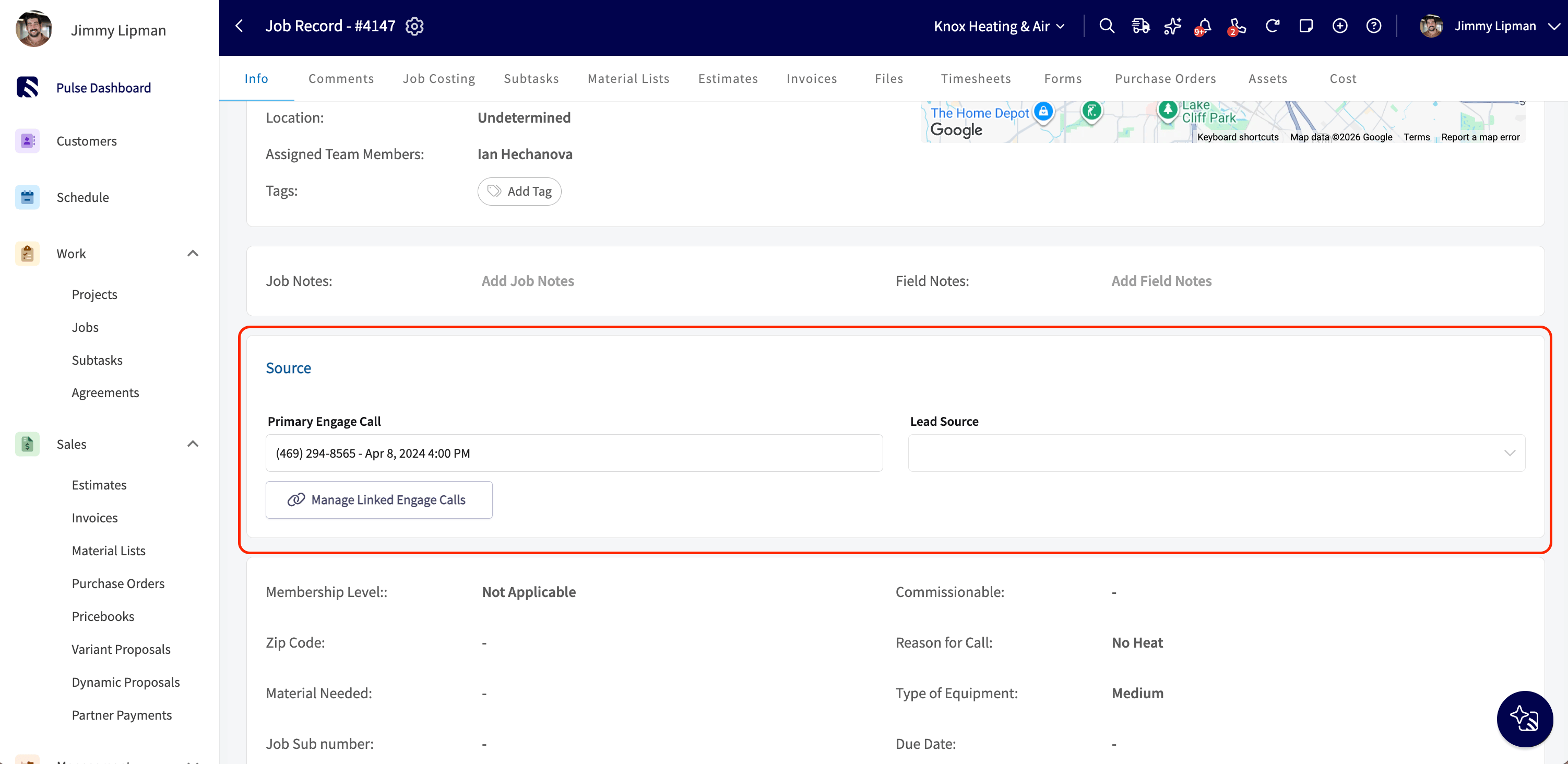
- In the Source section, select + Link Engage Call to Record (or Manage Linked Engage Calls if calls are already linked).
- In the popup, use the search field to find calls for that customer, then select the checkbox next to each call you want to link.
- In the Choose Primary Engage Call list, select the star icon next to the call that should be the primary call.
- Select Save.
On mobile
Mobile shows the same linked calls and records as web, but you can’t create, remove, or change a link from the mobile app.- On a record, the Source section shows Primary Engage Call, Lead Source, and Other Related Engage Calls, all as hyperlinks to the Call Log Details page.
- On a call, the Related Records section shows each linked record as a hyperlink with its status, and a crown icon next to the primary record. There’s no red X on mobile.
Create a record from a past call
- On the Calls list or a call’s Call Log Details page, select the three-dot icon.
- Select Create New from the Select Actions sheet.
- Select a record type: Create Project, Create Job, Create Estimate, Create Invoice, Create Maintenance Agreement, or Create Site Visit.
- If the caller isn’t yet a customer, enter a contact name when prompted, then continue.
- Complete the record as you normally would. The customer is already filled in from the call.
FAQs
Can a call link to more than one record, or a record link to more than one call? Yes. Both the Related Records popup and the Link Engage Call to Record popup let you select multiple items and choose one as the primary. What happens if I delete a record that’s linked to a call? FieldPulse removes it from the call’s Related Records automatically. Why can’t I see a linked call or record someone mentioned? You need Engage view permission to see a linked call, and view/edit permission for that record type to see a linked record. Without it, FieldPulse shows a message that you don’t have permission to view it. What happens if I change the customer on a record after Source was auto-populated? If the new customer doesn’t match the original call’s customer, FieldPulse clears the Primary Engage Call field and keeps the Lead Source. You can re-link a call to the record yourself.Related articles
- Setting Up Call Attribution
- How to Create an Engage Report
- How to Assign a Phone Number to a Lead Source
- Engage Overview