
Who uses this: Admins and Team Managers who manage Engage phone lines. Assignment Users and Limited Agents have no Engage access. Availability: Engage add-on · United States and Canada.Voicemail is the greeting a caller hears when a call to an Engage phone line goes unanswered. You set one default voicemail greeting that covers every phone line under Settings in the left navigation bar, then Voicemail Settings, and you can give an individual line its own greeting under Phone Lines. Every greeting is either text to speech — you type the message and Engage reads it — or an audio recording you made yourself.
Overview
Engage voicemail works on two levels. The default voicemail greeting plays on any phone line that has no voicemail set for it, so one message covers the whole account. A custom voicemail greeting on an individual phone line replaces the default on that line only, which is how you give one line a Spanish greeting, an after-hours message, or a location-specific message while every other line keeps the default. Each greeting uses one of these formats:Before you begin
- Confirm Engage is enabled on your account. The FieldPulse team turns Engage on — contact support@fieldpulse.com or use the chat feature in the bottom right corner of your screen.
- Confirm your role has Engage access. Assignment Users and Limited Agents do not have access to Engage — see Engage User Roles Details.
- To use an audio recording, record or upload the audio first under Audio Samples in the Settings menu — see Setting Up Audio Samples.
Step-by-step setup
Set the default voicemail greeting
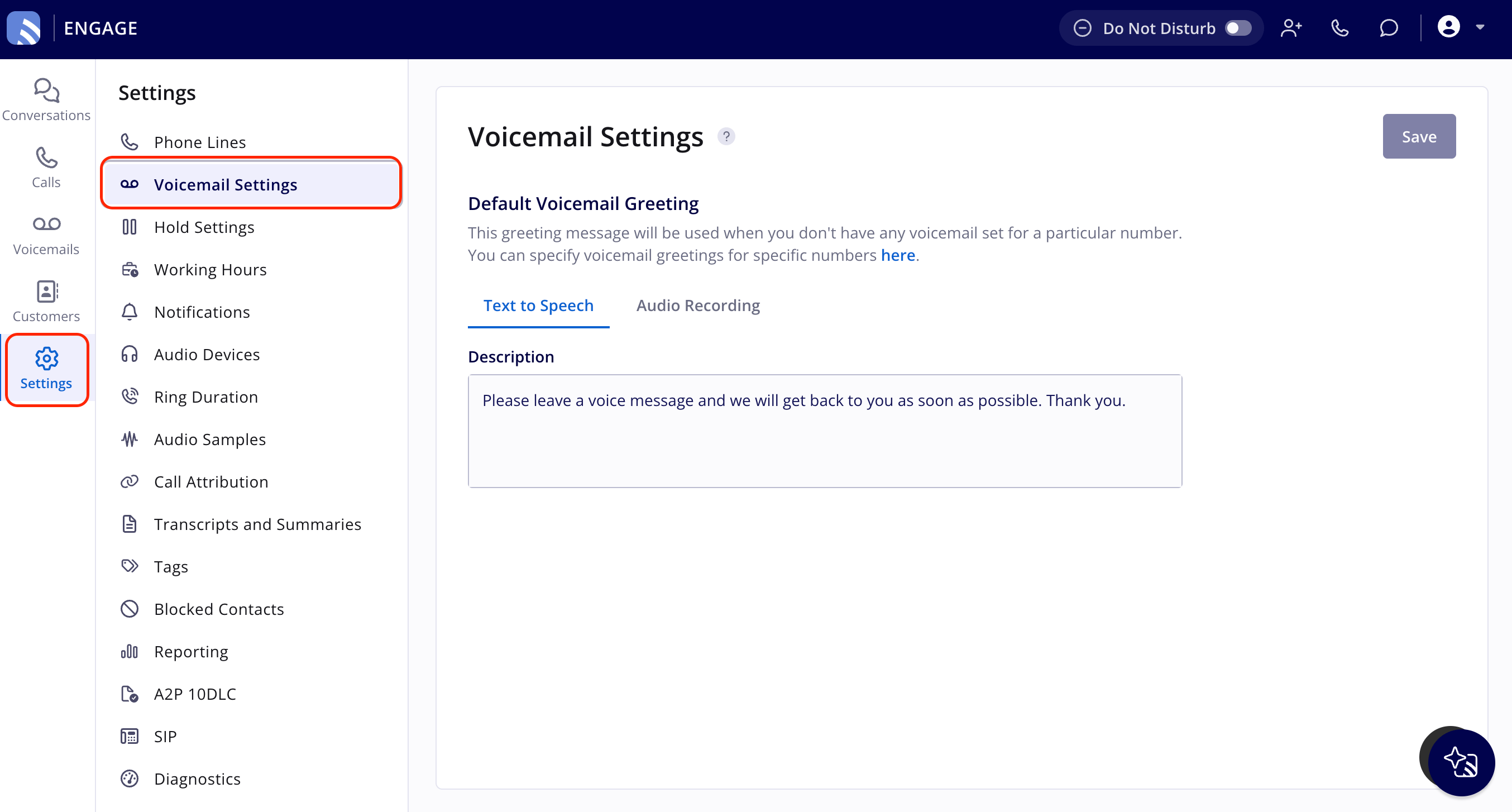
The default voicemail greeting plays on every Engage phone line that does not have a greeting of its own.- In Engage, select Settings in the left navigation bar, then select Voicemail Settings.
- Select Text to Speech to type a message for Engage to read, or Audio Recording to use a greeting you recorded.
- Enter the message in the Description box, or choose the recording.
- Select Save.
Set a greeting for one phone line
A custom voicemail greeting on a phone line overrides the default greeting for that line.- In Engage, select Settings in the left navigation bar, then select Phone Lines.
-
Select the phone line you want to change.
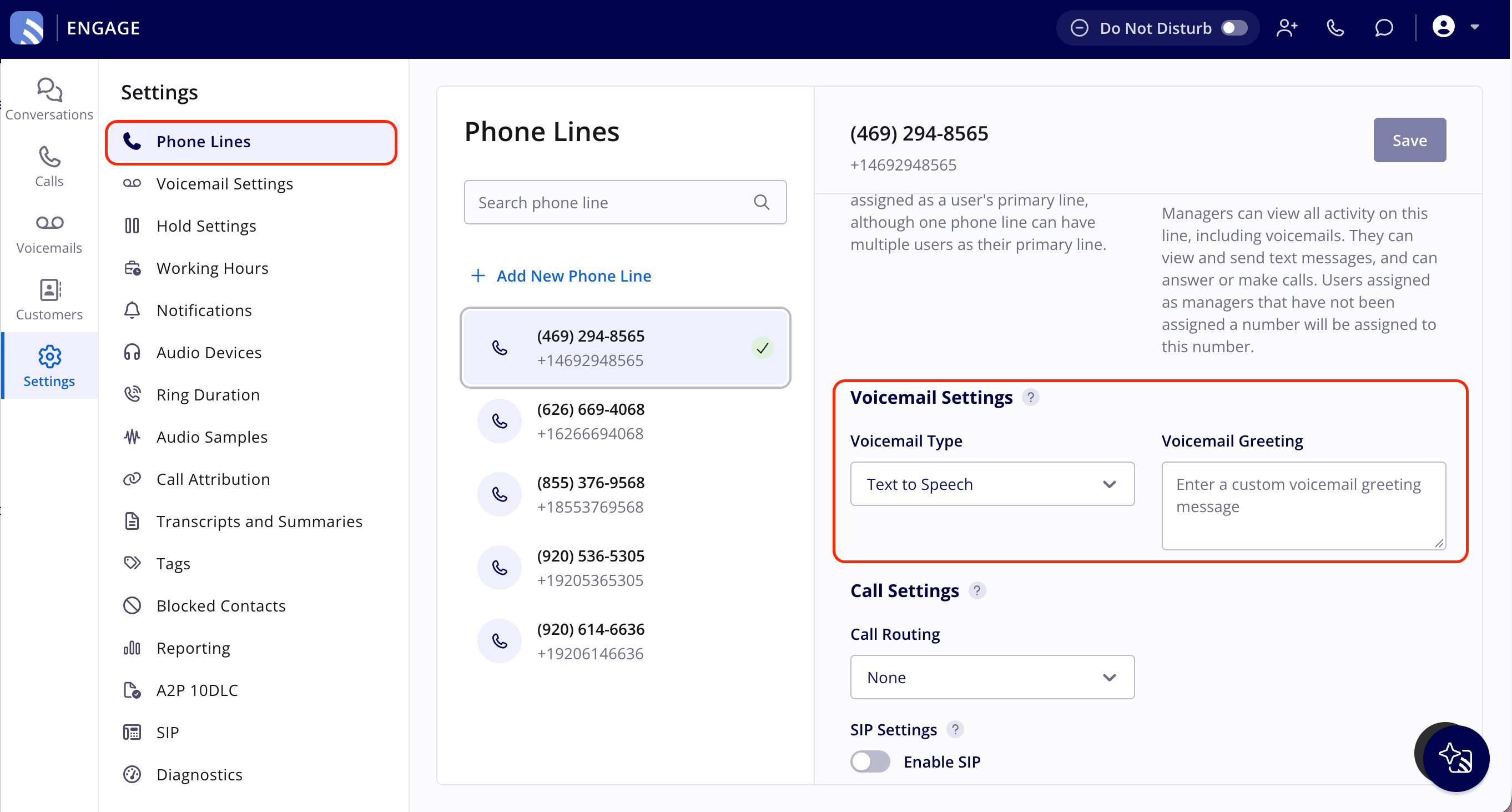
- Under Voicemail Settings, select Default Voicemail, Text to Speech, or Audio Recording in the Voicemail Type dropdown.
- Enter the message in the Voicemail Greeting box for Text to Speech, or choose your sample for Audio Recording. Default Voicemail needs nothing more — the line plays the account default, and you can view or edit that default back on the Voicemail Settings page in the Settings menu.
- Select Save before navigating away from the page.