
Who uses this: Admins, Team Managers, and Service Agents — Limited Agents have no access to Engage. Availability: United States and Canada · Requires the Engage add-on.A custom tag in Engage is a color-coded label you attach to a call, conversation, or voicemail to organize your communication records. You create tags once in Engage settings, apply them to any record, and then filter your Conversations, Calls, and Voicemails lists by tag to focus on what matters — on web or the FieldPulse mobile app.
Overview
Think of tags like sticky notes for your Engage records. You create each tag with a name and a color in Engage settings, then apply it to Conversations, Calls, and Voicemails — a record can carry more than one tag. Once records are tagged, you can filter any Engage list by tag, and two tag columns become available in reporting. Engage also applies certain system tags automatically based on call activity — you can filter and report on system tags, but you can’t edit them.Before you begin
- Engage must be enabled on your account. Contact the FieldPulse team at support@fieldpulse.com or through in-app chat to enable Engage — see the Engage Overview for details.
Create a custom tag
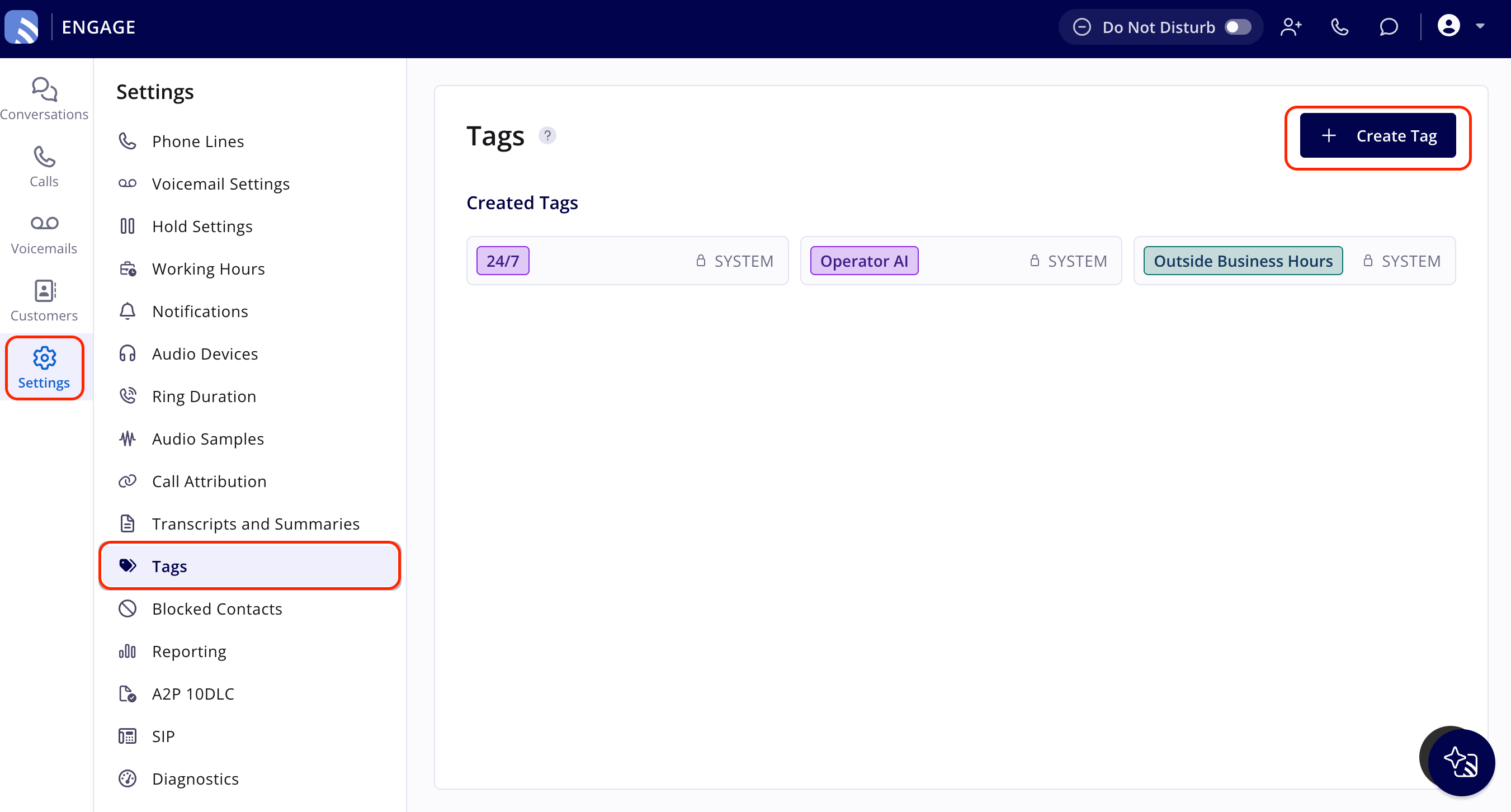
- In Engage, select Settings in the left navigation bar.
- Select Tags in the Settings menu.
- Select + Create Tag.
- Enter a name in Tag Name and choose a color in Tag Color.
- Select Add Tag. The tag appears in the Created Tags section of the Tags page.
Apply a tag to a record
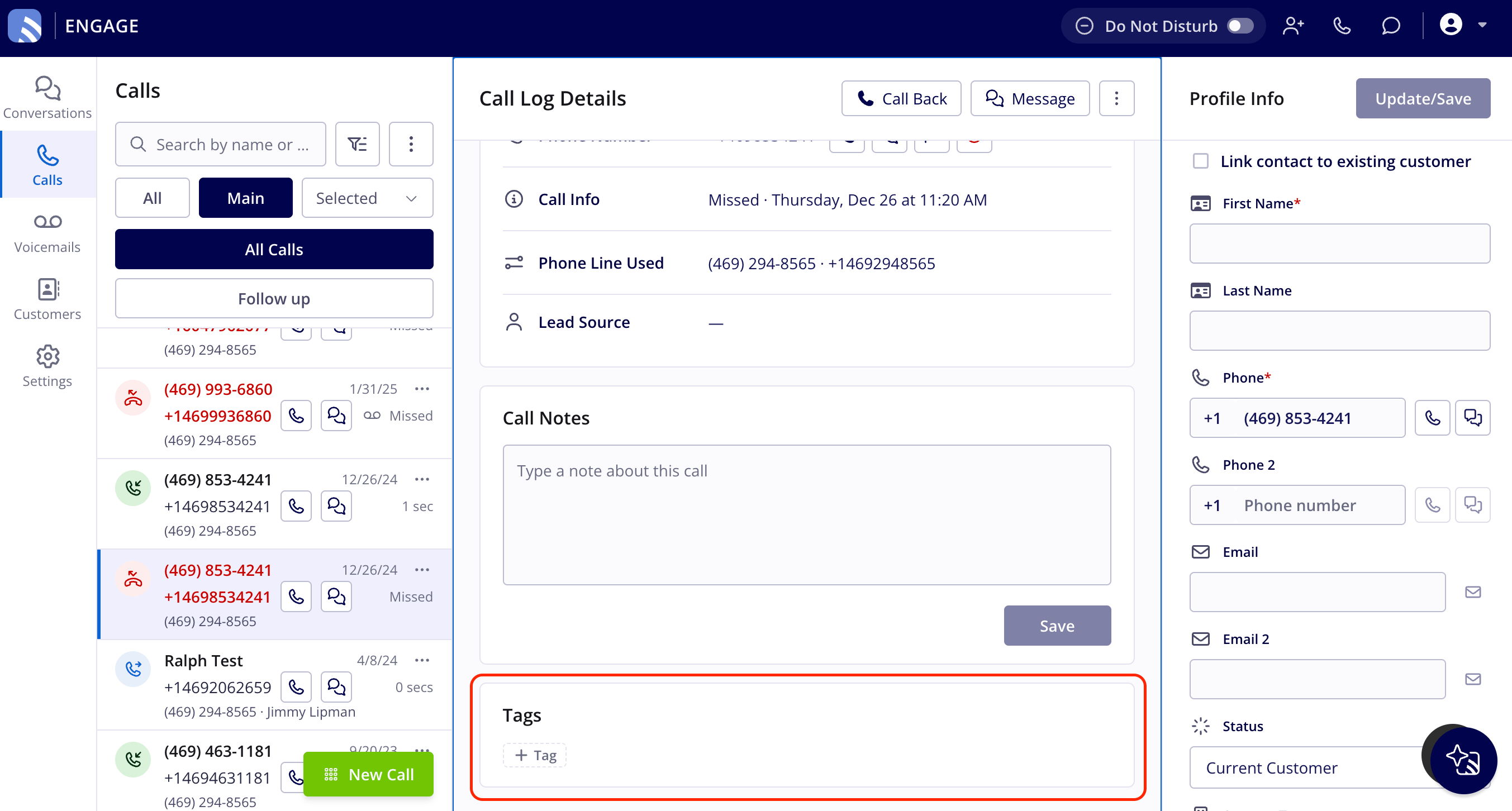
- Open the Conversation, Call, or Voicemail you want to tag. For a call, select Calls in the left navigation bar, then select the call to open its Call Log Details.
-
In the Tags box, select + Tag. A list of your tags appears, so you don’t have to remember every tag name.
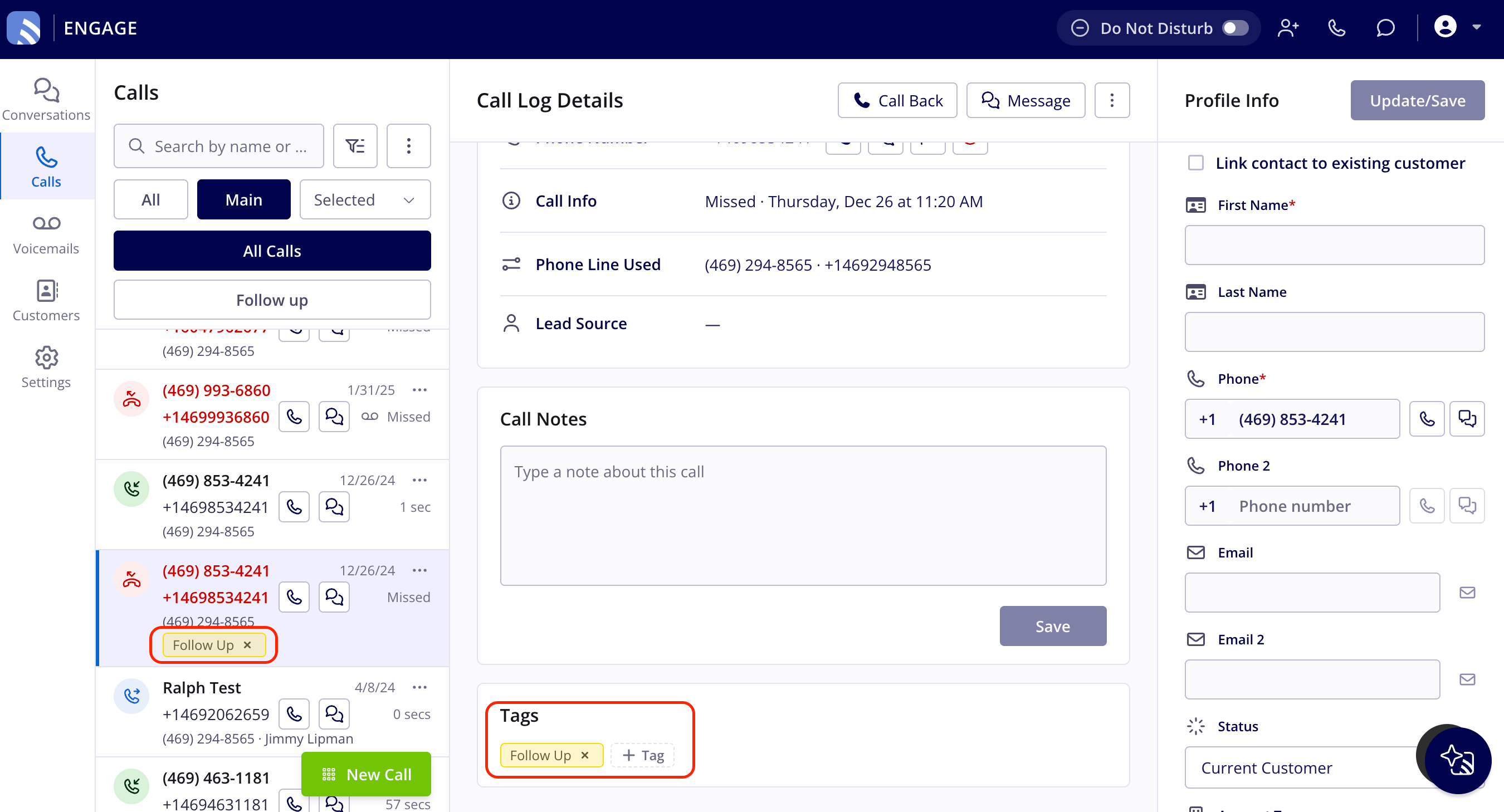
- Select the tag to apply it.
System tags
Not every tag in Engage is one you created. Engage applies certain system tags automatically based on call activity, and they behave differently from custom tags. Outside Business Hours is applied automatically to any inbound call that arrives outside the configured working hours for that phone line. If a phone line doesn’t have its own working-hours configuration, Engage uses your account’s global working hours instead.
- Engage applies it automatically — there’s no setting to turn on.
- You can’t rename, recolor, or remove it.
- It doesn’t appear in the + Tag list, so you can’t add it to a call or remove it from one yourself.
Filter your lists by tag
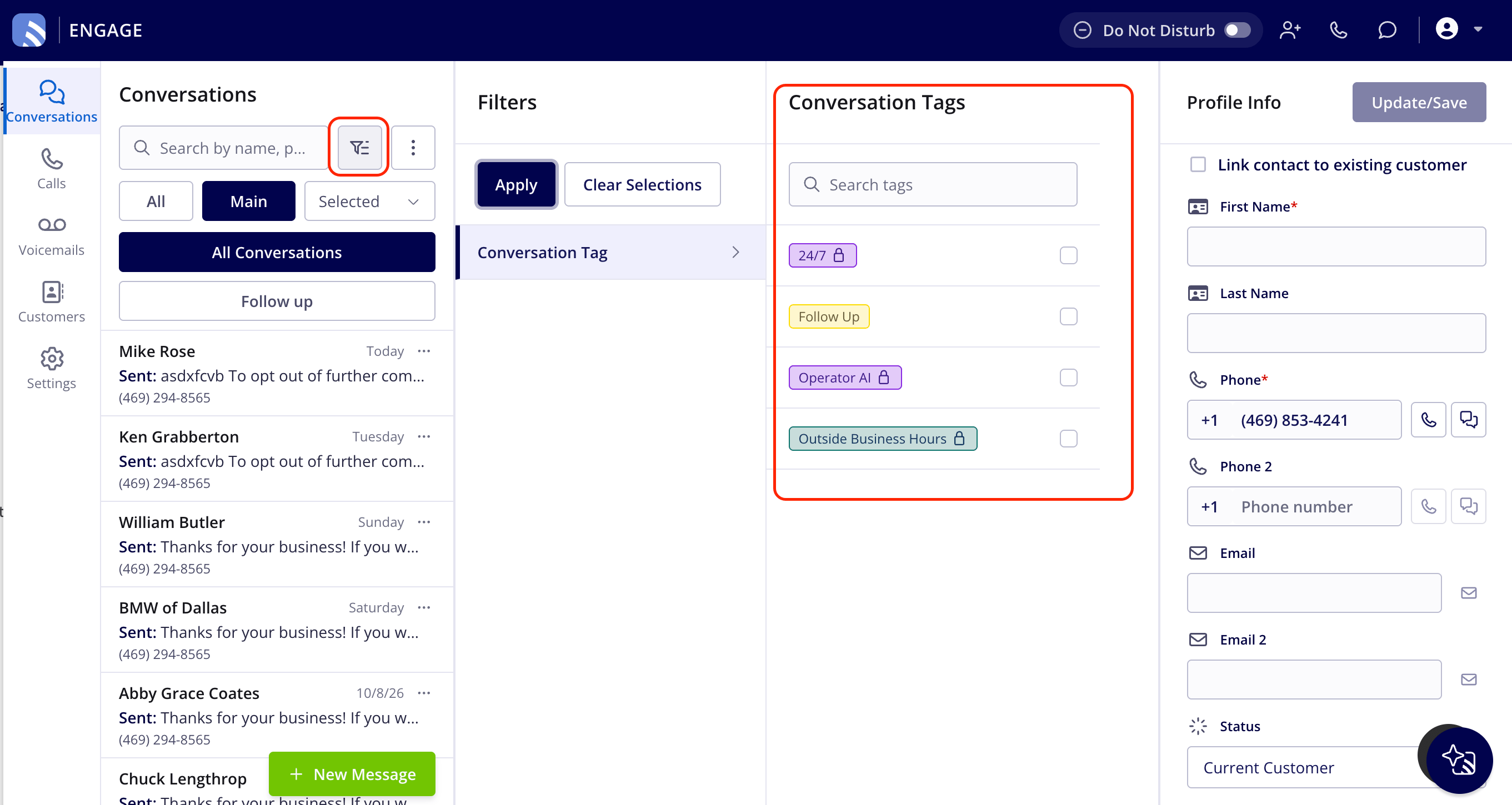
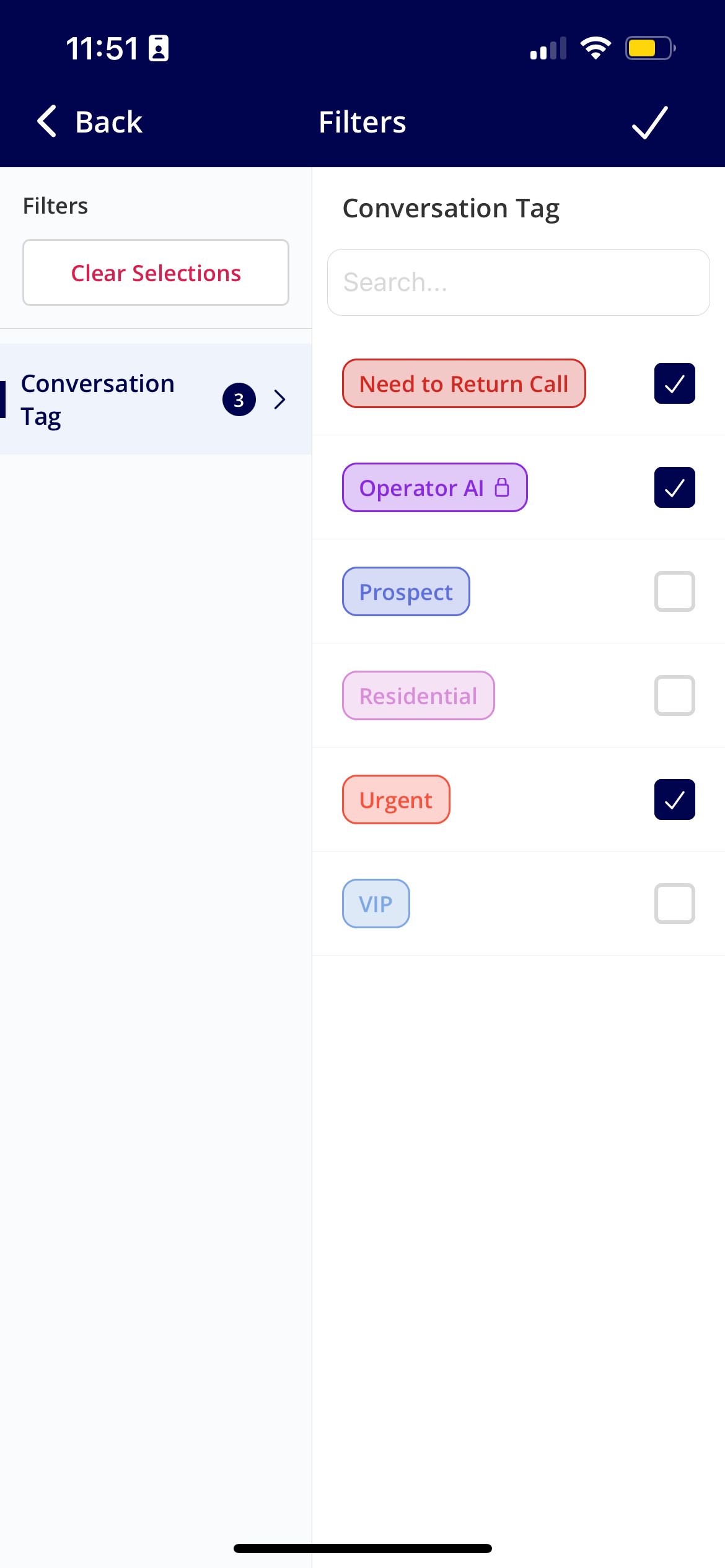
You can filter your Conversations, Calls, and Voicemails by tag to focus on the records that matter most.- Select the filter button to the left of the three-dot menu in any Engage view.
- Select one or more tags in the filter panel that slides out from the right, then select Apply.
Tag reporting
Tagging adds two columns in reporting:- Call Tags
- Voicemail Tags