
Who uses this: Admins, Team Managers, and Service Agents — Limited Agents don’t have access to Engage. Availability: United States and Canada · Engage add-on — contact the FieldPulse team to enable it on your account.A customer often reaches you from more than one number — a spouse’s cell, a second line, an office phone. In Engage, you can view calls and SMS under each additional contact on a customer, or under the alternate phone number saved on that customer’s FieldPulse profile, so every conversation lands under the right person instead of a stray number.
Overview
Engage isn’t limited to a customer’s primary contact and primary phone number. Within a conversation, you can switch the profile view between the customer’s additional contacts, the customer phone, and the alternate phone number saved on the customer’s FieldPulse profile — Engage shows the calls and SMS tied to whichever profile you select. You can also save a new number as a contact and link it to an existing customer.Before you begin
- Engage must be enabled on your account — see Engage Overview.
- The contacts and numbers you want to switch between must be saved on the customer’s record in FieldPulse — as additional contacts or as the alternate phone number. To add them, see How to Manage Multi-Location & Multi-Contact Customers.
Switch between contacts and numbers
- Open the customer’s conversation in Engage.
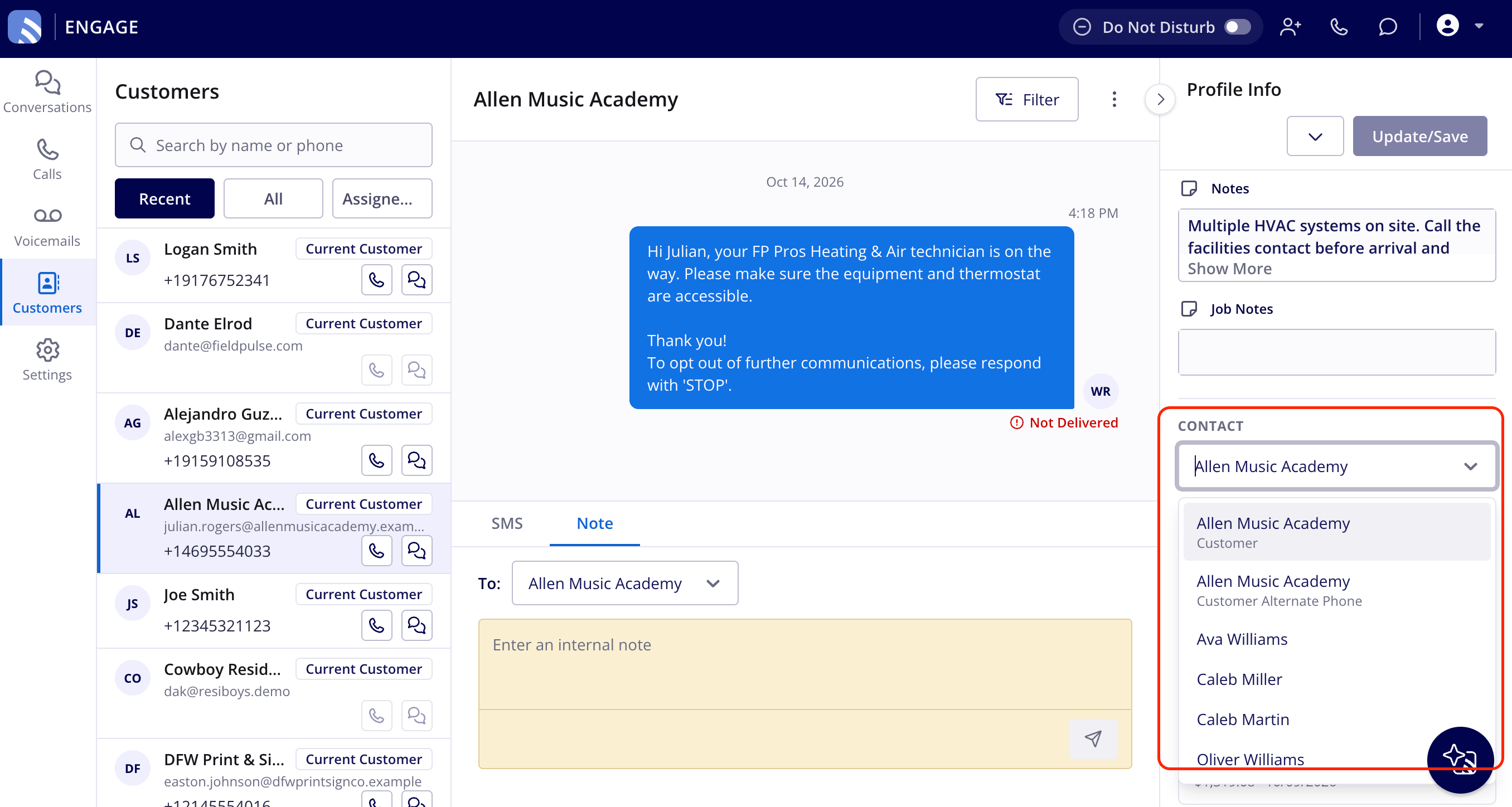
- In the Profile Info panel, select the Contact dropdown.
-
Choose the profile you want to view — one of the customer’s additional contacts, the primary phone (labeled Customer), or the saved alternate number (labeled Customer Alternate Phone). Engage shows the calls and SMS tied to the profile you select.
- To capture a new number, save it as a contact and link it to the existing customer — future calls and texts from that number then appear under that customer.