
Who uses this: Admins, Team Managers, and Service Agents (Limited Agents don’t have access to Engage). Availability: United States and Canada · Engage add-on.
Overview
The Engage call screen is what you see when a customer call rings, while you talk, and when you place the call on hold or transfer it. This article shows each part of that screen so you know what to expect on your first call. The call screen works the same way in the Engage by FieldPulse mobile app. We recommend answering calls at engage.fieldpulse.com on your desktop, rather than using the version of Engage embedded in your regular FieldPulse account. For the steps to hold or transfer a call, see How to Put a Caller on Hold and How to Use Transfers in Engage (non-SIP).Incoming call card
An Incoming Call card appears on your screen when a customer calls an Engage phone line you’re assigned to. The card shows the caller’s name if the number belongs to a customer record, and shows Unknown Caller with the phone number if it doesn’t.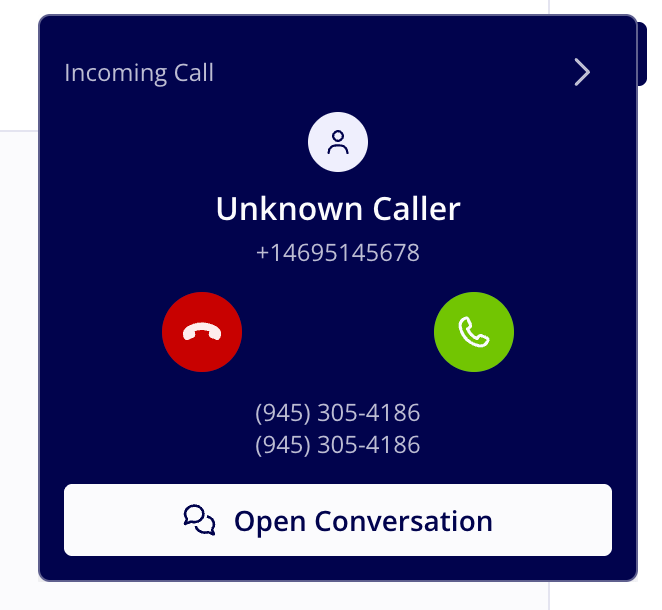
Active call bar
After you answer, the call bar appears across the top of your screen. The call bar shows who you’re talking to, how long the call has run, and the Engage phone line the call came in on.
More menu
The More menu holds three options you may need during a call.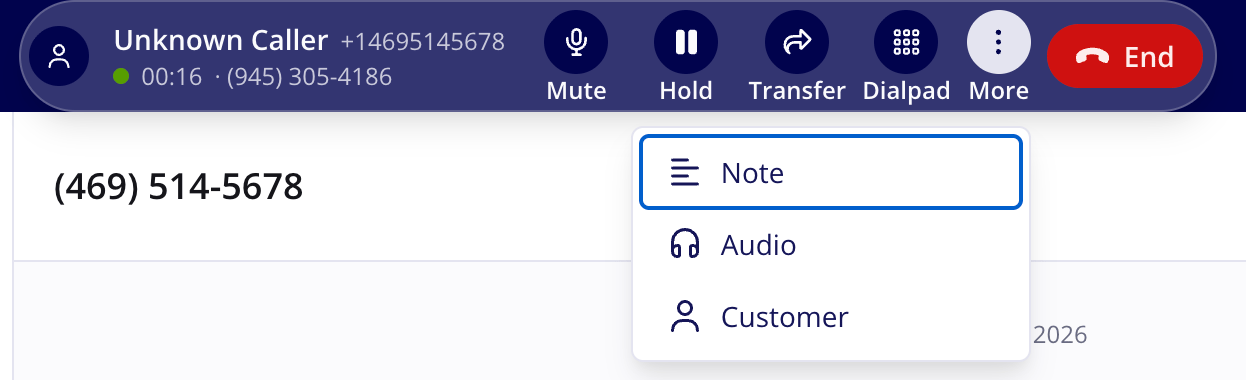
Call states
Each call state changes what you see and what the caller experiences.Notes & limitations
- Call limit. You can have up to three calls at once, in any mix of active and on-hold calls.
- Transfers need an active call. Resume a held call before you transfer it.
- Blind transfers only. The call moves to the receiving team member without you speaking to them first.
- Hold music. Callers hear hold music only if you’ve set it up in your Hold Settings (see Setting Up Audio Samples).